
How To Set Margins In Google Sheets
Discover the step-by-step guide on how to set margins in Google Sheets. Optimize your document layout for a professional appearance with our easy instructions.
This guide provides step-by-step instructions on how to set margins in Google Sheets. Following these steps will enable you to adjust the margins to suit your document's formatting requirements efficiently.
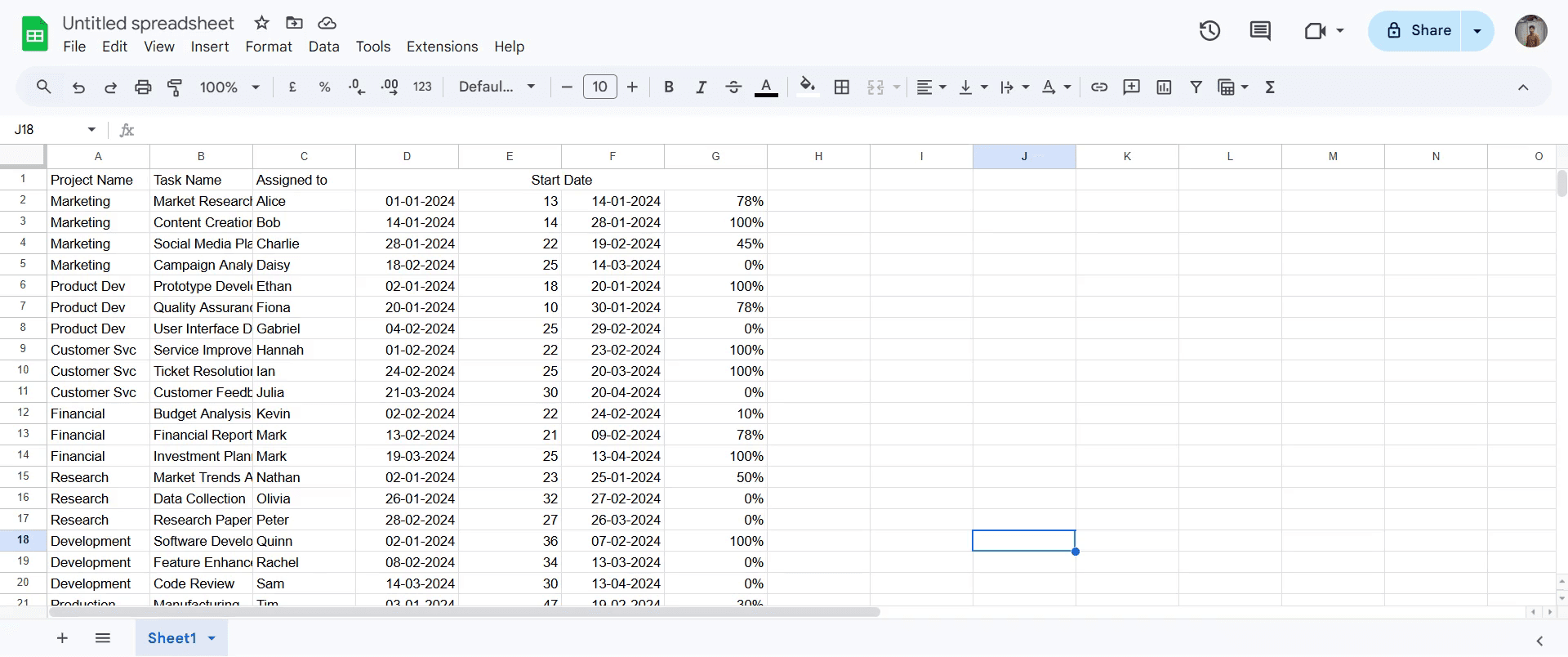
Step 1
Start by opening the document you want to edit.
Step 2
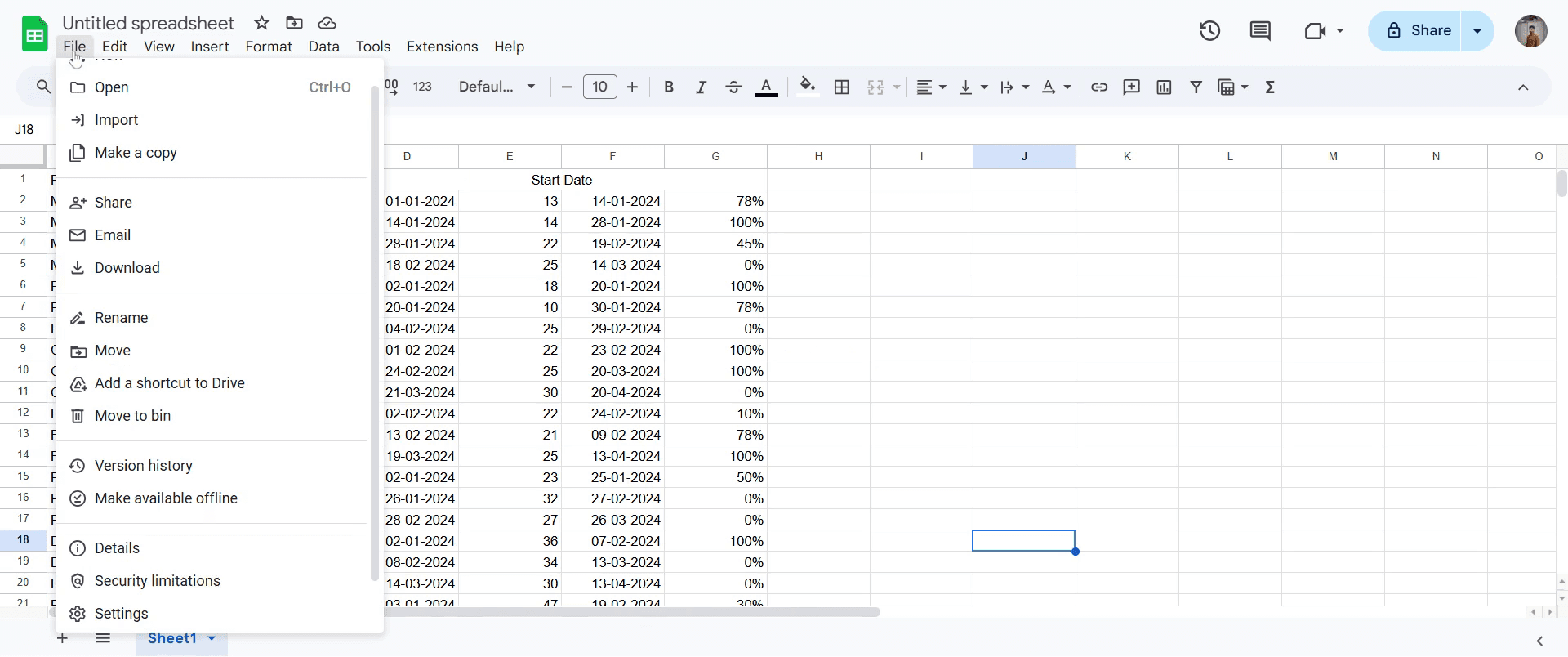
Go to the 'File' section and click on it.
Step 3
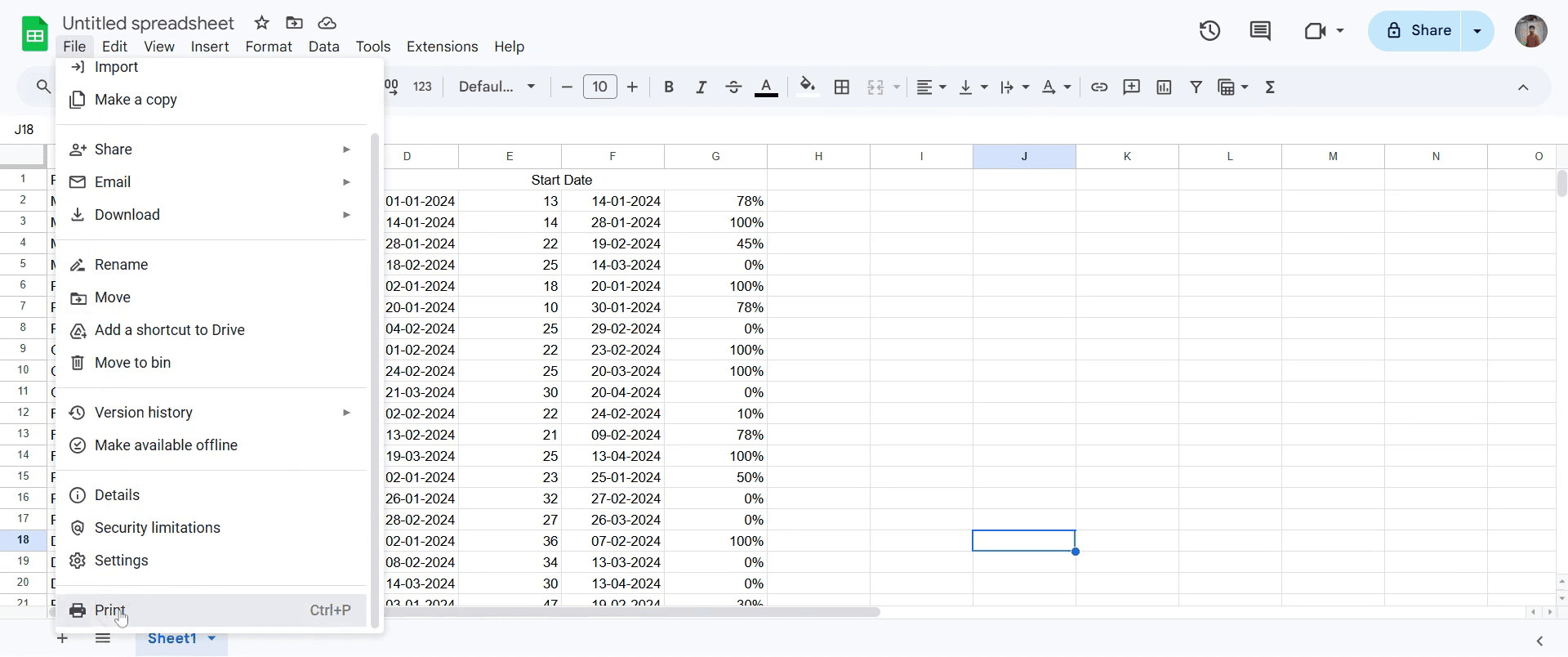
Select the 'Print' option. This will lead you to the print settings where you can find the margin options.
Step 4
In the margin section, you have several preset options such as 'Narrow' and 'Wide'. You can also choose to set custom margin sizes according to your preference.
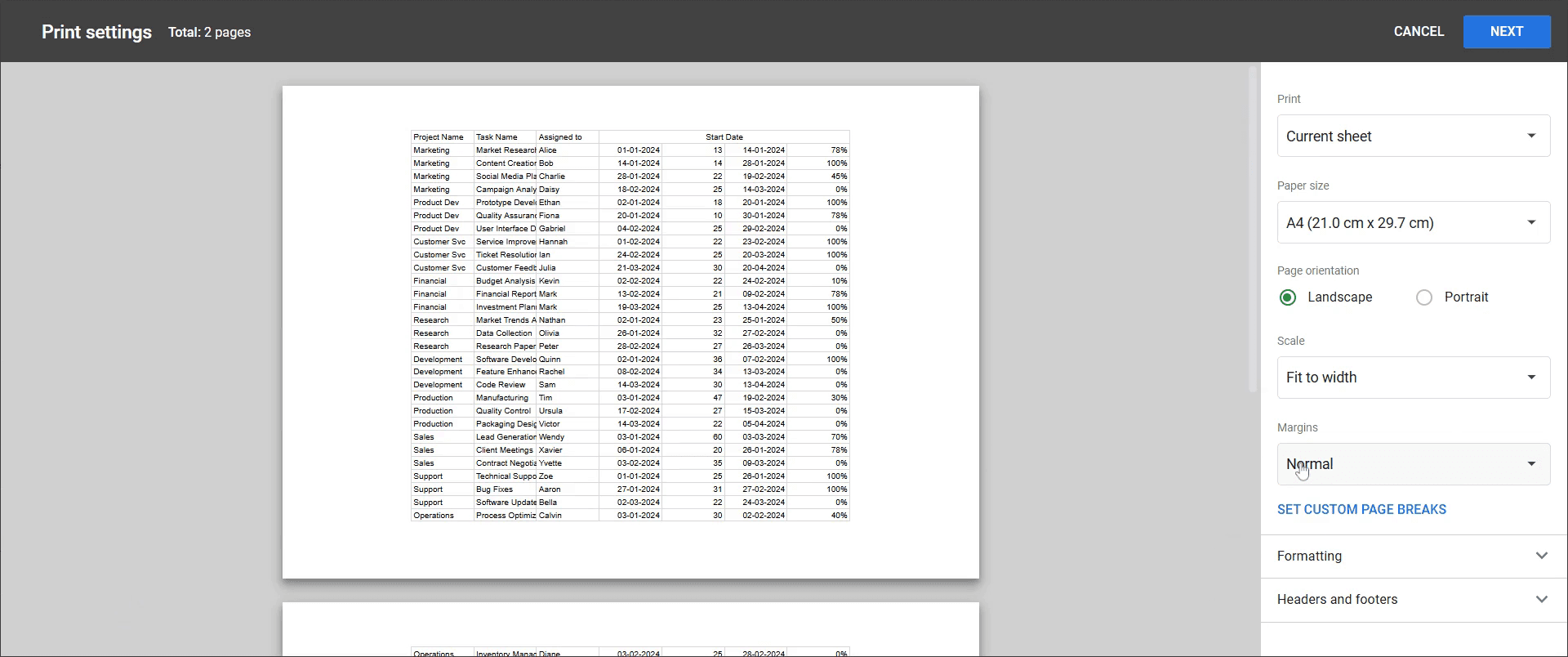
Step 5
For custom margins, you can manually adjust the margins by using the drag-and-drop feature available in the settings.
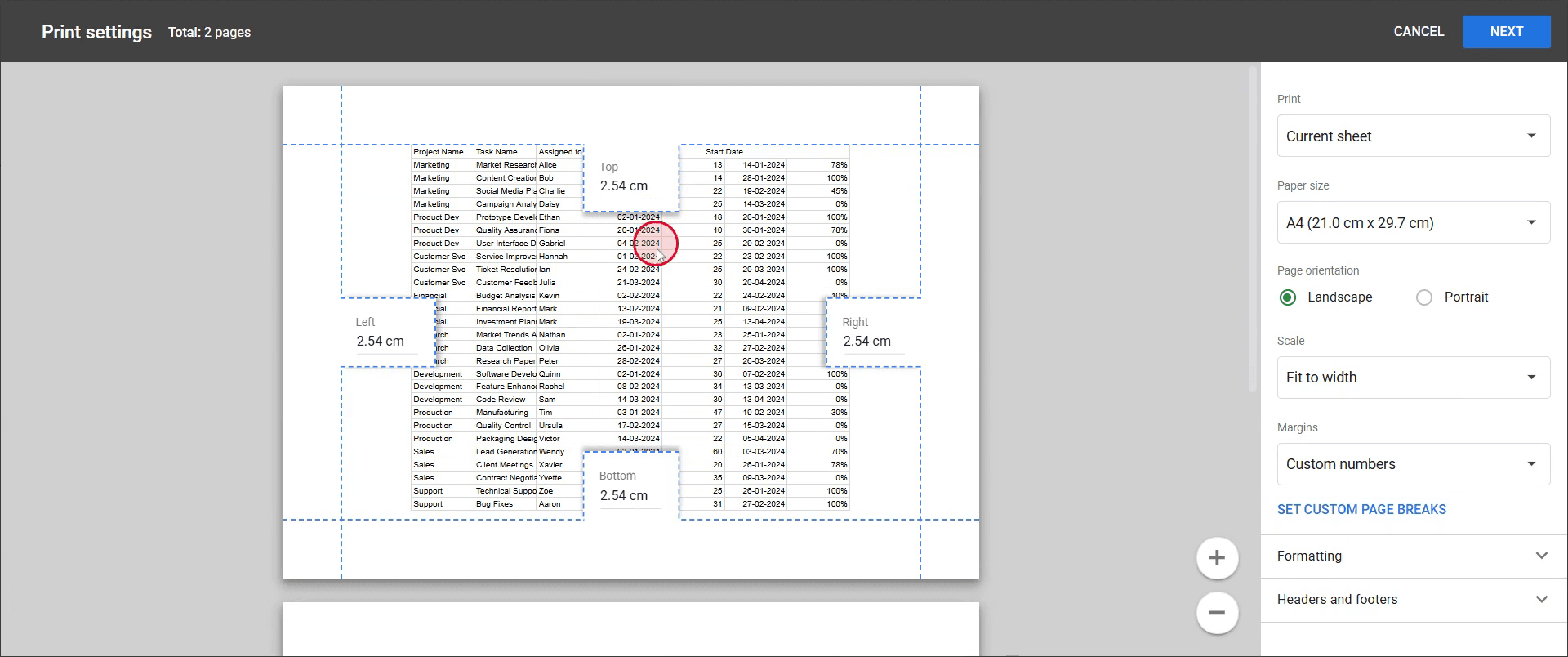
Step 6
After adjusting, your custom margins will be applied to the document as per your specifications.
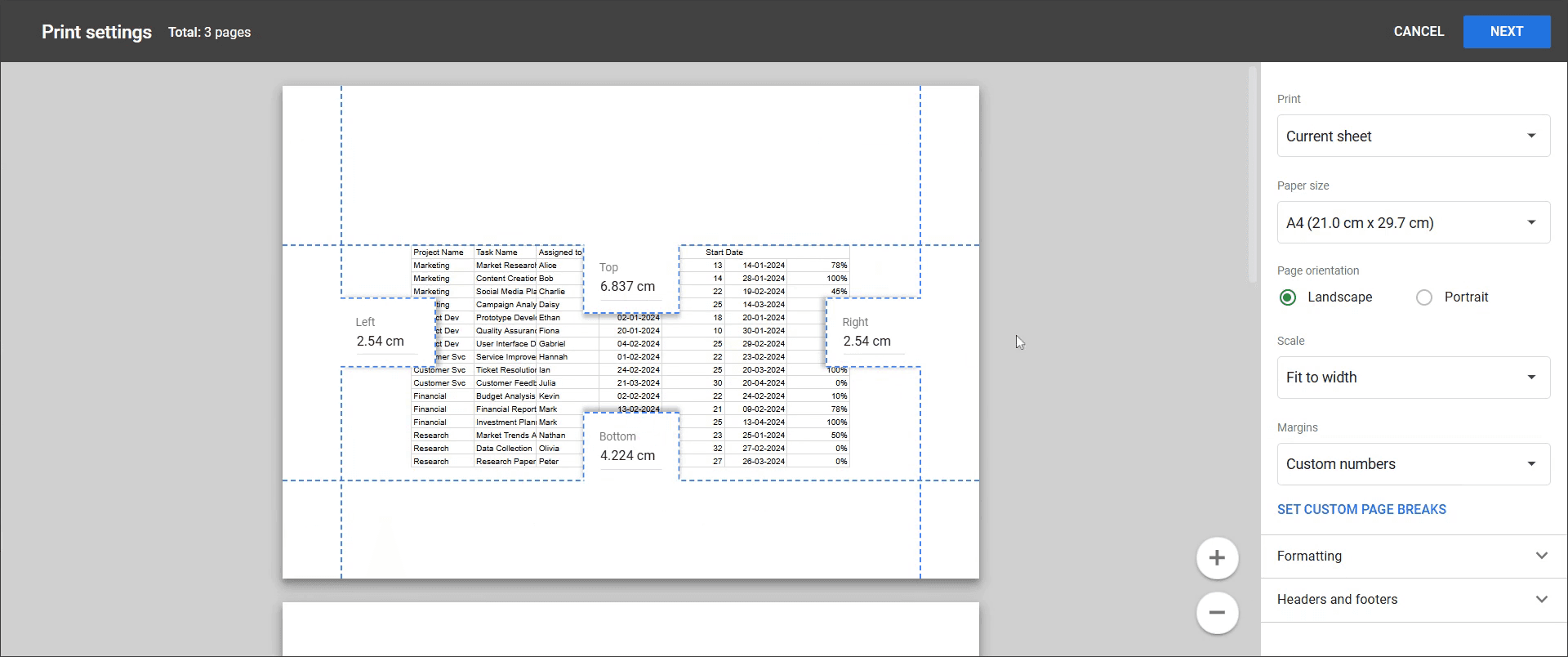
This is a step-by-step guide on how to set margins in Google Sheets.
Pro-tips for setting margins in Google Sheets
Adjust margins through the Print settings to control how your sheet appears on paper before printing.
Use the Custom Margins option to fine-tune the spacing and ensure proper alignment of your content.
Preview the document before printing to make sure the margins do not cut off important data.
Common pitfalls & how to avoid them while setting margins in Google Sheets
Forgetting to check print preview can lead to misaligned content, always use the preview option before finalizing the margins.
Relying on default margins might not be suitable for every document, adjust margins based on your specific layout needs.
Assuming Google Sheets has direct margin settings like Docs or Word, margins in Sheets are controlled within the Print settings, not in the main editing interface.
Common FAQs for setting margins in Google Sheets
Why don’t I see a margin option in Google Sheets?
Unlike Docs, Google Sheets does not have a dedicated margin setting in the main toolbar. It is only available through the Print settings.Can I adjust margins for a specific section of my spreadsheet?
No, margins apply to the entire sheet when printing. If you need different margins for different sections, consider adjusting column widths and spacing manually.How do I make sure my spreadsheet prints properly with the right margins?
Use the Print Preview option to check the layout and adjust margins before printing to avoid content getting cut off.
If you're an instructor or content creator looking to make tutorial videos, give Trupeer.ai a try. It transforms rough screen recordings into polished, studio-style videos that are ready for sharing with your audience. Plus, it automatically generates a step-by-step guide based on the video you create. Fascinating, right? Start by creating your first tutorial for free with Trupeer.ai.

