
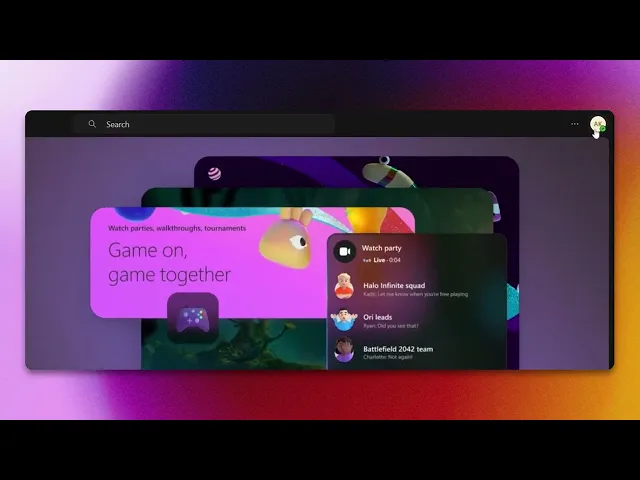
How To Sign Out Of Teams
Learn how to sign out of Microsoft Teams effortlessly. Follow our comprehensive guide for step-by-step instructions to ensure your account's security.
This process will guide you through the steps necessary to sign out of Teams, ensuring you can manage your account easily
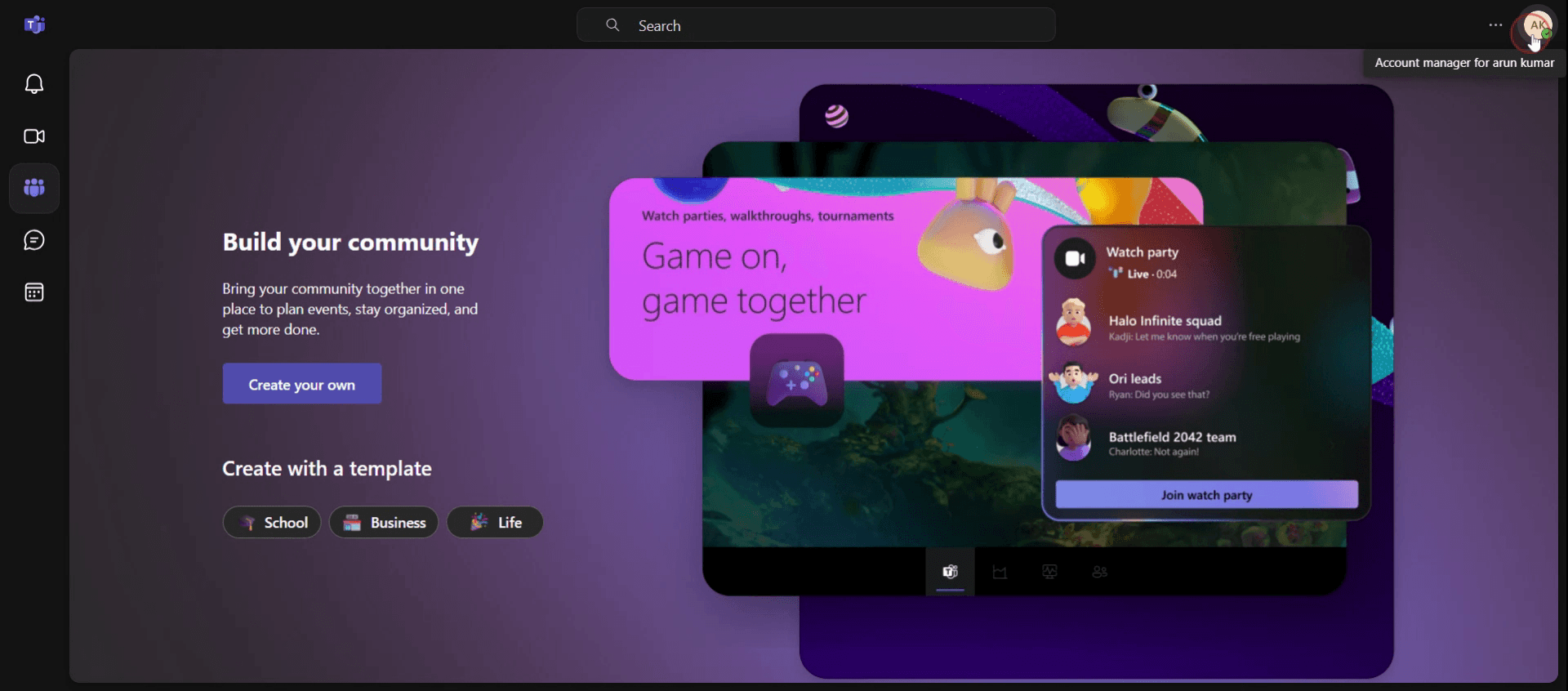
Step 1
Begin by clicking on your profile picture.
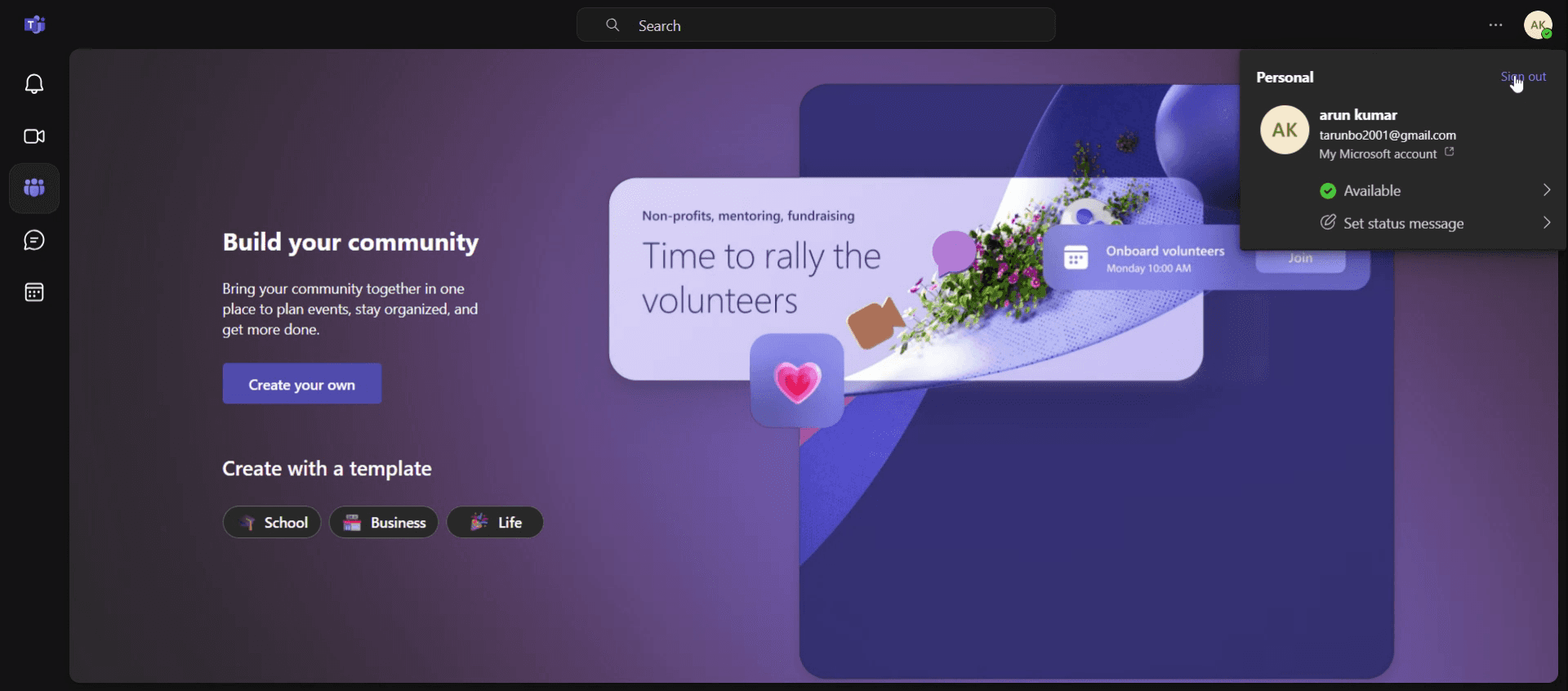
Step 2
Then click on sign out option.
This is the step-by-step process to sign out of Teams. Let’s look at some tips for it.
Pro tips for signing out of Teams
Use the Profile Menu for Quick Logout – Click on your profile picture in the top-right corner and select Sign out to exit Teams quickly.
Clear Cached Data for a Complete Logout – If you are facing issues with re-login, clear Teams cache by navigating to app data ,Microsoft Teams and deleting the cache folder.
Sign Out from All Devices Remotely – If you forgot to log out on another device, go to Microsoft Account Security settings and sign out from all sessions remotely.
Common pitfalls & how to avoid them
Forgetting to Sign Out from Shared Devices – If you use Teams on a public or shared device, always log out to prevent unauthorized access to your account.
Not Clearing Cache After Logout – Cached credentials may keep you signed in even after logging out. Delete cached data if you experience automatic re-login.
Assuming Closing the App Signs You Out – Simply closing Teams does not log you out; always click on Sign out from the profile menu to ensure you are fully signed out.
Common FAQs for signing out of Teams
How do i sign out of Teams on mobile?
Open the Teams app, tap your profile picture, scroll down, and select Sign out.Does signing out of Teams remove my data?
No, signing out will not delete any chats or files. Your data will remain intact when you log back in.Why does Teams keep signing me in automatically after logging out?
Cached credentials may be stored on your device. Clear the Teams cache or uncheck Keep me signed in when logging in.
If you're an instructor or content creator looking to make tutorial videos, give a try. It transforms rough screen recordings into polished, studio-style videos that are ready for sharing with your audience. Plus, it automatically generates a step-by-step guide based on the video you create. Fascinating, right? Start by creating your first tutorial for free with trupeer.ai .

