
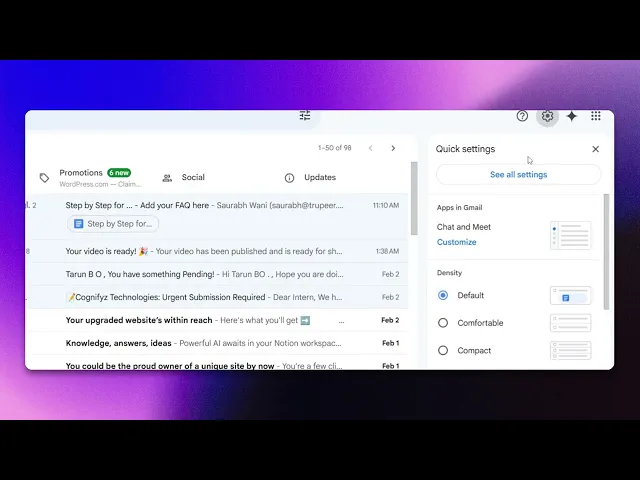
How To Turn On Automatic Replies In Gmail
Discover how to enable automatic replies in Gmail with our step-by-step guide. Ensure your contacts receive timely responses even when you're away.
In this process, you will learn how to disable the automatic reply feature in your email application. This involves accessing the settings menu, locating the vacation responder, and configuring the necessary options, such as setting the start and end dates, and adding a personalized message.
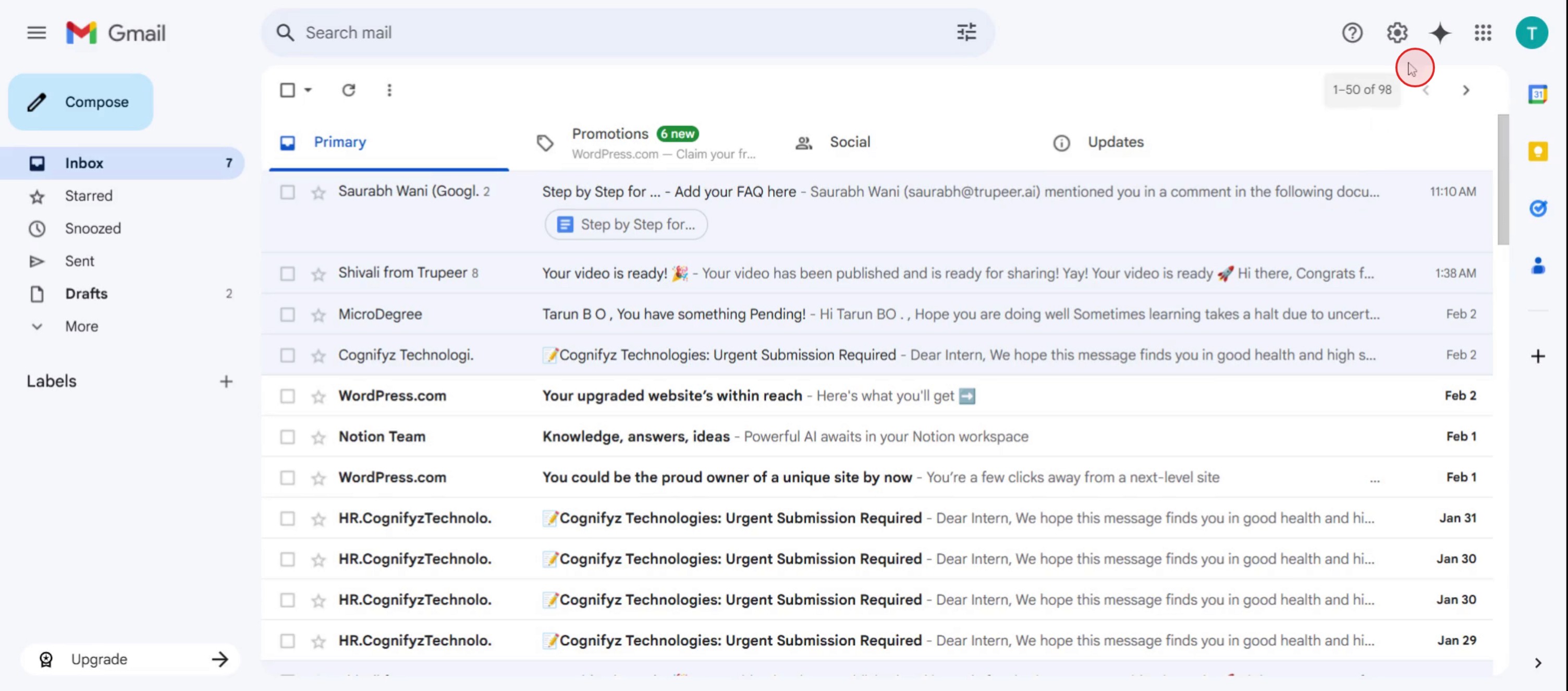
Step 1
Click on the settings option.
Step 2
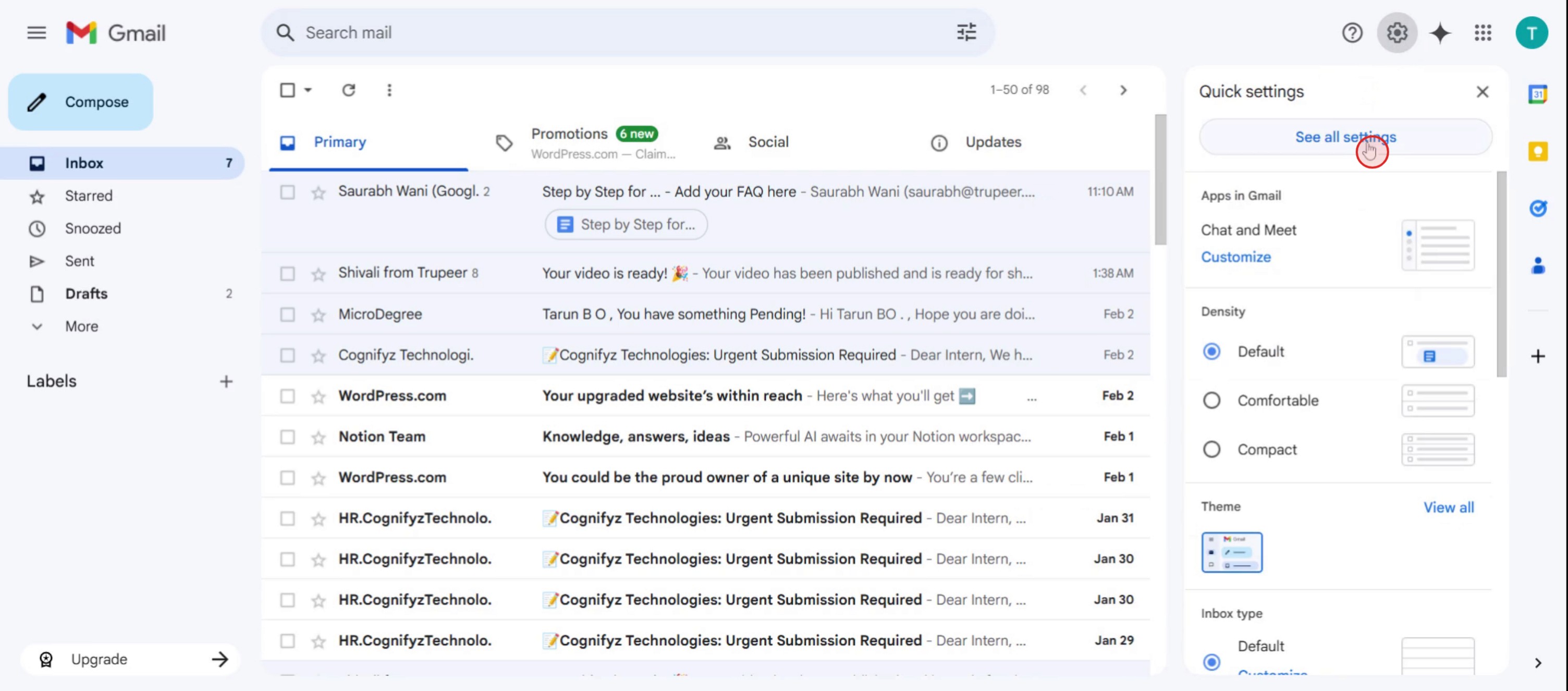
Then click on see All Settings.
Step 3
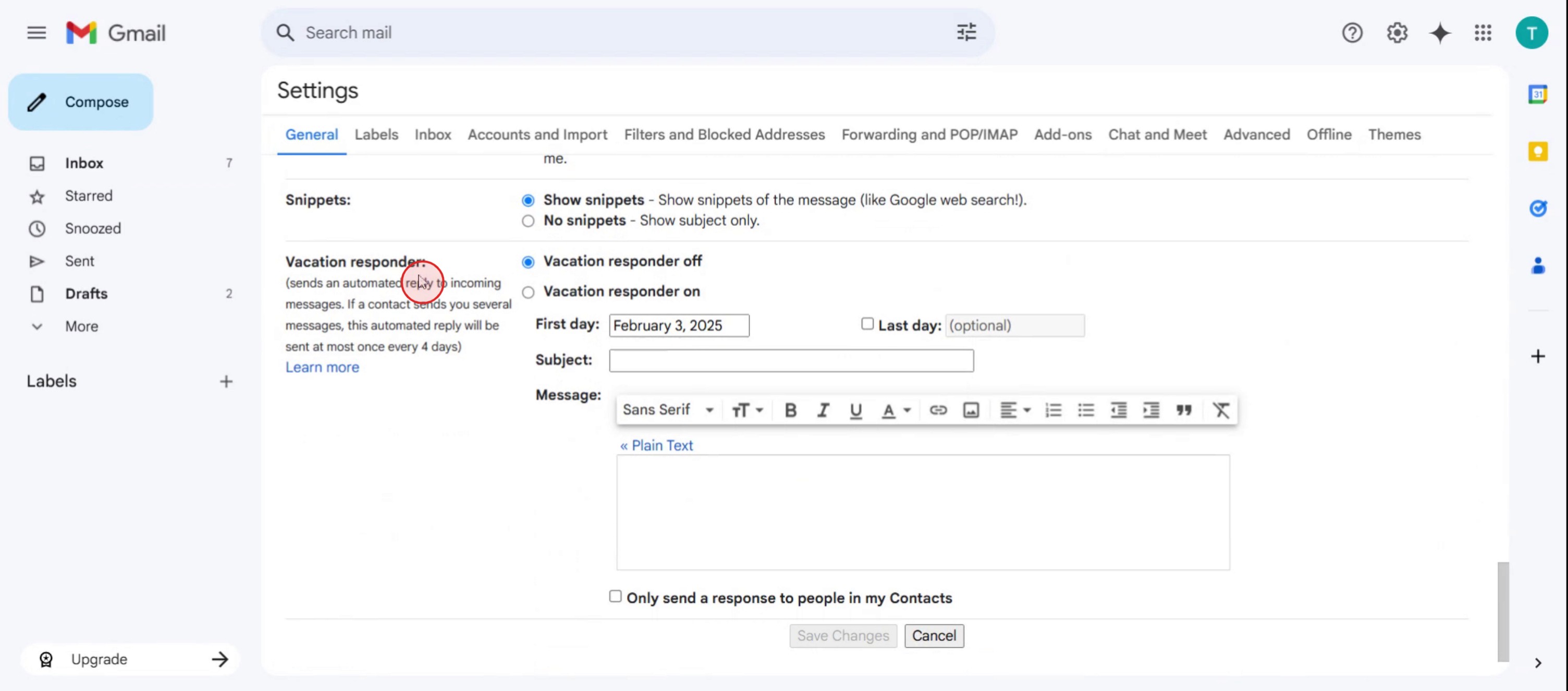
Section labeled Vacation Responder,
Step 4
Then click on Vacation Responder On.
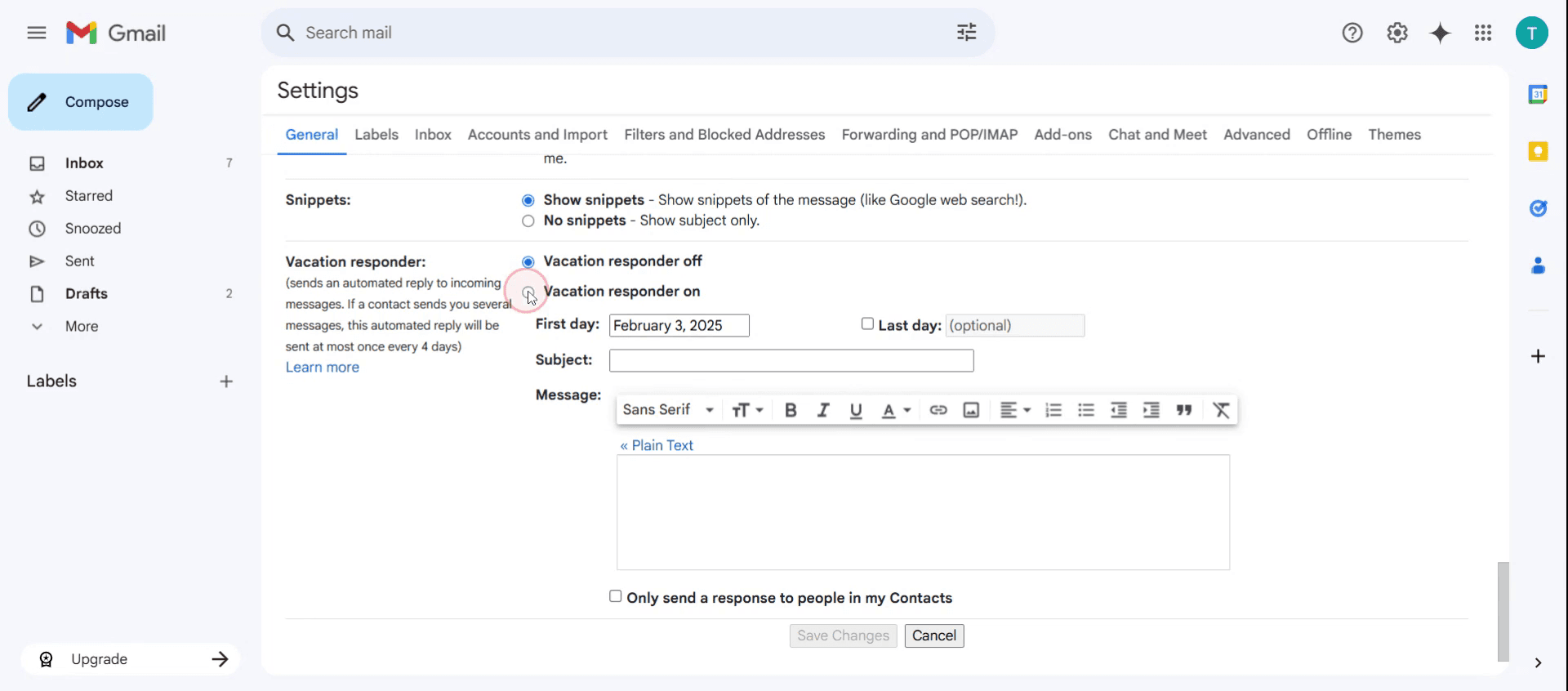
Step 5
Enter a relevant subject for your automatic reply.
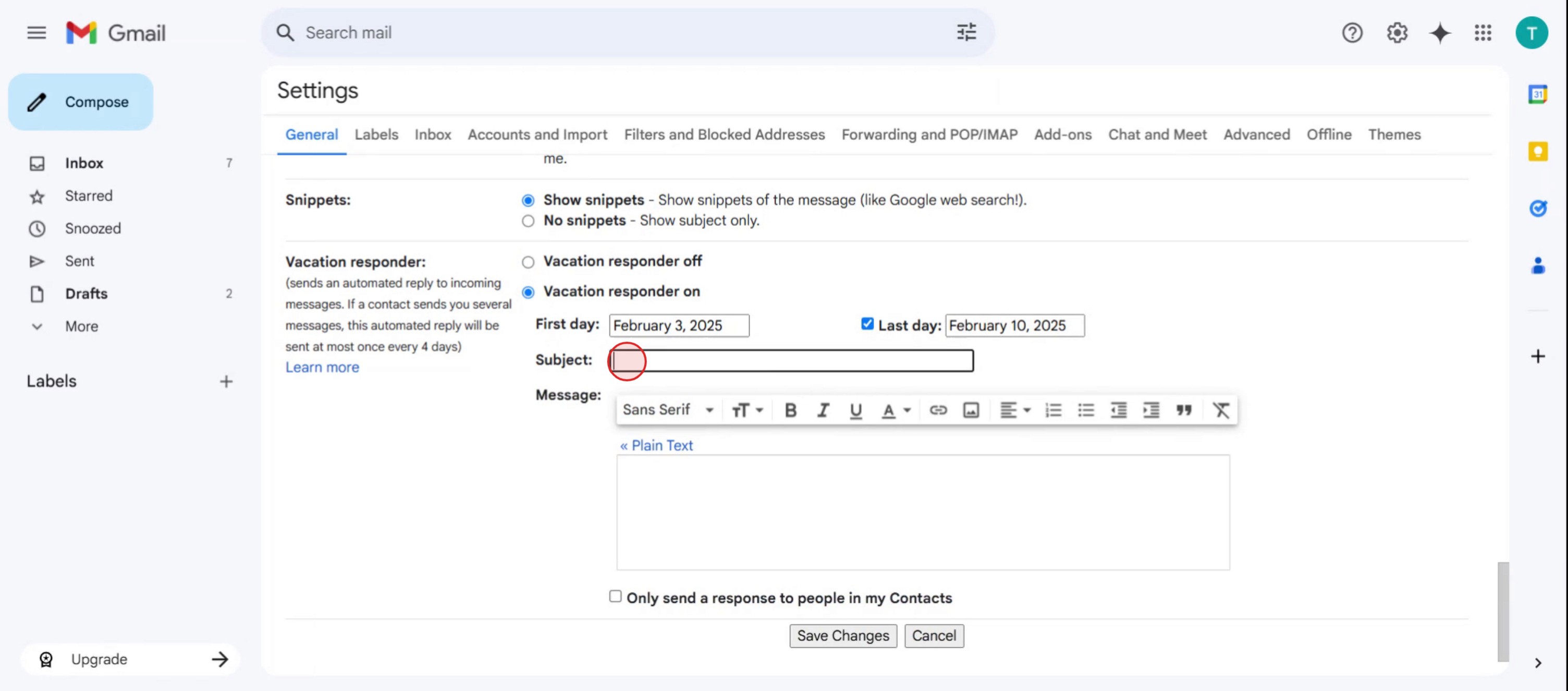
Step 6
Then click on save changes.
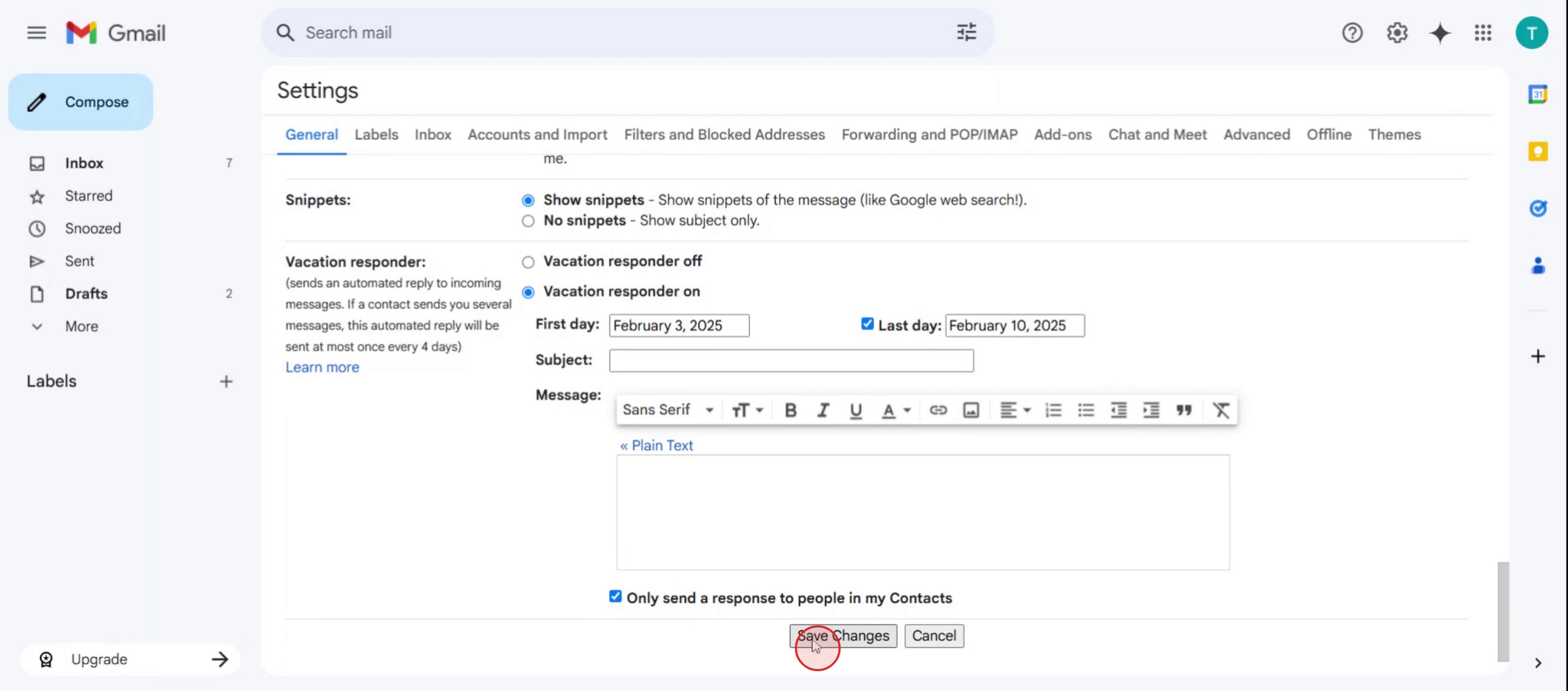
This is a step-by-step guide on how to turn on automatic replies in Gmail.
Pro tips for how to turn on automatic replies in Gmail
Customize your message – Include your return date and alternative contact information to keep communication clear and professional.
Set specific dates – Schedule the start and end dates for your automatic replies to avoid sending out-of-office messages when you're back.
Exclude specific contacts – Use the option to send replies only to your contacts to avoid automatic responses to newsletters and spam.
Common pitfalls and how to avoid them
Forgetting to update your auto-reply message can cause confusion always check the details before activating it.
Leaving auto-replies on after returning to work can frustrate senders remember to turn them off when you're back.
Setting the wrong time zone for your auto-replies can result in early or delayed messages make sure your Gmail time zone matches your local time.
Common FAQs on how to turn on automatic replies in Gmail
Can i schedule automatic replies to start and stop automatically?
Yes, in the Vacation responder settings, you can set a start and end date for your automatic replies to control when they’re active.Will my automatic reply go to everyone who emails me?
You can choose to send replies only to people in your Contacts, which helps avoid responding to newsletters or spam.Can i include formatting and links in my automatic replies?
Yes, Gmail's auto-reply editor allows rich text formatting, so you can add links, bold text, and other formatting options.What happens if i receive multiple emails from the same person?
Gmail sends your automatic reply to each sender only once every 4 days, no matter how many emails they send you during that time.
If you're an instructor or content creator looking to make tutorial videos, give a try. It transforms rough screen recordings into polished, studio-style videos that are ready for sharing with your audience. Plus, it automatically generates a step-by-step guide based on the video you create. Fascinating, right? Start by creating your first tutorial for free with trupeer.ai .

