

How to Unmute on Teams
Discover how to unmute on Teams with our comprehensive guide. Enhance your virtual meetings and ensure clear communication with simple steps.
This document outlines the steps to unmute yourself on Microsoft Teams. By following these instructions, you will learn how to adjust your settings and utilize keyboard shortcuts to manage your microphone status during meetings effectively.
Step 1
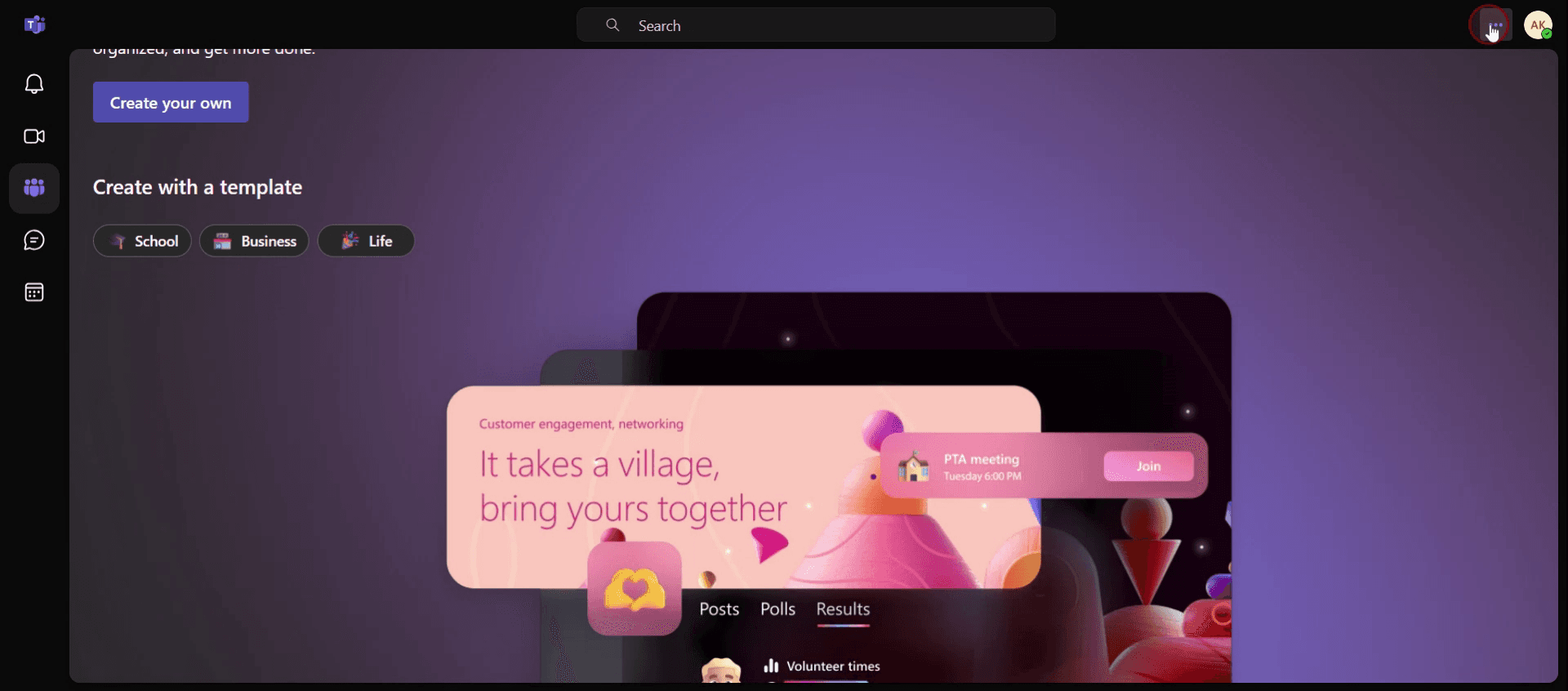
Click on the three dots (more options).
Step 2
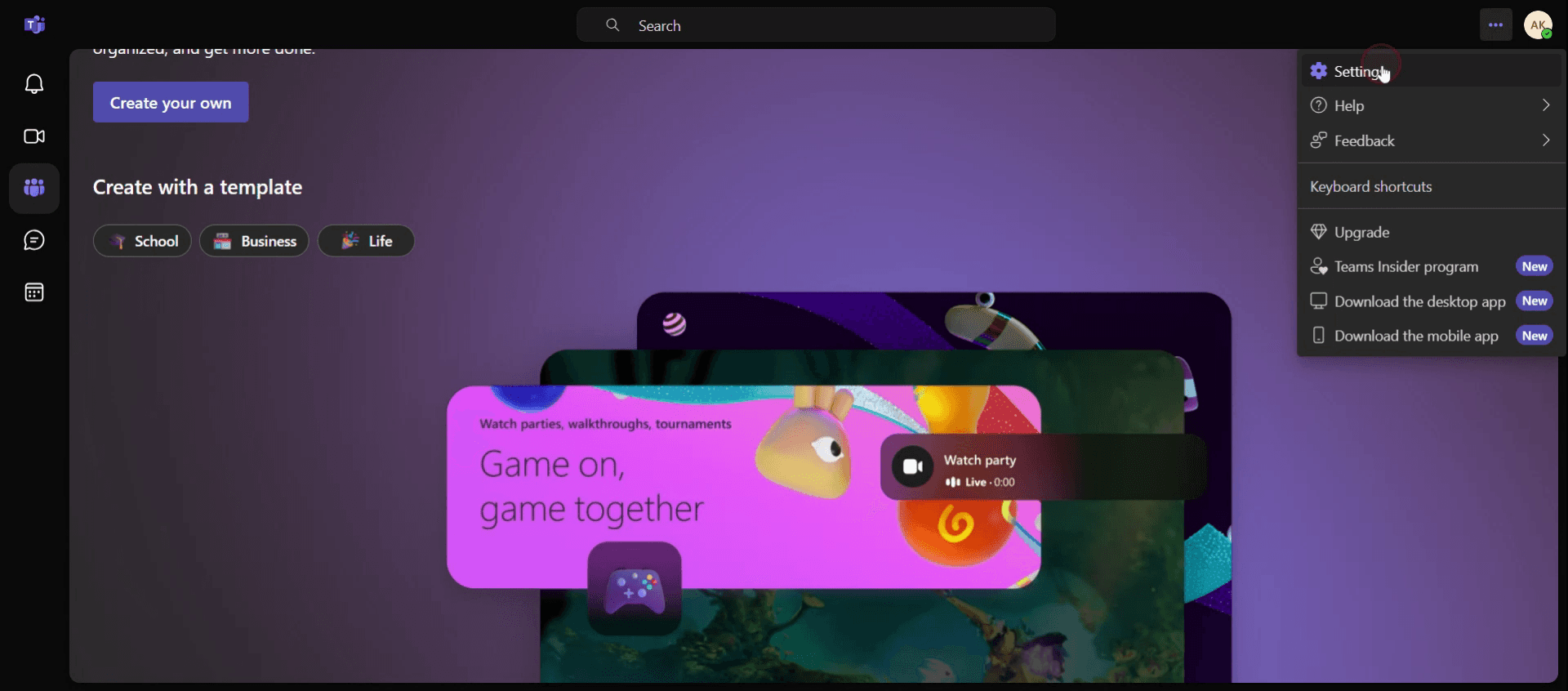
Select Settings.
Step 3
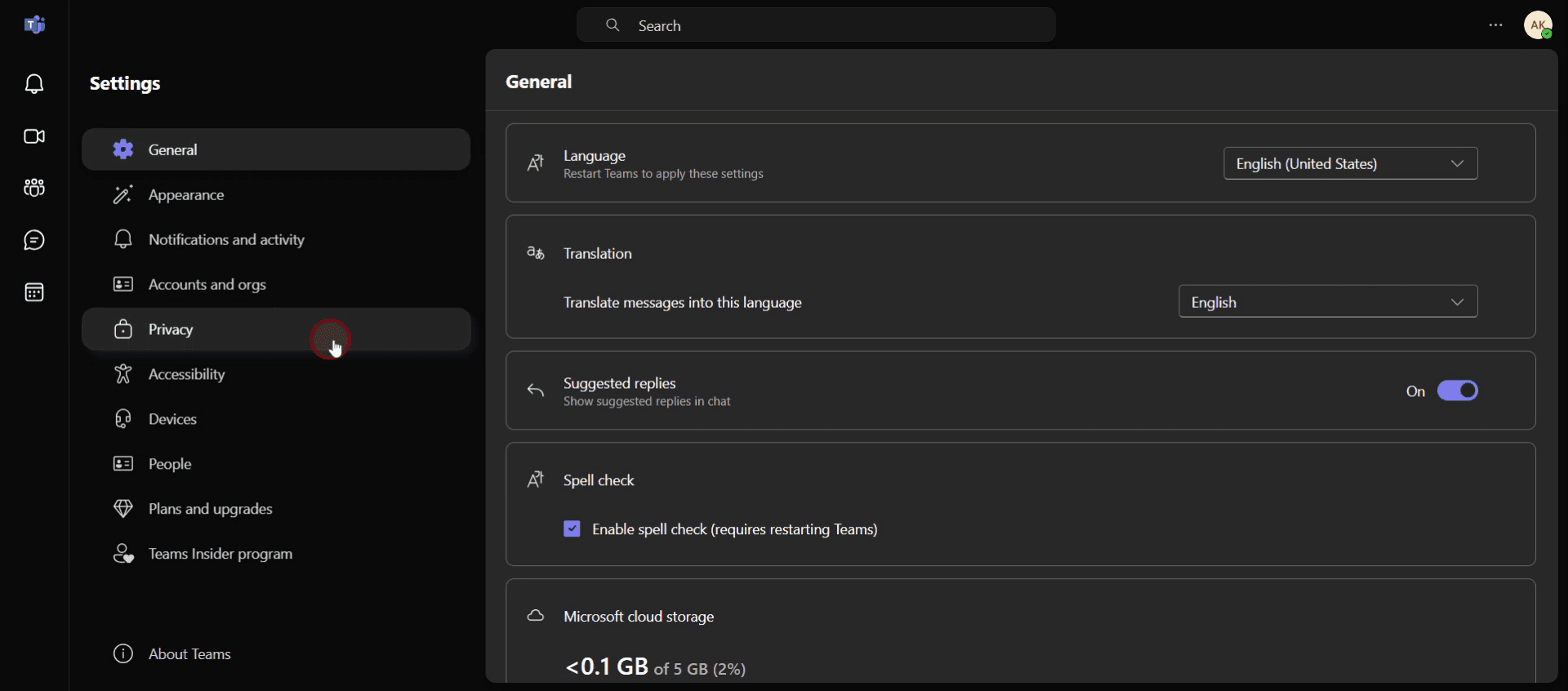
Select Privacy section.
Step 4
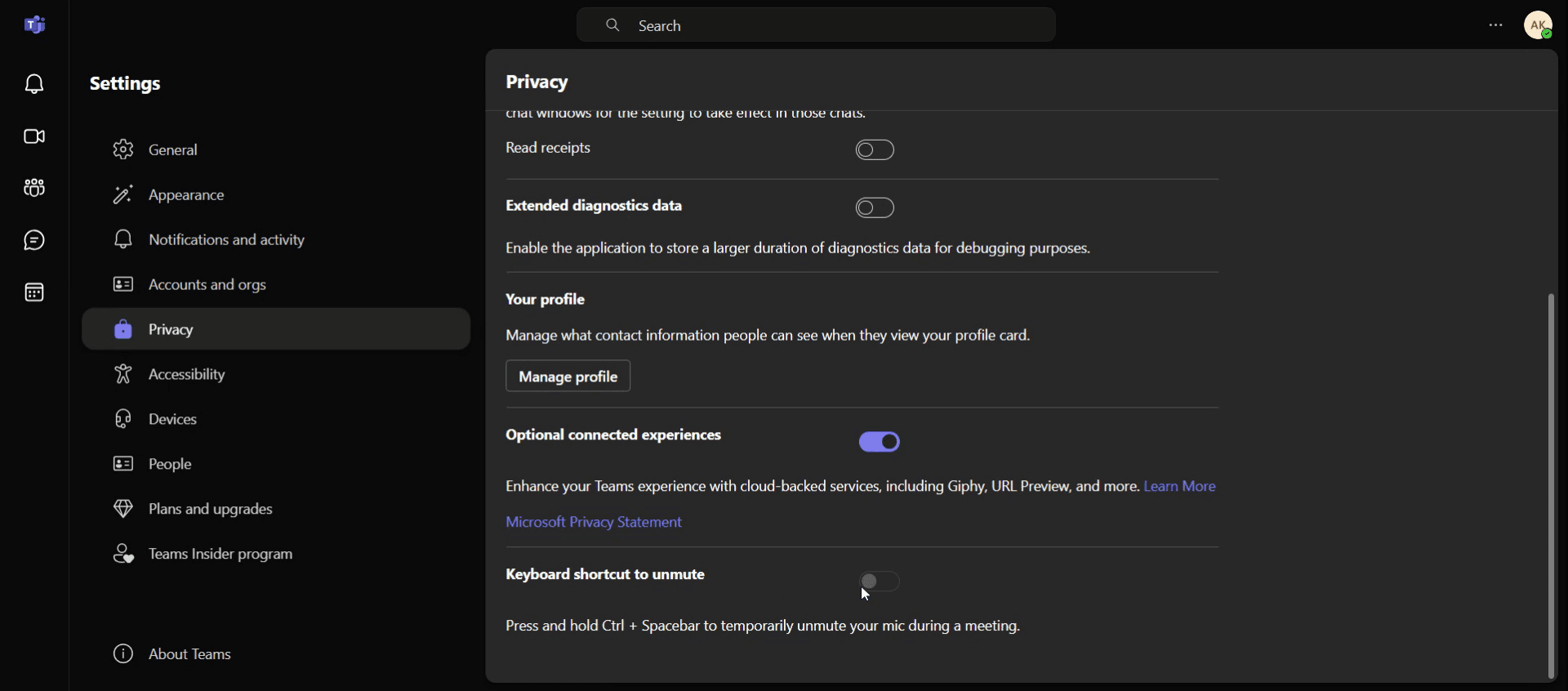
Enable the keyboard shortcut for un muting.
Step 5
By default, the microphone may be unmuted.
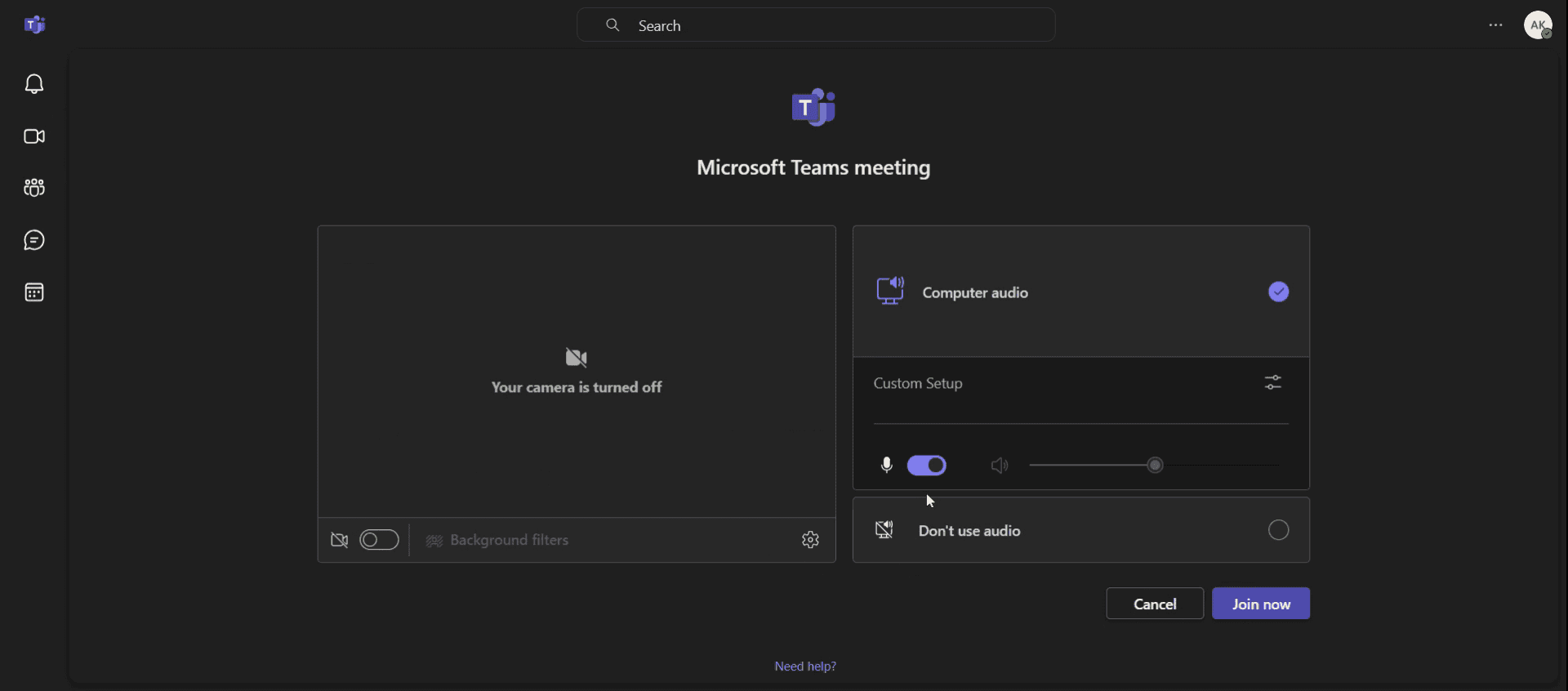
Step 6
If you wish to mute your microphone, click on the mic icon. This allows you to control your microphone status during meetings.
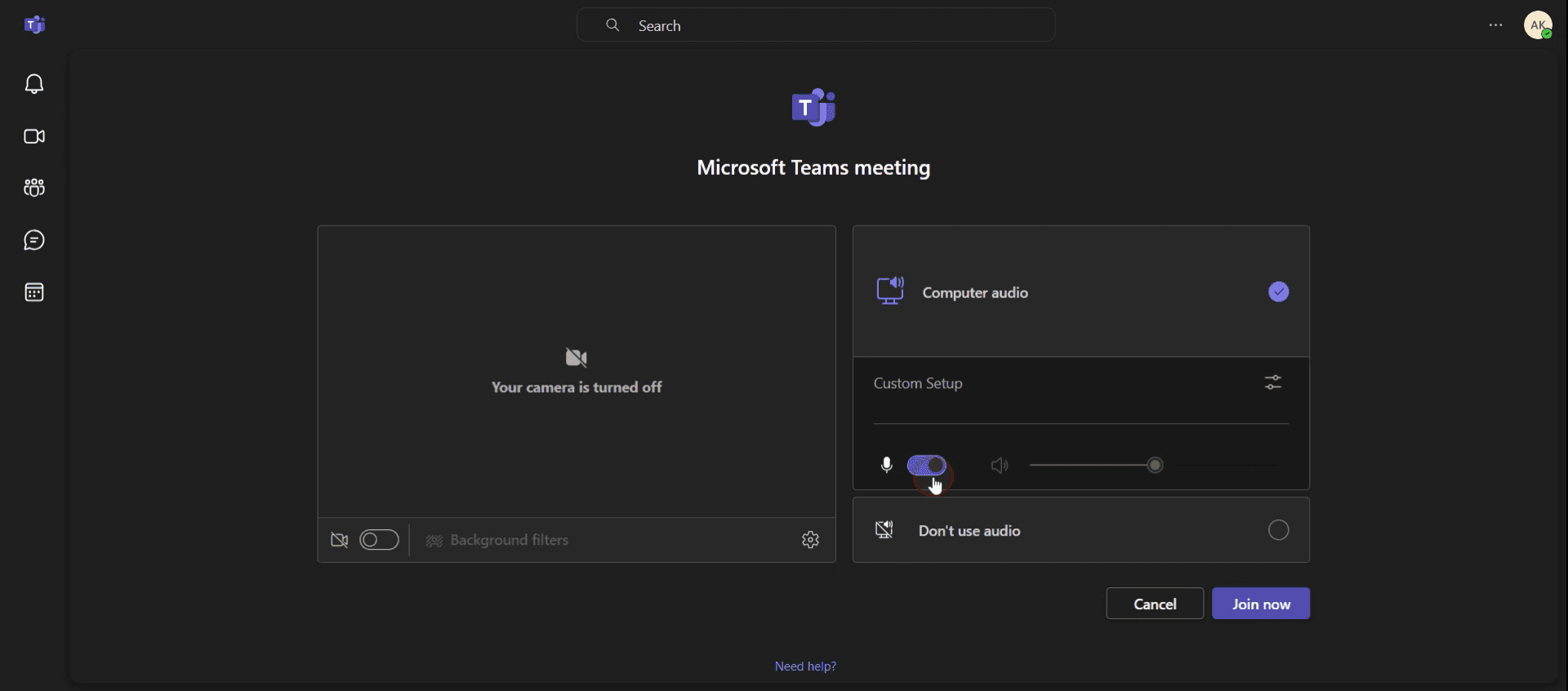
This is the step-by-step process to unmute on Teams. Let’s look at some tips for it.
Pro tips for unmuting on Teams
Click the Microphone Icon – When you’re in a Teams meeting or call, simply click on the microphone icon at the bottom of the screen to unmute yourself. If the icon has a red line through it, you’re muted.
Use the Keyboard Shortcut – A quick way to unmute is by pressing Ctrl + Spacebar (Windows) or Cmd + Spacebar (Mac). This will temporarily unmute your mic while holding the keys.
Check Audio Settings – If you’re unable to unmute, go to the Settings menu in Teams, and check your audio settings. Make sure your microphone is properly connected and selected as the input device.
Common pitfalls & how to avoid them
Muted by the Organizer – If the meeting organizer has muted you, you won’t be able to unmute yourself until they allow it. Make sure to check the permissions if you’re unable to unmute.
Audio Settings Conflict – Sometimes, Teams may not detect your microphone correctly. Ensure your microphone settings are configured correctly in Settings > Devices.
Unmuting in the Wrong Screen – You might be in the wrong window where Teams isn’t focused, and clicking the unmute button may not work. Ensure the Teams app is active and that the correct meeting screen is selected.
Common FAQs for unmuting on Teams
Why can’t i unmute in Teams?
If you can’t unmute, it’s likely because the meeting organizer has muted you or your microphone settings are misconfigured. Check with the organizer or adjust your audio settings in Teams.Is there a shortcut to unmute on Teams?
Yes, you can press Ctrl + Spacebar (Windows) or Cmd + Spacebar (Mac) to unmute temporarily while holding the keys.What if my mic is not detected in Teams?
If your microphone is not detected, go to Settings > Devices in Teams and ensure the correct microphone is selected. You can also check your system’s sound settings.Can i unmute others in Teams?
Yes, if you’re the meeting organizer or have presenter rights, you can unmute other participants by clicking on the Participants tab and selecting the unmute option next to their name.
If you're an instructor or content creator looking to make tutorial videos, give a try. It transforms rough screen recordings into polished, studio-style videos that are ready for sharing with your audience. Plus, it automatically generates a step-by-step guide based on the video you create. Fascinating, right? Start by creating your first tutorial for free with trupeer.ai .

