
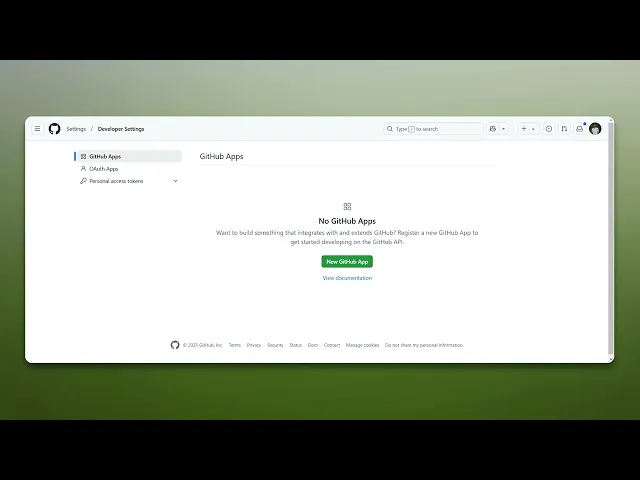
How To Use Personal Access Token GitHub
Discover how to effectively use Personal Access Tokens on GitHub. Enhance your security and streamline your workflow with our comprehensive guide.
This document provides a clear and concise process for generating and using personal access tokens. Personal access tokens are required for authenticating and accessing certain features within a system securely.
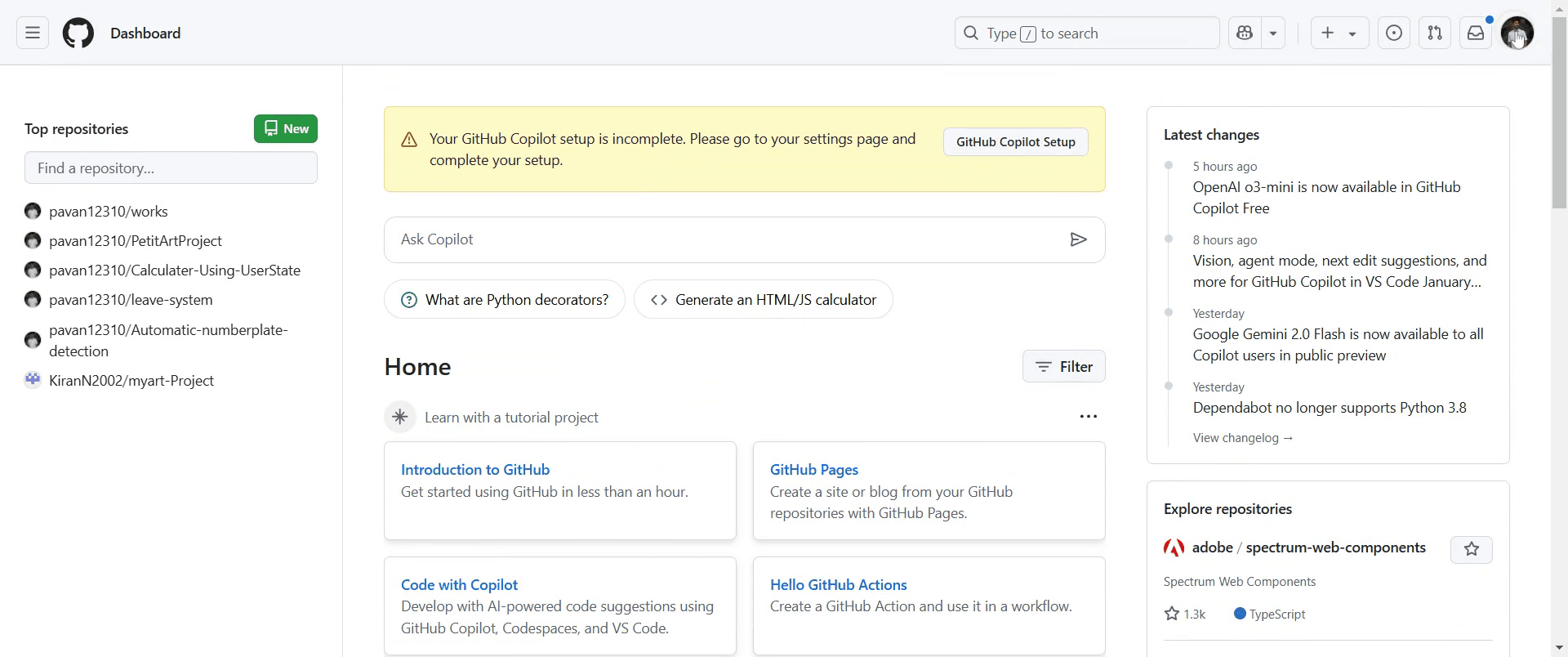
Step 1
Go to your profile, and click on it.
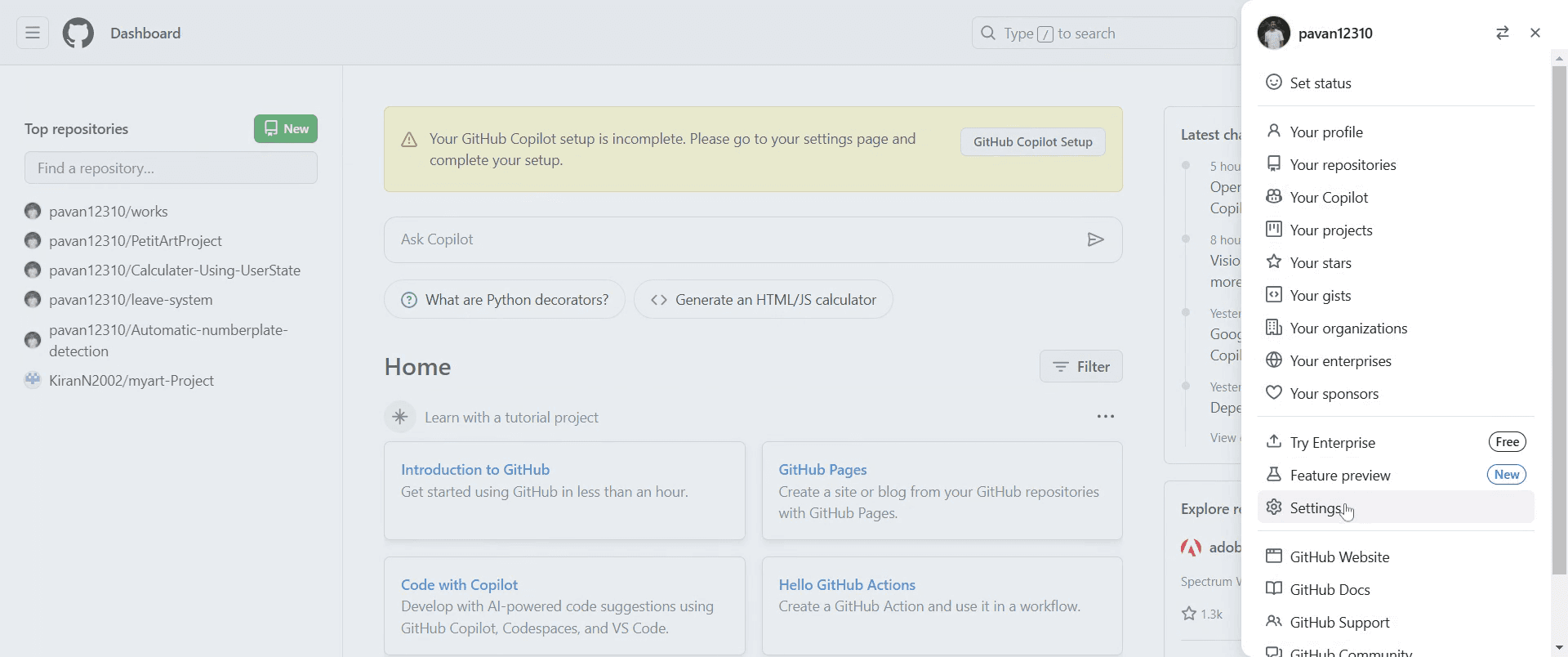
Step 2
Then click on the "Settings" option.
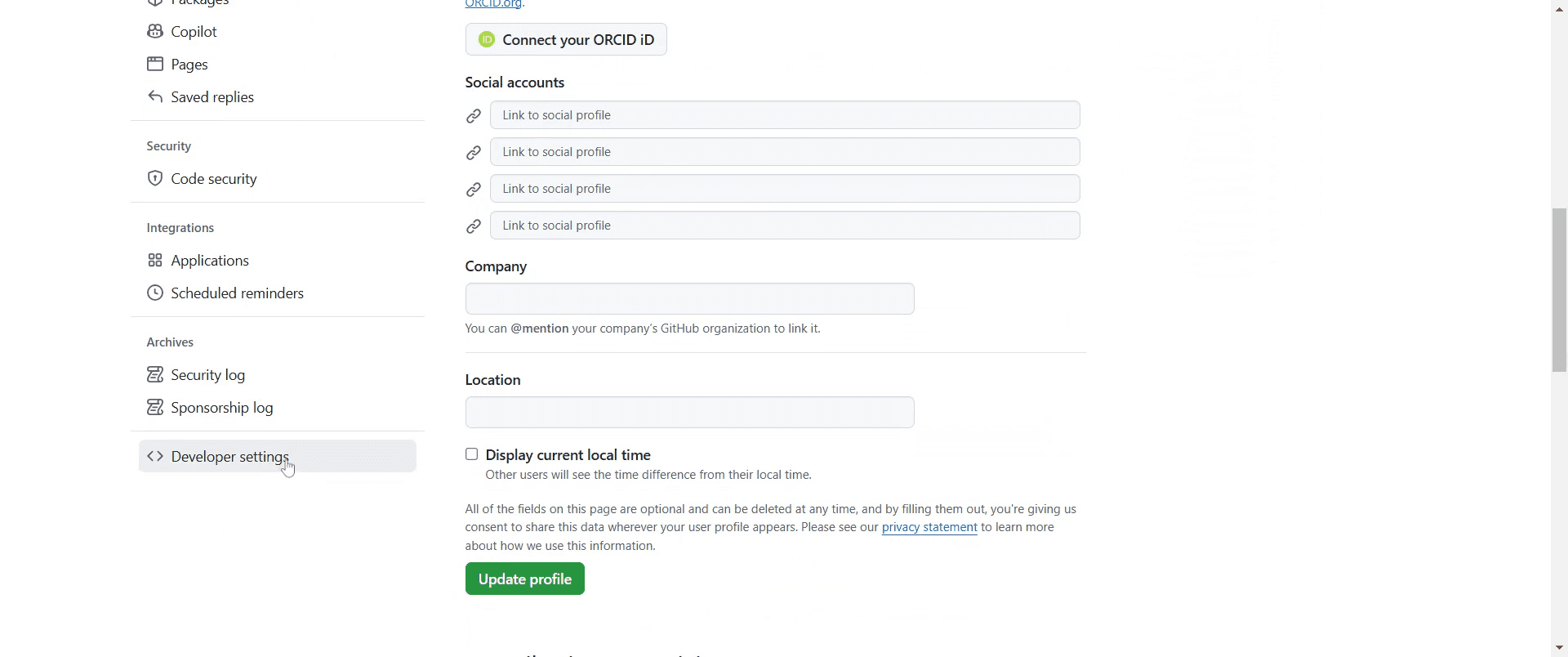
Step 3
Locate and click on "Developer settings."
Step 4
Within the developer settings, select "Personal Access Tokens".
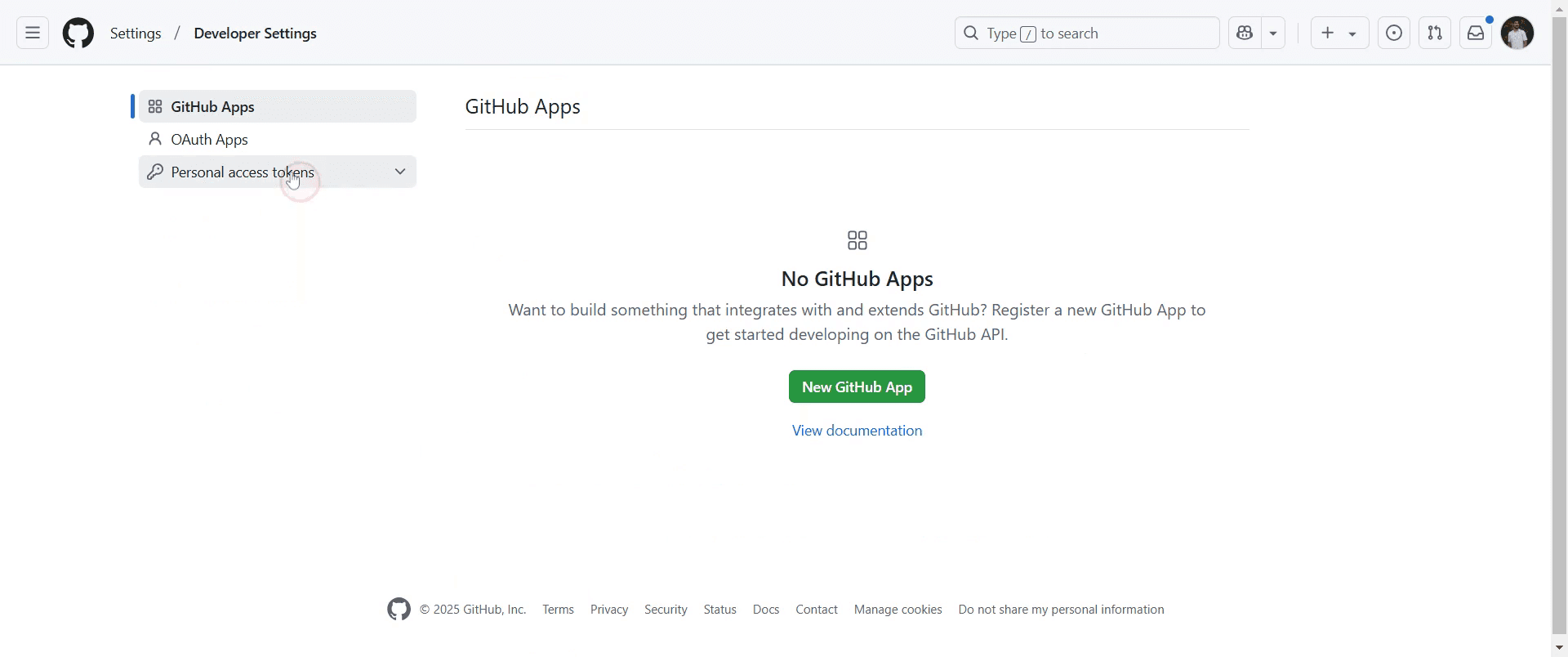
Step 5
And then click on "Tokens" to proceed to generate a new token.
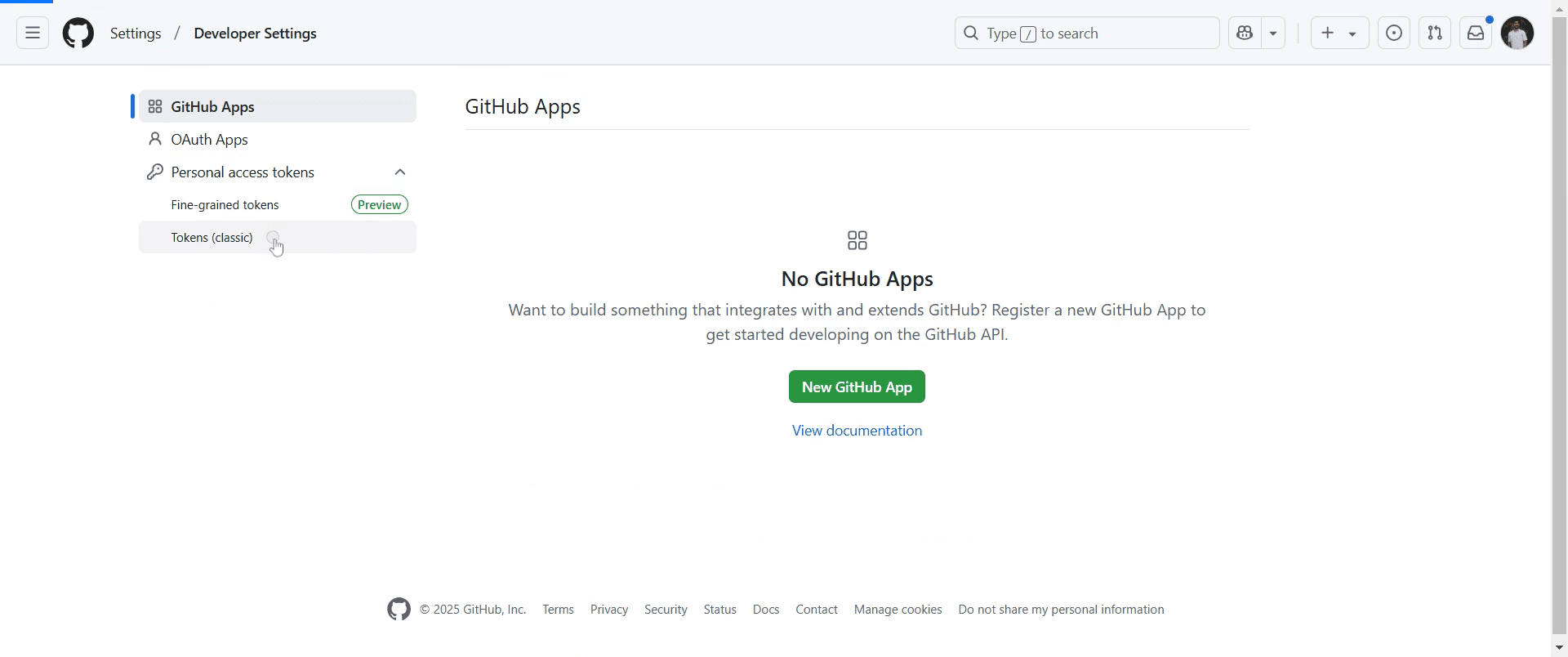
Step 6
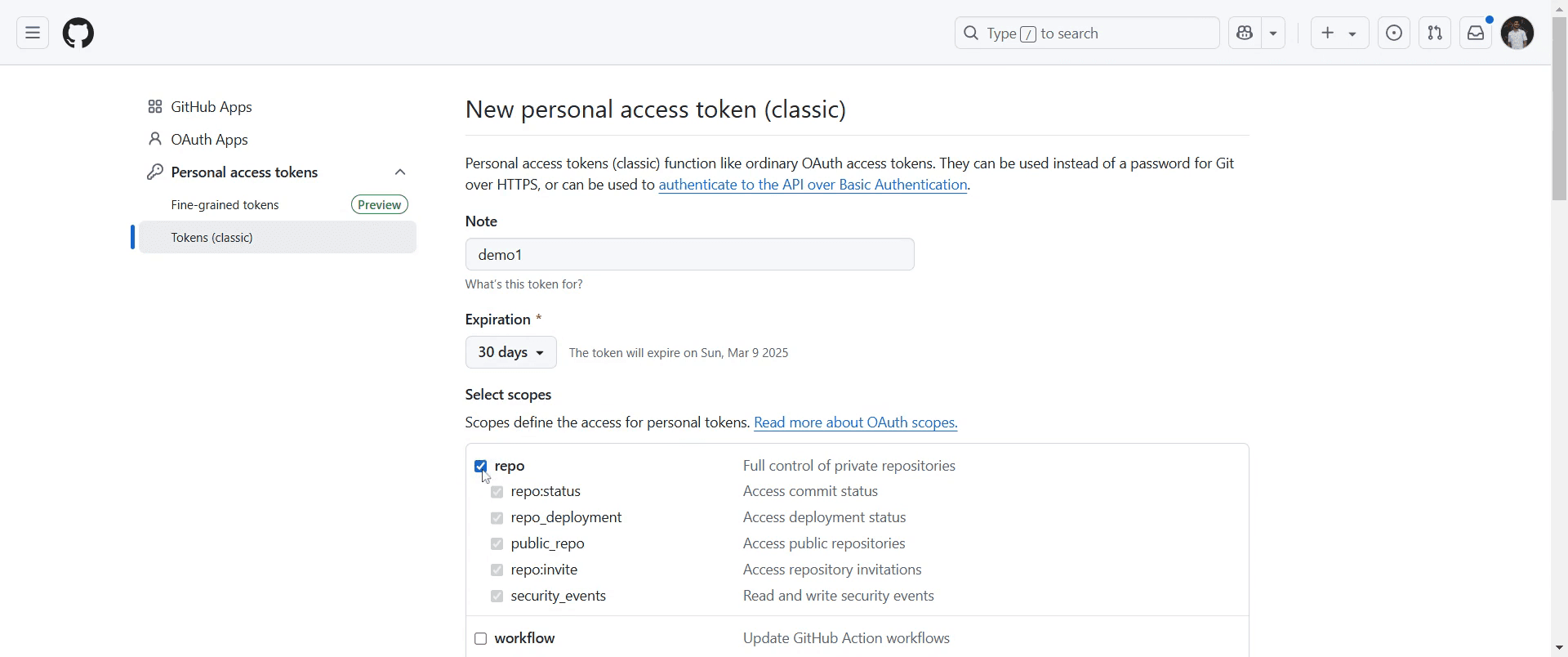
Click on "Generate New Token" and specify the name and any relevant details for the token you want to create.
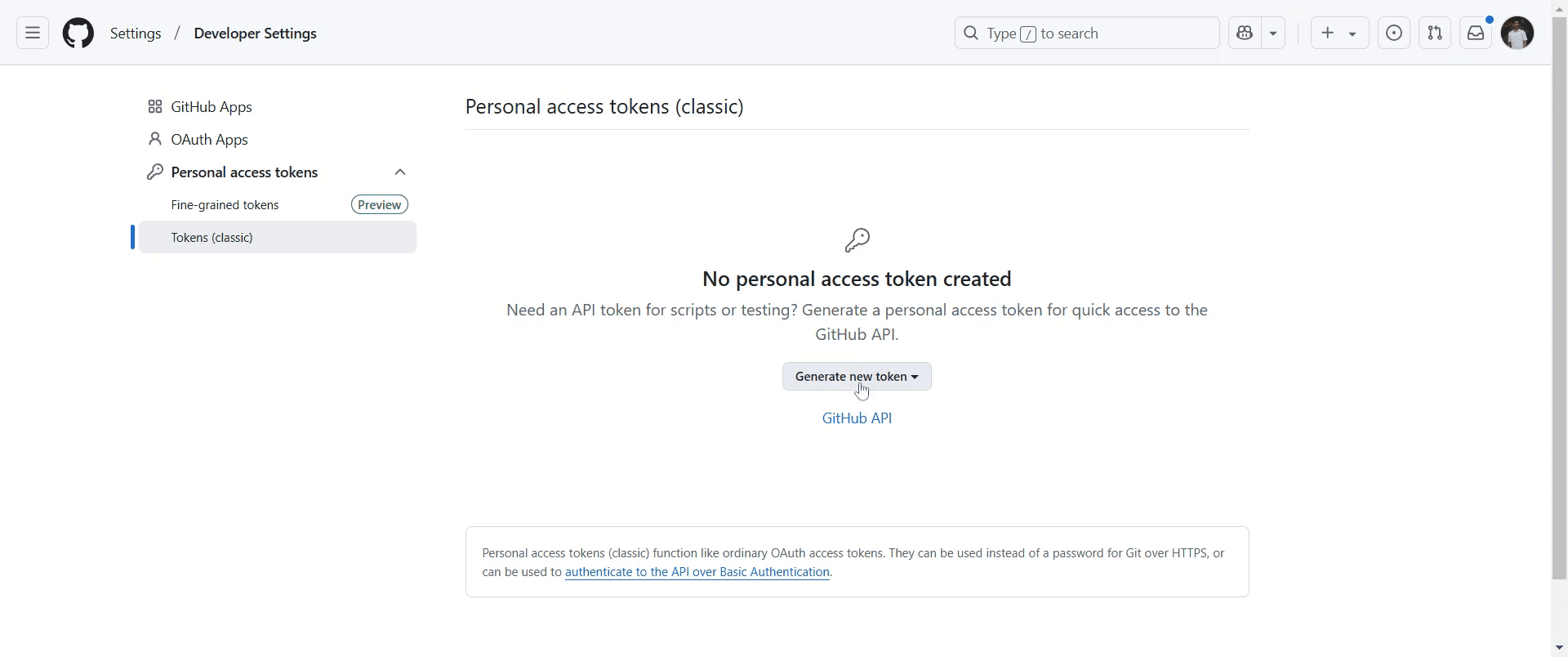
Step 7
For example, you might name the token "Demo 1" and configure the expiration as desired.
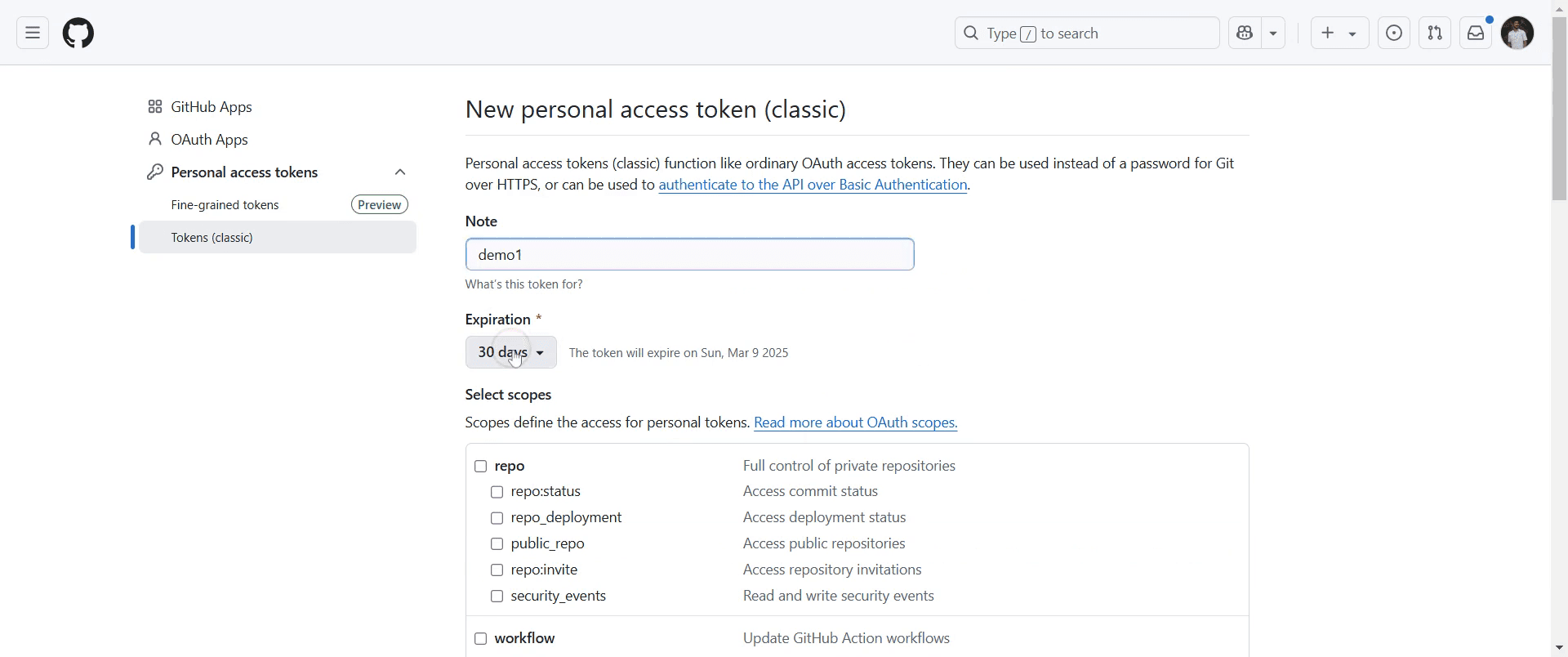
Step 8
Select the desired scopes, such as "repo," depending on your requirements, and then proceed.
Step 9
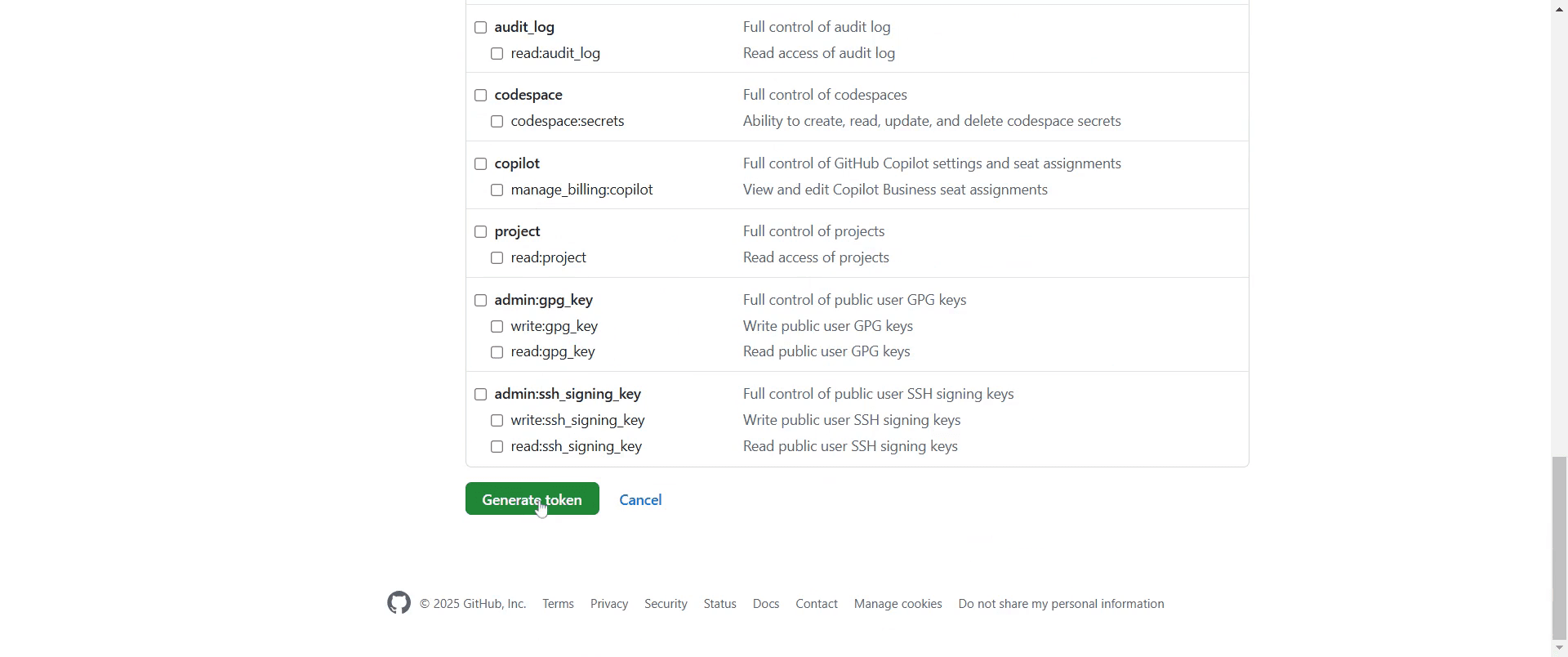
Finally, click on the "Generate Token" button to complete the process.
Step 10
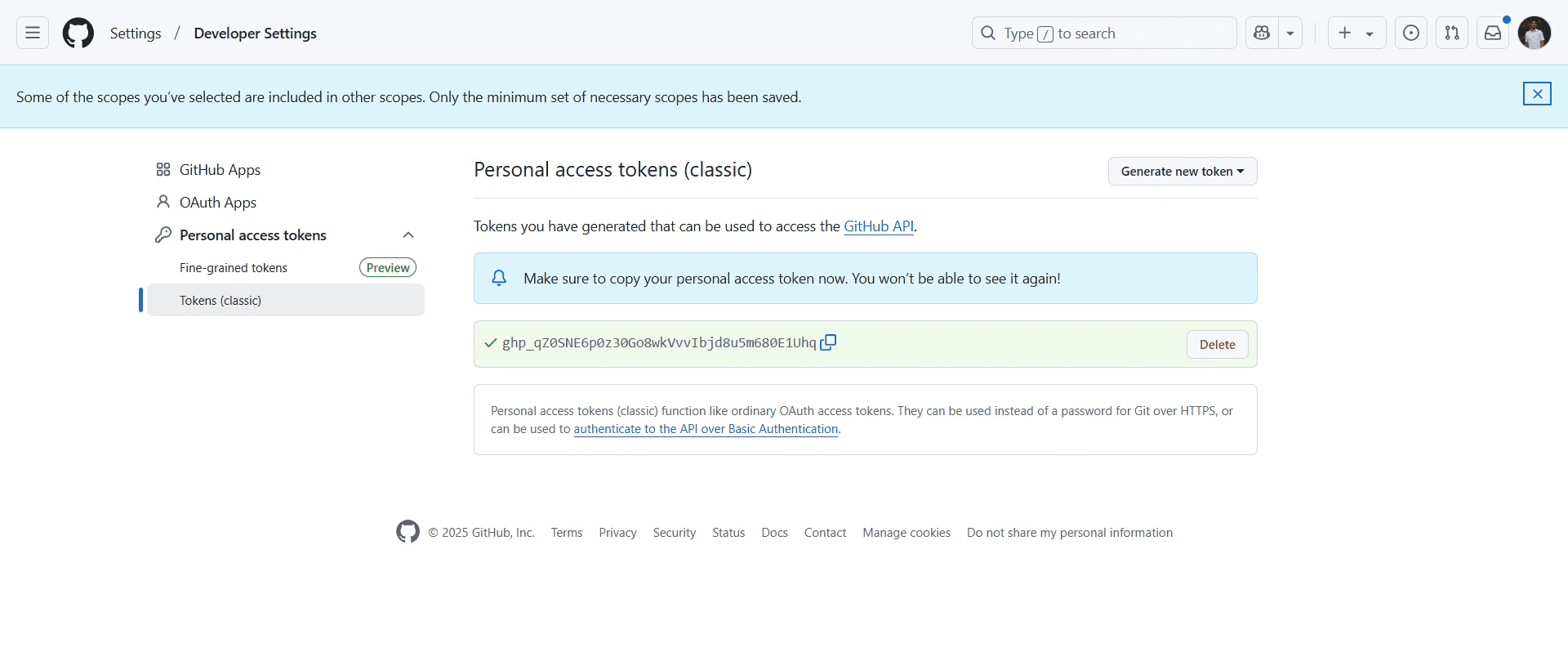
Now you can see the new personal access token is generated and you can copy that for further use.
This is a step-by-step guide on how to use a personal access token in GitHub.
Pro-tips for using a personal access token in GitHub
Generate a personal access token by going to GitHub settings, selecting Developer settings, and choosing Personal access tokens.
Use tokens instead of passwords for authentication when working with the GitHub API or Git over HTTPS.
Store your token securely in a password manager to prevent unauthorized access and avoid sharing it publicly.
Common pitfalls & how to avoid them while using a personal access token in GitHub
Using a token with excessive permissions, generate a token with only the necessary scopes to minimize security risks.
Forgetting to copy the token after generating it, save it immediately because GitHub will not display it again.
Using an expired or revoked token, check the expiration date and regenerate a new token if authentication fails.
Common FAQs for using a personal access token in GitHub
Can I restrict the permissions of a personal access token?
Yes, you can choose specific scopes when generating the token to limit access to repositories, organizations, or API features.How do I revoke or delete a personal access token?
Go to the Personal access tokens section in Developer settings, find the token, and click Delete to revoke access.Why is my personal access token not working?
Ensure the token has the necessary permissions, is not expired, and is entered correctly in the authentication process.
If you're an instructor or content creator looking to make tutorial videos, give Trupeer.ai a try. It transforms rough screen recordings into polished, studio-style videos that are ready for sharing with your audience. Plus, it automatically generates a step-by-step guide based on the video you create. Fascinating, right? Start by creating your first tutorial for free with Trupeer.ai.

