Trupeer Blog
How to Auto-Generate Technical Documentation From Screen Recordings

In the world of software development and IT management, creating technical documentation is both essential and often tedious. Traditionally, it requires teams to manually write detailed steps, capture screenshots, and constantly update documents to reflect the latest software changes. This process is not only slow but can lead to outdated documentation that confuses users and hinders productivity. Imagine a scenario where a new software feature is released weekly. Keeping pace with these updates is daunting and often results in inconsistencies. But with AI tools like Trupeer.ai, you can now auto-generate documentation directly from screen recordings, ensuring your documentation is always current.
Manual documentation processes can't match the speed of development cycles. According to a recent study,
over 70% of IT departments report that their documentation is perpetually out of date
. This not only impacts user efficiency but also increases support tickets by 30%. Auto-generating documentation from screen recordings offers a faster, more reliable solution. It allows teams to capture workflows in real-time, transforming them into editable documents that are easy to update and share. For teams operating in agile environments, this capability is a big shift.
Whether you're an IT manager, a software developer, or a technical writer, automating your documentation process can save countless hours and improve accuracy. From startups to large enterprises, anyone looking to optimize their documentation workflow stands to benefit. AI solutions like Trupeer.ai provide tools that integrate smoothly with existing workflows, ensuring you don't have to overhaul your current systems to get started. Instead, they enhance your capability to deliver accurate, up-to-date documentation with minimal effort. If you're considering which best screen recording software to adopt, it's crucial to understand how these tools can transform your documentation process.
Why does auto-generating documentation from screen recordings matter?
In the fast-paced world of technology, the demand for up-to-date and accurate technical documentation is ever-increasing. Companies are constantly releasing new software updates, and ensuring that documentation matches these updates is critical. However, the traditional method of manually creating and updating technical documents is inefficient and often results in errors or outdated information. This is where the ability to auto-generate documentation from screen recordings becomes invaluable.
By using screen recordings to create documentation, companies can drastically reduce the time spent on this task. Technical writers and developers can focus on higher-priority tasks instead of constantly updating documents. It also reduces the risk of human error, ensuring that users have the most accurate information available. This translates into fewer support tickets, which can be costly and time-consuming to address. For IT departments, the capability to automate documentation processes means a more efficient operations workflow and improved resource allocation.
Also, auto-generated documentation ensures consistency across all user guides, SOPs, and training materials. This consistency is vital for maintaining a professional and reliable brand image. It also improves the onboarding process for new employees, providing them with clear and precise instructions that reflect the latest software features. Ultimately, the ability to auto-generate documentation from screen recordings not only enhances operational efficiency but also improves user satisfaction and reduces the burden on support teams.
What are the benefits of auto-generating documentation from screen recordings?
Auto-generating documentation provides multiple advantages for businesses striving to keep pace with rapid development cycles and constant software updates.
Time Efficiency. By converting screen recordings directly into documentation, teams save hours previously spent on manual documentation. This allows for faster deployment of updates and improved time management.
Consistent Updates. Auto-generated documentation ties directly to the screen recording, ensuring that updates are always in sync with the latest software version. This reduces the risk of outdated information.
Improved Accuracy. With AI handling the transcription and documentation process, there's less room for human error. This leads to more accurate guides and fewer user errors, enhancing the user experience.
Resource Optimization. By reducing the manual workload, technical teams can focus on more strategic tasks. This not only enhances productivity but also leads to better resource allocation across projects.
Enhanced User Experience. Up-to-date and accurate documentation results in fewer support requests and a smoother user experience. Users can find the information they need quickly and efficiently.
Scalable Solutions. As companies grow, the ability to scale documentation efforts smoothly becomes crucial. An AI technical documentation system provides this scalability without requiring additional personnel.
Teams ship this workflow end-to-end using Trupeer's AI video platform, which turns raw recordings into polished output without an editor.
Which Trupeer features help you auto-generate documentation from screen recordings?
Trupeer offers a suite of features specifically designed to enhance the process of auto-generating documentation from screen recordings. By using these capabilities, you can simplify your documentation workflow and ensure accuracy and consistency across all materials.
AI screen recording with auto-zoom and click detection
This feature allows you to capture detailed screen recordings without missing any critical interactions. Trupeer's AI automatically detects clicks and zooms in on areas of interest, ensuring that every action is clearly documented. This is particularly useful for creating tutorials and user guides, where precise actions need to be highlighted. The auto-zoom functionality ensures that viewers can easily follow along, reducing confusion and improving comprehension. As a best screen recording tool, Trupeer ensures your recordings are both comprehensive and engaging.
Silent screen recording with automatic AI narration
For those who prefer a quieter recording process, Trupeer offers silent screen recording with automatic AI narration. This feature allows you to capture your screen without background noise, while the AI adds a natural-sounding voiceover. This is ideal for environments where background noise is an issue or when you need to focus on capturing the visual elements. The AI narration can be customized with different voices, paces, and tones to fit your brand's voice. This ensures that your documentation is both professional and easy to understand.
Automatic SOP generation from any recording
Trupeer's auto-generated documentation capability turns any screen recording into an editable SOP. This feature extracts key actions and translates them into a step-by-step document, ready for export in multiple formats like HTML, PDF, or SCORM. This not only speeds up the documentation process but also ensures that all SOPs are consistent and comprehensive. The ability to generate SOPs directly from recordings means that your team spends less time writing and more time focusing on core tasks.
AI translation into 65+ languages with lip-sync
For global teams, Trupeer's AI translation feature is invaluable. It allows you to translate your documentation into over 40 languages, complete with lip-sync capabilities for videos. This ensures that your materials are accessible to a diverse audience, breaking down language barriers and improving inclusivity. This feature is particularly useful for companies with international clients or teams spread across different regions. The AI translation process is quick and accurate, allowing you to maintain consistency across all language versions.
AI-searchable knowledge base with timestamp deep-links
Trupeer's AI-searchable knowledge base indexes every recording with deep-links to specific timestamps. This allows users to quickly find the exact information they need without sifting through entire videos. The searchable knowledge base is a powerful tool for both users and support teams, as it reduces the time spent searching for information and increases efficiency. By integrating this feature into your documentation workflow, you ensure that all resources are easily accessible and up-to-date.
How do you auto-generate technical documentation from screen recordings step by step with Trupeer?
Step 1: Start a Screen Recording
Begin by opening the Trupeer application on your desktop or using the browser-based recorder. Choose the "AI screen recording with auto-zoom and click detection" option. This ensures that all your interactions are captured in detail and that any clicks are highlighted for clarity. Simply press the "Record" button, and the AI will manage the rest. This feature is particularly useful for software tutorials, as it automatically zooms into areas of interest, making it easy for viewers to follow along. Typically, a standard screen recording session takes about 10-15 minutes, depending on the complexity of the task you're demonstrating.

Step 2: use Silent Recording with AI Narration
While the screen recording is ongoing, you can opt for the "Silent screen recording with automatic AI narration." This feature allows you to capture the visuals without any background noise, while the AI-generated voiceover narrates the process. To activate this, select the "AI narration" checkbox before starting your recording. The AI will analyze the on-screen actions to provide a coherent narration, which can be adjusted later if needed. This step is especially beneficial in environments with ambient noise, ensuring your final product remains professional and clear.

Step 3: Generate SOP from Recording
Once the recording is complete, navigate to the "Documentation & SOPs" section within Trupeer. Select the "Automatic SOP generation from any recording" option. The AI will now process the recording and generate an edit-ready SOP document. This document will be structured in a step-by-step format, mirroring the actions captured during the recording. It typically takes around 5-7 minutes for the AI to complete the document generation, depending on the length of your recording. Edge cases might include complex software processes, where additional manual refinement might be necessary.
Step 4: Edit and Enhance the Documentation
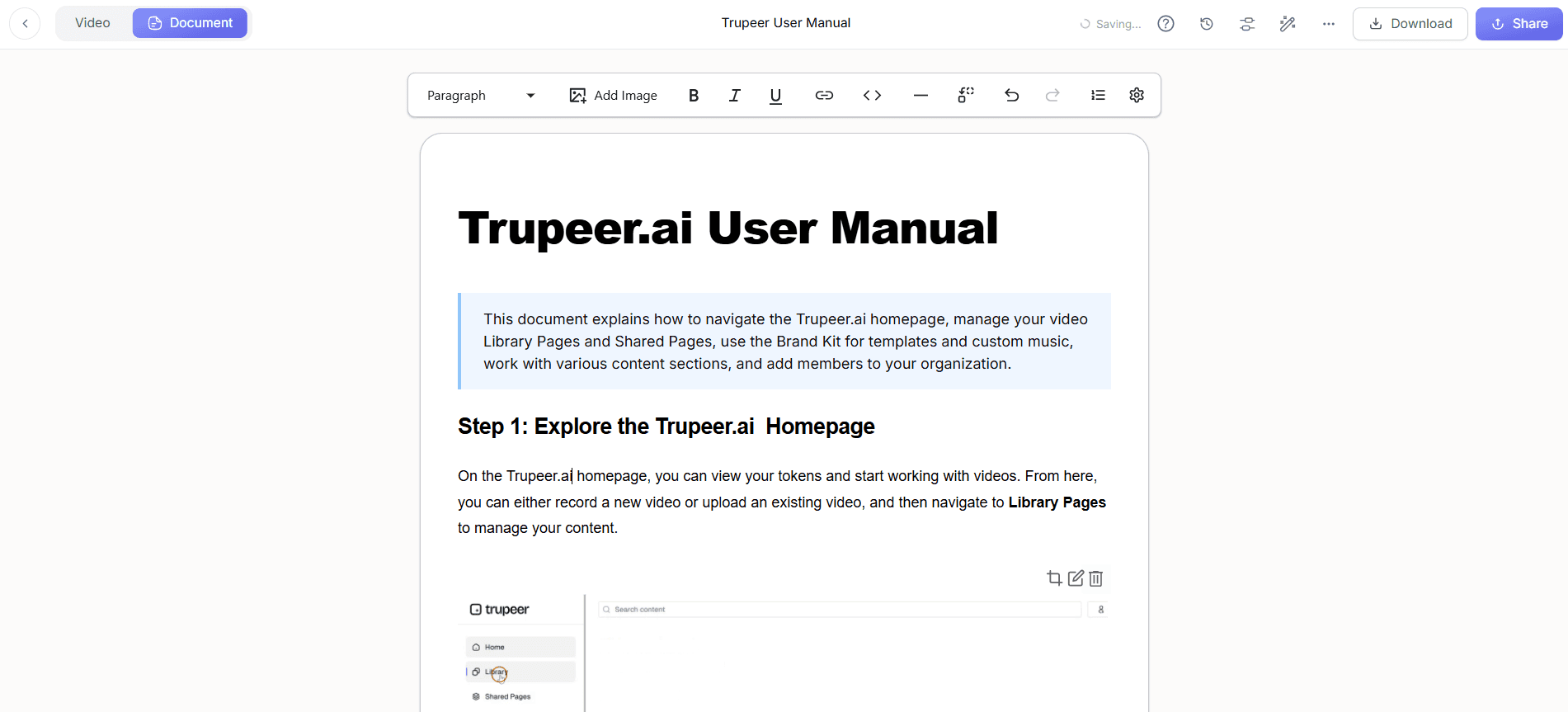
After the SOP is generated, you can edit and enhance it using Trupeer's AI editing features. Use the "Automatic filler-word removal" to clean up any unnecessary pauses or hesitations in the video. You can also adjust the AI voiceover to better fit your brand's tone using the "AI voiceover in 65+ natural voices" feature. These enhancements ensure that your documentation is both polished and professional, ready for distribution or further customization.
Step 5: Translate and Localize
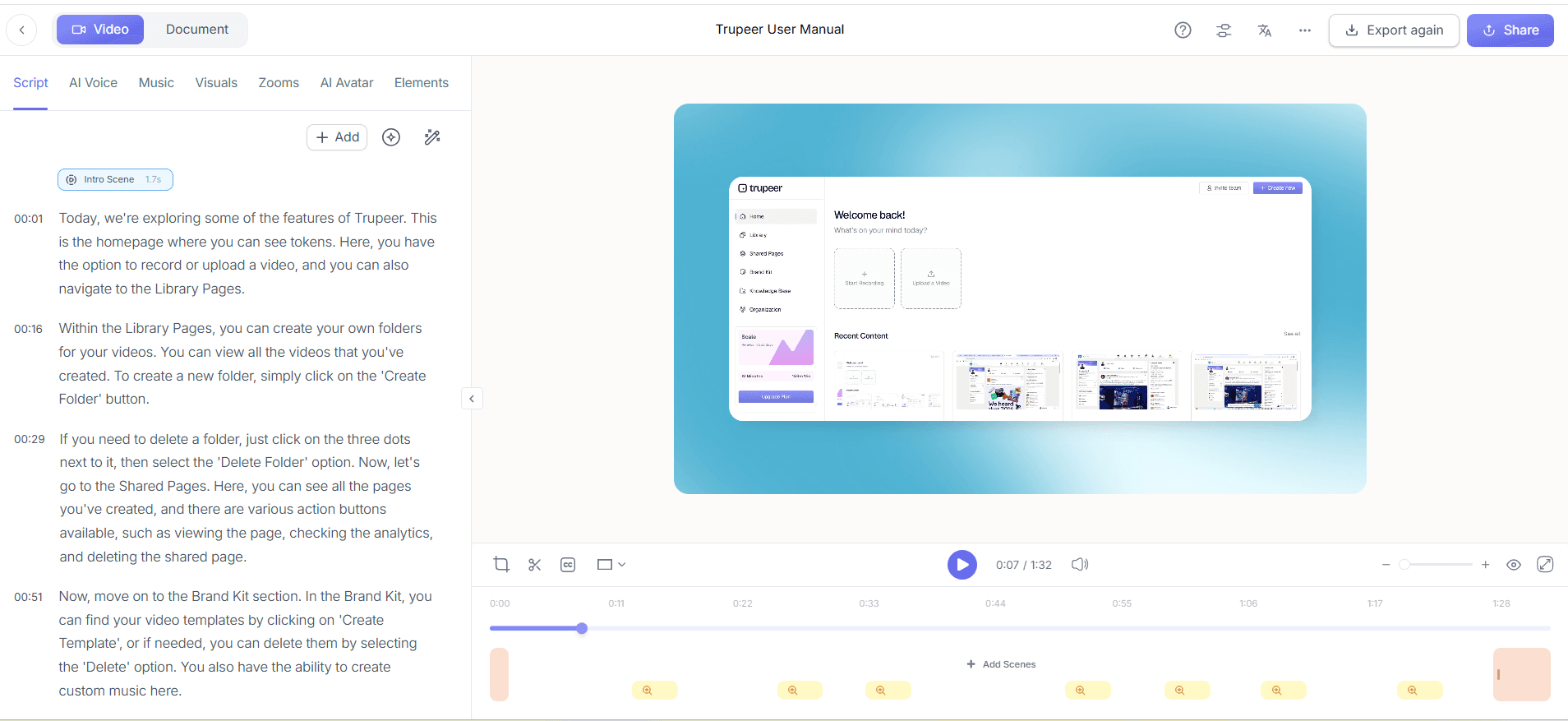
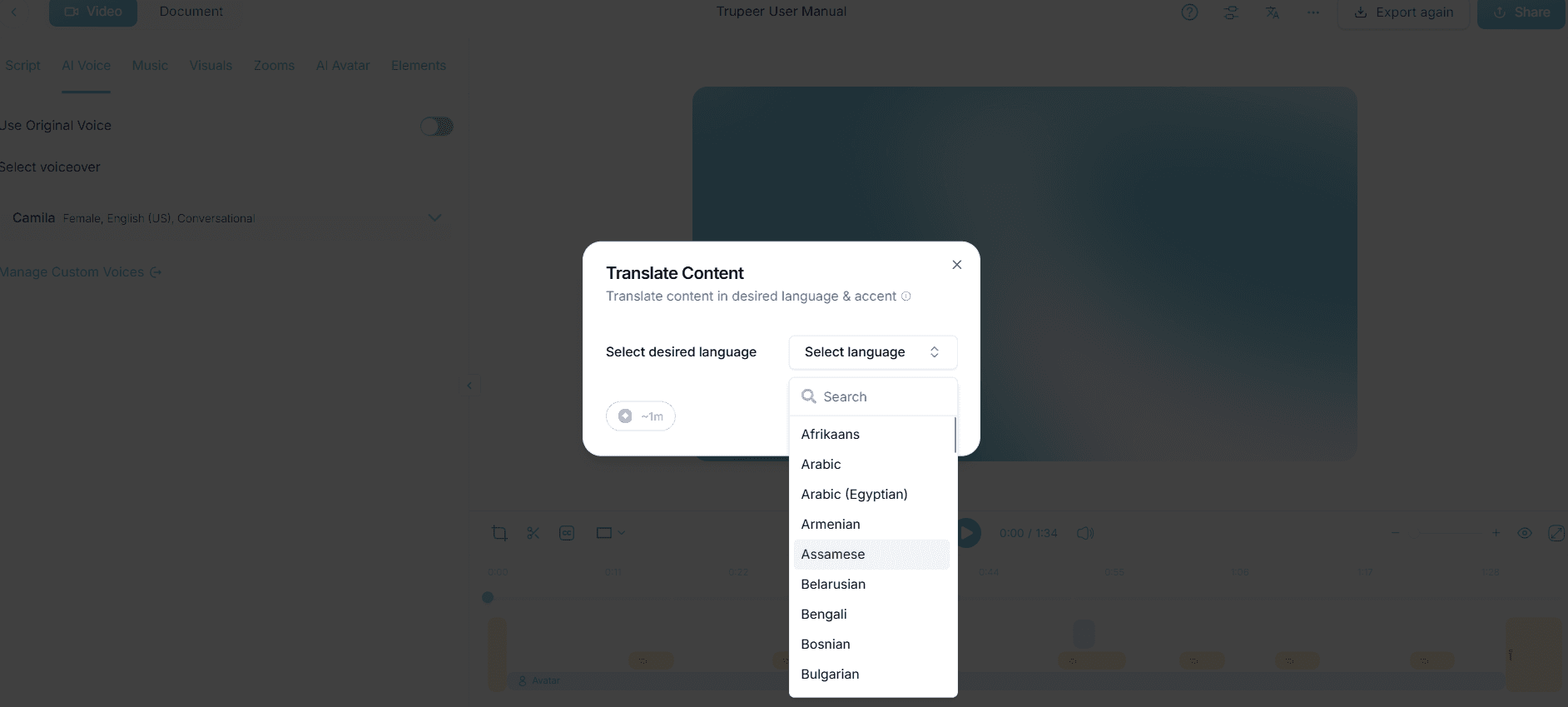
For companies with a global audience, Trupeer offers "AI translation into 40+ languages with lip-sync." Select this option from the localization menu, and choose the languages you need. The AI will handle the translation of both text and voice, ensuring that your documentation is accessible to a broader audience. The lip-sync feature ensures that any video content remains visually coherent, even in translated versions. This step is essential for maintaining consistency and clarity across different language markets. Teams weighing tools often start with a Loom alternatives comparison before standardizing on a workflow.
Step 6: Distribute via Knowledge Base
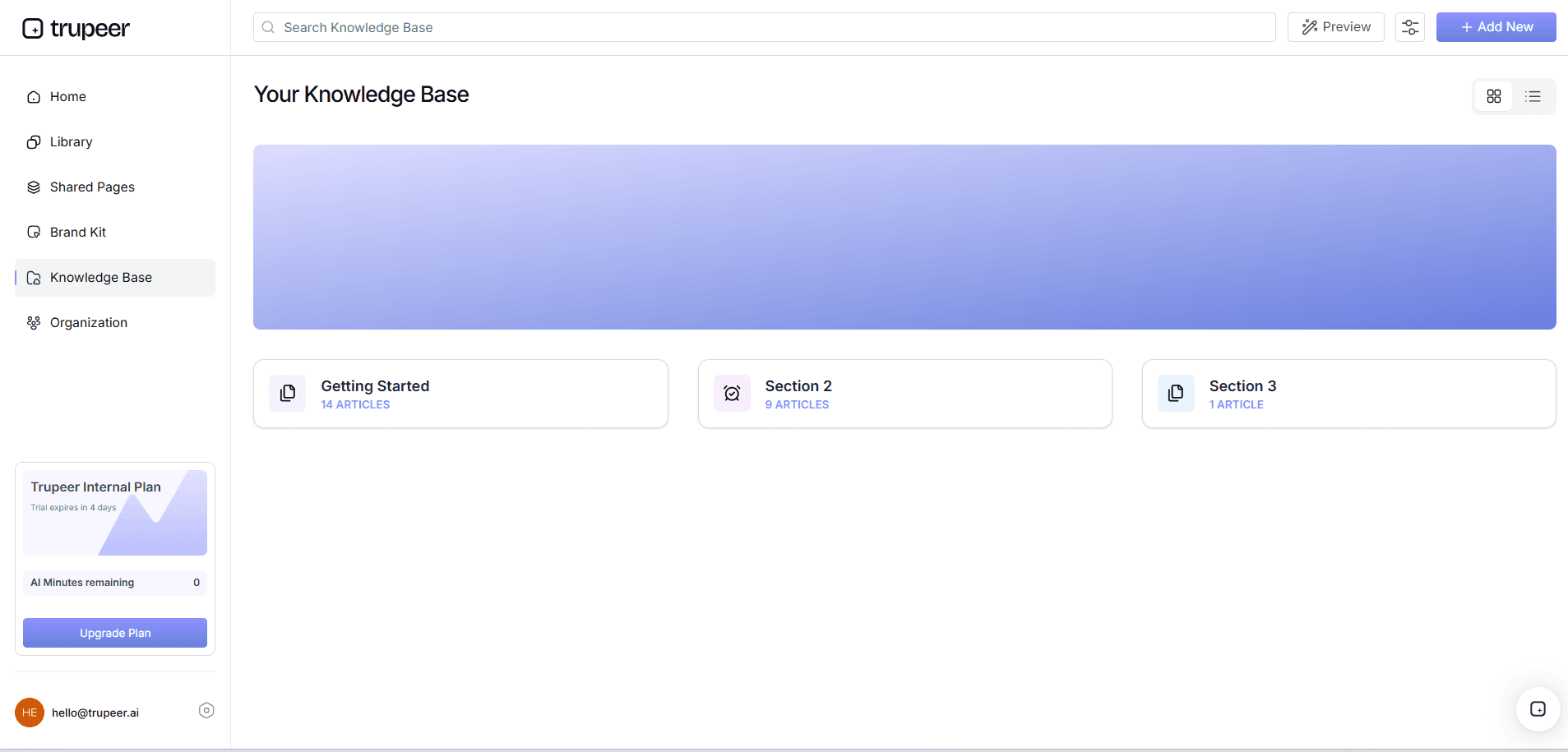
Finally, use Trupeer’s "AI-searchable knowledge base with timestamp deep-links" to distribute your documentation. Upload your edited and localized content to the knowledge base, where it becomes easily searchable. Users can access specific sections via deep-links that take them directly to relevant timestamps. This feature enhances the user experience by making it easy to find specific information without sifting through entire documents or videos. It's particularly effective for reducing support queries and improving user satisfaction.
What tips help you auto-generate technical documentation from screen recordings?
To maximize the effectiveness of auto-generating technical documentation from screen recordings, consider these tactical tips. Each will help simplify the process and ensure high-quality results.
Plan Your Recording. Before starting, outline the steps you plan to capture. This ensures a smooth recording session and reduces the need for edits.
Use Brand Templates. Apply brand kits and branded templates available in Trupeer to maintain a consistent visual style across all documentation.
use AI Avatars. use AI avatars for a more engaging presentation. Trupeer’s integration with HeyGen allows for customizable avatars.
Experiment with Voice Cloning. Use the "AI voice cloning" feature to create a more personalized narration that aligns with your brand's tone.
Regularly Review Content. Set a schedule for reviewing and updating your documentation to keep it aligned with any software changes.
Use Analytics to Improve. Analyze viewer engagement analytics to refine your documentation based on viewer drop-off points.
Compare Alternatives. Consider reviewing a Scribe alternative comparison to ensure you’re using the best tools for your needs.
Frequently asked questions
How does Trupeer ensure the accuracy of auto-generated documentation?
Trupeer uses advanced AI algorithms to analyze screen recordings and generate documentation that accurately reflects the captured processes. The AI detects key actions and translates them into detailed steps, minimizing the possibility of human error. also, users can edit the generated documents to refine and customize content further. This combination of AI precision and human oversight ensures high accuracy and reliability in the final documentation.
What formats can Trupeer documentation be exported to?
Trupeer supports multi-format export options, allowing documents to be exported in HTML, PDF, SCORM, and MP4 formats. This flexibility ensures compatibility with various platforms and user preferences. HTML and PDF formats are ideal for web and print distribution, while SCORM is suitable for learning management systems. MP4 exports are useful for video-based documentation. Overall, these options provide the versatility needed to meet diverse documentation requirements.
Why is AI-generated documentation more efficient than manual methods?
AI-generated documentation significantly reduces the time and effort required compared to manual methods. The AI automates the capture, transcription, and formatting processes, allowing for rapid creation of documentation that is ready for immediate use. This efficiency is particularly beneficial for teams working in dynamic environments where software updates are frequent. By minimizing manual input, teams can focus on higher-value tasks, ultimately increasing productivity.
Can Trupeer handle documentation for international teams?
Yes, Trupeer is equipped to handle documentation for international teams through its solid localization features. The platform offers AI translation into over 40 languages, complete with lip-sync for video content. This capability allows companies to produce consistent and accurate documentation across multiple languages, building better communication and understanding among global team members. The video localization tool ensures that all translated materials maintain their original intent and clarity.
Does Trupeer require special training to use?
No, Trupeer is designed to be user-friendly and intuitive, requiring minimal training to get started. Its interface is straightforward, with step-by-step guidance for each feature. Most users can become proficient with the platform after a brief onboarding session. also, Trupeer offers comprehensive support resources and tutorials to assist users in maximizing the platform's capabilities. This ease of use ensures a smooth integration into existing workflows, enabling teams to quickly benefit from the platform's automation features.

