4.8/5
Best Screen Recording Tool
Record your screen with AI handling the cleanup automatically. Filler words removed, cursor smoothing applied, zoom effects timed to click moments. Same recording produces a polished video and a written guide. No video editor required.
Try for Free

The best screen recording tool lets you capture high-quality screen recordings in just a few clicks no complex setup, no steep learning curve. Whether you are creating tutorials, product demos, or internal documentation, this tool streamlines the entire process.What this category actually contains. Basic screen recorders (Loom, Vidyard, macOS QuickTime, OBS) capture cleanly but ship the recording as-is, filler words and all. Full video editors (Camtasia, Adobe Premiere, Final Cut Pro) handle polished output but require editing skills and 4-8 hours per recording. The category between these two AI-edited screen recorders that handle the editing automatically is where Trupeer sits. Plus generates a matching written guide alongside every recording, which most teams end up wanting once they realize half their audience reads documentation while the other half watches videos.For how to take a screenshot, it's often easier to record the process once than to write it all out.
Record your full screen, a specific window, or a custom region with crystal-clear quality
Add voiceover narration and webcam overlay to personalize your recordings
Instantly edit, trim, and annotate recordings without switching to another app
Export in multiple formats and share via link or embed code in seconds
Works seamlessly on Mac, Windows, and directly in your browser
What Is the Best Screen Recording Tool?
The best screen recording tool is a lightweight yet powerful software that allows you to capture everything happening on your screen along with audio and webcam input. Unlike basic built-in recorders, a top-tier screen recording tool provides advanced editing capabilities, annotation features, and one-click sharing all wrapped in an intuitive interface. It is the go-to solution for professionals who need to communicate visually without scheduling yet another meeting.
The honest definition. "Best" depends on what the recording is for. For quick async messages to a colleague: Loom is probably best fastest path from "I need to send this" to "it's sent." For polished commercial-grade tutorials with custom motion graphics: Camtasia or Adobe Premiere remain the right tools, assuming the team has editor capacity. For polished training content, customer onboarding walkthroughs, internal SOPs, and product demos shipped at high volume by teams without dedicated editors: AI-edited screen recorders like Trupeer fit the use case. "Best" isn't universal across these contexts.
How Does the Best Screen Recording Tool Work?
Getting started takes under a minute. Here is how it works in three simple steps:
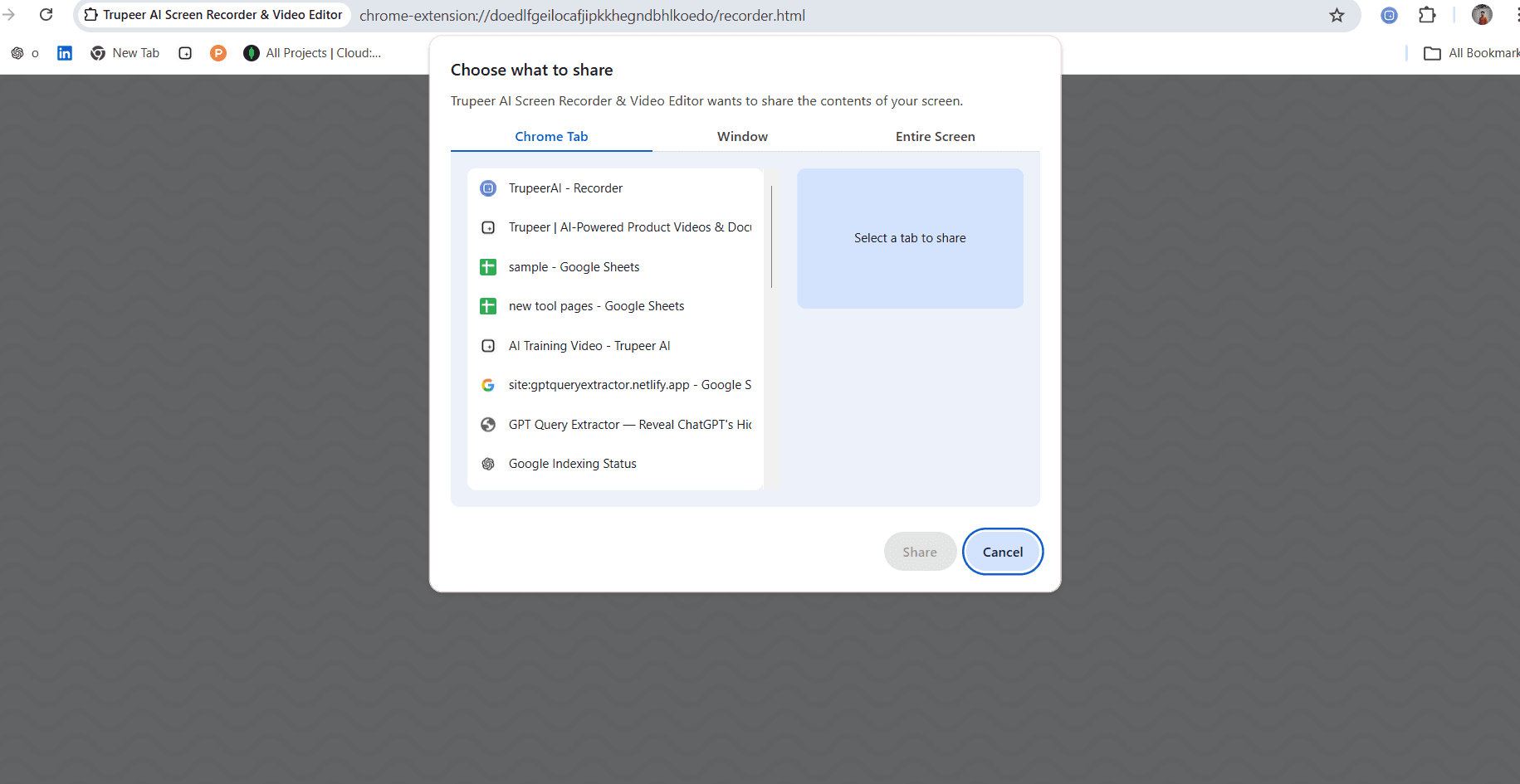
Step 1: Choose Your Recording Mode
Select whether you want to record your full screen, a specific application window, or a custom-sized region. Toggle your microphone and webcam on or off depending on whether you need narration or a face-cam overlay.
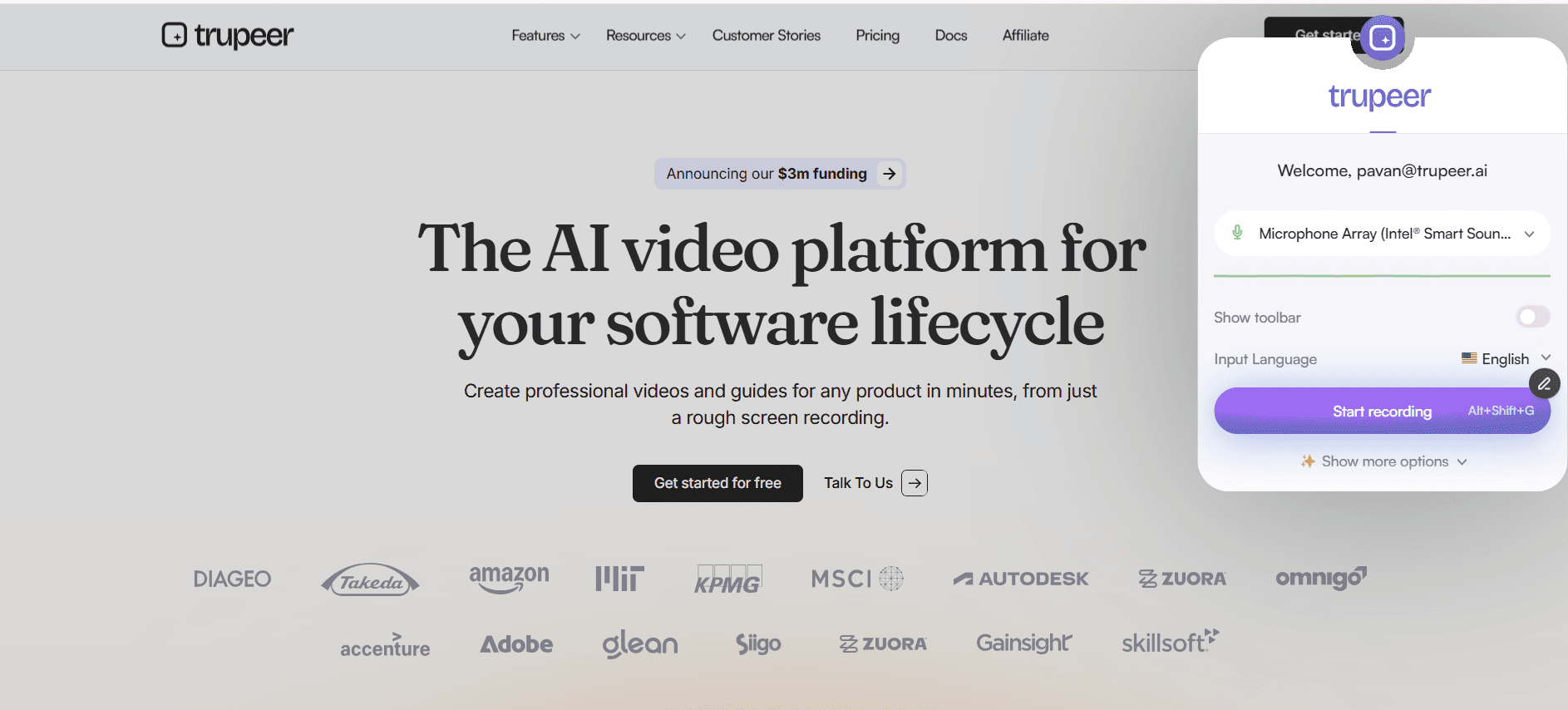
Step 2: Record and Annotate in Real Time
Hit the record button and start capturing. Use real-time annotation tools to highlight areas, draw arrows, or add text callouts as you go. The tool captures every detail in high definition so your audience never misses a thing.
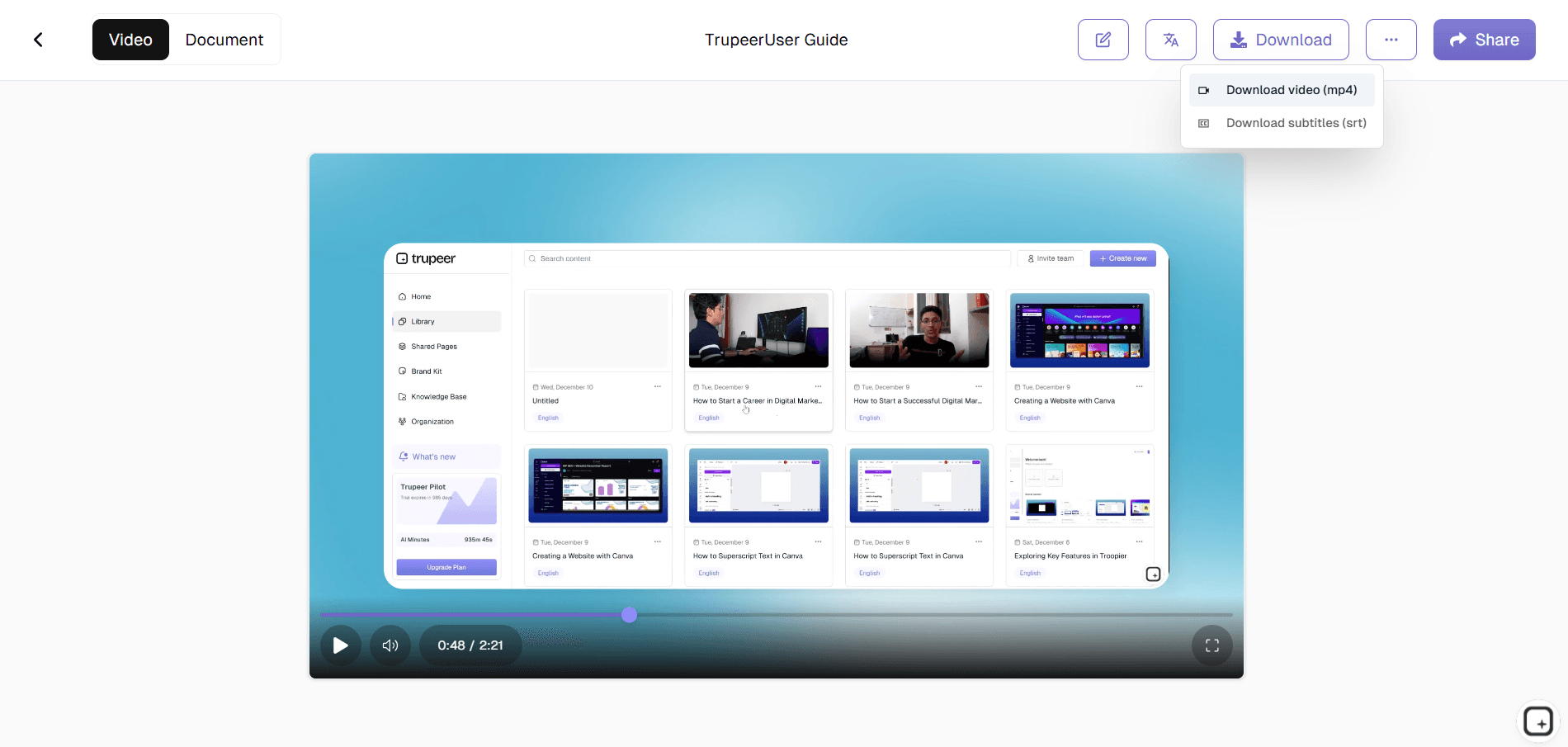
Step 3: Edit, Export, and Share
Once you stop recording, jump into the built-in editor to trim dead air, crop sections, add transitions, or insert captions. Export in your preferred format MP4, GIF, or Web and share instantly via a shareable link, embed code, or direct download.
Key Features of the Best Screen Recording Tool
Full HD and 4K Recording: Capture every pixel on your screen in stunning high definition. Whether you are recording a complex dashboard, a design prototype in Figma, or a multi-tab browser walkthrough, the output remains sharp and professional at resolutions up to 4K, ensuring your content looks polished on any display. The realistic version. Recording resolution depends on the recorder's source: a 4K monitor recorded at native resolution outputs 4K, a 1440p monitor outputs 1440p, a 1080p laptop screen outputs 1080p. Trupeer captures at the source resolution of whatever screen is being recorded. Browser-based recording sometimes has additional caps depending on browser configuration. For most product walkthroughs and training videos, 1080p is sufficient quality text remains readable, UI elements stay crisp. 4K matters specifically for design work, video production demos, or content shipped to platforms that benefit from higher resolution. Worth checking the actual output resolution before promising 4K to prospects with specific requirements.
Flexible Capture Modes: Choose from full-screen recording, single-window capture, or custom region selection. This flexibility lets you focus your audience's attention on exactly what matters, eliminating distracting desktop clutter and irrelevant notifications from the final recording. Most teams use the single-window or browser-tab capture mode rather than full-screen. Reason: full-screen recording captures everything the recorder might have open Slack notifications popping in, the Spotify mini-player, the test customer's email visible in another tab. Window or tab capture eliminates the cleanup problem. So the recording shows only the workflow being demonstrated, not the recorder's whole desktop.
One-Click Sharing and Embedding: Generate a shareable link the moment your recording is ready. Embed videos directly into Notion pages, Confluence docs, Slack messages, or your company wiki. No file-size limits, no upload delays — just instant distribution to your team or audience. The realistic distribution scope. The Shared Page link wraps both the video and the matching written guide into one branded URL. Visibility per page (public, organization-only, selected domains, invite-only) controls who sees what. The Shared Page embeds inside Notion, Confluence, SharePoint, GitBook, Document360, Trainual, Process Street, or any platform that accepts iframe embeds. So the recording lives wherever the team's existing workflow runs, not in a separate Trupeer-only silo. The MP4 download works for distribution channels that don't accept embeds (email attachments, LMS uploads, archive copies).
Automatic Transcription and Captions: Every recording is automatically transcribed using AI-powered speech recognition. Toggle captions on or off, edit the transcript for accuracy, and make your content accessible to viewers who are deaf, hard of hearing, or watching without sound. The accessibility scope worth being clear about. Captions auto-generate from the voiceover. Transcripts get produced alongside the video and become searchable text. So a learner searching the recording library for "expense reimbursement" finds the right video even when the video title doesn't include those exact words. Caption accuracy depends on audio clarity and how heavily the narration uses industry-specific terminology for most product walkthroughs, the auto-generated captions ship as-is. For compliance-sensitive content where caption accuracy is legally required, a quick review pass before publishing is worth the 5 minutes.
Why Choose This Screen Recording Tool?
Zero Learning Curve: The interface is designed so that anyone from interns to executives can start recording within seconds without reading a manual or watching a tutorial. The realistic test. If somebody on the team can use Google Docs without reading a manual, they can use this screen recorder. The interface presents three choices (what to capture, audio on/off, webcam on/off), then a record button. The editing layer adds complexity for users who want it but isn't required for users who don't most teams ship the auto-edited output as-is without ever opening the editor.
All-in-One Workflow: Record, edit, annotate, transcribe, and share from a single platform. No more juggling three different apps to produce one video. A specific example. Old workflow: record in Loom, download MP4, open Premiere to edit, export, take screenshots in CleanShot for the doc, paste into Google Docs, format, save as PDF, upload to the knowledge base. Six tools, four file formats, two hours of work. New workflow: record in Trupeer, AI processes everything, both video and written doc generated. One tool, one production pass, roughly 20 minutes including review. The math compounds quickly across a team shipping 10+ recordings per month.
Enterprise-Grade Security: Your recordings are encrypted in transit and at rest, with role-based access controls and SSO integration to meet your organization's compliance requirements. The existing bullet claims "encrypted in transit and at rest, with role-based access controls and SSO integration." Verify with the security/product team whether SSO integration and SOC 2 / ISO 27001 attestation actually exist before publishing this claim. Enterprise prospects specifically filter on these during procurement reviews. If Trupeer doesn't have them, this claim attracts wrong-fit deals that fall apart at the security review stage. Recommended replacement language until verified:
Lightweight Performance: The recorder runs in the background with minimal CPU and RAM usage, so your machine stays responsive even during long recording sessions on resource-heavy applications. The browser-based recording runs without a desktop install. So no separate application taking up RAM, no auto-launch on startup, no permissions conversations with IT. Recording starts when the browser tab opens, stops when the tab closes. Resource usage stays low because the recorder runs as a Chrome extension, not as a heavy native application.
Best Screen Recording Tool for Internal Teams
1. Internal teams often struggle with miscommunication when sharing feedback over text. A screen recording lets you show exactly what you mean, reducing back-and-forth messages by up to 80 percent.
2. Use screen recordings to document internal processes and standard operating procedures. New hires can watch step-by-step walkthroughs instead of shadowing colleagues for days.
3. Replace lengthy status-update meetings with quick async video updates. Each team member records a two-minute summary, and everyone watches on their own schedule.
4. Screen recordings create a searchable knowledge base that lives on long after the original author has moved to a different project or role. Learn more about building process documentation at Trupeer's process guide tool.
Best Screen Recording Tool for SaaS Teams
1. SaaS teams can record interactive product demos that prospects watch on demand, shortening sales cycles and reducing the load on demo specialists.
2. Customer success managers use screen recordings to walk users through new features, reducing support tickets and increasing feature adoption rates.
3. Product managers record bug reproductions and feature requests with full screen context, giving engineering teams everything they need to act without follow-up questions.
4. Marketing teams repurpose screen recordings into social media clips, blog content, and email drip campaigns — maximizing the ROI of every recording. Start capturing with Trupeer's screen recorder.
Best Screen Recording Tool for Startups
1. Startups move fast, and screen recordings let founders document decisions, product changes, and customer feedback loops without slowing down.
2. With limited budgets, startups cannot afford expensive video production. A screen recording tool delivers professional-quality content at a fraction of the cost.
3. Investor updates become more compelling when founders include a quick screen recording walking through the latest dashboard metrics and product milestones.
4. Early-stage teams use screen recordings to onboard contractors and freelancers in hours instead of days, keeping momentum during critical growth phases.
Best Screen Recording Tool for Enterprises
1. Enterprises require compliance-ready documentation, and screen recordings provide an auditable, time-stamped record of every process and approval workflow.
2. Global organizations use screen recordings to bridge time-zone gaps, enabling teams in New York, London, and Tokyo to collaborate asynchronously without sacrificing clarity.
3. IT departments record system migration walkthroughs and rollback procedures, ensuring business continuity even when key personnel are unavailable.
4. Executive communications become more personal and engaging when leaders record short video messages instead of sending company-wide email blasts.
Best Screen Recording Tool for Remote Teams
1. Remote teams lose the ability to tap a colleague on the shoulder. Screen recordings restore that quick, visual communication channel without requiring everyone to be online simultaneously.
2. Async screen recordings eliminate the need for recurring sync meetings, freeing up hours each week for deep, focused work.
3. Distributed teams use screen recordings to maintain culture recording virtual office tours, team introductions, and celebration shout-outs that build connection across distances.
4. Remote code reviews become faster and more thorough when developers record themselves walking through pull requests, highlighting architectural decisions and potential edge cases.
Best Screen Recording Tool for Developers
1. Developers use screen recordings to document API integrations, SDK setups, and environment configurations, creating living documentation that stays current with the codebase.
2. Bug reports with screen recordings attached get resolved two to three times faster because engineers can see the exact reproduction steps, browser state, and console errors.
3. Tech leads record architecture decision records as short videos, making it easy for future team members to understand why certain trade-offs were made.
4. Open-source maintainers create screen-recorded contribution guides that lower the barrier to entry and attract more high-quality pull requests. Explore the Trupeer screen recorder for developer workflows.
Best Screen Recording Tool for Onboarding and Support Teams
1. Onboarding teams create libraries of screen-recorded tutorials that new employees access on day one, dramatically reducing time-to-productivity.
2. Support teams record step-by-step resolution videos for common tickets, then link them in help-center articles to deflect future inquiries.
3. Personalized screen recordings sent to customers experiencing issues show empathy and expertise, turning frustrated users into loyal advocates.
4. Support managers analyze recorded interactions to coach agents, identify training gaps, and continuously improve the customer experience. Build your support library with Trupeer's process guide creator.
How Trupeer fits next to Loom, Camtasia, ScreenPal, and other screen recorders
The screen recording tool space has three rough clusters. Cluster one: raw recorders without auto-editing. Loom, Vidyard, the built-in macOS QuickTime recorder, OBS Studio. These capture the screen cleanly but ship the recording as-is. So filler words, mouse hesitations, and rough audio all stay in the final video. Useful for quick async messages to a colleague. Less useful for content that lives in the LMS or help center for two years and represents the company's training quality to new hires.
Cluster two: full screen recording editors with deep editing power. Camtasia, ScreenPal in its full mode, Adobe Premiere, Final Cut Pro. These produce polished output when the team has editor capacity. The capacity is the catch: 4-8 hours per recording for someone competent in the tool, longer for newer users. Plus the per-seat license cost, which adds up across a team.
Cluster three: AI-edited screen recorders. Trupeer sits here, alongside newer Loom auto-edit features and ScreenPal's AI mode. The differentiation between these tools comes down to specific feature choices. Trupeer's distinctive pattern: every recording produces both a polished video and a matching written guide with screenshots inline. Brand kit applies automatically. Translation to 65+ languages on paid tiers. Re-record one changed step when the procedure updates. For most internal training and customer onboarding use cases at B2B SaaS companies, this combination matches the actual workflow. For raw screen recording without polish, Loom is the path of least friction. For commercial-grade tutorials needing custom motion graphics or color grading, Camtasia remains the right pick.
Looking for a Loom or Camtasia Alternative?
If you are comparing screen recorders, the real question is what happens after you hit stop. Most tools, Loom and Camtasia included, hand you a raw clip and leave the editing to you. Trupeer is built as the alternative for people who want the finished asset, not just the recording. From a single capture, it produces a polished video, with smart zoom, captions, and your branding applied automatically, and it generates a written step-by-step guide from the same recording. So instead of choosing between a quick recorder and a heavy editor, you get the record-and-publish workflow in one place, and you can translate the output into 65+ languages or turn it straight into a guide with the Step-by-Step Guide Generator.
This screen recorder chrome extension builds on Screenity, originally created by Alyssa X and licensed under the GNU GPLv3, with enhancements developed by the Trupeer team. Source code available here: https://github.com/trupeer-ai/trupeer-chrome-capture.
Explore Related Tools
Key Features
HD Recording
Capture your screen in stunning Full HD or 4K resolution with zero lag.
Smart Editing
Trim, crop, and annotate your recordings with a built-in editor no extra software needed.
Instant Sharing
Generate a shareable link or embed code the moment your recording is finished.
How It Works
Step 1
Select your capture area
Step 2
Record your screen in high definition
Step 3
Trim, edit, and share your recording
Frequently Asked Questions
What makes this the best screen recording tool available?
It combines high-definition capture, real-time annotation, built-in editing, automatic transcription, and one-click sharing in a single lightweight application eliminating the need for multiple tools and complex workflows. Having the presales tool ready means the team isn't rebuilding the same demo each time.
Can I record my screen and webcam at the same time?
Yes. You can record your screen with a webcam overlay in any corner of the frame, allowing you to add a personal, face-to-face element to demos, tutorials, and presentations.
Does it work on Mac and Windows?
Absolutely. The tool runs natively on both Mac and Windows, and also offers a browser-based option so you can record from any device without installing software.
Is there a limit on recording length?
No. You can record for as long as you need whether it is a two-minute bug report or a two-hour training session — with no time caps or watermarks.
Can I add captions to my recordings?
Yes. The tool automatically generates captions using AI-powered transcription. You can review, edit, and toggle captions on or off before sharing your video.
More Tools


