Trupeer Blog

Imagine your software is loaded with features, yet non-technical users abandon it after their first encounter. This isn't just frustrating; it's a clear business issue. Non-technical users often feel overwhelmed with new software interfaces. They need immediate, intuitive assistance, or they'll simply give up. The stakes are high. According to Pendo,
84% of users will stop using an app after just one bad experience.
This is where in-app guidance videos become crucial. They serve as on-demand support, bridging the gap between complex features and user adoption. Creating these videos might sound daunting, especially if your team lacks technical skills. But it's achievable. By using the right tools, you can produce engaging, easy-to-understand video guides that help users navigate your software effortlessly. This guide is for product managers, customer success teams, and anyone responsible for user experience. With the right strategy, you'll enable your users and improve retention rates significantly.
Why does creating in-app guidance videos for non-technical users matter?
The challenge of onboarding non-technical users is a significant hurdle for many software companies. These users often represent a large portion of the customer base, and their satisfaction can make or break product success. Non-technical users generally lack the familiarity with digital tools that technical users have. This means they need more intuitive guidance to use software effectively. Without proper onboarding, these users may struggle with even the most basic functionalities, leading to frustration and potential churn. When users don't understand how to use your product, they can't realize its full value, impacting customer satisfaction and ultimately your bottom line. That's where in-app guidance videos come in.
In-app guidance videos are essential because they provide a visual, step-by-step walkthrough of your software. Unlike traditional user manuals or FAQ pages, videos can demonstrate processes in real time, making them easier to follow. This is especially important for customer education use cases where users need to see tasks being performed rather than just read about them. Videos cater to users who learn visually, offering a dynamic way to engage with your product. They can be paused, replayed, and viewed at the user's own pace, giving them control over their learning experience. These videos help reduce the cognitive load on users, making it easier for them to grasp complex concepts quickly and efficiently. For a deeper look, our guide on create instructional video covers the adjacent playbook.
What are the benefits of creating in-app guidance videos?
In-app guidance videos offer numerous advantages that can transform user experience and business outcomes.
Improved User Engagement. Videos are more engaging than text, keeping users' attention longer. This engagement helps users retain information better, leading to a more comprehensive understanding of your product.
Faster Onboarding. A well-designed video can reduce onboarding time significantly. Users can get up to speed quickly, which means they reach the "aha" moment faster and start experiencing the product's value.
Reduced Support Costs. By creating an instructional video, users can find answers to their questions without contacting support. This decreases the volume of support tickets, saving your team time and resources.
Scalable Training Solution. In-app videos can be reused across different user segments without additional costs. They provide a scalable training solution that can be easily updated as your product evolves.
Increased Feature Adoption. Users often overlook features buried in menus or requiring multiple steps. An AI-powered video tool can highlight these features, encouraging users to explore and adopt them.
Consistent Messaging. Videos ensure that all users receive the same information, maintaining consistency in how your product is presented and used. This consistency helps build trust and reliability among your user base.
For a deeper look, our guide on create user guide covers the adjacent playbook.
Which Trupeer features help you create in-app guidance videos?
Trupeer offers a suite of features tailored to creating effective in-app guidance videos, specifically designed to support non-technical users.
AI screen recording with auto-zoom and click detection
Trupeer's AI screen recording with auto-zoom and click detection simplifies the process of capturing your software's interface. This capability automatically focuses on the active elements, ensuring that users see exactly where actions are taking place. It highlights button clicks and important interactions, reducing the need for manual editing. This feature is particularly beneficial when you want to create training videos in minutes, offering a smooth experience for both creators and viewers. The auto-zoom function ensures that users don't miss any critical details, enhancing their understanding of the workflow.
AI voiceover in 65+ natural voices, adjustable pace and tone
For non-technical users, a clear and relatable voiceover can make all the difference. Trupeer's AI voiceover feature offers more than 50 natural-sounding voices, allowing you to choose the one that best matches your brand's tone. You can adjust the pace and tone to fit the video's context, ensuring that the narration complements the visual content. This feature is crucial for creating engaging videos with an AI spokesperson, providing a professional touch that enhances user experience. With AI voiceover, you can deliver information in a way that's both accessible and engaging.
Automatic SOP generation from any recording
Trupeer's automatic SOP generation turns your screen recordings into structured documentation. This feature creates edit-ready SOPs that you can export in multiple formats, including MP4, HTML, PDF, and SCORM. This capability is invaluable for creating a searchable knowledge base, as it ensures that your videos are not only informative but also well-documented. This way, users can refer back to specific steps without replaying the entire video, making the learning process more efficient. The auto-generated documentation also updates automatically, ensuring that your content remains relevant as your software evolves.
AI translation into 65+ languages with lip-sync
When your user base spans multiple regions, language can be a barrier. Trupeer's AI translation feature bridges this gap by translating videos into over 40 languages. The AI takes care of lip-sync, ensuring that translated videos look and sound natural. This feature makes it possible to create a truly inclusive AI documentation platform, reaching a global audience without the need for multiple versions of the same video. By offering videos in multiple languages, you can increase user satisfaction and retention across diverse demographics.
Embeddable video widgets for in-app guidance
Trupeer's embeddable video widgets allow you to integrate guidance videos directly within your application. This means users don't have to leave your app to access help, keeping their experience uninterrupted. These widgets can be customized to match your app's design, ensuring a smooth look and feel. This feature supports custom-domain hosting with SSO, providing a secure and personalized user experience. By embedding videos directly in your app, you enhance accessibility and usability, which is crucial for non-technical users who may struggle to navigate between different platforms.
How do you create in-app guidance videos for non-technical users step by step with Trupeer?
Step 1: Record Your Screen
Begin by launching Trupeer's browser-based recorder. This tool requires no installation, making it accessible for everyone on your team. Once open, select the screen recording option and choose whether you want to capture the entire screen or a specific application window. Trupeer's AI screen recording will automatically detect clicks and zoom in on active areas, ensuring that your users see every important detail. The recording is stored securely in the cloud, accessible anytime. Typically, capturing a 5-minute tutorial takes about 10 minutes, including setup and brief retakes.

Step 2: Add AI Voiceover
After recording, use Trupeer's AI voiceover feature to add narration. Choose from over 65+ natural voices and adjust the tone and pace to match your brand personality. Simply upload a script or type directly into the platform; Trupeer will handle the rest. This step takes about 15 minutes, depending on the script length. If you make changes to the voiceover, adjustments are quick and smooth, allowing you to maintain consistency across different video versions.

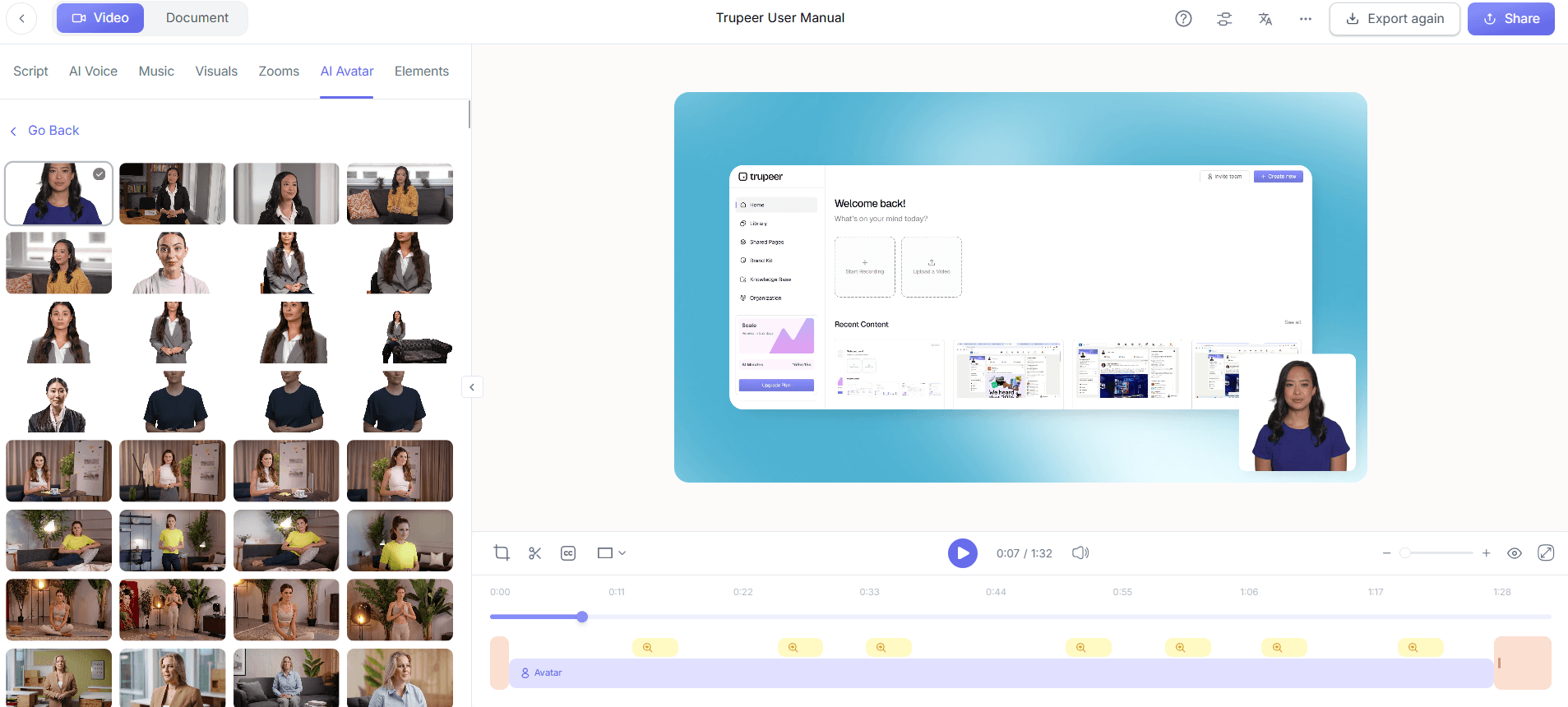
Step 3: Enhance with AI Avatars
To make your video more engaging, integrate AI avatars. Trupeer offers a library of stock avatars and the option to create your own custom AI avatar video. This tool allows you to personalize your guidance videos with avatars that can mimic human expressions and gestures. The HeyGen integration provides additional customization, making avatars look lifelike. Implementing an avatar into a 5-minute video usually takes around 20 minutes, depending on the complexity of movements and expressions you choose to include.
Step 4: Generate SOP Documentation
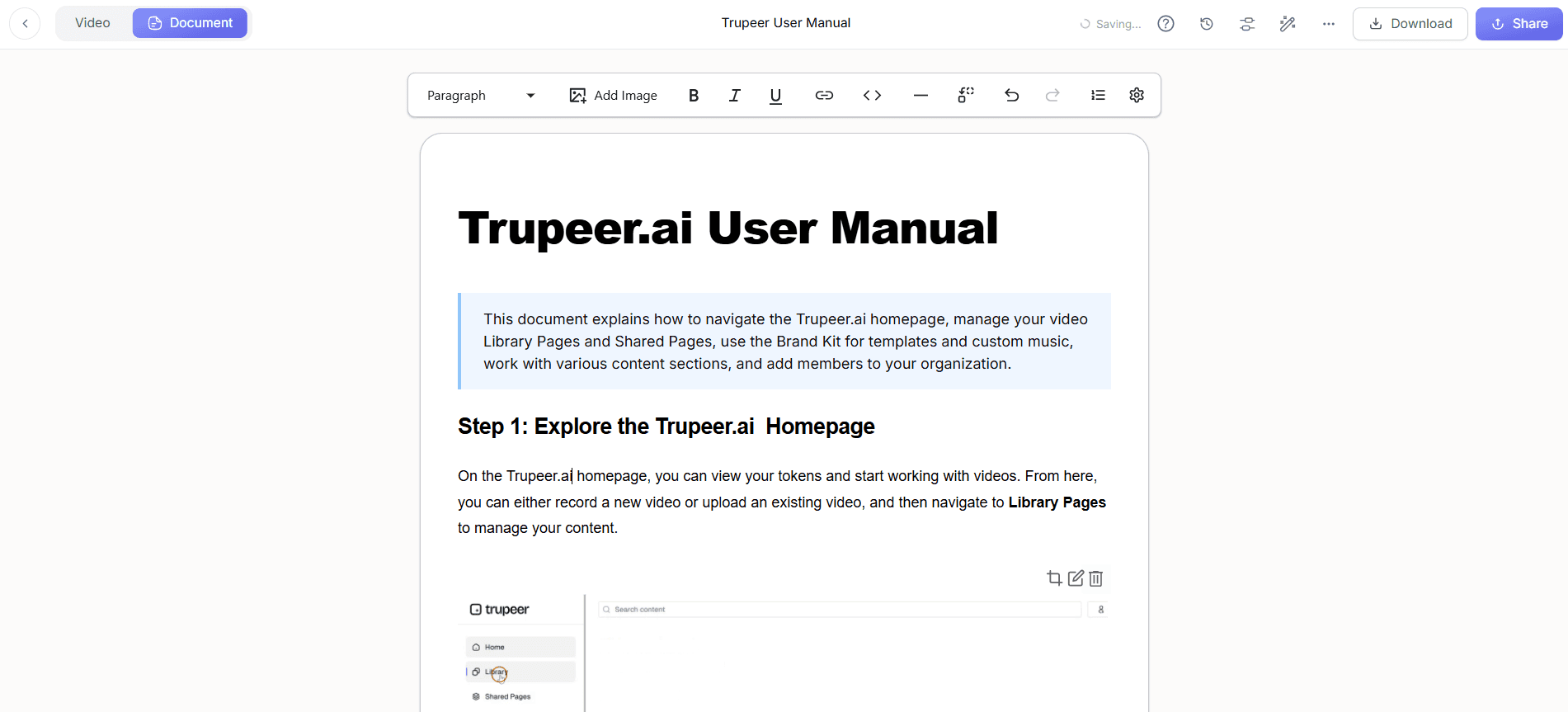
With your video content ready, the next step is to use Trupeer's automatic SOP generation. This feature converts your video into a structured, editable SOP document. You can export it in formats like PDF, HTML, or SCORM, providing flexibility for distribution. This is particularly useful for teams looking at a Loom alternative comparison because Trupeer offers more export options tailored to enterprise needs. The SOP generation process typically takes about 5 minutes, making it a time-efficient way to create comprehensive documentation.
Step 5: Translate for Global Reach
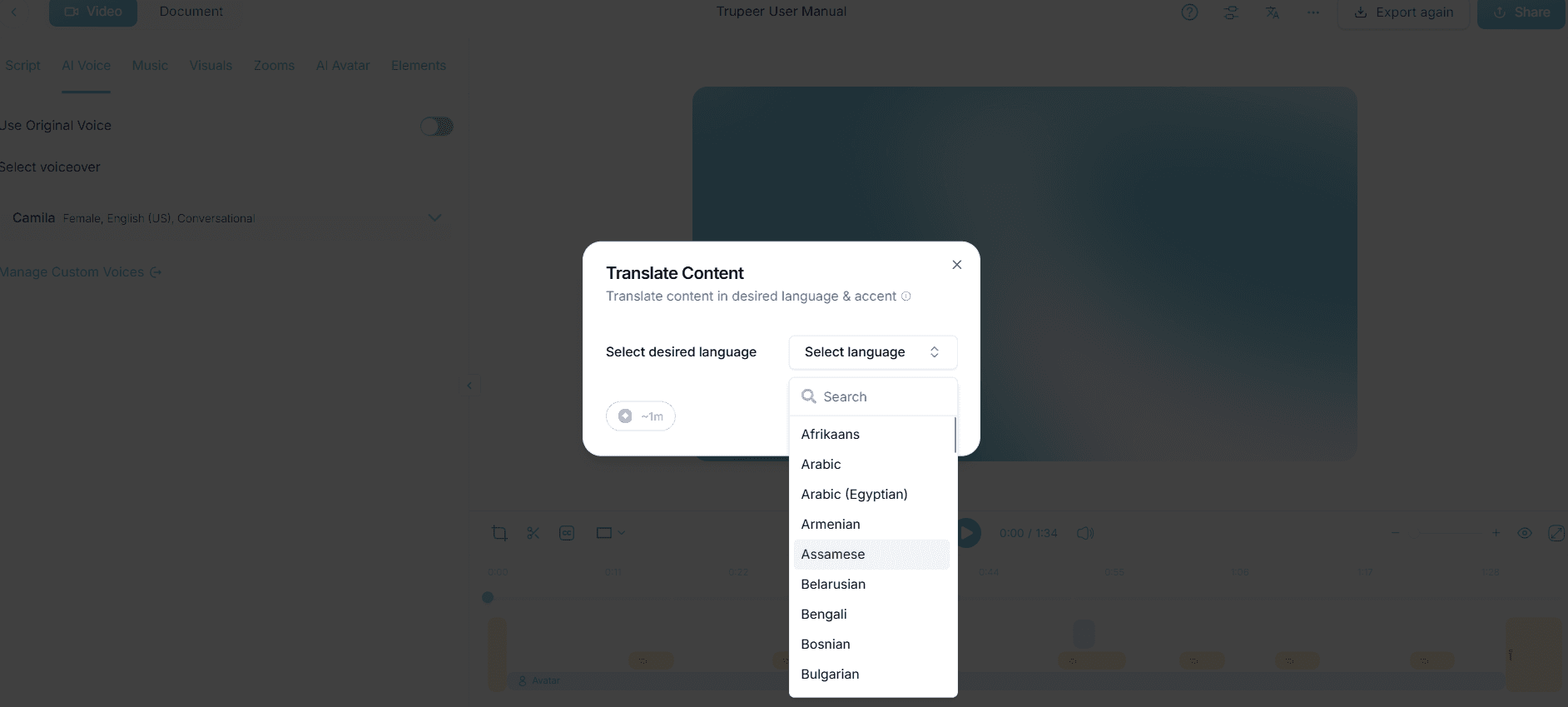
Trupeer's AI translation feature allows you to make your video accessible to a global audience. Translate your video into over 40 languages, with AI handling lip-sync to maintain natural-looking speech. This step is crucial if your audience spans multiple regions. Translating and syncing a 5-minute video generally takes about 30 minutes. This feature ensures that language barriers don't hinder user understanding, enhancing your product's international appeal.
Step 6: Embed for In-App Guidance
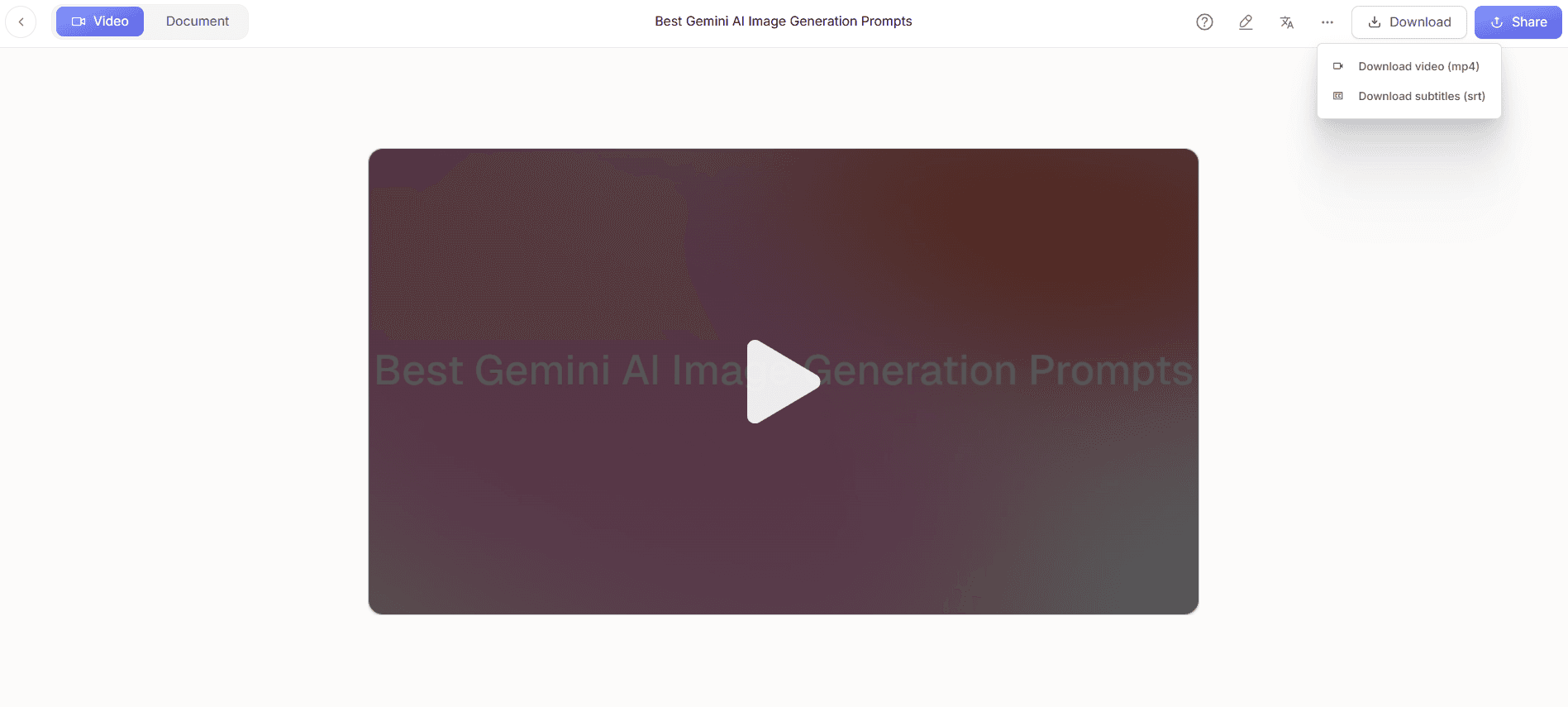
Finally, embed your completed video into your application using Trupeer's video widgets. This keeps users within your app environment while they learn, providing smooth access to guidance. Customize the widget to align with your app's design for a cohesive experience. The embedding process is quick and can be completed in about 10 minutes. This approach is especially effective for teams exploring create your own custom AI avatar video tool, ensuring that the guidance remains integrated and accessible to users at their point of need.
What tips help you create in-app guidance videos for non-technical users?
Creating in-app guidance videos involves more than just recording; it's about making content that truly resonates with users. Here are some tips to ensure your videos are effective and user-friendly.
Keep It Concise. Aim for brevity. Users prefer short, focused videos that cover specific tasks. Break complex processes into multiple videos rather than one lengthy guide.
Use Simple Language. Avoid jargon. Use straightforward language that non-technical users can easily understand. This enhances accessibility and user comprehension.
Visual Focus. Highlight key areas with zoom and annotations. This directs attention to important elements, helping users follow along without confusion.
Consistent Style. Maintain a consistent visual and audio style across videos. This helps in brand recognition and keeps the content professional and cohesive.
Engage with Avatars. Incorporate avatars to add a human touch. A create engaging videos with an AI spokesperson tool can make your guides more relatable and engaging.
Test with Real Users. Before finalizing, have actual users test the videos. Their feedback is invaluable for identifying unclear sections or missing information.
Monitor Analytics. Use video analytics to track user engagement. Understanding where users drop off can help you improve future videos.
Frequently asked questions
How do I make in-app videos engaging for non-technical users?
To engage non-technical users, focus on clarity and simplicity. Use AI avatars to personalize the content and maintain viewer interest. Keep videos short, ideally under five minutes, and focus on one topic per video. Use clear, simple language and visual aids like annotations to highlight key steps. Include interactive elements like quizzes or prompts at the end of videos to reinforce learning. Regularly update your content based on user feedback and engagement analytics to ensure it remains relevant and effective.
What tools can help create in-app guidance videos?
Several tools can assist in creating effective in-app guidance videos. Trupeer stands out with capabilities like AI screen recording, voiceover, and avatar integration. For teams interested in AI video translation, Trupeer's platform offers solid translation and localization features. Other tools like Camtasia and Snagit are popular for their easy-to-use interfaces and editing capabilities. However, Trupeer's AI-driven features provide a level of automation and customization that can significantly reduce production time.
Why should I use AI avatars in my guidance videos?
AI avatars add a human element to your videos, making them more engaging and relatable. They can mimic human expressions and gestures, which helps in delivering complex information in a simplified manner. An avatar can maintain viewer interest and provide a cohesive narrative throughout the video. Avatars are particularly useful when paired with a Scribe alternative comparison, as they help maintain a consistent presentation style across various instructional materials.
Can non-technical teams create guidance videos without prior experience?
Yes, non-technical teams can create guidance videos using platforms like Trupeer. The AI capabilities simplify the process significantly. With features like AI screen recording, voiceover, and automatic SOP generation, even those without video editing skills can produce professional-quality videos. The process is intuitive, with step-by-step guides available and tools that automate complex tasks. This allows teams to focus on content creation rather than technical details, making the process accessible to all skill levels.
How does video translation improve user experience?
Video translation enhances user experience by making content accessible to a global audience. It removes language barriers, allowing users to understand and engage with your product in their native language. Trupeer's video generation platform offers AI-driven translation with lip-sync, ensuring that translated videos appear natural and professional. This inclusivity increases user satisfaction and retention, as users feel more comfortable and confident handling your software. By offering content in multiple languages, you also expand your market reach and user base.
Related Blogs


