
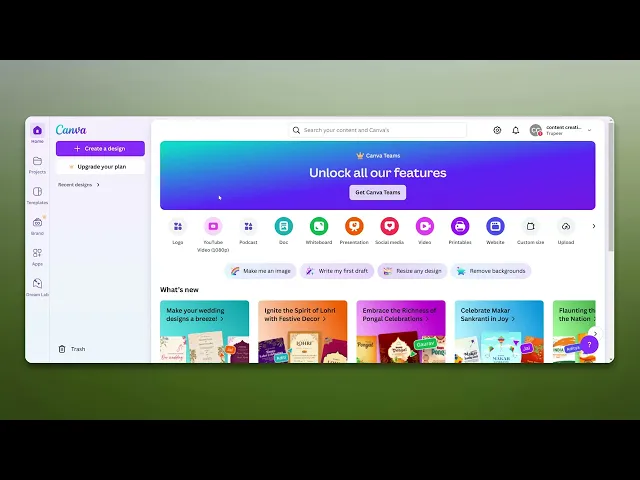
How To Integrate Canva With Dropbox
Discover how to seamlessly integrate Canva with Dropbox. Enhance your design workflow by easily saving and accessing your projects in the cloud.
This document provides step-by-step instructions on how to seamlessly integrate Canva with Dropbox, enabling easy access and management of your design files directly within Canva.
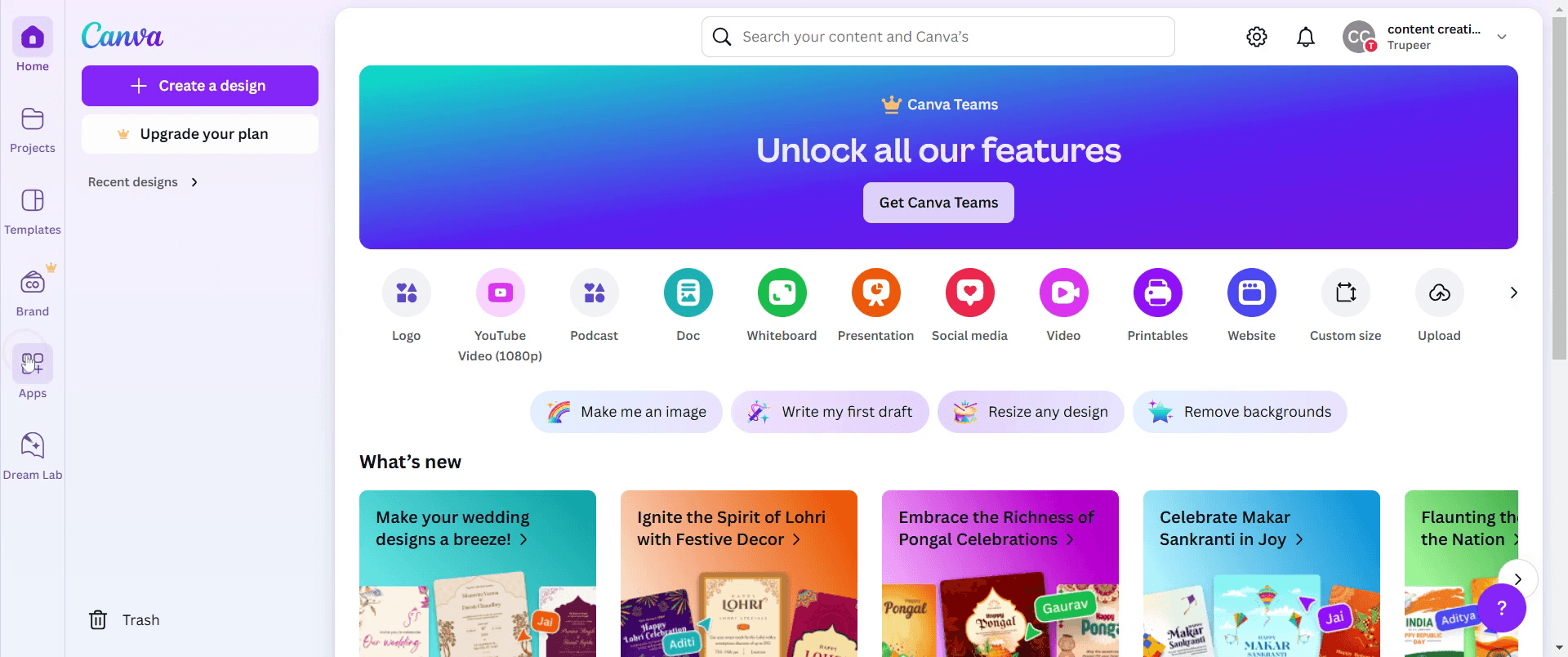
Step 1
Click on the Apps option,
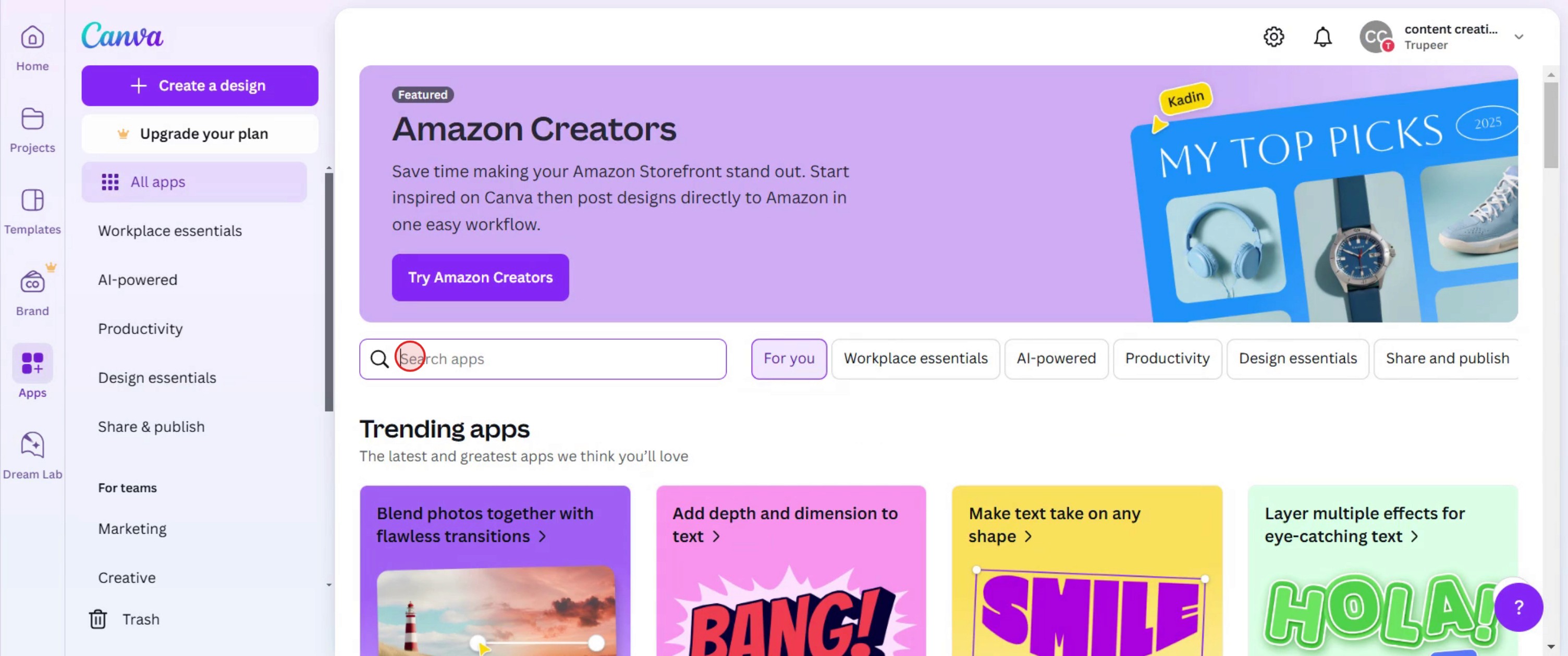
Step 2
Then locate the Search Apps,
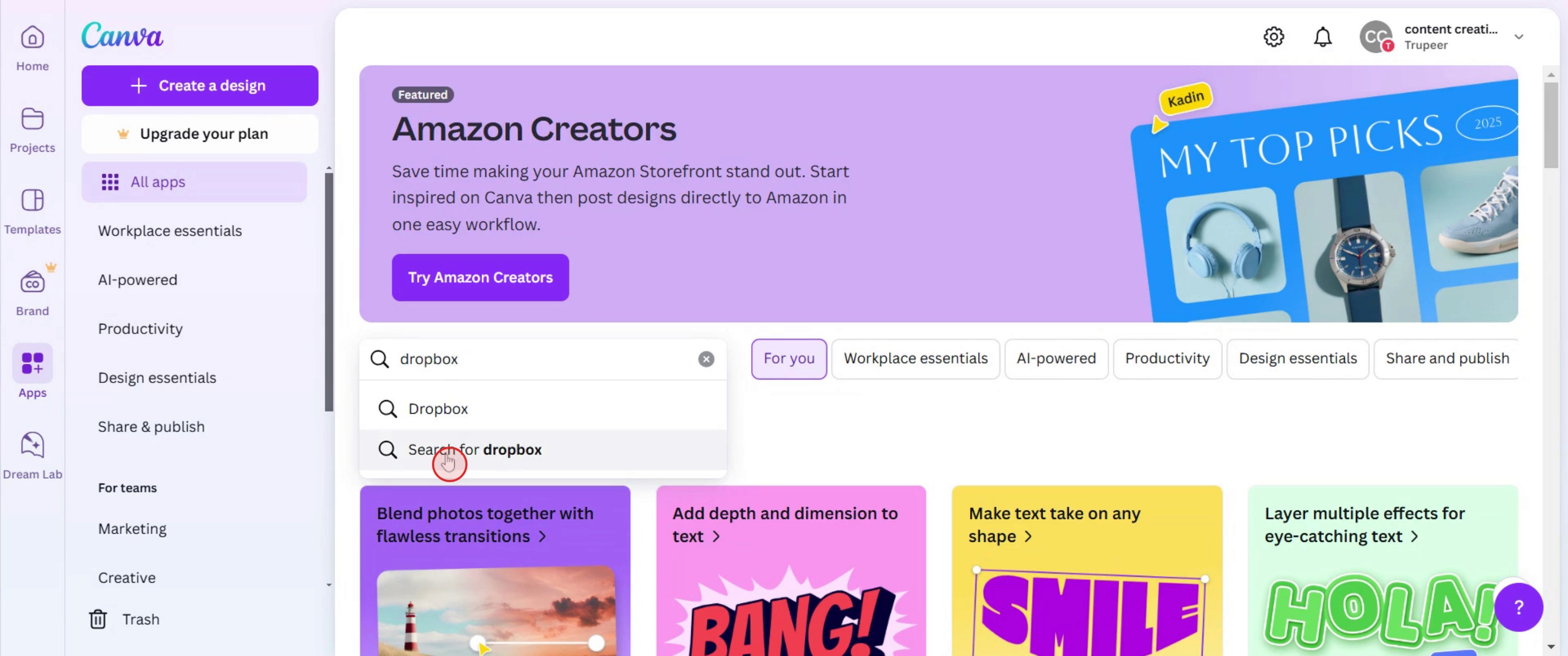
Step 3
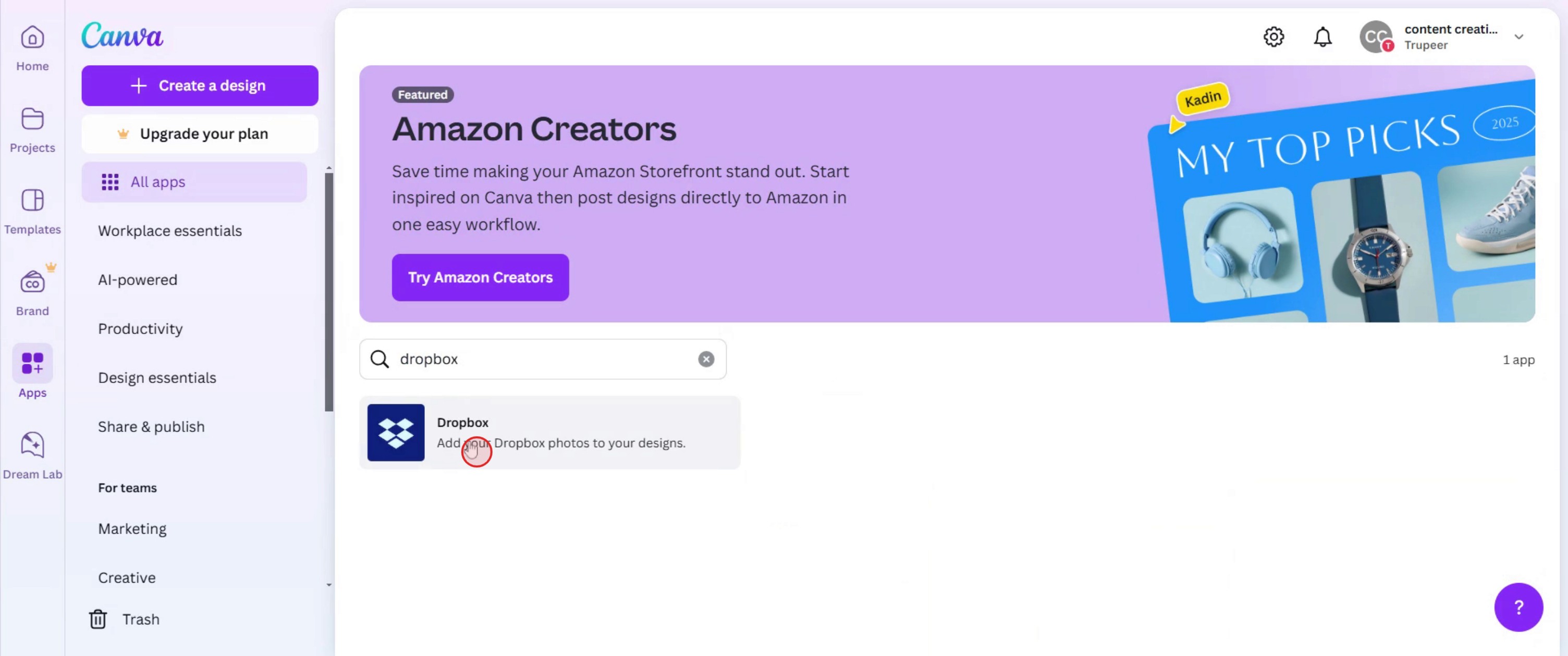
Click on the drop box in the search results,
Step 4
Click on the Dropbox application,
Step 5
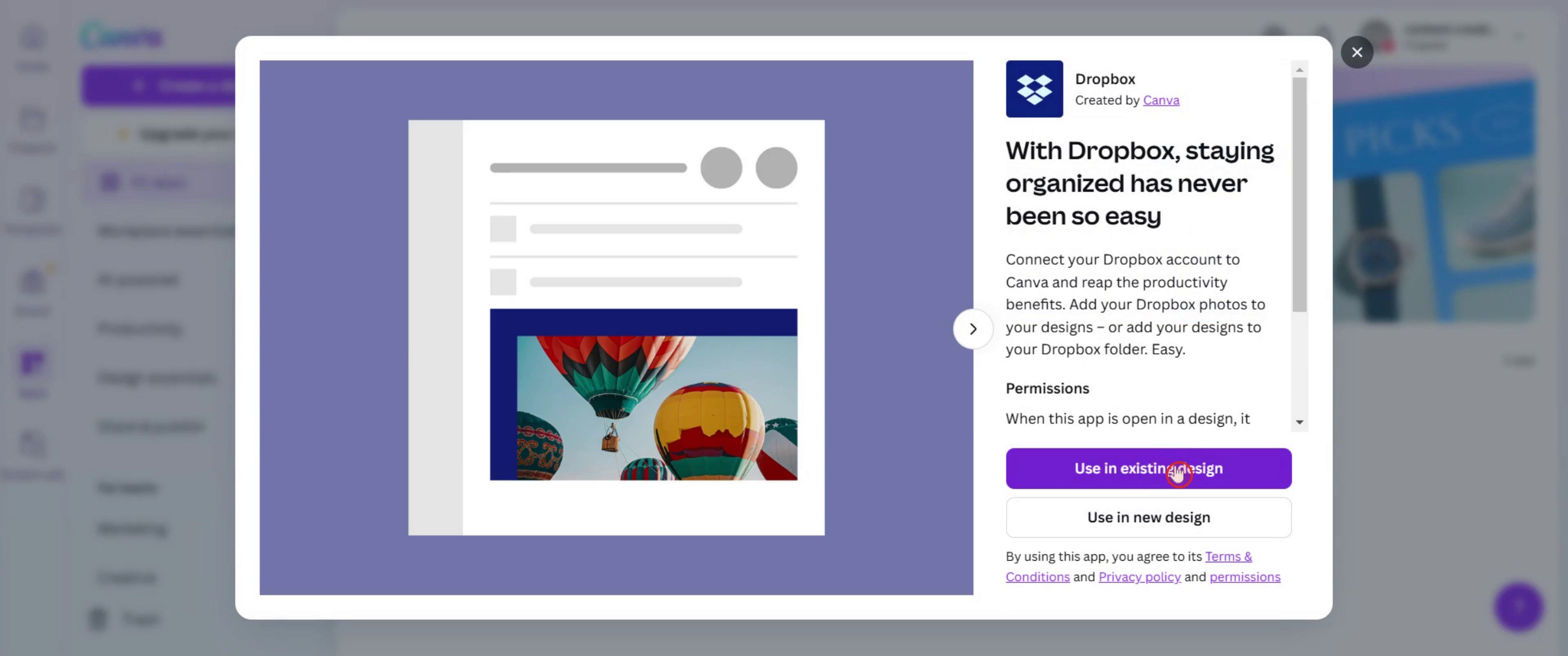
Select the Use Existing Design option.
Step 6
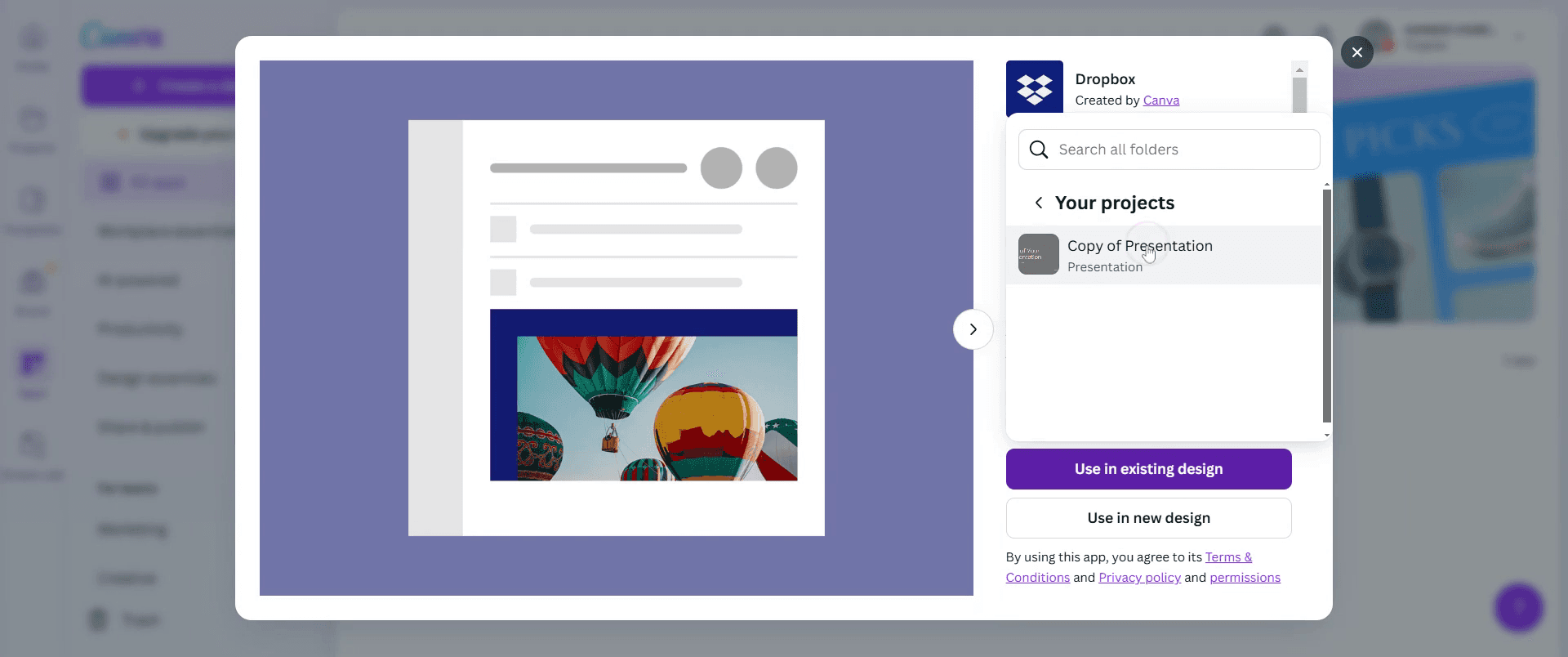
Then select the existing project,
Step 7
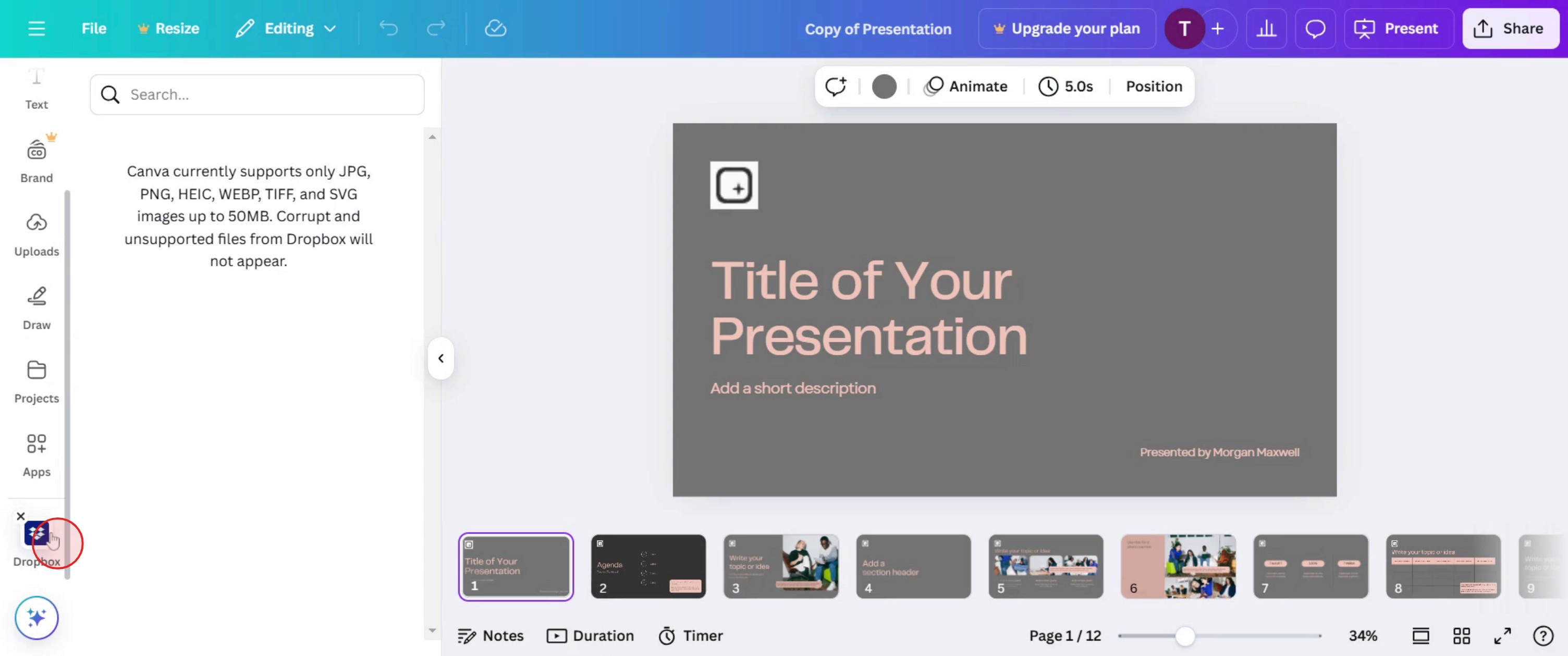
Then you can see the drop box integrated with Canva.
This is a step-by-step guide on how to Integrate Canva with Dropbox.
Pro tips for how to integrate Canva with Dropbox
Ensure Dropbox permissions are enabled – Before integrating, grant Canva the necessary permissions to access your Dropbox account for smooth file transfers.
Organize files in Dropbox before importing – Keeping a well structured folder system in Dropbox makes it easier to find and use design assets in Canva.
Use automatic sync for efficiency – Enable auto sync to ensure that any changes made in Dropbox reflect seamlessly in Canva without manual uploads.
Common pitfalls and how to avoid them
Not logging into the correct Dropbox account can cause integration issues double-check that you are using the right account before connecting.
Uploading unsupported file formats from Dropbox to Canva can lead to errors stick to PNG, JPG, SVG, and other Canva-compatible file types.
Forgetting to refresh Canva after linking Dropbox may prevent access to newly added files refresh the page to sync updated files properly.
Common FAQs on how to integrate Canva with Dropbox
Why can’t i see my Dropbox files in Canva?
If Dropbox files are not visible in Canva, ensure the correct account is linked, refresh the page, and check for proper file format compatibility.Can i save Canva designs directly to Dropbox?
Yes, you can export and save Canva designs directly to Dropbox by selecting Download, choosing Dropbox as the destination, and confirming the upload.Does the Canva-Dropbox integration work on mobile?
Yes, Canva’s Dropbox integration works on both desktop and mobile, but you may need to use the Canva app for a smoother experience.Is there a file size limit when importing from Dropbox to Canva?
While Canva supports large files, some formats have size restrictions, so ensure your Dropbox files are optimized for upload.
This tutorial was created in minutes using Trupeer. To generate your own product tutorials, simply screen record a rough video, and Trupeer will transform it into a polished product tutorial and a step-by-step guide within minutes. Create your first video tutorial and guide with trupeer.ai for free.

