
How To Leave A Team In Canva
Discover the step-by-step guide on how to leave a team in Canva. Learn the process to manage your projects effectively and maintain your workspace.
This guide provides step-by-step instructions on how to exit a team in Canva. The process involves navigating through the platform's settings to locate and select the appropriate options for leaving the team.
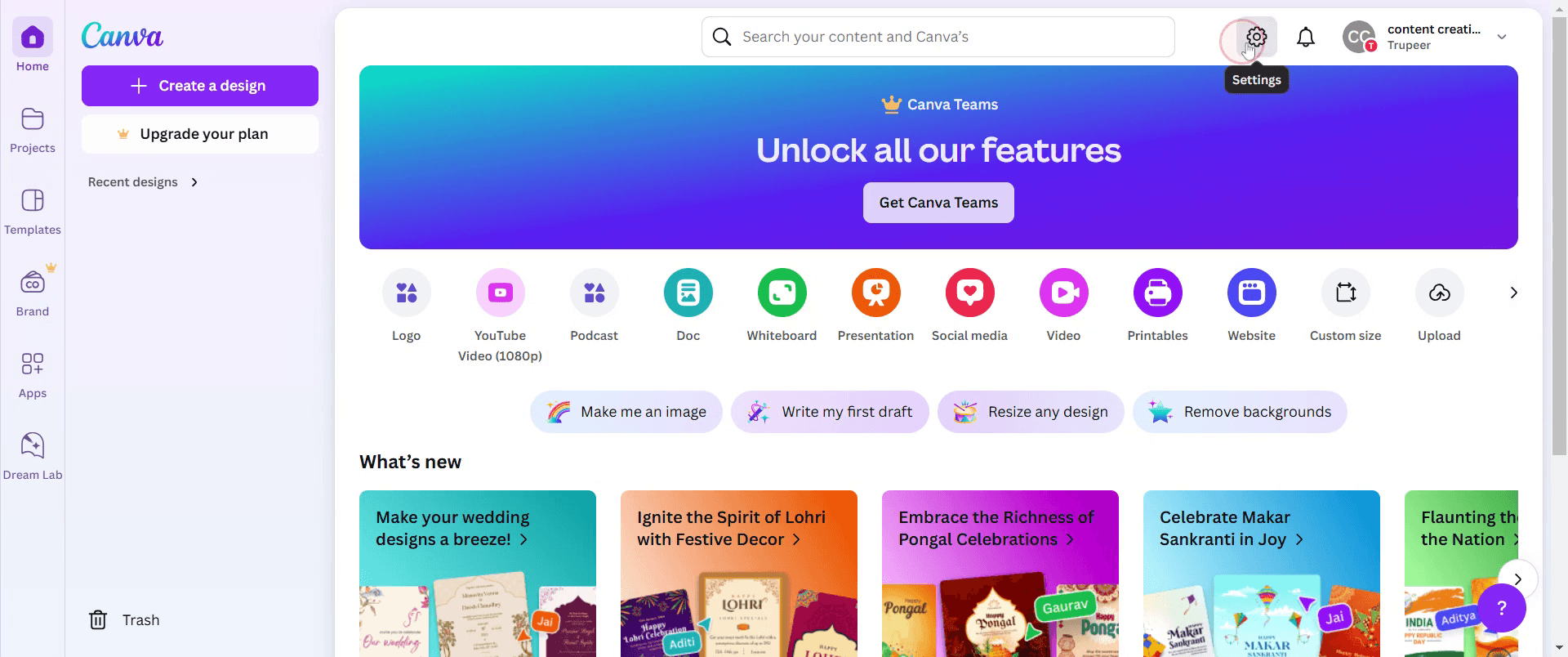
Step 1
Click on the Settings option.
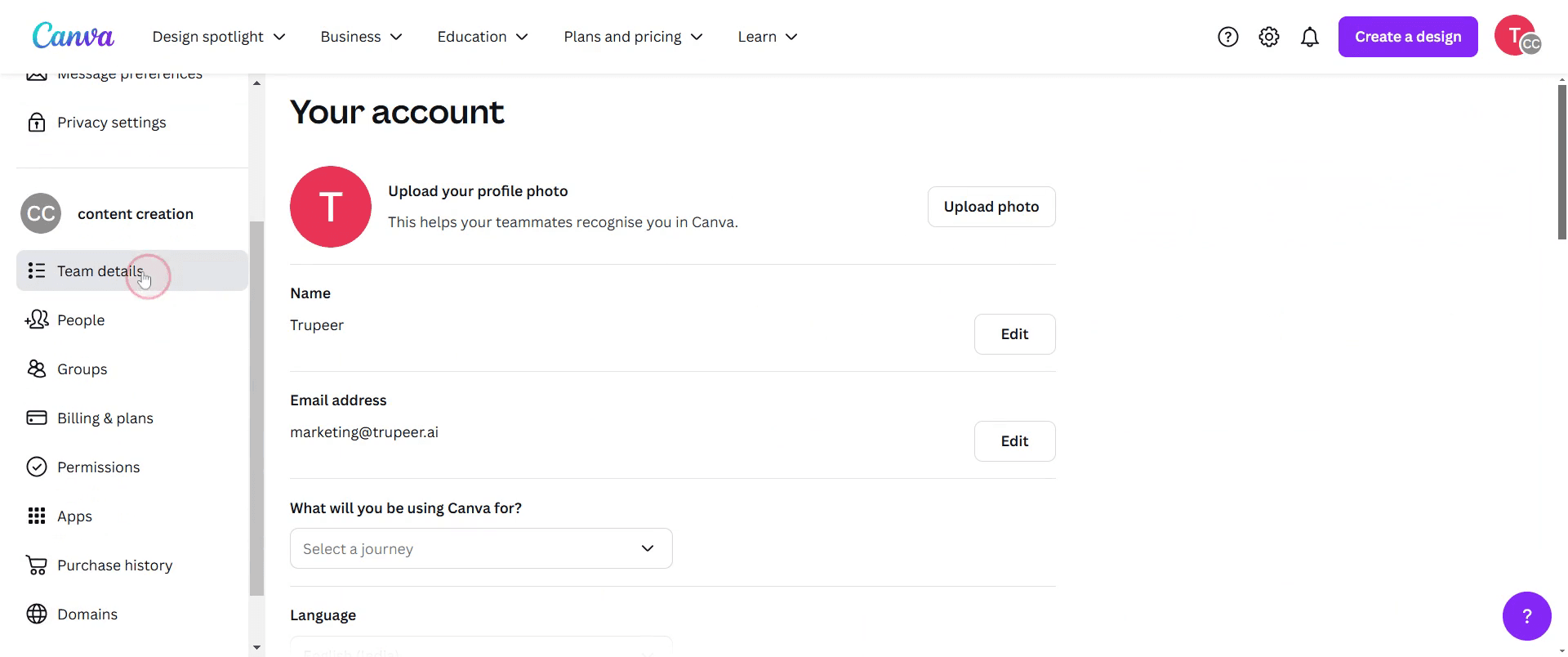
Step 2
Click on Team Details.
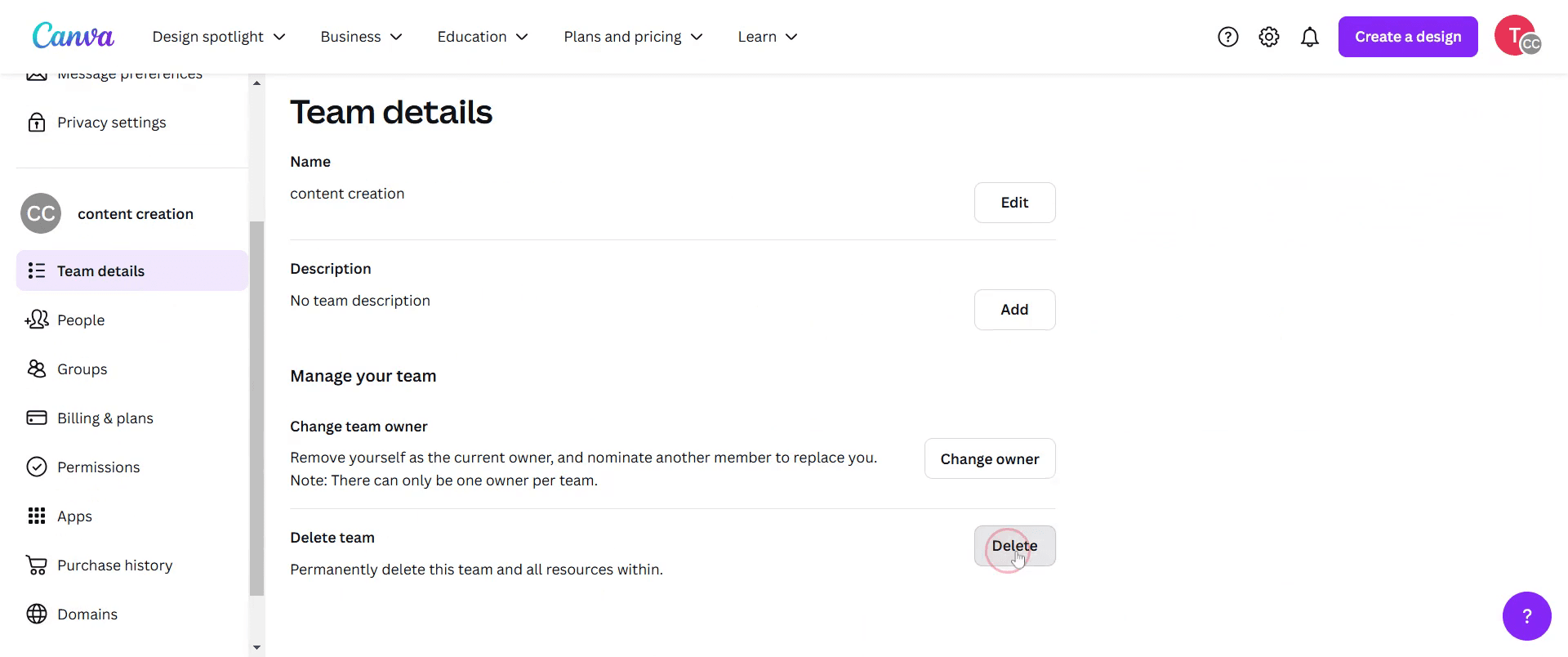
Step 3
Click on Delete.
Step 4
Type the team name,
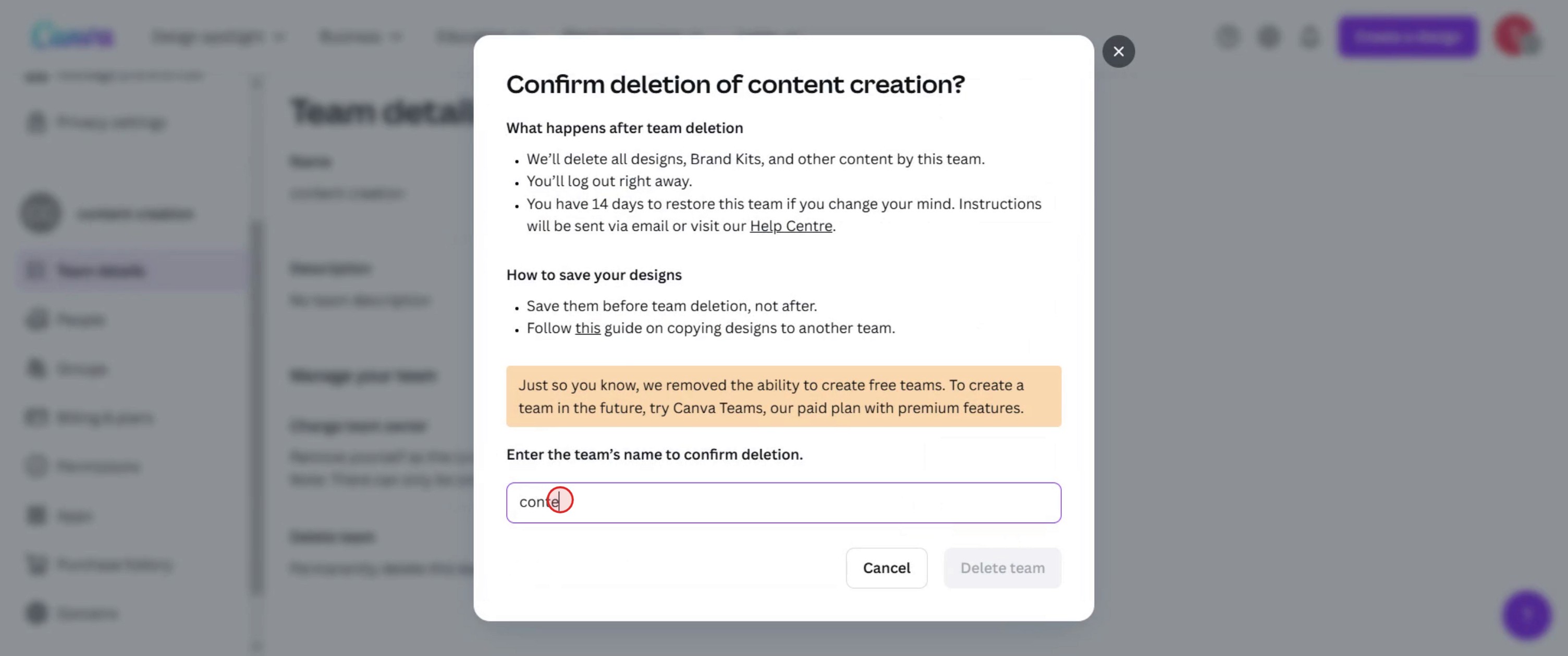
Step 5
Click on Delete Item.
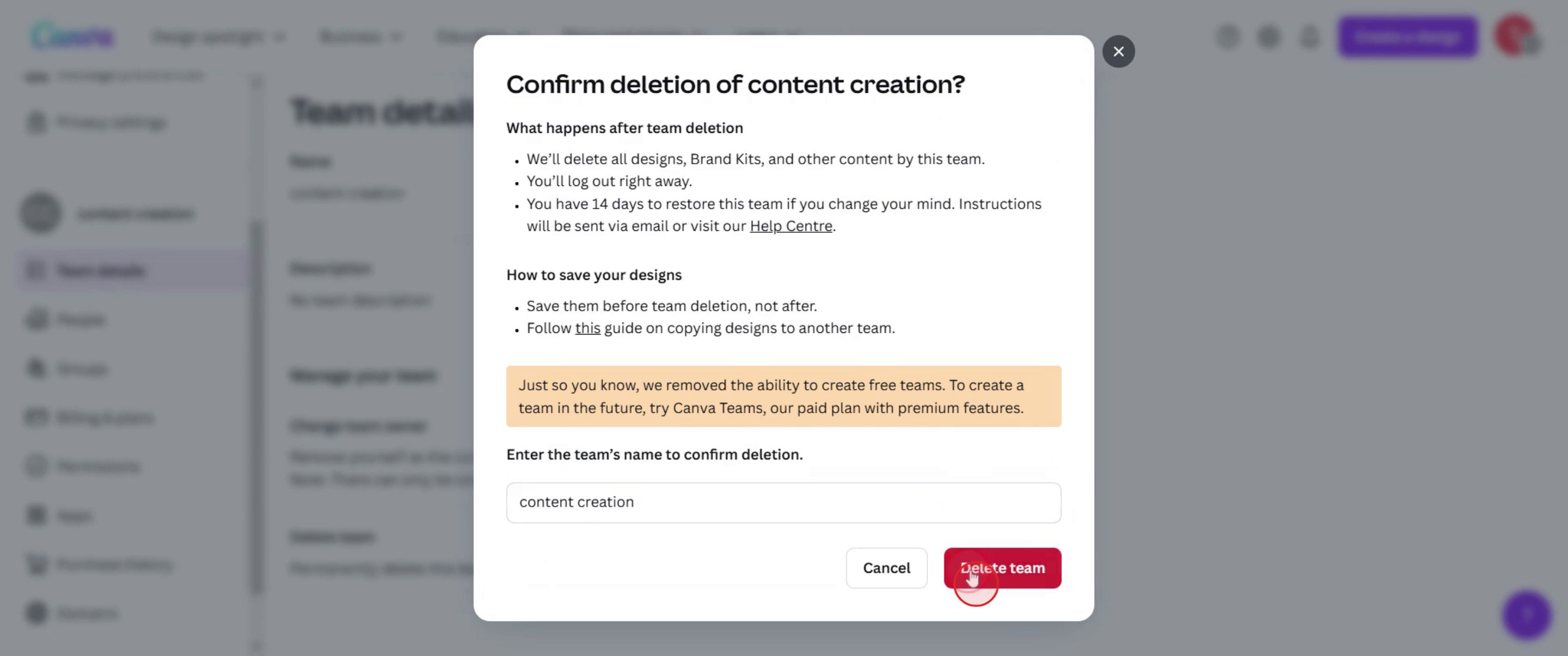
This is a step-by-step guide on how to leave a team in Canva.
Pro tips for how to leave a team in Canva
Check your role before leaving – If you are the team owner, transfer ownership to another member before leaving to avoid disruptions.
Save your designs – Ensure you have copies of important designs before leaving, as access may be restricted after exiting the team.
Use the right account – If you have multiple Canva accounts, log into the correct one to leave the intended team.
Common pitfalls and how to avoid them
Leaving without transferring ownership can cause issues assign a new team owner first if necessary.
Forgetting to download personal designs may result in loss always save or duplicate important work before leaving.
Not confirming team exit properly may keep you in the team always check that the removal was successful in your account settings.
Common FAQs on how to leave a team in Canva
What happens to my designs when i leave a team in Canva?
Your personal designs remain in your account, but team-shared designs may become inaccessible depending on permissions.Can i rejoin a team after leaving in Canva?
Yes, but you will need an invite from the team owner or administrator to rejoin.Do i need admin approval to leave a team in Canva?
No, standard members can leave anytime, but team owners must transfer ownership before leaving.Will my Canva pro subscription be affected if i leave a team?
If your Pro subscription was linked to the team, you may lose access to Pro features unless you have an individual subscription.
This tutorial was created in minutes using Trupeer. To generate your own product tutorials, simply screen record a rough video, and Trupeer will transform it into a polished product tutorial and a step-by-step guide within minutes. Create your first video tutorial and guide with trupeer.ai for free.

