
How To Share Google Docs With Someone
Learn how to share Google Docs easily with others. This guide covers step-by-step instructions on granting access, setting permissions, and sharing via email or link. Collaborate in real-time with teammates, edit documents seamlessly, and manage sharing settings effectively to control who can view, comment, or edit your files.
This process outlines the steps to seamlessly share Google Docs with others, ensuring effective collaboration by allowing specific individuals access to your document.
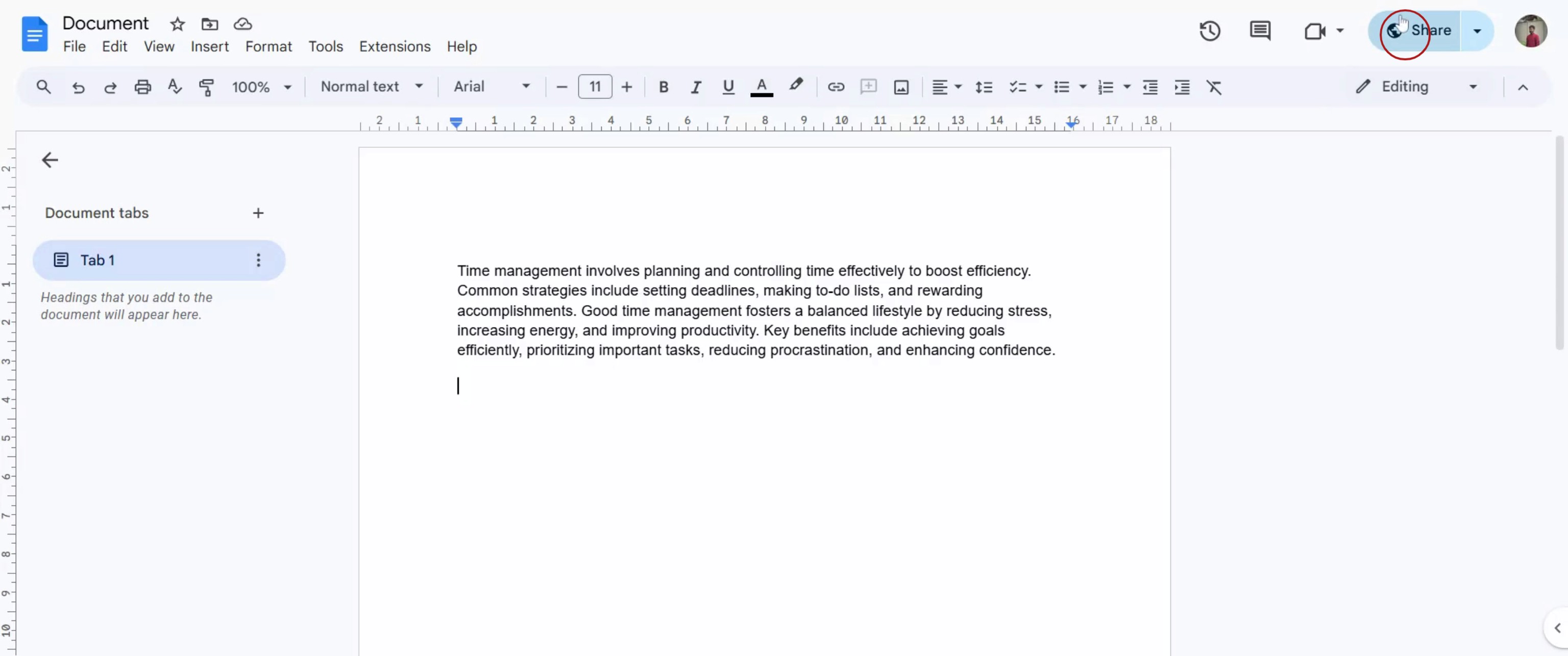
Step 1
Click on the "Share" option within your Google Docs interface.
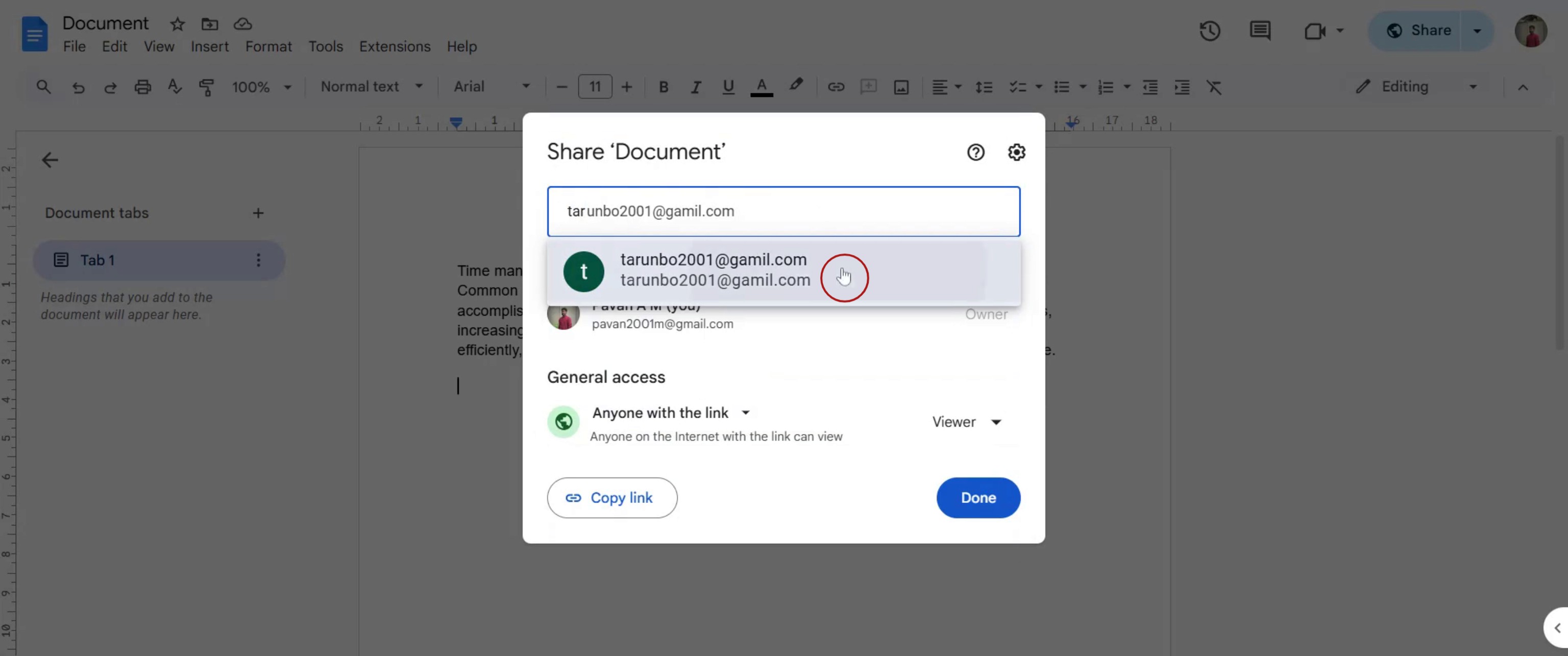
Step 2
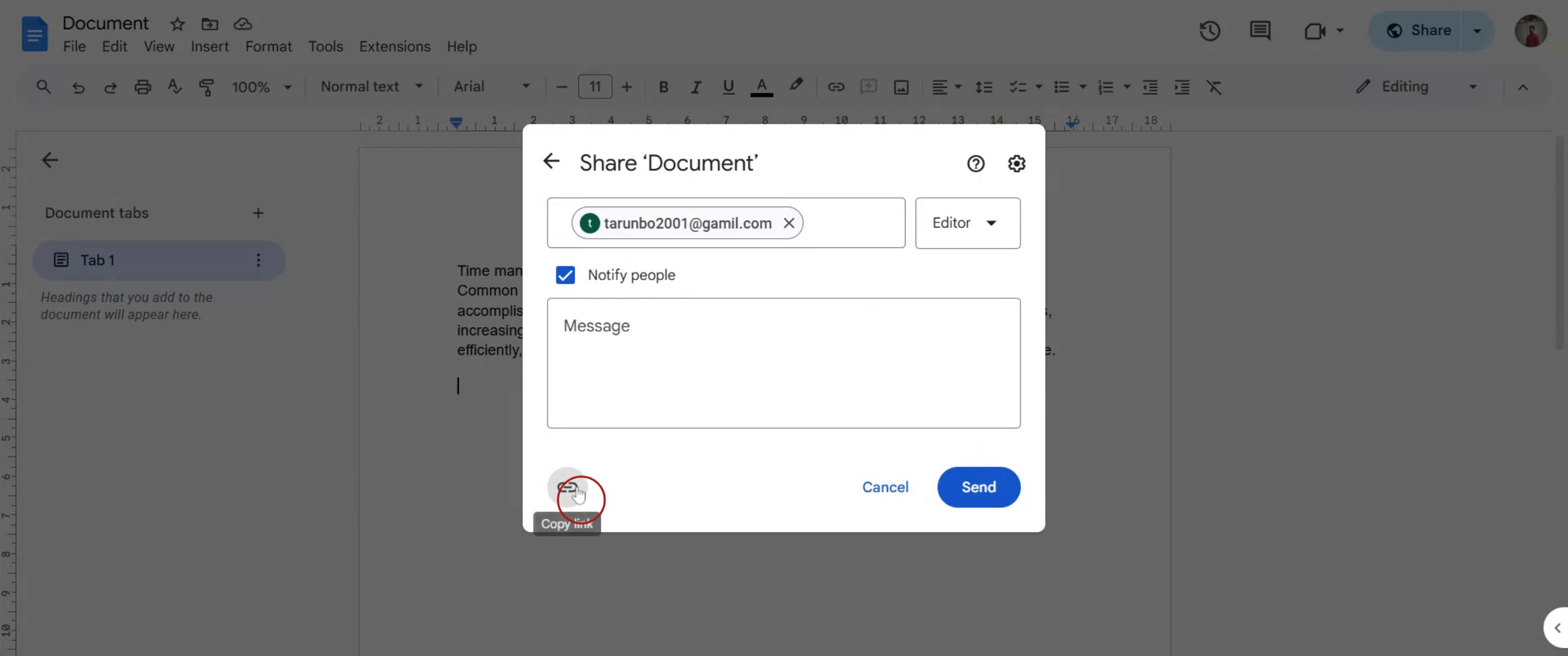
You can add people by typing their email addresses in the search option.
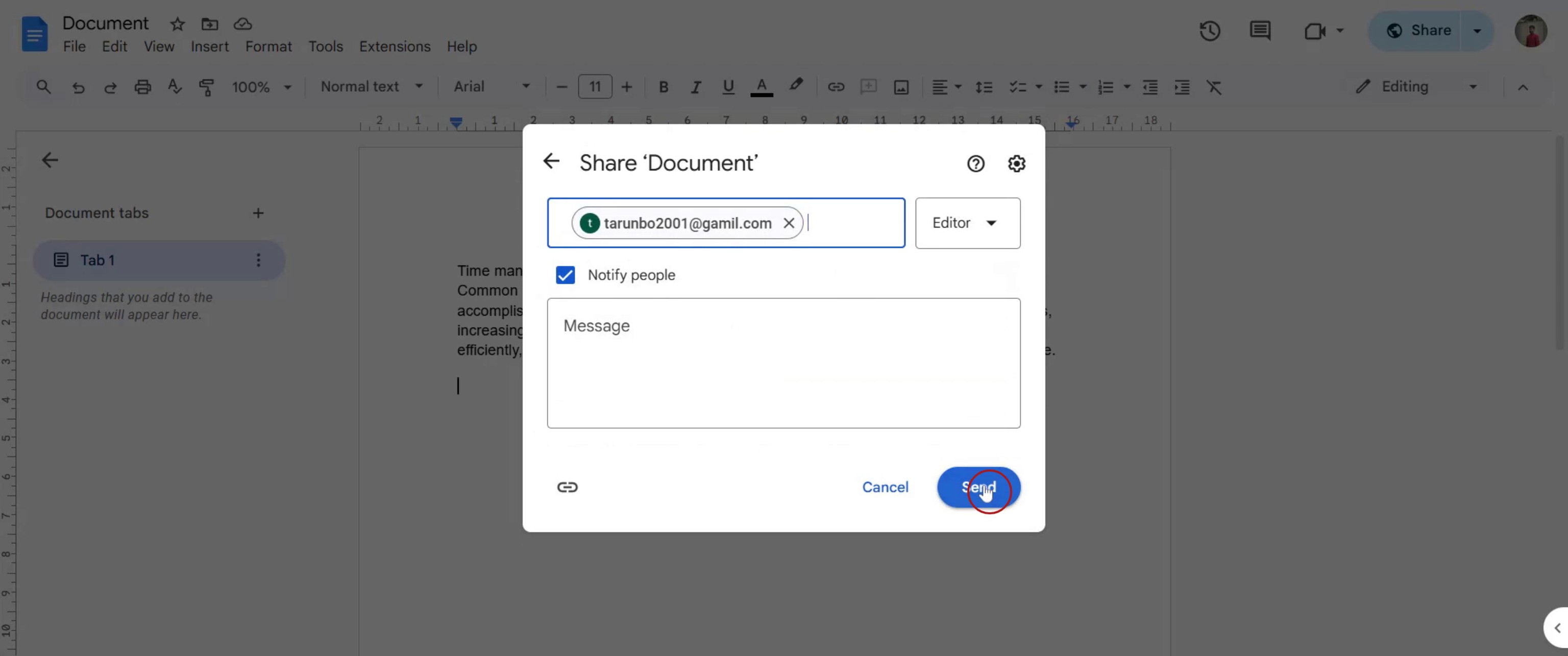
Step 3
Click on the "Send" option to share the document.
Step 4
Click on the "Copy Link" option to copy the link.
That's it. This is a step-by-step guide on how to share Google Docs with someone.
Pro-tips for sharing Google Docs with someone
Click the Share button in the top-right corner of your Google Doc to open sharing settings.
Enter the email address of the person you want to share the document with and choose their access level.
Use the Anyone with the link option if you need to share the document publicly or with multiple people.
Common pitfalls & how to avoid them while sharing Google Docs
Forgetting to set the correct permissions – Ensure the recipient has the right access (Viewer, Commenter, or Editor).
Sharing the wrong link – Double-check that the link you send allows the intended level of access.
Not enabling link sharing when needed – If the recipient can't access the document, verify that link sharing is turned on.
Common FAQs for sharing Google Docs
Can I share a Google Doc without a Google account?
Yes, use the Anyone with the link option and set access to Viewer, Commenter, or Editor.
How do I stop sharing a Google Doc?
Go to the Share settings, remove specific users, or change link access settings.
Can I restrict editing access after sharing?
Yes, you can change a user’s access level from Editor to Viewer or Commenter at any time.
What happens if I share a Google Doc and then delete it?
The document will no longer be accessible to anyone after deletion.
If you're an instructor or content creator looking to make tutorial videos, give Trupeer.ai a try. It transforms rough screen recordings into polished, studio-style videos that are ready for sharing with your audience. Plus, it automatically generates a step-by-step guide based on the video you create. Fascinating, right? Start by creating your first tutorial for free with Trupeer.ai.

