
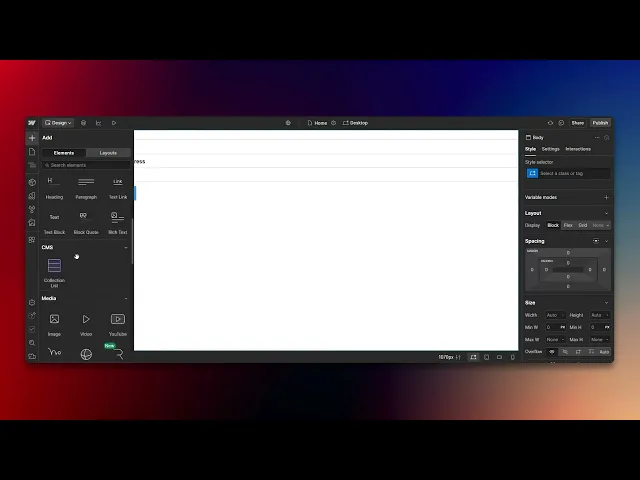
How To Create A Form In Webflow
Discover the step-by-step guide on how to create a form in Webflow. Enhance your website's functionality with easy-to-follow instructions and tips.
This document provides a step-by-step process for creating a form in Webflow. Follow the instructions to add form elements, customize fields, and adjust the layout to fit your needs.
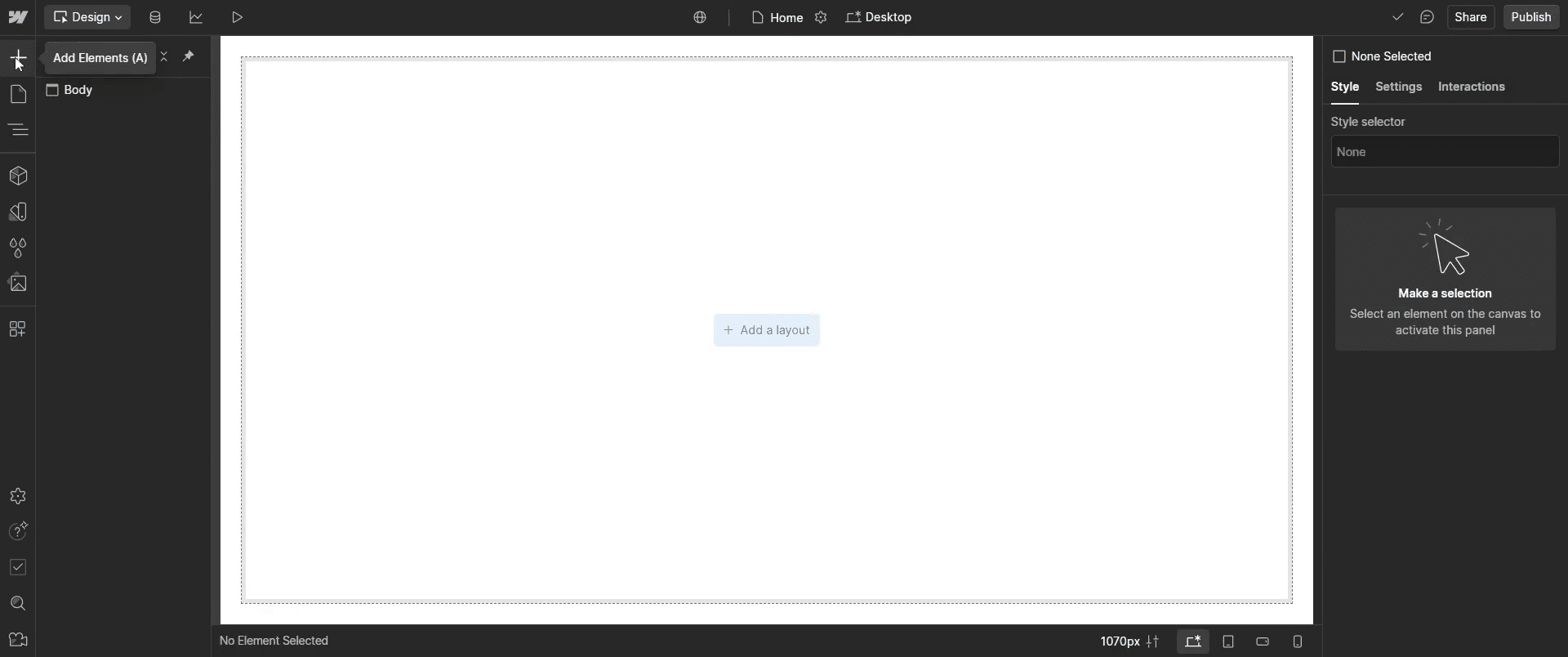
Step 1
Go to the 'Add Elements' option and click on it.
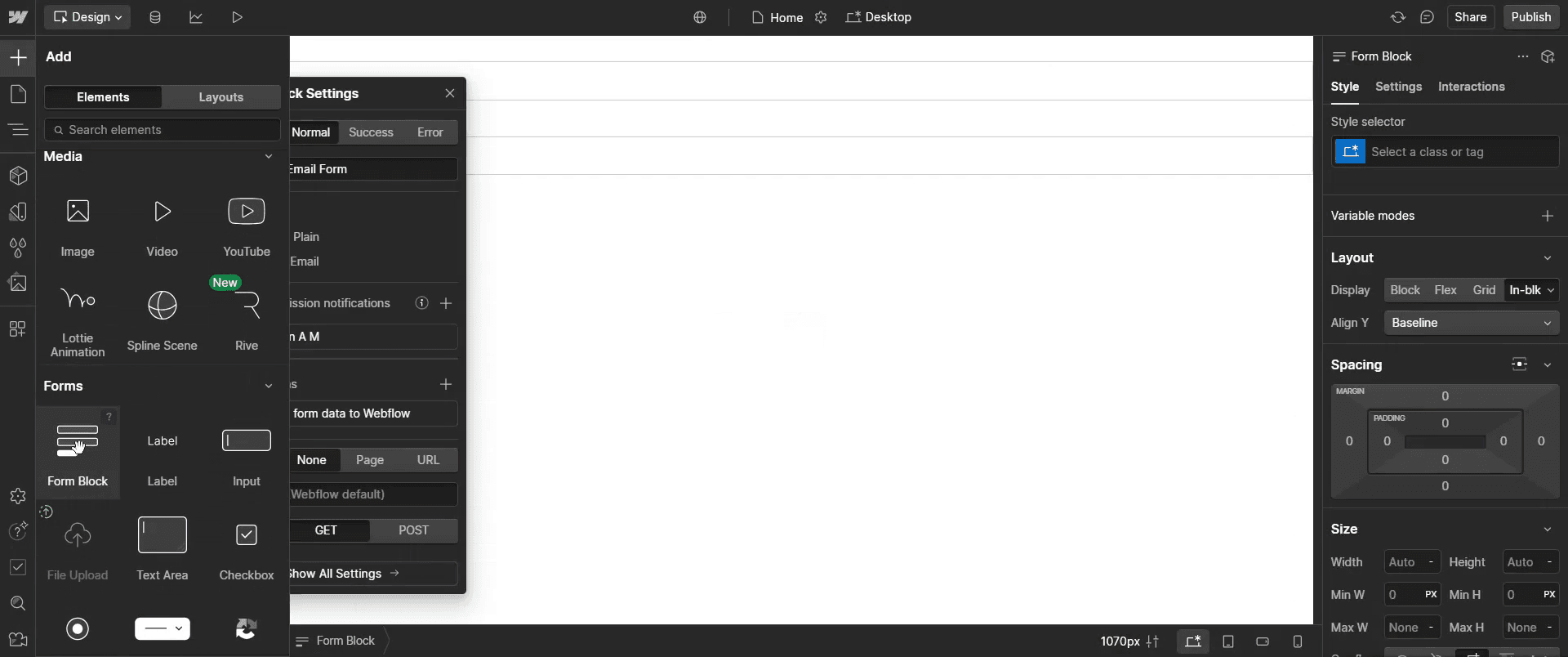
Step 2
Click on 'Form Block' to insert it into your project.
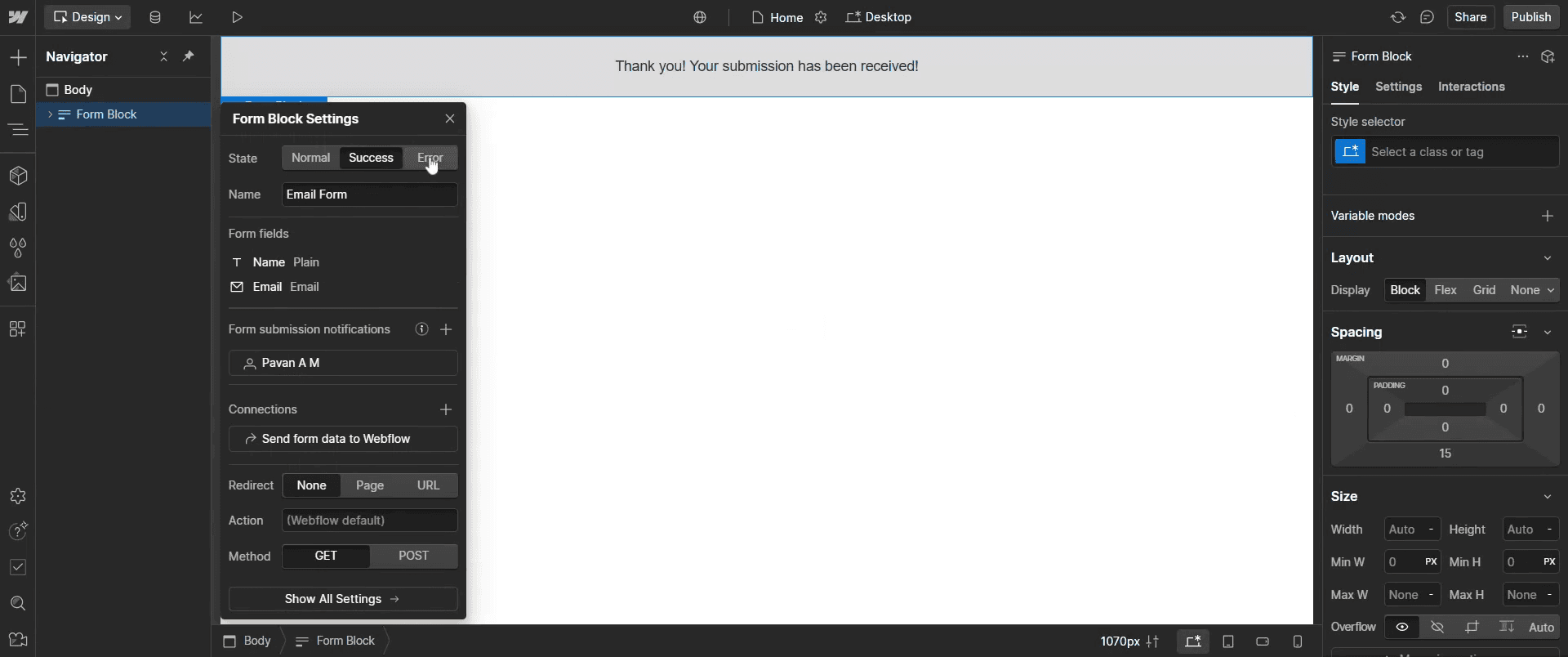
Step 3
Customize the form fields by clicking on the field you wish to modify.
Step 4
Return to the 'Add elements' option and click on it again.
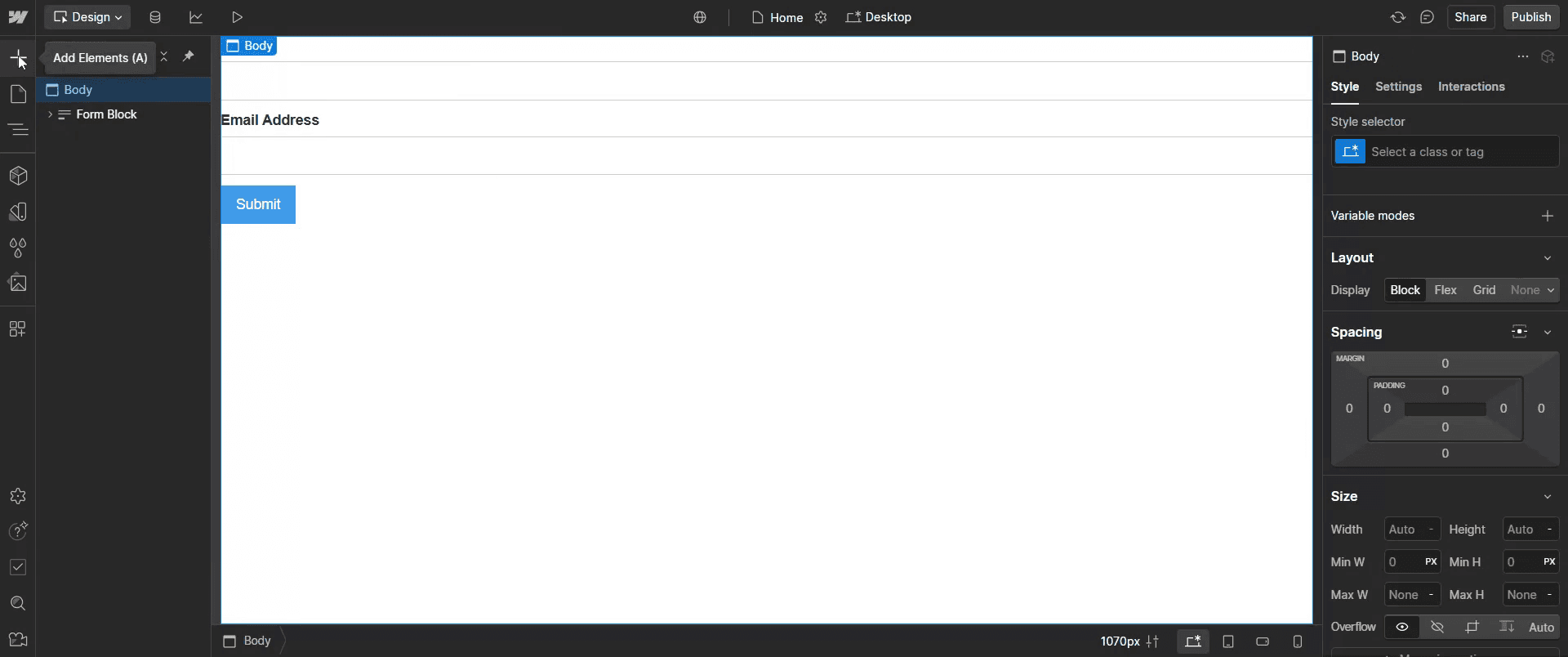
Step 5
Select the 'Form Button,' then drag and drop it to the desired location.
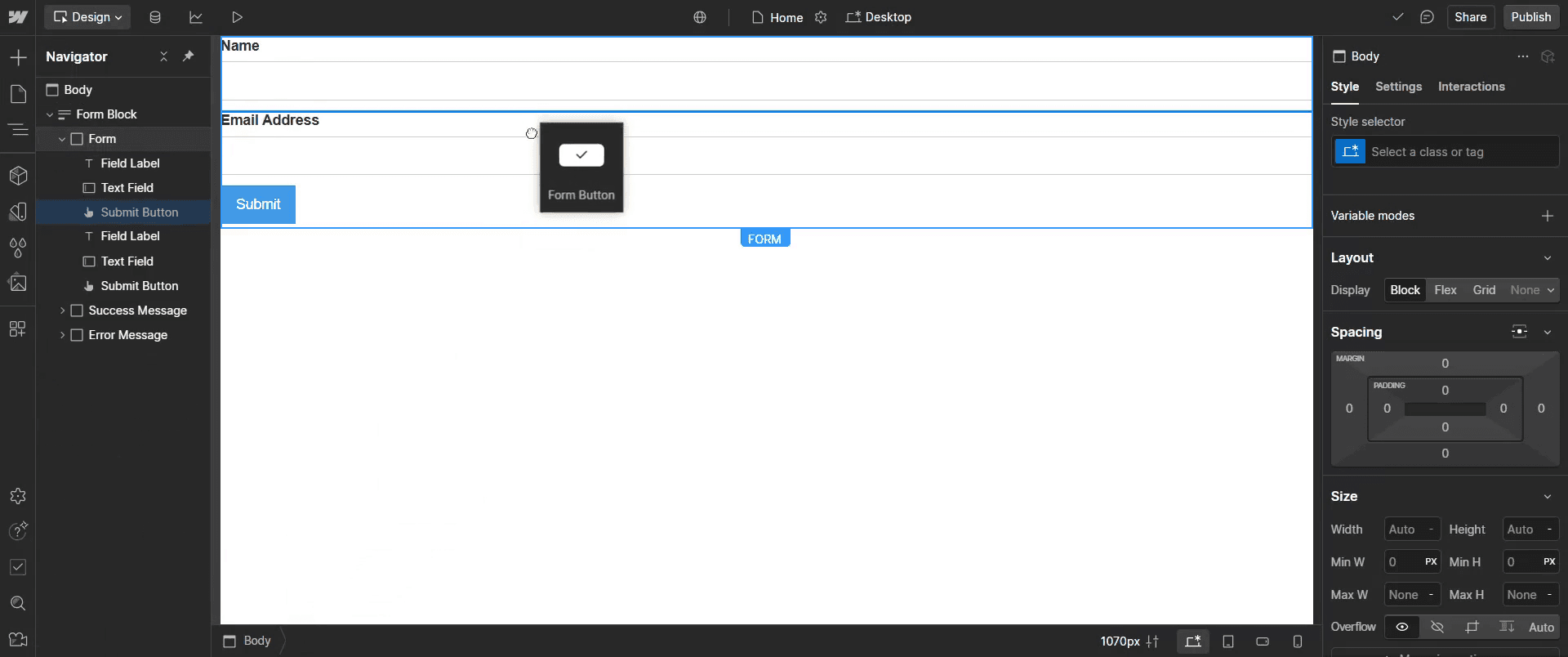
Step 6
Further customize the form fields and modify the button's color to complete the form design.
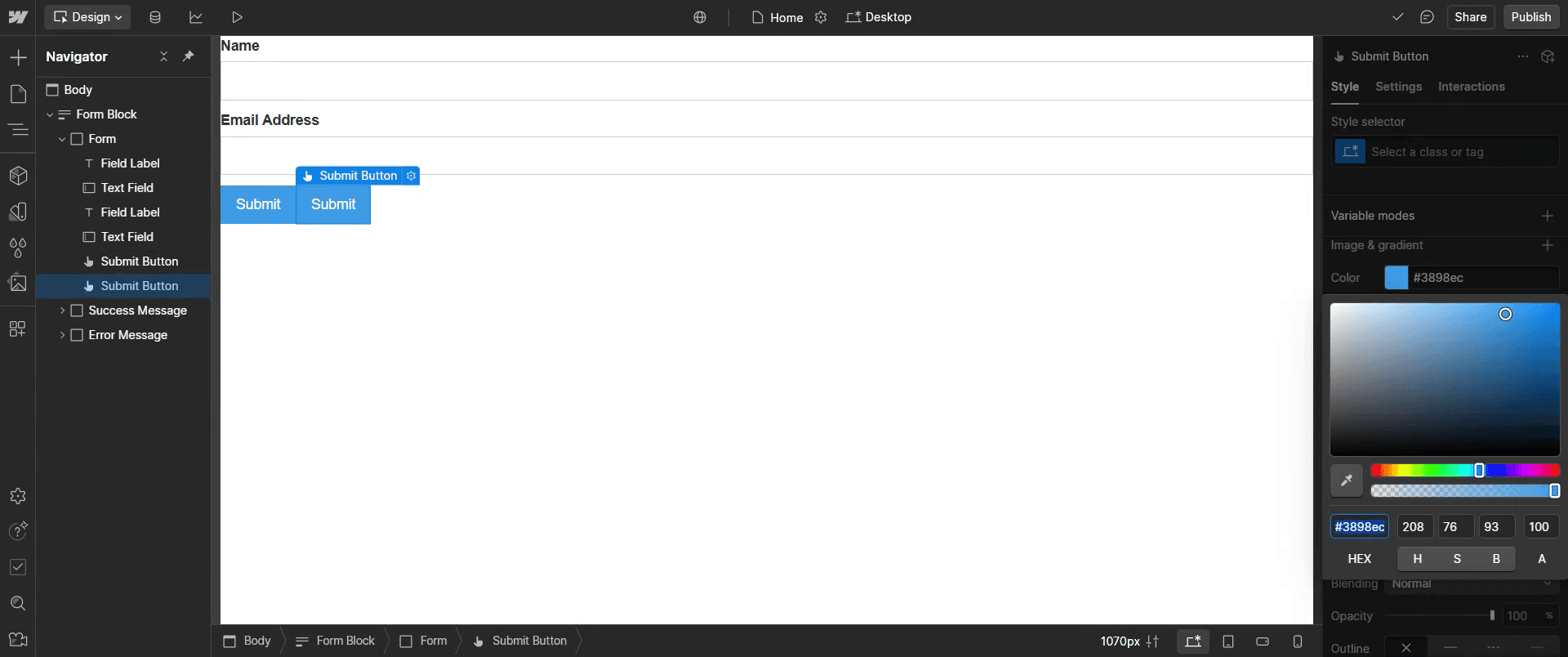
Step 7
And you have a simple and functional form in Webflow.
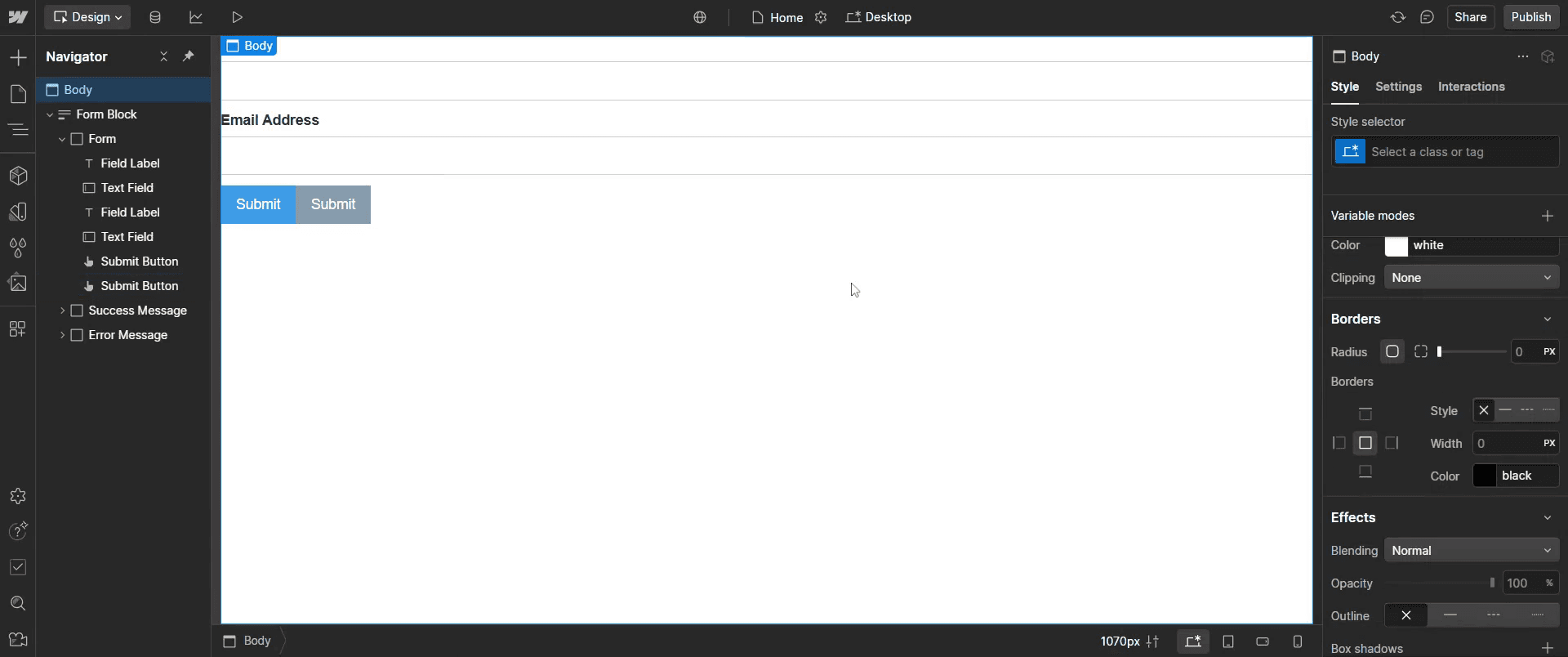
That's it. This is a step-by-step guide on how to create a form in Webflow.
Pro-tips for creating a form in Webflow
Use the built-in Form Block element to quickly add a form to your Webflow project.
Customize form fields and labels to match your design and user experience needs.
Integrate Webflow forms with third-party services like Zapier or Mailchimp for better automation.
Common pitfalls & how to avoid them while creating a form in Webflow
Forgetting form validation – Always set required fields and error messages to improve user experience.
Not testing form submissions – Ensure the form works properly by submitting test entries before publishing.
Ignoring responsiveness – Optimize form layout so it looks good on mobile, tablet, and desktop devices.
Common FAQs for creating a form in Webflow
Can I style my form in Webflow?
Yes, use the typography and layout settings to style input fields, buttons, and labels.How do I connect my Webflow form to an email?
Go to Form Settings and add an email address to receive form submissions.Can I integrate Webflow forms with third-party tools?
Yes, Webflow supports integrations with services like Zapier, Mailchimp, and Google Sheets.
If you're an instructor or content creator looking to make tutorial videos, give Trupeer.ai a try. It transforms rough screen recordings into polished, studio-style videos that are ready for sharing with your audience. Plus, it automatically generates a step-by-step guide based on the video you create. Fascinating, right? Start by creating your first tutorial for free with Trupeer.ai.

