
How To Access Webflow Editor
Learn the essential steps to access the Webflow Editor effortlessly. Elevate your web design skills and manage your projects with ease and efficiency.
This document provides a comprehensive guide on how to efficiently access and use the Web Flow Editor from your dashboard. Follow these steps to smoothly navigate the interface and perform necessary edits.
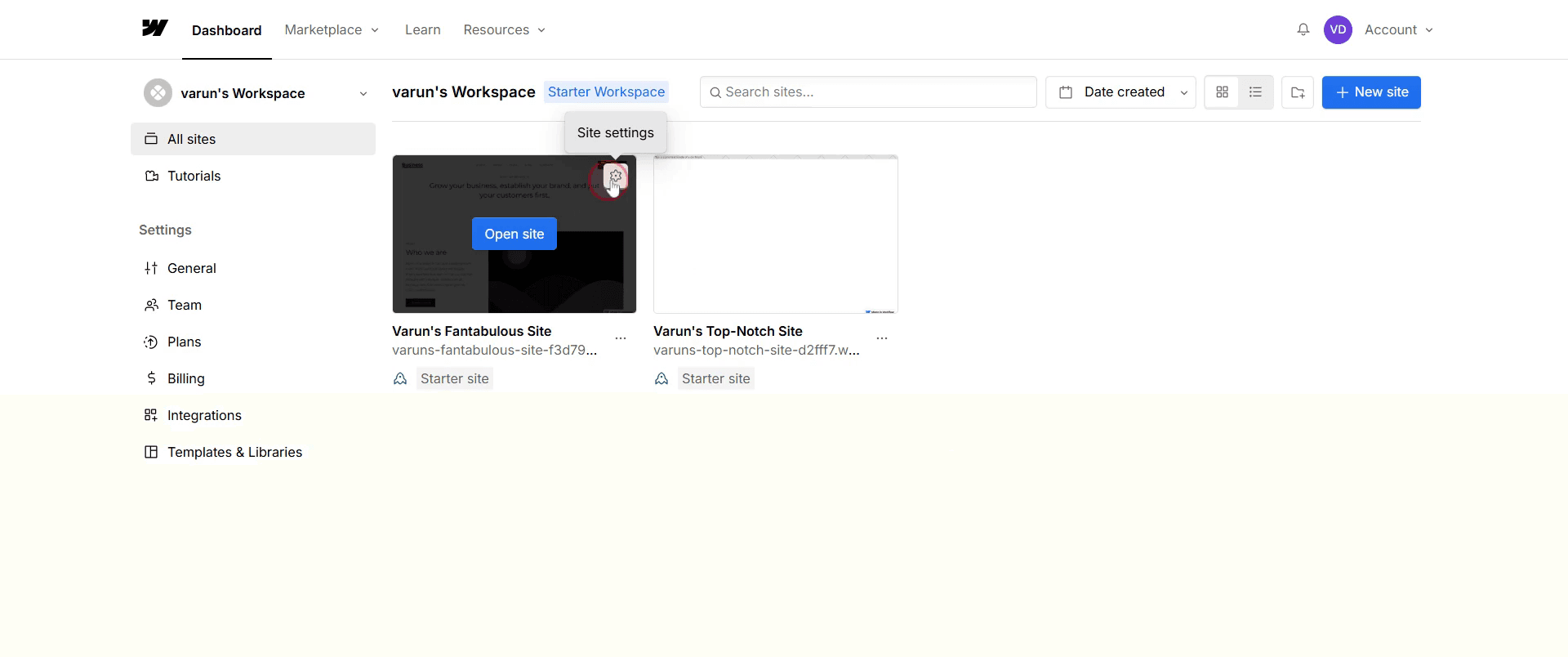
Step 1
Select the settings option.
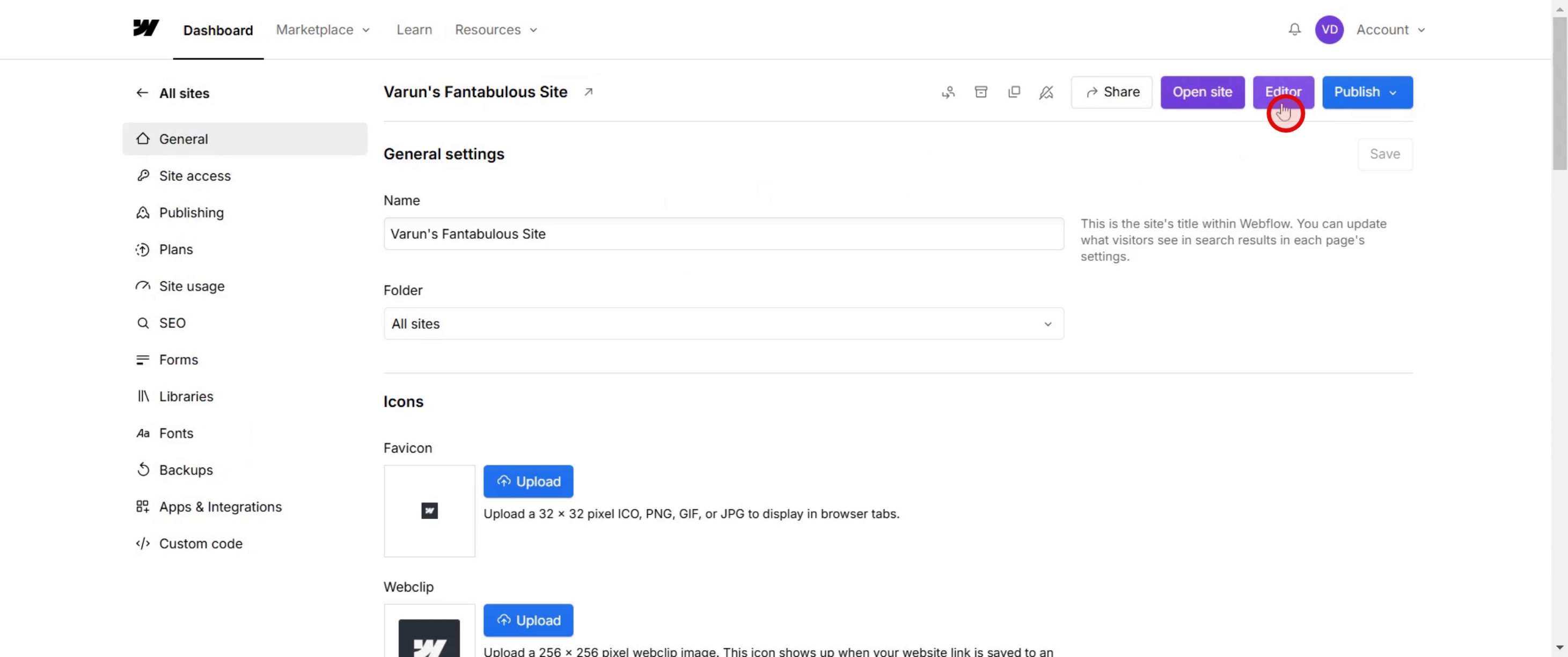
Step 2
Click on the editor.
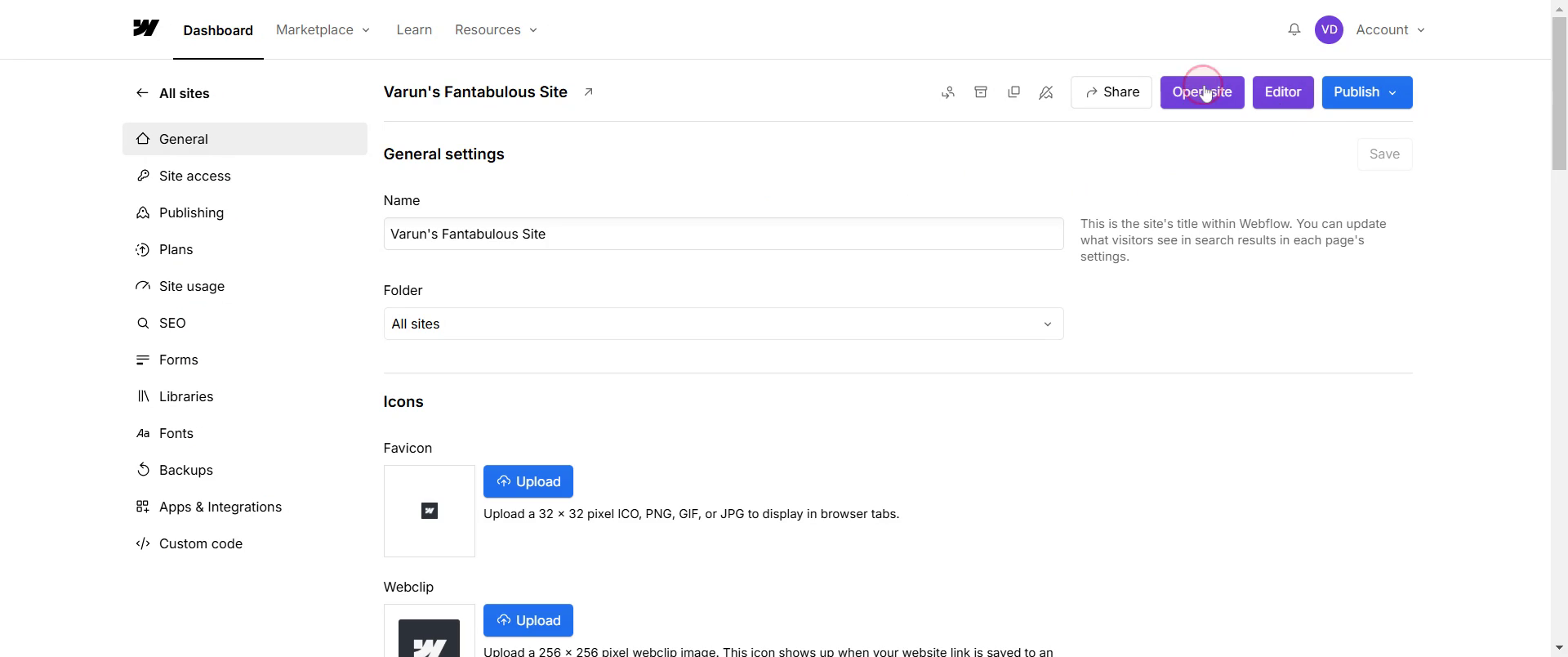
Step 3
Then click on open site,
Step 4
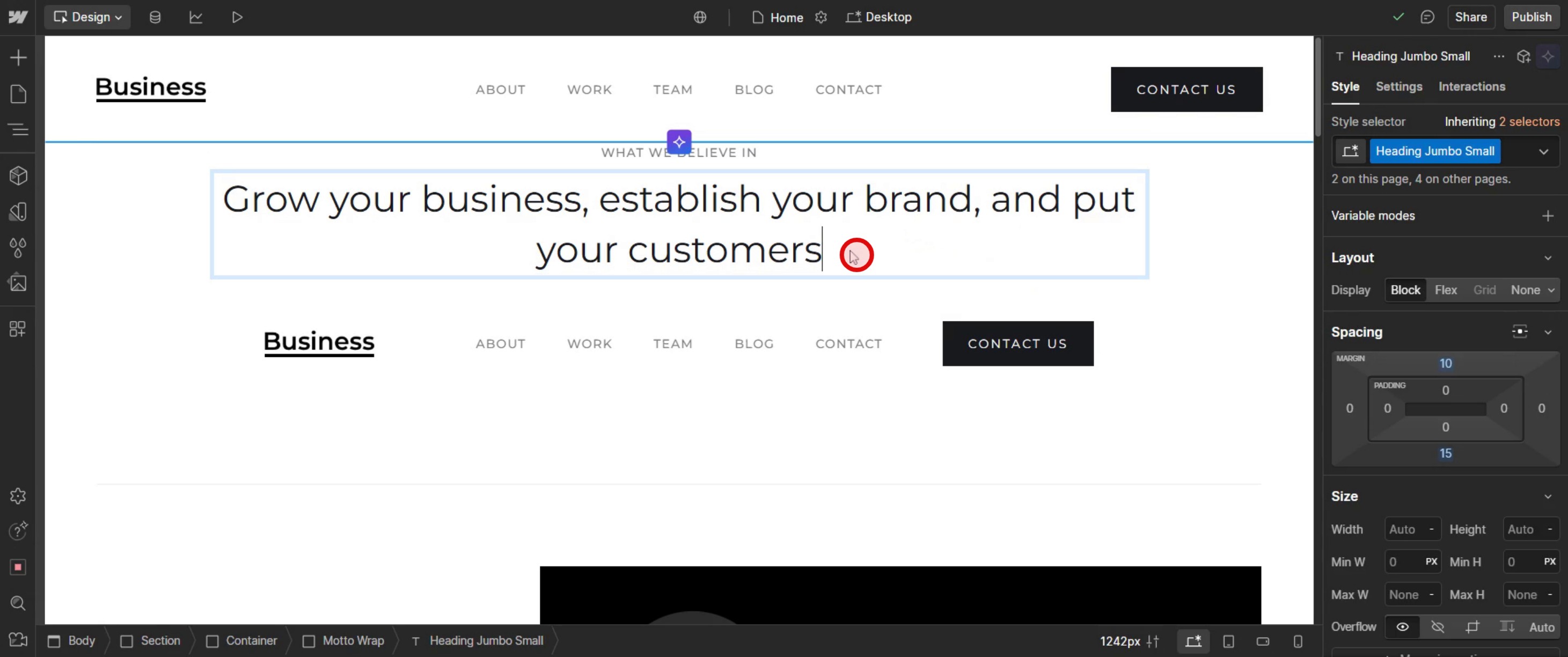
Select the specific content you want to edit.
Step 5
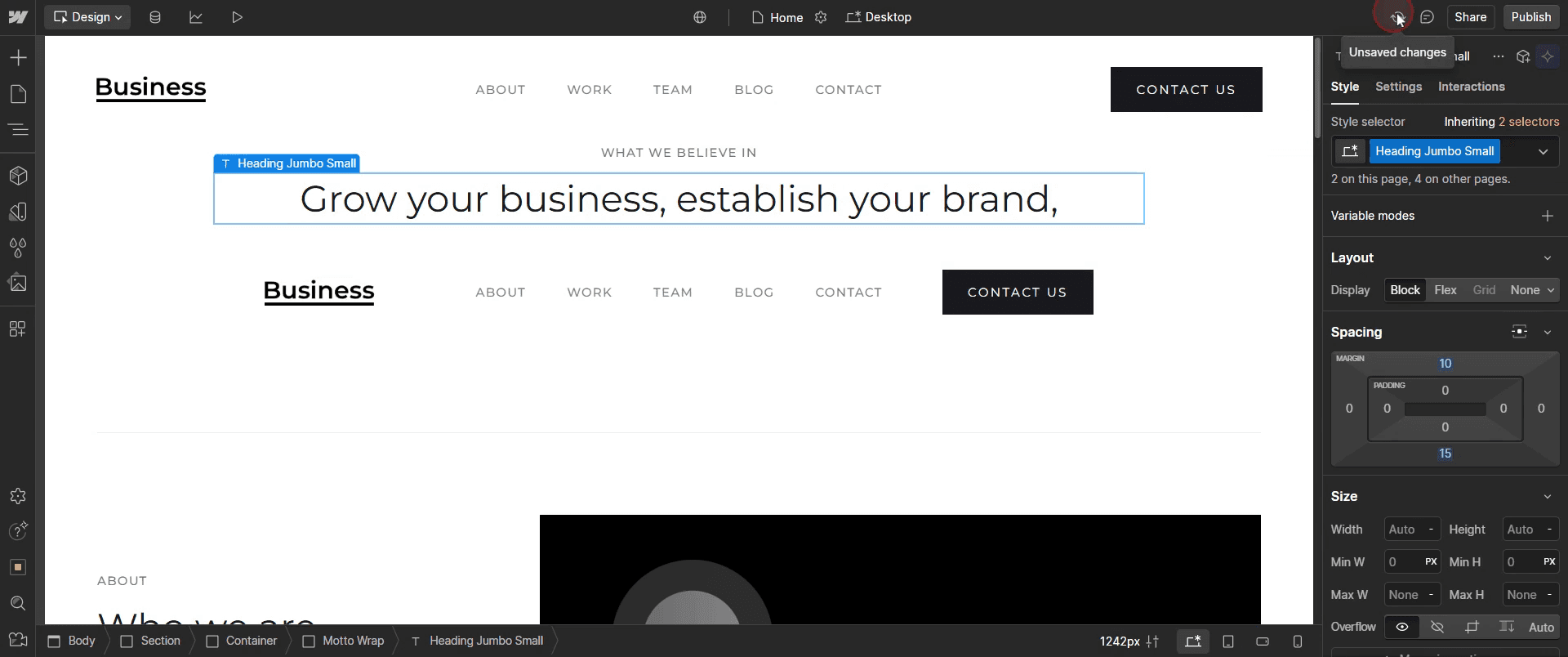
Click on the save changes.
This is the step-by-step process to access the Web flow Editor. Let’s explore some tips for it.
Pro-tips for accessing Web flow editor
Direct URL Access – If you have editing permissions, visit your website’s URL and add
?editat the end (e.g.,yourwebsite.com?edit) to access the Editor directly.Ensure Proper User Permissions – If you can’t access the Editor, check with your site admin to confirm you have the necessary permissions. Only Collaborators and Admins can access the Web flow Editor.
Use Chrome or Edge for Best Performance – Web flow works best in Google Chrome or Microsoft Edge. Using outdated browsers may cause loading issues.
Common pitfalls & how to avoid them
Not Having the Right Permissions – If you are unable to access the Web flow Editor, check if you have Editor or Admin access. Only assigned team members can edit a published site.
Forgetting the Direct Access URL – Many users don’t realize they can access the Editor by adding
?editto their site URL (yourwebsite.com?edit). Bookmark this for quick access.Using an Unsupported Browser – Web flow works best in Chrome or Edge. Avoid using Safari or Internet Explorer, as they may cause performance issues.
Common FAQs for accessing Web flow editor
Why can’t i access Web flow Editor?
Possible reasons include lack of permissions, an unpublished site, using an unsupported browser, or an issue with your Web flow login session.Do i need a Web flow account to access the Editor?
Yes, you need to be added as an Editor or Admin by the site owner to access the Web flow Editor.Which browsers work best with Web flow Editor?
Google Chrome and Microsoft Edge are recommended for the best Web flow experience.Can i access Web flow Editor on mobile?
No, Web flow Editor is not optimized for mobile devices. Use a desktop or laptop for editing.
If you're an instructor or content creator looking to make tutorial videos, give a try. It transforms rough screen recordings into polished, studio-style videos that are ready for sharing with your audience. Plus, it automatically generates a step-by-step guide based on the video you create. Fascinating, right? Start by creating your first tutorial for free with trupeer.ai .

