4.8/5
Create Free Documentation with AI
Transform Your Screen Recordings into Professional Documentation
Create Documentation Free

Trupeer's documentation app revolutionizes how teams create process documentation by transforming screen recordings into comprehensive written guides automatically. Unlike traditional documentation tools that require manual writing and formatting, this AI-powered platform captures your workflow through screen recording and generates professional documentation within minutes. The core challenge most teams face is the time-consuming nature of creating documentation. What sets this documentation app apart is its dual-output approach. When you record your workflow or upload existing recordings, the AI doesn't just create a video. It simultaneously generates detailed written documentation that captures every step, decision point, and process detail. This means you get comprehensive technical documentation without the traditional time investment of writing everything from scratch.
The realistic use case worth grounding this in. The operations manager at a 60-person SaaS company has a backlog: the new expense reimbursement process needs a written doc, the updated security audit walkthrough needs one, the customer onboarding sequence needs one, the new hire IT setup needs one. Four documentation projects, each estimated at 4-6 hours of writing time. So 16-24 hours of work scheduled for "when there's a free afternoon," which there never is. The recording-based flow takes this off the calendar. Record the workflow once during the actual work. AI generates the written doc with screenshots inline. Review and ship in 30 minutes. Four documentation projects ship in one afternoon instead of four "someday" sessions that never happen.
Use Trupeer as Process Documentation Software
Process documentation captures how work actually gets done, the repeatable steps behind a task, so anyone can follow it without relying on tribal knowledge. The hard part is rarely knowing the process. It is writing it all down. Trupeer removes that step. Record the process once as you perform it, and the documentation software generates a complete, formatted document, with each step written out and a screenshot captured automatically. That makes it practical to document software workflows, internal operations, and technical procedures that usually never get written down because doing it by hand takes too long.
As a process changes, re-record only the part that changed and regenerate, so your process documentation stays current instead of going stale. Each document can be exported in multiple formats, branded with your brand kit, and translated into 65+ languages. For step-level task docs, pair it with the Step-by-Step Guide Generator or the Process Generator.
How Does Documentation App Work?
Trupeer's documentation app streamlines the entire documentation creation process through an intuitive workflow that requires minimal technical expertise. The system is designed to capture, process, and output professional documentation with just a few clicks.
Step 1: Record or Upload Your Content
Start by using Trupeer's built-in screen recorder to capture your workflow in real-time, or upload existing screen recordings you've already created. The platform supports various video formats and handles both live recording and pre-recorded content seamlessly.
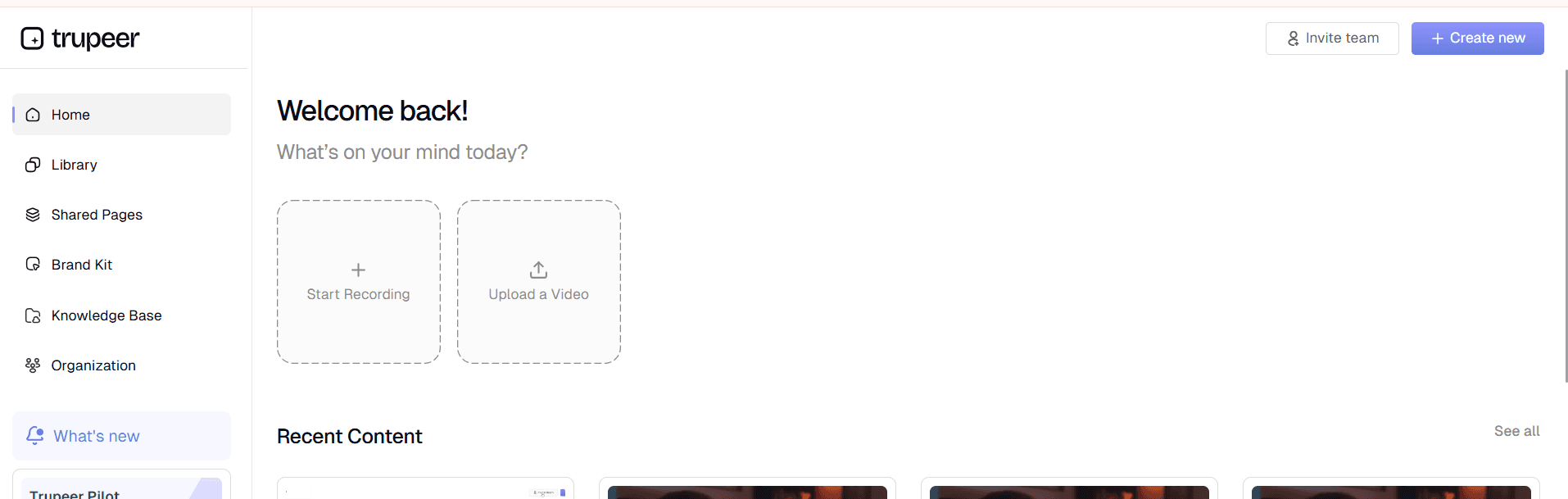
Step 2: AI Processing and Enhancement
Once your recording is in the system, the AI immediately begins processing the content. It automatically removes background noise, eliminates filler words, and adds intelligent zoom effects to highlight important areas. This AI video editing happens in the background while the documentation generation occurs.
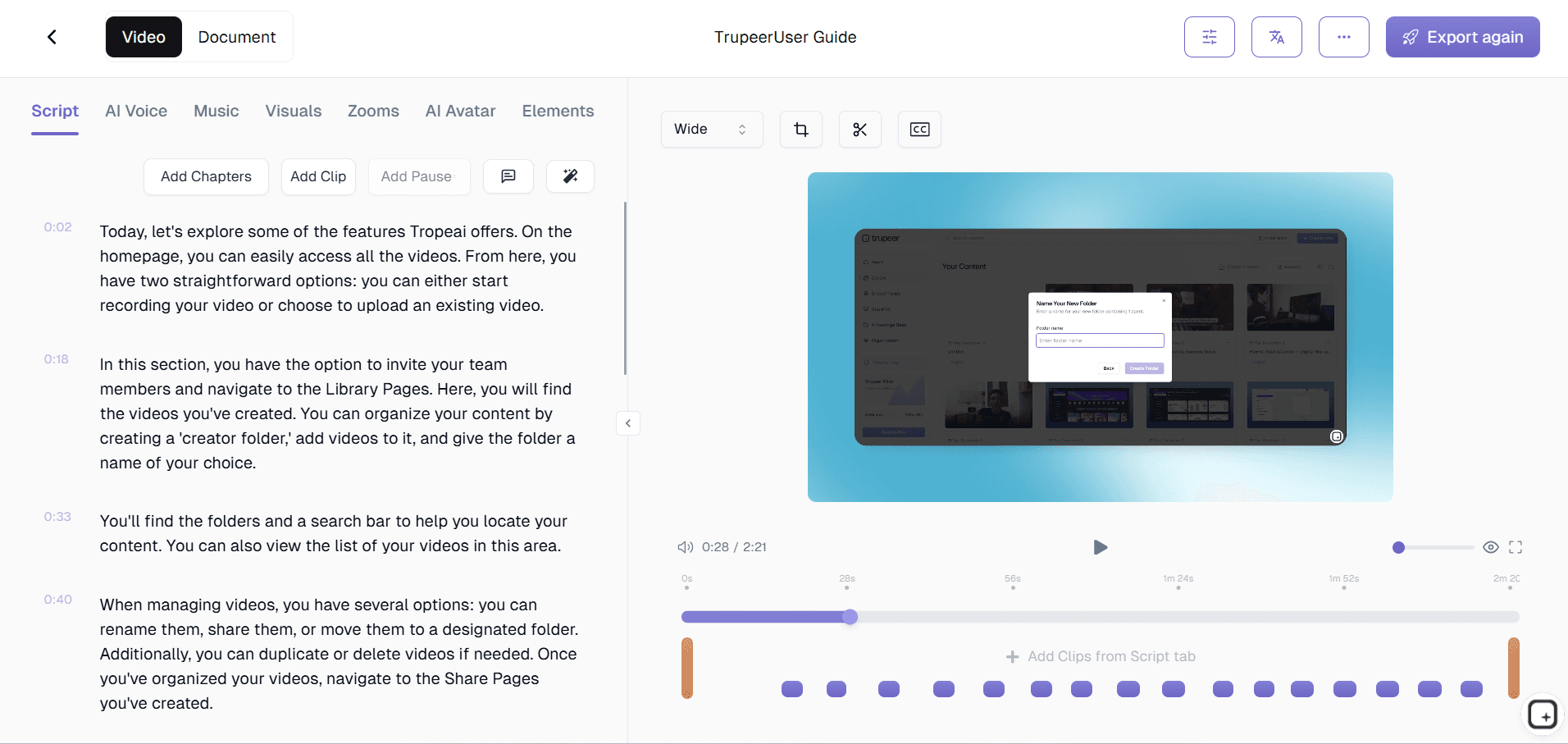
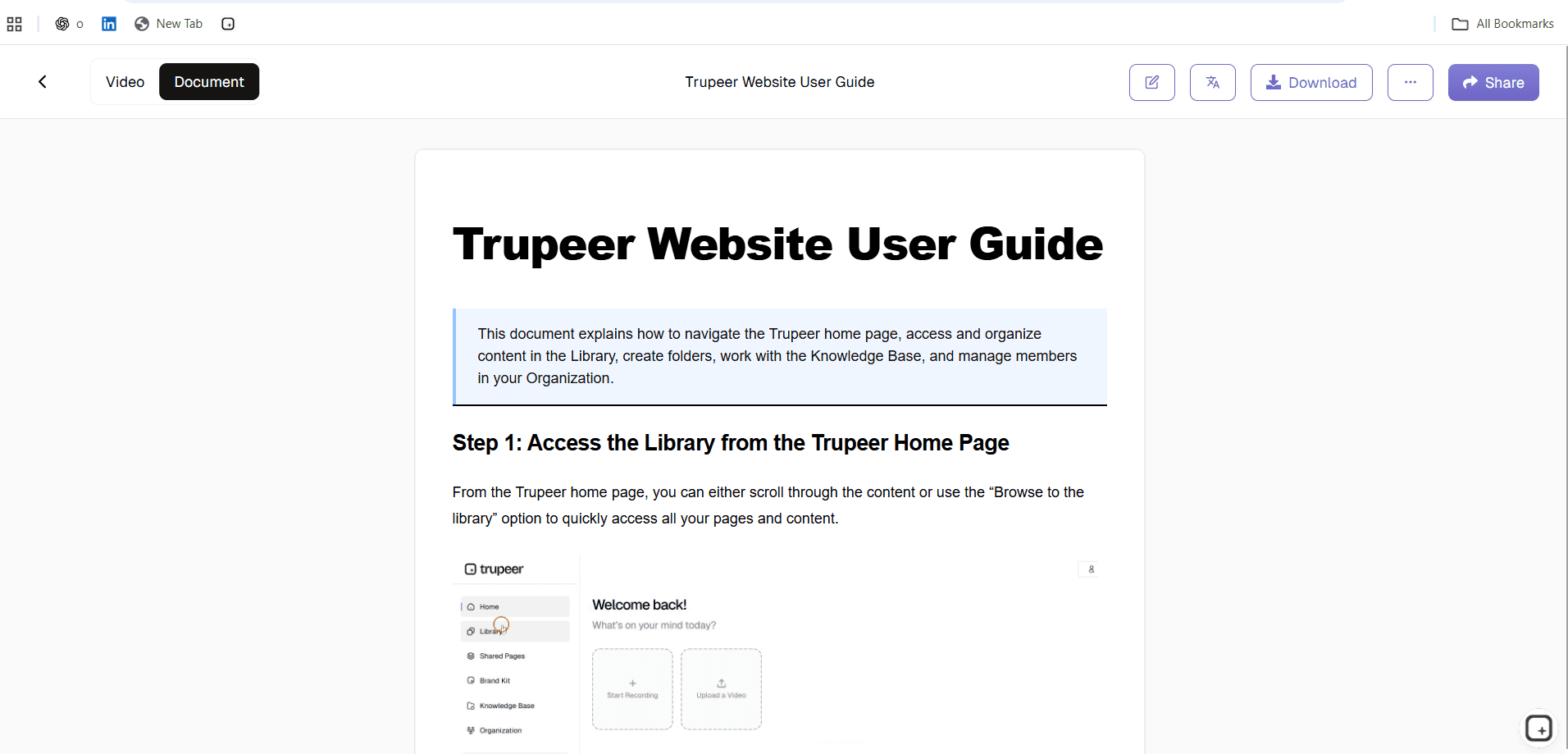
Step 3: Automatic Documentation Generation
The AI analyzes your recording frame by frame, identifying key actions, interface elements, and process steps. It then generates comprehensive written documentation that mirrors your recorded workflow, complete with step-by-step instructions and contextual explanations.
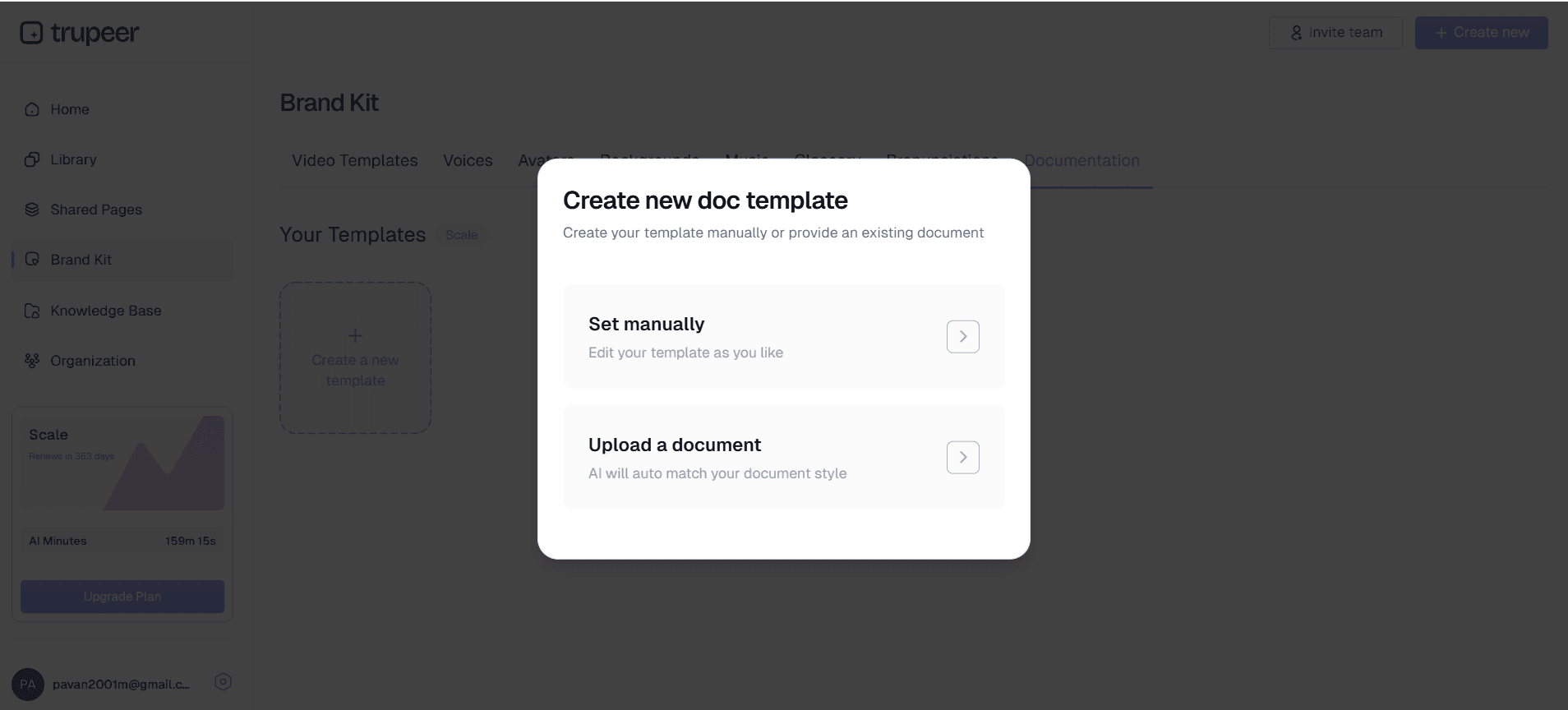
Step 4: Template Application and Formatting
Apply your saved documentation templates to ensure consistent formatting across all your guides. These customizable templates maintain your preferred styling, structure, and branding elements, creating professional-looking documentation that aligns with your organization's standards. If the documentation changes often, the project documentation template is easy to keep current because it's built from the recording rather than written by hand.
Step 5: Review and Customization
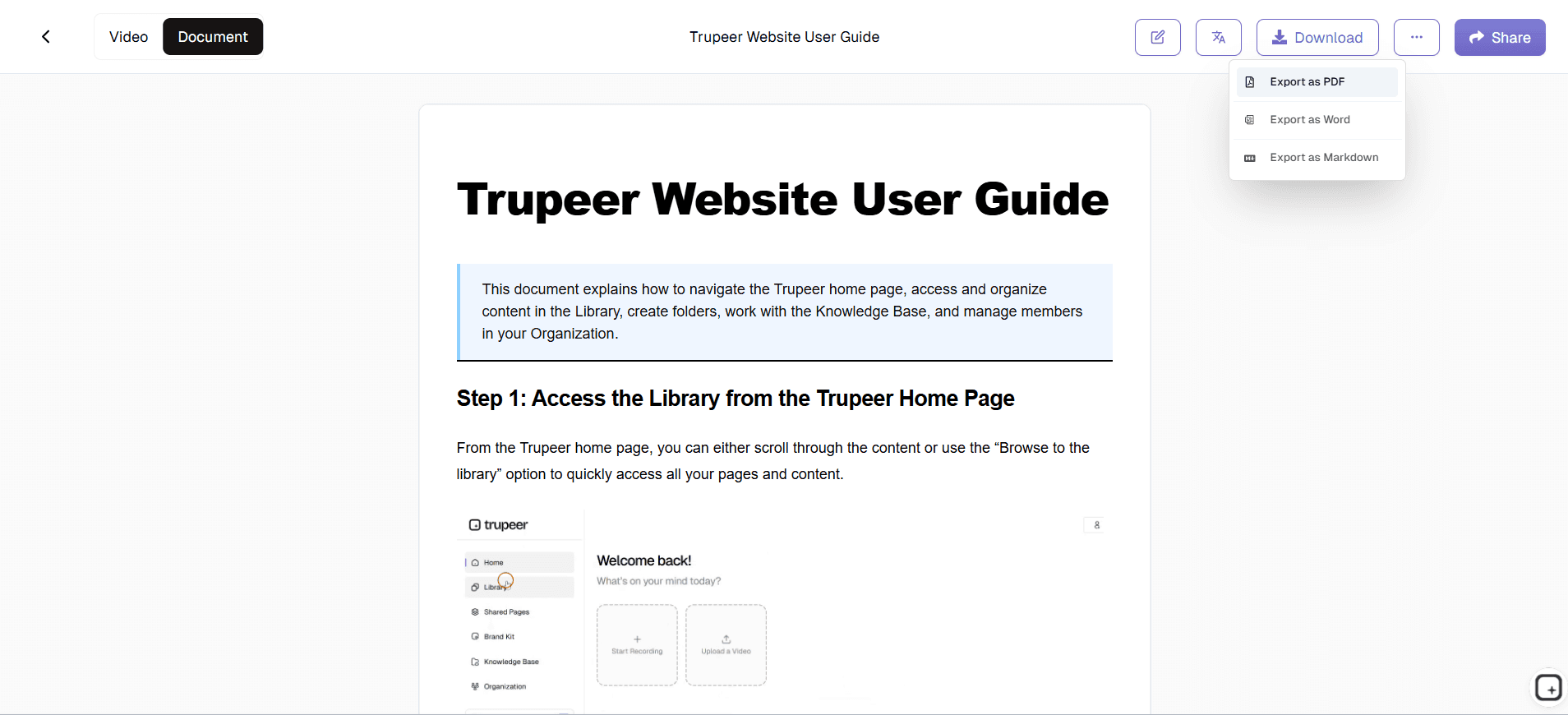
Review the generated documentation and make any necessary adjustments. The platform allows you to edit content, reorganize sections, and add additional context while maintaining the AI-generated foundation. You can also apply your brand kits to ensure visual consistency across all documentation.
Key Features and Capabilities
The documentation app includes powerful features designed to streamline every aspect of the documentation creation process, from initial recording to final distribution.
AI-Powered Content Generation: The platform's AI tools for video documentation automatically convert screen recordings into detailed written guides. This eliminates the need for manual transcription and ensures no important steps are missed in your documentation process. What "automatically converts" means concretely. The AI watches the click sequence in your recording. Click into Settings, choose Billing, hit Export Invoice History becomes the written documentation: "1. Open Settings. 2. Choose Billing. 3. Click Export Invoice History." Numbered. Screenshots inline at each step. Filler words from narration removed. Total writing time per doc: zero. Most teams use the auto-generated draft as-is for internal docs and do a 5-10 minute review for customer-facing content.
Customizable Documentation Templates: Save and reuse templates with your preferred formatting, styling, and structural elements. This feature ensures consistency across all documentation while significantly reducing setup time for new projects. Templates can include company branding, specific section layouts, and standardized formatting rules. The benefit compounds across the doc library. Set up the template once with the heading structure, step format, screenshot caption style, callout styling for warnings. Every documentation generated after that follows the same template automatically. So the 20 docs the team ships across the year all look like they came from the same publisher. Not from 20 different individual contributors with mismatched formatting choices. The trick most teams miss: setting up templates before generating the first batch of docs. Retrofitting existing docs to a new template costs real time.
Multi-Format Export Options: Export your documentation in various formats to meet different distribution needs. Whether you need PDF guides for offline access, web-friendly HTML formats, or integration-ready content for your knowledge base, the platform accommodates multiple output requirements. The export formats worth being clear about. The video downloads as a real MP4 file. The written doc downloads as PDF or Word (DOCX). The Shared Page link wraps both into a single branded URL with visibility settings (public, organization-only, selected domains, invite-only). Both downloadable formats work outside Trupeer. So if the team eventually migrates the doc library to a different platform, the files come with them. No lock-in dressed up as a feature.
Brand Kit Integration: Apply consistent branding across all documentation with custom colors, logos, and styling elements. Your brand kits ensure that every piece of documentation reflects your organization's visual identity and professional standards. For customer-facing documentation, brand consistency matters more than internal teams realize. A doc without consistent typography, colors, and intro slide signals "thrown together." A doc with proper branding signals "this team takes documentation seriously." The brand kit applies all of these elements automatically across every page. Even when six different team members contributed to the underlying recordings, the output looks editorially consistent.
Video Translation and Localization: Expand your documentation reach with automatic video translation capabilities. This feature is particularly valuable for global teams or organizations serving international markets, ensuring your documentation is accessible across language barriers. The practical version. Generate documentation in English first. Translate to Spanish, German, Portuguese, Japanese, or any combination of 65+ supported languages from one button. Translation applies to the video voiceover, the written content, on-screen text in screenshots, and captions, all in one job. So a global enterprise customer running operations across four markets gets the same doc in four languages from one source. Worth being honest about limits: highly specialized legal vocabulary sometimes needs a local-language reviewer. For most product and procedural content, the AI translation ships as-is.
Integration with Existing Workflows: The platform connects seamlessly with popular knowledge base systems, collaboration tools, and content management platforms. This integration capability means your generated documentation can flow directly into existing systems without manual importing or reformatting. What integration actually looks like in practice. The Shared Page link embeds inside Notion, Confluence, SharePoint, GitBook, Document360, or any platform that accepts iframe embeds. The MP4 and PDF downloads paste into Zendesk Help Center articles, Intercom Articles, or any wiki tool. So the doc gets produced in Trupeer and hosted wherever the team's existing workflow already runs. No "rip out your existing tools and migrate everything" conversation required.
Why Should You Use Documentation App?
Choosing Trupeer's documentation app delivers measurable benefits that transform how your organization approaches process documentation and knowledge management.
Time Savings: Traditional documentation creation can take hours or days per guide. With this platform, you can generate comprehensive documentation in minutes. Simply record your process once, and the AI handles the heavy lifting of creating both video content and written guides, reducing documentation time by up to 90%.
Improved Documentation Quality: AI-generated documentation captures details that humans often miss or forget to include. The system identifies every click, navigation step, and decision point, resulting in more thorough and accurate process guides. This comprehensive approach reduces support tickets and training time because users have access to complete information.
Enhanced Team Productivity: When teams have access to current, detailed documentation, they spend less time asking questions and more time executing tasks. The documentation app enables subject matter experts to share knowledge efficiently without repeatedly explaining the same processes, freeing them to focus on higher-value activities.
Consistency Across Documentation: Manual documentation often varies in quality, format, and completeness depending on who creates it. The AI ensures consistent structure and thoroughness across all documentation, while templates maintain visual and formatting consistency. This standardization makes documentation easier to navigate and more professional in appearance.
Scalable Knowledge Management: As your organization grows, maintaining current documentation becomes increasingly challenging. This platform scales with your needs, allowing you to quickly update processes by re-recording changed workflows. The technical documentation generator adapts to new processes and systems without requiring additional training or setup.
Cost-Effective Solution: Compared to hiring dedicated technical writers or spending internal resources on manual documentation creation, the platform delivers significant cost savings. The efficiency gains and improved documentation quality provide ROI that compounds over time as your documentation library grows.
The common thread across these audiences: documentation work has to happen but isn't anyone's primary job. The PM wants to build products. The ops manager wants to run operations. The IT admin wants to handle infrastructure. The customer success lead wants to support customers. Documentation creation gets postponed because it competes with every other priority, but never goes away as a need. Recording during the actual procedure work collapses the writing and formatting phase into the AI processing step. So the deadline scramble that defines most doc production becomes routine. Most teams that adopt this pattern ship more documentation in the first month with Trupeer than they shipped in the previous quarter.
Who Can Use Documentation App?
Trupeer's documentation app serves diverse user groups across industries, each benefiting from streamlined documentation creation in unique ways. If the documentation changes often, the app walkthrough software is easy to keep current because it's built from the recording rather than written by hand.
Content Creators and Digital Marketers: Create comprehensive guides for clients, document creative processes, and build knowledge bases for content creation workflows. The platform excels at capturing design processes, content management procedures, and campaign execution steps. Content creators can generate product demo videos alongside written documentation for client deliverables.
Marketing Teams and Product Marketers: Document campaign processes, create product launch procedures, and maintain marketing playbooks. Teams can record software workflows for tools like analytics platforms, email marketing systems, and social media management tools. The AI Screen Recorder applications include creating competitive analysis processes and campaign execution guides.
Educators and Corporate Trainers: Transform live demonstrations into reusable training materials that include both video content and written guides. Educational institutions can create comprehensive curriculum documentation, while corporate trainers can develop standardized Training Manual Generator with accompanying written materials for consistent knowledge transfer.
Product Teams and Software Developers: Document technical processes, create user guides, and maintain development workflows. Product teams can record feature demonstrations and generate user documentation simultaneously, while developers can create deployment guides and technical procedures. The platform excels at capturing complex technical workflows that require detailed documentation.
Sales Teams and Customer Success Managers: Create product demonstration scripts, document customer onboarding processes, and maintain AI Video Editor materials. Sales professionals can record successful product demos and convert them into reusable presentation materials, while customer success teams can document support processes and create self-service resources.
Small Business Owners and Operations Managers: Document business processes, create employee training materials, and maintain operational procedures. Small businesses benefit particularly from the platform's efficiency, as they can create professional documentation without dedicated resources. The system helps maintain business continuity by ensuring critical processes are properly documented and easily accessible.
IT Departments and System Administrators: Create technical documentation for system configurations, software installations, and troubleshooting procedures. The IT documentation software capabilities include capturing complex technical workflows that require precise step-by-step documentation for compliance and knowledge transfer purposes.
Best Practices for Using Documentation App
Maximize the effectiveness of your documentation creation by following proven strategies that enhance both the recording process and the final output quality.
Plan Your Recording Sessions: Before starting to record, outline the process you'll be documenting and gather any necessary materials or login credentials. Clear planning results in smoother recordings and more comprehensive documentation. Consider creating a brief script or checklist to ensure you cover all important steps and decision points during the recording process.
Optimize Your Recording Environment: Ensure your screen is clean and organized before recording, close unnecessary applications, and set appropriate zoom levels for clear visibility. Good recording practices directly impact the quality of the generated documentation. Use consistent browser bookmarks and desktop organization to create professional-looking recordings that translate into polished documentation.
Leverage Documentation Templates: Develop and save templates that match your organization's documentation standards and visual requirements. Templates ensure consistency across all generated documentation and significantly reduce post-processing time. Experiment with different template structures to find formats that work best for your specific documentation types and user needs.
Utilize Advanced Features: Explore the platform's AI Screen Recorder capabilities for international documentation needs, and take advantage of brand kit features to maintain visual consistency. These advanced features can significantly expand the reach and professional appearance of your documentation without additional time investment.
Regular Content Updates: Establish a schedule for reviewing and updating documentation as processes change. The platform makes updates efficient since you can simply re-record changed sections rather than rewriting entire documents. This approach ensures your documentation remains current and valuable for users over time.
Structure the doc before recording. The trick that turns AI-generated docs from rough draft to shippable content: outline the doc's sections first, then record one workflow per section. The AI organizes content cleanly when each source recording covers one logical topic. Recording a 60-minute marathon walkthrough and asking the AI to chop it produces messy output. Recording 8 separate 5-minute walkthroughs, each covering one section, produces a clean structure. Recording effort is roughly the same. Output quality differs significantly.
Set up the custom glossary on day one. Documentation uses specific terminology consistently. Product names. Feature names. Internal acronyms. Industry terms. If your product feature is called "Pulse" internally, the AI needs to know "pulse" in the transcripts refers to the feature, not the medical concept. Custom glossary handles this. Add all product names and frequently-used industry terms before generating the first batch. Doing it upfront beats finding and replacing terminology errors across 30 published docs later.
Where Trupeer's documentation app fits next to Scribe, Tango, Notion, and traditional documentation tools
The documentation tooling space has a few rough clusters worth understanding. Scribe and Tango capture clicks and produce step-by-step written guides automatically. They're fast and lightweight, and they do the click-to-written-doc flow well. The catch: they don't generate matching video, so teams that need both formats end up using a second tool for the video. Guidde sits closer to Trupeer: both produce video plus written docs from one recording. The differences come down to brand kit treatment, translation handling, and specific editor experience choices.
A different cluster: documentation hosting platforms like Notion, Confluence, Document360, GitBook, and ReadMe. These host docs and provide structure (table of contents, search, permissions) but don't help produce the content. Trupeer feeds into these: produce the doc in Trupeer, paste the written guide into Notion or Document360, embed the Shared Page link as an inline video player. The third cluster: heavy-duty technical writing platforms like MadCap Flare, Adobe FrameMaker, and Author-it. These are built for long-form, single-source-publishing technical documentation with deep formatting control and conditional content for product variants. Most teams running these have dedicated technical writing departments. Trupeer doesn't replace them for that use case.
The honest positioning for Trupeer: it's the production layer for teams that don't have a dedicated technical writing function but need to ship professional-looking documentation regularly. Auto-edited video, written doc with screenshots inline, brand kit, 65+ language translation, and re-recording-based updates all in one workflow. For teams that already use Notion or Confluence and want better tooling to produce the docs that live there, Trupeer pairs naturally. For teams that need FrameMaker-grade single-source publishing across multiple product variants with conditional content, Trupeer isn't the right tool.
Explore Related Tools
Why Choose Trupeer's Documentation App
Instant Documentation Generation
Transform screen recordings into comprehensive written guides automatically with AI
Customizable Templates
Save templates with preferred formatting and styling for consistent documentation
Multi-Format Export
Export as video, written docs, or both formats for flexible distribution
Create Documentation in 3 Steps
Step 1
Record screen or upload video
Step 2
AI generates written documentation
Step 3
Apply templates and share
Frequently Asked Questions
What makes Trupeer's documentation app different from other tools?
Unlike traditional documentation tools that require manual writing, Trupeer generates both video content and written documentation automatically from screen recordings. You record once and get comprehensive documentation in multiple formats instantly.
Can I use existing screen recordings with the documentation app?
Yes, you can upload existing screen recordings and the AI will process them to generate professional documentation. The platform works with both live recordings and pre-recorded content seamlessly.
How accurate is the AI-generated documentation?
The AI captures every action, click, and process step from your recording, often creating more thorough documentation than manual methods. You can review and edit the generated content to ensure it meets your specific requirements.
Can I customize the format and style of generated documentation?
Absolutely. The platform includes customizable templates where you can set preferred formatting, styling, colors, and structural elements. You can also apply brand kits for consistent visual identity across all documentation.
Is the documentation app suitable for technical and complex processes?
Yes, the platform excels at documenting complex technical workflows, software configurations, and detailed procedures. The AI understands context and generates comprehensive step-by-step instructions suitable for technical documentation needs.
More Tools


Understand how work happens.
Carry it into your next transition.
Start Free Trial
Book a Demo
Resources

