4.8/5
Free Easy Video Editing Software for Training Videos
Edit training videos in minutes - not hours. Simple tools, professional results, zero learning curve.
Try for Free

Easy video editing software for training videos removes the complexity from post-production so anyone on your team can edit raw recordings into clear, professional training content. No timeline expertise, no effects jargon - just drag, trim, and publish. The realistic version of who this is for. The customer success lead at a SaaS company needs to ship a 5-minute training video walking new accounts through their dashboard setup. The recording exists. The video editor doesn't. The customer success lead doesn't want to learn Premiere Pro, doesn't want to download Camtasia, doesn't want to spend 4 hours on a timeline editor to produce a 5-minute video. The traditional choice was either: ship the raw Loom recording with all the ums and uhs intact, or wait three weeks for a freelance editor to fit it in. Easy video editing tools fix that trade-off. AI handles the routine cleanup. Drag-and-drop tools handle the manual edits. The 5-minute training video ships the same afternoon it was recorded.
Drag-and-drop interface that anyone can use - no video editing background required
One-click trimming, splitting, and merging to clean up recordings in minutes
Add text overlays, callout boxes, and step indicators with simple point-and-click tools
Auto-generated captions and chapters that save hours of manual work
Export directly to your LMS, video platform, or shareable link
What Is Easy Video Editing Software for Training Videos?
Easy video editing software for training videos is a streamlined editor built for people who need to produce instructional content but do not have - and do not want - professional video editing skills. It strips away the overwhelming complexity of tools like Premiere Pro and Final Cut Pro, replacing multi-track timelines and hundreds of effect panels with a clean, intuitive interface focused on the actions that matter for training: trimming dead air, adding text overlays, highlighting key steps, inserting chapter breaks, and exporting in the right format. The category split worth understanding. On one end: professional video editors (Premiere Pro, Final Cut, DaVinci Resolve). These have all the editing power but assume you're a video editor or willing to become one. The learning curve runs 20-40 hours of practice before someone can produce competent training video output. On the other end: raw screen recorders (Loom, the macOS recorder). These capture cleanly but ship the recording as-is. The middle category easy editing tools designed for non-editors is where teams that produce training videos regularly actually live. Trupeer sits in this middle category, plus generates a matching written guide from the same recording. Camtasia in its newer auto-edit modes covers similar territory. So does ScreenPal in some configurations. The differentiation comes down to specific feature choices: how much editing is automated by AI versus done by hand, whether a written guide gets generated alongside the video, how brand kit and translation work.
How Does Easy Video Editing Software for Training Videos Work?
Getting started with Easy Video Editing Software for Training Videos takes just a few minutes.
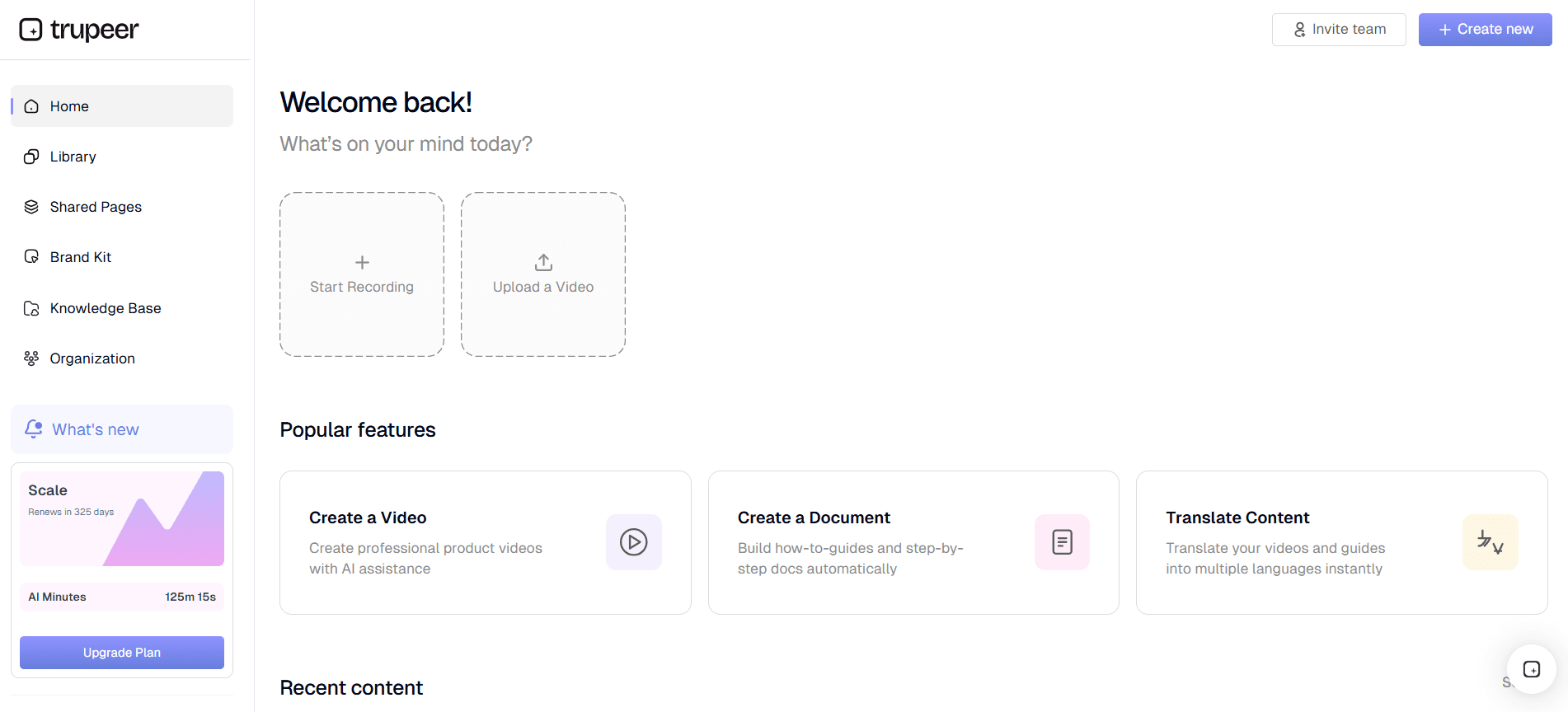
Step 1: Record or Upload
Start a screen recording directly in your browser, or upload an existing video.
Step 2: AI Processing
The AI analyzes your recording, removes filler words, adds zoom effects, and generates video automatically.
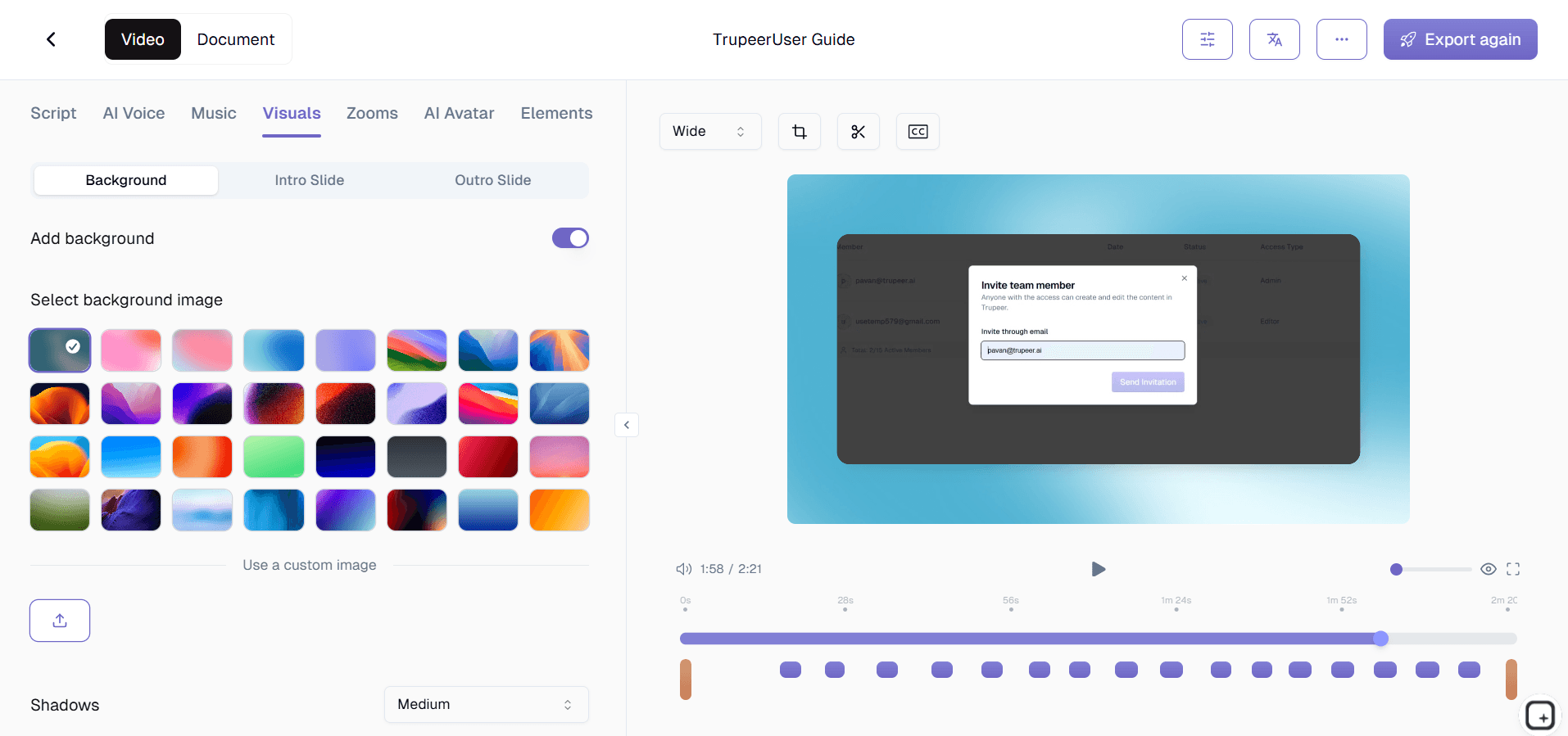
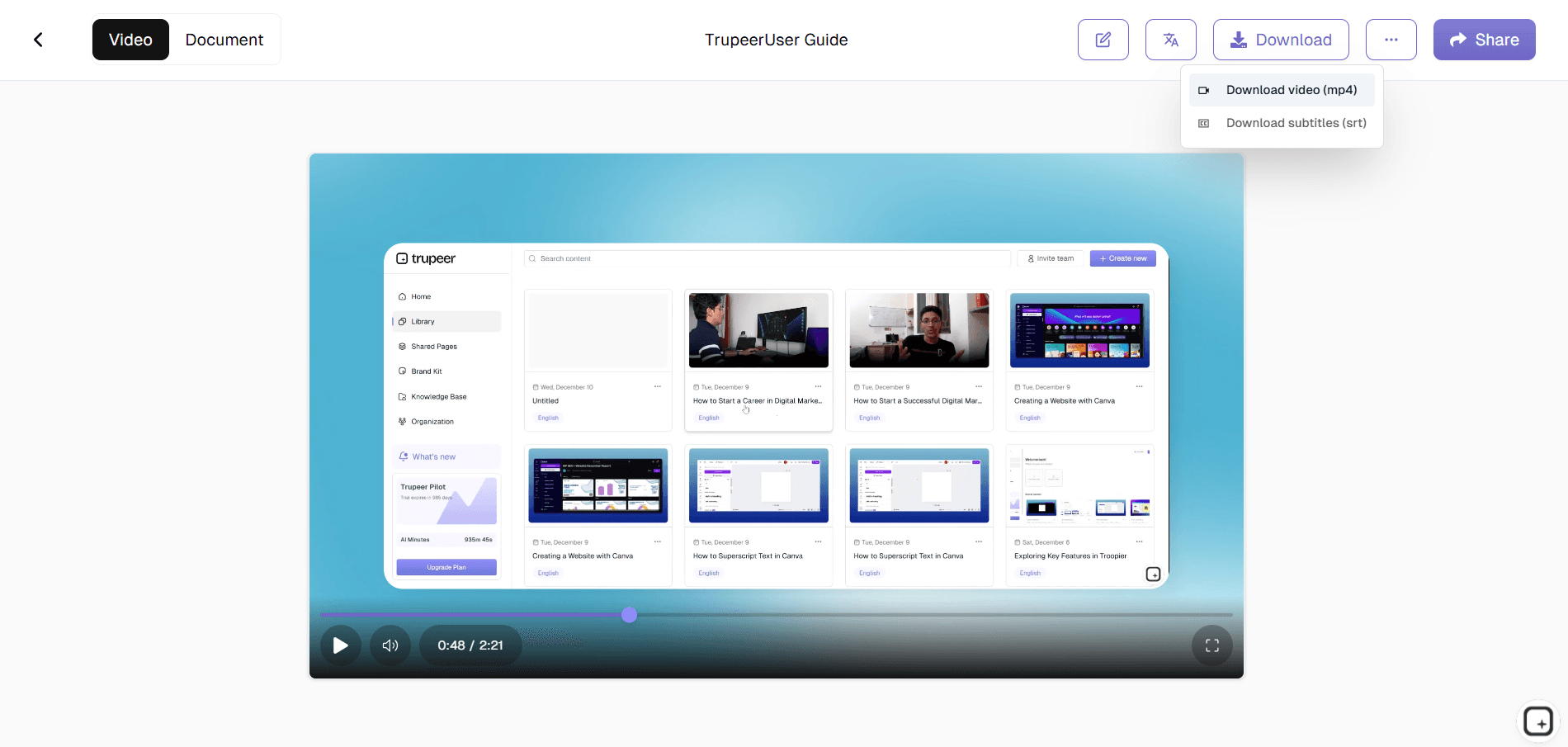
Step 3: Customize and Share
Edit the output, apply your brand kit, and share via link or embed on your website. Updates are just as easy.
Key Features of Easy Video Editing Software for Training Videos
Drag-and-Drop Visual Trimmer: Forget keyboard shortcuts and frame-accurate timecodes. The visual trimmer lets you grab the edges of any clip and drag to remove unwanted sections. A waveform display shows your audio, making it easy to identify and cut out pauses, coughs, false starts, and off-topic tangents without needing any technical editing knowledge. What "no timecodes" actually means. The trimmer works the way someone who's never used a video editor expects it to work. Grab the start handle, drag right to cut the opening dead air. Grab the end handle, drag left to cut the trailing "okay that's it bye." Done. Most training videos need this kind of trimming on 80% of the recording: cut the first 30 seconds where you were waiting for your screen to load, cut the random tangent in the middle where you got distracted, cut the awkward outro. The visual trimmer handles all three in under 90 seconds total.
One-Click Split and Delete: Place your playhead at any point in the recording and click once to split the clip in two. Delete the unwanted section with another click. The realistic use case. Halfway through your training recording, your dog barked. Or your kid walked in. Or your phone rang. Old workflow: re-record the whole video, or open Premiere, navigate the timeline, find the spot, learn the split tool, delete the segment, hope the cut isn't jarring. New workflow: scrub to the bark, click split, click delete. The 30 seconds of interruption disappears. The training video keeps flowing. Total time spent on the edit: under 30 seconds.
Point-and-Click Text and Callout Overlays: Add text labels, callout boxes, numbered step indicators, and highlighted rectangles by clicking directly on the video preview. Position them visually, type your text, set when they appear and disappear, and you are done. No layers panel, no keyframe animation, no effects timeline - just point, click, and type. Where this matters specifically for training. The trainee watching the video needs to know which button to click in the third step. The narration says "click the Export button" but the screenshot shows 11 buttons. Old way: pause the video, look closely, hope. New way: the editor lets you click directly on the Export button in the preview, drop a numbered "3" callout on it, set when it appears, done. So the trainee follows the right element without parsing the entire UI. Three callouts on a 5-minute video take roughly 90 seconds to add. The clarity payoff is significant.
Auto-Chapter Detection: The software analyzes your recording for natural break points - extended pauses, application switches, and narration cues - and automatically suggests chapter markers. Accept, adjust, or add your own in seconds. The result is a navigable table of contents that lets learners jump to any section without scrubbing through the entire video. The reason chapters matter for training specifically. Trainee opens a 12-minute training video looking for the specific step they got stuck on. Without chapters, they scrub through the timeline trying to find it. With auto-generated chapters and a table of contents in the video player, they click directly to the step and get the answer in 30 seconds. Auto-detection works on natural break points (long pauses, application switches, narration cues like "next" or "now we'll"). For most training recordings, the AI catches the right break points on the first pass. The editor lets you tweak the markers if needed before publishing.
Why Choose Easy Video Editing Software for Training Videos?
Anyone Can Edit: If you can use a word processor, you can edit training videos with this software. The entire interface is designed for non-editors who need professional results without a professional skill set. A specific test for whether a video editor is actually "easy." If the help documentation for the editor is longer than the help documentation for Microsoft Word, the editor isn't easy. If figuring out how to add a single text overlay requires watching a tutorial first, the editor isn't easy. The point-and-click + drag-and-drop pattern is the baseline for "anyone can use it." Trupeer's editor passes that test for most common training-video edits: trim, split, add text callout, add captions, export. More complex edits (multi-track audio mixing, advanced color grading) aren't supported that's the trade-off for being usable in 10 minutes by a non-editor.
Minutes, Not Hours: Most training videos require only trimming, a few text overlays, and captions. This software makes those tasks take 5 to 10 minutes, not the hour-plus required by general-purpose editors. The math worth being concrete about. A typical 8-minute training video that would take 90-120 minutes in Premiere Pro (including the trimming, callouts, captions, and exporting) takes 8-12 minutes in an easy editor designed for training content. Multiplied across a team shipping 4 training videos per month, that's 8-10 hours of editor-time per month recovered. Or, more realistically: that's 4 training videos that actually ship instead of getting stuck in the editing backlog. The output isn't comparable to the polished commercial-grade work a senior editor can produce in Premiere. It is comparable to the work most internal training videos actually need.
Consistent Output Quality: Templates and presets ensure that every training video looks and sounds professional, regardless of who on your team did the editing. Quality no longer depends on editing skill. The pattern that breaks most decentralized training video production. Five different people record training videos across the year. Each one has their own approach to intros, outros, callouts, branding. Some videos start cold. Others have a 30-second intro slide. Some end with a CTA. Others just stop mid-sentence. The customer (or new hire) watching three videos from the same company gets three different experiences. Templates and brand kits applied automatically fix this without requiring anyone to learn graphic design. So 20 training videos shipped across the year all look like they came from the same company. Not from 5 different people's individual editing choices.
No Training Needed to Use Training Software: The irony of needing a training course to use your training video editor is not lost on anyone. This software is usable within minutes of first opening it. The irony is worth dwelling on for a moment. Most teams that need to ship training videos have already had the conversation about "should we just hire a video editor or learn to use Adobe Premiere?" The answer is rarely satisfying. Hiring an editor adds headcount cost. Learning Premiere takes weeks of practice that nobody on the team has time for. The third option an editor that the non-editor can actually use within 10 minutes is what makes the math work for most internal training operations. The team's existing subject matter experts handle the editing for content they already recorded. No new hire. No new training program. The work just ships.
Easy Video Editing Software for Internal Teams
1. Internal teams empower subject-matter experts to edit their own training recordings without waiting in a queue for the video production team - democratizing content creation across the organization.
2. Team leads edit weekly process-update recordings into concise training clips using the trim-and-split workflow, delivering focused content that employees actually watch instead of ignoring.
3. Operations teams edit multi-step workflow recordings by adding numbered callout overlays at each decision point, transforming rambling screen captures into clear procedural guides.
4. HR teams use branded intro and outro templates to give every onboarding video a consistent, professional look that reflects the company's standards and culture. Create complementary written documentation at Trupeer's process guide tool.
Easy Video Editing Software for SaaS Teams
1. SaaS customer success teams edit raw product walkthrough recordings into polished training videos that they send to new accounts during onboarding, driving faster time-to-value.
2. Product teams edit beta-feature demonstration recordings into training content for early-access users, adding callout annotations that highlight new UI elements and changed workflows.
3. Marketing teams repurpose webinar recordings by trimming Q&A sections, adding chapter markers, and exporting focused training clips for email campaigns and landing pages.
4. Support managers edit recorded troubleshooting sessions into customer-facing help videos, removing internal commentary and adding step-by-step text overlays for clarity. Record source material with Trupeer's screen recorder.
Easy Video Editing Software for Startups
1. Startups without a video production budget use easy editing software to produce training content that looks professional enough to share with enterprise customers and investors.
2. Non-technical co-founders edit their own product training videos using the drag-and-drop interface, avoiding the cost and delay of outsourcing to a freelance video editor.
3. Startup HR teams edit culture and onboarding videos in-house, using templates to maintain visual consistency even as different team members contribute content each month.
4. Growth teams quickly edit experiment walkthrough recordings into training content for new marketing hires, keeping the team aligned on methodologies during rapid scaling.
Easy Video Editing Software for Enterprises
1. Enterprise L&D teams deploy easy editing software to hundreds of content contributors across departments, enabling decentralized training video production without sacrificing quality standards.
2. Global training teams use templates and presets to ensure that training videos produced in offices worldwide share the same branding, structure, and quality benchmarks.
3. Enterprise compliance teams edit training recordings to insert mandatory acknowledgment checkpoints, legal disclaimers, and regulatory references required for audit compliance.
4. IT training teams edit system migration walkthroughs into step-by-step training modules with auto-generated chapters, enabling employees to find exactly the help they need during transitions.
Easy Video Editing Software for Remote Teams
1. Remote contributors record raw training content at home and upload it to the cloud editor, where team leads trim, annotate, and publish - no in-person handoff required.
2. The smart audio cleanup feature is essential for remote teams, transforming narration recorded in noisy home environments into clean, professional audio that does not distract learners.
3. Remote managers edit short coaching videos for individual team members, adding callout annotations that point to specific areas for improvement in recorded workflows.
4. Distributed training teams maintain a shared editing workspace where contributors from any location can access, edit, and publish training videos using the same templates and brand assets.
Easy Video Editing Software for Developers
1. Developers who would rather write code than learn Premiere Pro use this software to quickly edit their screen-recorded coding tutorials, technical walkthroughs, and documentation videos.
2. DevRel teams edit conference presentation recordings into focused training segments, adding chapter markers and trimming audience Q&A to create evergreen educational content.
3. Engineering managers edit onboarding recordings for new developers, adding text overlays that highlight key repository structures, naming conventions, and deployment commands.
4. Developer educators edit live coding session recordings by trimming debugging tangents and adding callout annotations that explain code decisions at each step.
Easy Video Editing Software for Onboarding and Support Teams
1. Onboarding coordinators edit raw training recordings into structured modules using auto-chapters and text overlays, creating a professional curriculum without any video editing training.
2. Support teams edit resolution walkthrough recordings in minutes, trimming dead time and adding step numbers so customers can follow along independently without contacting support again.
3. Customer success teams edit personalized onboarding videos for key accounts, adding the client's name, use-case-specific callouts, and relevant chapter markers for a white-glove experience.
4. Training administrators use batch export to update and redistribute edited training videos across the organization whenever processes change, keeping the entire library current with minimal effort. Start recording your source content with Trupeer's screen recorder.
The common pattern across these audiences: training video production is rarely anyone's primary job, but training videos have to ship. The customer success lead has customers to support. The HR specialist has employees to onboard. The DevRel team has conferences to run. The L&D specialist has curriculum to design. Adding "become a video editor" to any of these jobs is a non-starter. Easy editing tools designed for training video work specifically take the editing skill requirement off the table. So the people qualified to create the training content (because they know the content) stop being blocked by the editing tools. Most teams that adopt this pattern produce more training videos in the first month than they shipped in the previous quarter.
When easy video editing software fits, and when it doesn't
Worth being honest about where this kind of tool fits. Easy video editing software handles the routine training video production work: trimming, splitting, adding text overlays, applying brand styling, generating captions, exporting in standard formats. For most internal training videos, customer onboarding walkthroughs, and procedural training content, this is enough. The output is professional-looking, ships fast, and reads as competent work to the trainee.
Paragraph The tool isn't built for content that needs broadcast-grade post-production. Multi-camera narrative video. Music video editing. Marketing-grade brand films with custom motion graphics. Cinematic color grading. These all need a real video editor (Premiere Pro, Final Cut, DaVinci Resolve) and a real video editor running it. So the team shipping training content uses easy editing tools for the volume work, and either contracts a video editor or invests in Premiere training for the rare high-production-value pieces (the executive-level training video that runs in the all-hands, the marketing-grade product video, the conference keynote recap). The split saves enough on the volume work to justify both approaches.
A different scope question worth addressing: SCORM-packaged courses with embedded quizzes, branching scenarios, and learner progress tracking aren't training videos. They're courses. The right tools for those are course authoring platforms like Articulate Storyline, iSpring, or Adobe Captivate. Trupeer doesn't replace those for the SCORM-course use case. For teams whose training is mostly screen-recorded software walkthroughs (which is most internal training at most B2B SaaS companies), Trupeer's editor and the MP4 output are the right shape. For teams whose training has to be formal SCORM courses, the editor is the wrong layer of the stack to start with.
This screen recorder chrome extension builds on Screenity, originally created by Alyssa X and licensed under the GNU GPLv3, with enhancements developed by the Trupeer team. Source code available here: https://github.com/trupeer-ai/trupeer-chrome-capture.
Key Features
Simple Trimming
Drag-and-drop visual trimmer removes mistakes and tightens pacing in seconds.
Auto Captions
AI generates accurate captions and transcripts with one click - no manual timing needed.
Brand Templates
Consistent intros, outros, and overlays make every training video look professional.
How It Works
Step 1
Drag your raw screen recording or video
Step 2
Generates video automatically
Step 3
Export with one click
Frequently Asked Questions
Do I need video editing experience to use this software?
Not at all. The drag-and-drop interface, visual trimmer, and point-and-click tools are designed for people with zero editing background. If you can use basic office software, you can edit training videos with this tool.
How long does it take to edit a training video?
Most training videos can be edited in 5 to 15 minutes. The simplified tools handle trimming, text overlays, captions, and chapters without the complexity that makes general-purpose editors time-consuming.
Can I generate captions automatically?
Yes. One-click AI captioning transcribes your narration, adds punctuation, and syncs captions to the audio timeline. You can review and edit the transcript in a simple text interface before publishing.
Does the software support LMS export formats?
Yes. Pre-configured export presets include SCORM and xAPI formats for direct LMS integration, as well as MP4, shareable links, and embed codes for non-LMS distribution channels.
Can multiple team members use the same templates and brand assets?
Absolutely. Shared template libraries ensure every contributor produces training videos with consistent branding, intros, outros, and visual style - regardless of their editing skill level.
More Tools



