Training Video Creation Software (No Editing Required)
The training video creation software that handles filler removal, zoom effects, and brand kit application automatically. Anyone can produce a polished training video without a video editor on the team.
Create Training Videos Free

Trupeer AI is the training video creation software that removes the editor from the production workflow. Filler words get cut automatically. Cursor jitter gets smoothed. Zoom effects and cursor highlights apply themselves where the trainee needs to see them. Brand kit intro and outro slides apply automatically. An L&D specialist who has never opened Camtasia can record a screen walkthrough, hit generate, and ship a polished training video plus a matching written guide thirty minutes later. Most training video production gets gated not by who has expertise to share but by who can operate a video editor, and the video editor on most training teams is one overworked person whose calendar fills up two months in advance.
No video editing skills needed. Filler removal, auto-zoom, cursor effects, brand application all run automatically.
Record a screen walkthrough or use an AI avatar with a typed script. Both routes skip the recording-and-editing-yourself cycle.
Output ships as MP4 video and PDF or Word document together, ready to upload to the LMS or post in the help center.
Translate to 65+ languages for global teams, applied to both video voiceover and written guide.
Update existing training videos by re-recording the changed step. The AI processes only the changed segment.
What "no editing required" actually means
Training video creation traditionally has two production stages: capturing the source (recording the screen, the presenter, or the demo) and editing the source into something publishable (cutting filler, adjusting timing, adding zoom effects, applying intro/outro graphics, syncing voiceover, color-correcting if anyone cares). The first stage takes the time it takes to do the workflow once. The second stage takes anywhere from 2x to 8x the recording length depending on how polished the output needs to be. Most training teams hit a production ceiling at the second stage, since the editing work either falls to one person who becomes the team's constraint or gets outsourced to an agency at $3,000+ per finished video.
Trupeer AI handles stage two automatically. Filler words ("um," "uh," "let me find that," "where did I save that") get detected and removed. Cursor jitter gets smoothed so the mouse doesn't shake across the screen. Zoom effects apply themselves at moments the trainee needs to focus on a specific UI element. Cursor highlights mark click locations. Background noise gets removed. Brand kit intro and outro slides apply automatically (logo, colors, fonts, intro/outro graphics). What an L&D specialist gets out of Trupeer is what an editor would produce after 4 to 8 hours of work in Camtasia or Premiere, minus the 4 to 8 hours and minus needing the editor.
How the training video creation software works in three steps
Three steps cover the full flow, and step two (the editing) runs without you. The team ships polished training videos without anyone needing to learn Camtasia, Premiere, or Final Cut.
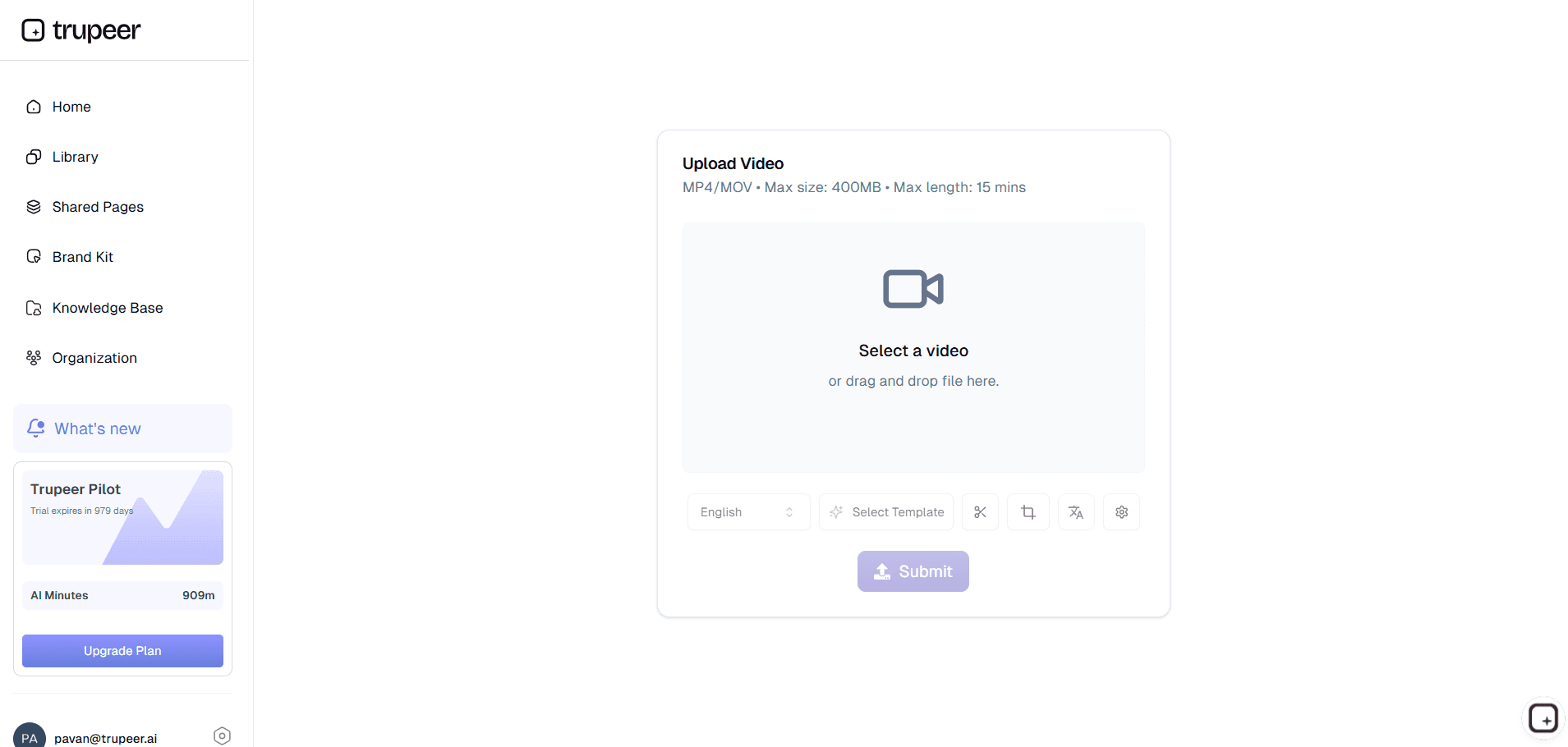
Step 1: Record the walkthrough or use an AI avatar
Two paths. Path one: start a screen recording in the browser. Walk through the system, process, or workflow the trainee needs to learn. No retakes required for the filler words you will inevitably say. Path two: type a script and pick an AI avatar from the catalog to deliver the training as a talking-head video. No camera, no microphone, no recording session. The avatar route works especially well for subject experts who refuse to be on camera and for executives whose calendars can't accommodate a video shoot.
Step 2: Trupeer AI does the editing
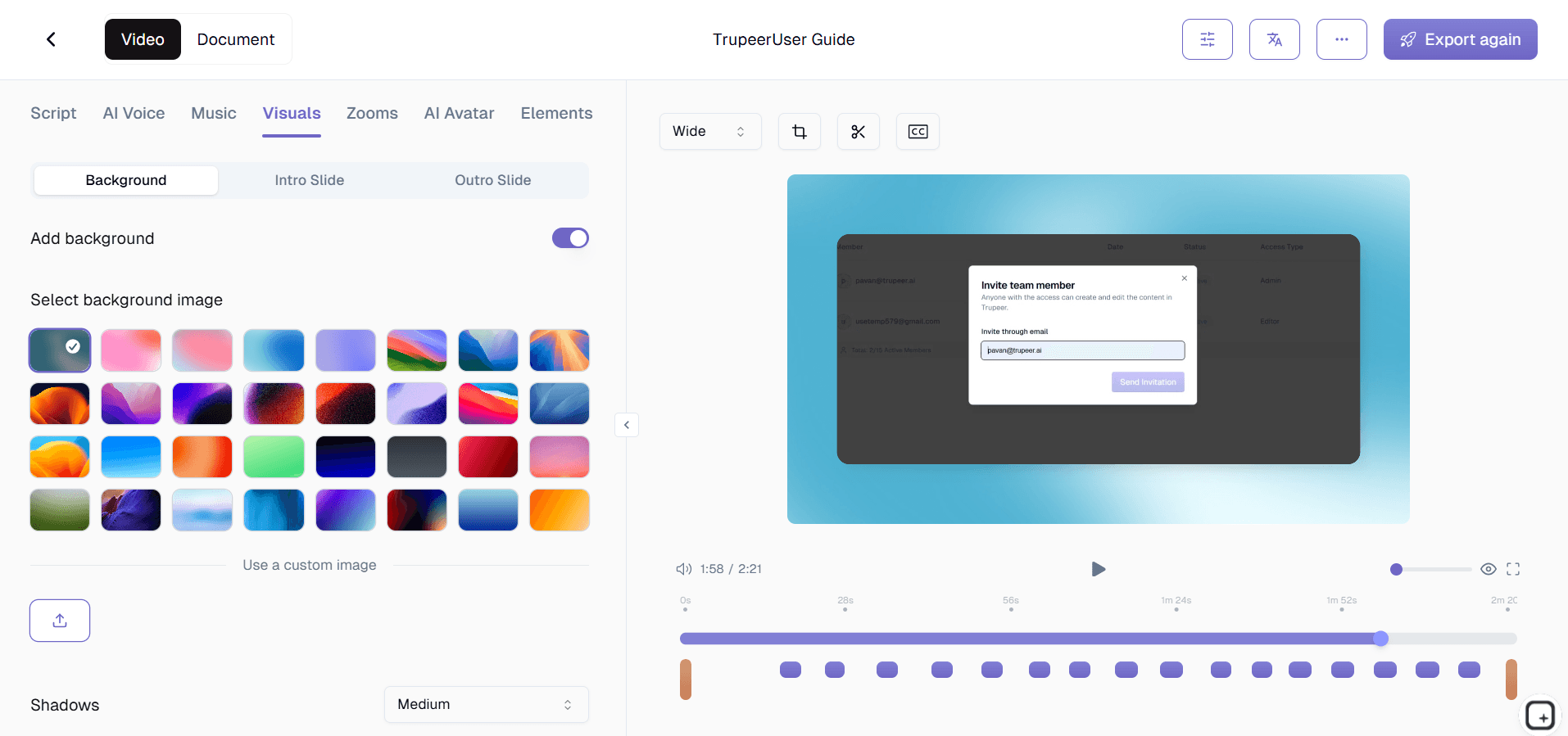
This is the step that disappears. Filler word removal, cursor smoothing, zoom effects, cursor highlights, background noise reduction, brand kit application all run automatically. A draft training video and a draft written training guide arrive in the editor together. The custom glossary catches internal system names, product names, and acronyms the AI wouldn't otherwise spell correctly.
Step 3: Tweak (if you want to) and ship
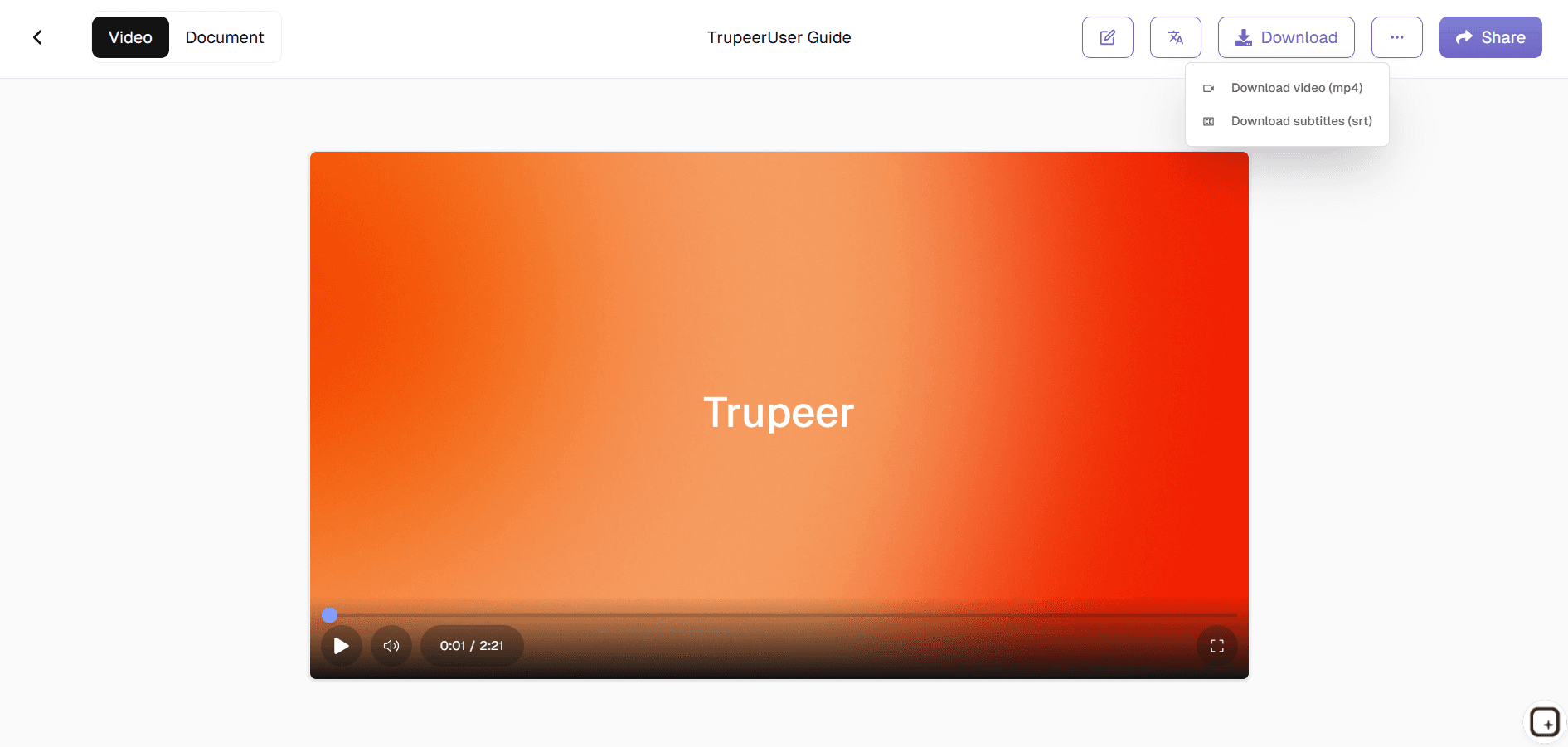
The output is ship-ready by default. The editor view lets you make changes if you want: trim the intro further, adjust which sections to keep, reorder clips, replace the AI voiceover with a different one, swap a screenshot in the written guide. No video editing skills required for any of this; it is drag-and-drop tweaks rather than timeline editing. Then ship the MP4 to the LMS, post the PDF to the help center, or share via a Shared Page link.
Who actually uses training video software with no editor on staff
The person who opens this tool is usually an L&D specialist, an HR business partner, a department head, a product trainer, a customer education lead, or a subject expert who got pulled into producing a training video because they're the only one who actually understands the workflow. None of these people are video editors. Most have other day-jobs that don't include sitting in front of a video timeline. The traditional path (record in Loom, send to the marketing video team, wait three weeks, receive a polished-but-now-irrelevant version back) is what they're trying to skip.
Around them, individual training functions use the same workspace. HR teams produce new-hire onboarding modules. IT teams produce system rollout videos for new platforms (the new HRIS, the new SSO flow, the migration to a new ticketing system). Sales enablement produces product knowledge updates. Customer success produces internal tool training. Customer education produces customer-facing how-to videos. Product education produces feature walkthroughs that ship in app stores and help centers. None of these functions have dedicated video editors on staff. All of them ship training video content anyway.
What "no editing required" doesn't mean
Honest scope: "no editing required" means the post-production work (filler removal, zoom effects, brand kit, color correction) runs automatically. It doesn't mean nothing can be edited. The Trupeer editor still lets you trim sections, reorder content, replace the voiceover, swap screenshots, and edit the written guide that comes alongside the video. The point is that the team can ship without doing any of that work, not that the work is unavailable if you want it. Most training videos go out as-is from the auto-generated draft; some get a 10-minute review pass and a few tweaks before shipping; a small fraction get more involved editing for executive-presentation-grade work.
What Trupeer doesn't do: animation, motion graphics, complex multi-camera editing, broadcast-grade color grading, sound design with custom music libraries, scripted narrative video with cuts between multiple camera angles. Production studios like Camtasia (with TechSmith Audiate), Adobe Premiere with Adobe Captivate, and Final Cut Pro handle that work. Trupeer covers the bulk of internal training video production where the format is "subject expert walks through a screen, narrates what they're doing, and ships," which is where most corporate training video time goes. The same format covers most instructional video work and the broader training material library most L&D teams need to maintain.
Where Trupeer fits next to Camtasia, Loom, ScreenPal, and Synthesia
Camtasia, ScreenPal, and Adobe Captivate are training video creation tools that assume the team has an editor or is willing to become one. Trupeer AI starts where they end. Loom and Vidyard are screen-recording tools that don't auto-edit at all, so what you record is what you ship, filler words and all. Trupeer AI handles the auto-editing layer Loom skips. Synthesia is an AI avatar tool with no screen recording (just avatars delivering scripted content). Trupeer AI offers both: avatars when the team wants that, screen recording when the team wants that, with the same post-production pipeline either way.
For teams currently using Camtasia or Premiere for training video production, the Trupeer workflow drops the editing time per video from 4 to 8 hours down to roughly 5 to 15 minutes of review. For teams currently using Loom, the same recordings that produce unpolished raw videos in Loom produce polished training videos in Trupeer because the editing happens automatically after the recording. In either case, the same training content ships at 4 to 10x the rate, without the team needing to hire a video editor or budget for an agency. Most teams stop searching for a separate training video maker or training video generator once the automatic video editing pipeline runs end-to-end; the AI video editing approach covers the entire workflow they previously stitched together from three or four tools. For broader training program work that spans multiple modules and curriculum design, the AI powered training program generator and the enterprise training video platform cover those shapes of the workflow.
Updates, translation, and the global training team
Training video production doesn't end at first publication. Systems change every quarter, procedures get updated, UIs get refreshed, and the training video shipped six months ago no longer matches what the trainee sees on screen. The traditional update path (re-record entire video, re-edit, re-ship) is expensive enough that most training libraries quietly let videos go stale. Trupeer AI handles updates by re-recording just the changed segment. The AI re-processes only that part, the video and written guide both update in place, and the new version uploads to the LMS as the current revision.
For global training operations, translation runs as part of the same job. The same training video reaches employees in Madrid in Spanish, Mumbai in Hindi, São Paulo in Portuguese, and Berlin in German, from one source recording, in one release cycle. Translation applies to both the video voiceover (using voice cloning when set up) and the written guide, with brand kit and on-screen text carried through. Pairing this no-editing training video creation software with the Trupeer AI SOP builder covers both the training videos and the SOPs that sit underneath them.
Why training teams use Trupeer AI when no editor is available
Auto-editing handles filler words, zoom, and brand kit
Filler word removal, cursor jitter smoothing, zoom and cursor effects, background noise removal, brand kit intro and outro all run automatically. No timeline editing required, no editor on the team.
Two paths to a finished training video
Record a screen walkthrough OR type a script and pick an AI avatar. Both routes produce the same polished MP4 plus written guide. Pick whichever fits the subject expert and the moment.
Output ships to any LMS or help center
Video as MP4, document as PDF or Word, both ready to upload to Cornerstone, Docebo, TalentLMS, Workday Learning, or any LMS that accepts MP4. Shared Page links for everything outside the LMS.
Create training videos in three steps without editing
Step 1
Record the walkthrough or type a script for an AI avatar
Step 2
Trupeer AI does the editing automatically (filler words, zoom, brand kit)
Step 3
Tweak if you want to, then ship to the LMS or Shared Page
Frequently Asked Questions
Is the training video creation software actually free to use?
Yes for the core flow. Record a walkthrough or use an AI avatar, generate the auto-edited video plus written guide, share via a Shared Page link without paying. Paid tiers add brand kits, custom voice cloning, AI avatars from the full catalog, team workspaces, translation across 65+ languages, knowledge base visibility controls, and longer recording limits. Pricing details on the pricing page.
What does "no editing required" actually mean?
It means the post-production work (filler word removal, cursor jitter smoothing, zoom and cursor effects, background noise removal, brand kit intro and outro application) runs automatically when the recording is processed. The output draft is ship-ready. The Trupeer editor still lets you trim, reorder, swap screenshots, or replace the voiceover if you want to make changes, but you can ship the auto-generated draft without touching the editor at all. Most teams ship the auto-generated draft as-is for the majority of their training videos.
Can I skip recording entirely and use an AI avatar?
Yes. Type a script and pick an AI avatar from the catalog. The avatar delivers the training as a talking-head video. No camera, no microphone, no recording session. Custom avatars trained on a specific person's likeness are available via the HeyGen integration, useful when the company wants a consistent presenter face across the training library.
How does this compare to Camtasia, Loom, ScreenPal, or Synthesia?
Camtasia and ScreenPal are training video creation tools that assume the team has a video editor or is willing to become one. Trupeer AI starts where they end by handling the editing automatically. Loom and Vidyard record screens but don't auto-edit, so what you record is what you ship. Trupeer AI handles the auto-editing layer Loom skips. Synthesia is AI avatars only (no screen recording). Trupeer AI does both screen recording and AI avatars with the same automatic editing pipeline.
Can the auto-editor handle multi-camera, animation, or motion graphics work?
No. Trupeer AI doesn't handle complex multi-camera editing, motion graphics, custom animation, broadcast-grade color grading, or sound design with custom music libraries. Production tools like Adobe Premiere, Final Cut Pro, and DaVinci Resolve handle that work. Trupeer AI covers the format that the majority of internal training video production uses (subject expert walks through a screen, narrates what they're doing, ships).
More Tools


