Trupeer Blog
Synthesia Alternatives for Enterprise L&D and Presales Teams

Enterprise Learning and Development (L&D) and presales teams often require more than what Synthesia's AI avatar video generation can offer. The stakes are high when you're trying to communicate complex information in a compelling way. A typical enterprise might need to train employees across multiple locations or engage prospects with tailored product demos. A single tool that doesn't provide flexibility in editing, localization, or integration might not cut it. According to a
recent survey, 76% of enterprises reported that their L&D strategies include some form of video content
, but only 43% felt their current tools met all their needs. This gap highlights a critical need for solutions that go beyond just avatar video creation. Teams need tools that can offer detailed screen recordings, customizable video assets, and integration capabilities that align with their specific workflow requirements. As we explore some synthesia alternatives, we'll see what features are essential for these enterprise functions and how they can truly enhance productivity and engagement.
Why does Synthesia alternative enterprise matter?
For enterprise L&D and presales teams, the ability to deliver clear, engaging, and informative content is crucial. You need to ensure that your message is not only received but understood and retained. Unfortunately, Synthesia's primary focus on AI avatars often misses the mark the comprehensive needs of these teams. For example, presales teams often need to showcase complex product features through detailed screen recordings that Synthesia doesn't provide. Pre sales use case scenarios demand tools that offer more than just avatars; they require capabilities like auto-zoom and click detection to highlight critical interactions within the software being demonstrated.
L&D teams, on the other hand, frequently deal with the challenge of training employees across different departments and geographies. Synthesia's tools can feel limited here, as these teams often require multi-format exports, SOP generation, and localized content that can be tailored to various learning styles. These deficiencies can lead to reduced effectiveness in training programs and potential lapses in employee performance. Therefore, finding the right Synthesia alternative isn't just about filling a gap; it's about enabling teams to deliver content that truly resonates with its audience.
What are the benefits of Synthesia alternatives?
Choosing the right Synthesia alternative can significantly impact how effectively your L&D and presales teams operate. Here are some concrete benefits:
Comprehensive Capture Options. Tools that offer detailed screen recording with auto-zoom and click detection can dramatically increase the clarity of your instructional content, leading to better understanding and retention.
Advanced Editing Features. Alternatives that provide automatic filler-word removal and AI voiceovers can help you produce polished content faster, reducing editing time by up to 30%.
Localization Capabilities. With AI translation into 40+ languages, you can ensure your content is accessible to a global audience, enhancing engagement and comprehension.
Multi-Format Export. The ability to export content as MP4, HTML, PDF, or SCORM enhances flexibility, allowing you to distribute materials across various platforms smoothly.
Enhanced Integration. Integration with existing systems like HeyGen for custom avatars can enrich your content, providing a more personalized experience for your audience.
Improved Analytics. Viewer engagement analytics and heatmaps can provide valuable insights, allowing you to refine your content strategy and improve effectiveness based on real data.
For a deeper look, our guide on pendo alternatives enterprise covers the adjacent playbook.
Teams ship this workflow end-to-end using Trupeer's AI video platform, which turns raw recordings into polished output without an editor.
Which Trupeer features help you deliver enterprise L&D and presales content?
Trupeer offers a suite of features specifically designed to support the needs of enterprise L&D and presales teams. Here's how these features can enhance your workflows:
AI Screen Recording with Auto-Zoom and Click Detection
This feature is crucial for creating detailed and interactive product demos. By automatically zooming into areas of interest and detecting clicks, Trupeer ensures that every critical interaction is captured clearly. This can be particularly beneficial in best screen recording tool scenarios where understanding specific software functionalities is necessary for presales success. You'll be able to create walkthroughs that are not only visually engaging but also informative, leading to better client understanding and engagement.
AI Voiceover in 65+ Natural Voices
Trupeer's AI voiceover capabilities allow you to produce content with professional narration, choosing from over 65+ natural voices. You can adjust the pace and tone to suit your audience, creating a more personalized and engaging experience. This feature is particularly useful when you need to produce training materials that require a more human touch, making it an excellent fit for auto-generated documentation scenarios.
Automatic SOP Generation from Any Recording
Trupeer's ability to generate SOPs automatically from your recordings can save L&D teams significant time and effort. Instead of manually transcribing and formatting training materials, you can rely on Trupeer to create edit-ready documentation. This ensures consistency across your training materials and allows for easy updates as processes change. In scenarios where AI-searchable knowledge base capabilities are needed, this feature ensures your documentation is always accurate and up-to-date.
AI Avatars and Talking-Head Videos
With a library of stock avatars and the ability to create custom avatars, Trupeer offers a flexible solution for creating personalized video content. This feature is particularly useful for L&D teams looking to engage employees with relatable and visually appealing content. Custom avatars can humanize your training materials, making complex topics more digestible and relatable. This aligns well with best screen recording tool scenarios where personalized content can significantly enhance learning outcomes.
AI Translation and Dubbing
Trupeer's translation and dubbing features ensure your content reaches a global audience effectively. You can translate content into over 40 languages with lip-sync capabilities, ensuring that non-English-speaking audiences receive the same quality experience. This feature is essential for enterprises operating in multilingual environments and looking to maintain consistency across diverse markets. The best screen recording tool capabilities of Trupeer make it a versatile option for enterprises aiming to deliver localized content smoothly.
How do you create enterprise L&D and presales content step by step with Trupeer?
Step 1: Set Up Screen Recording
Begin by launching the Trupeer browser-based recorder. This tool requires no installation, making it quick and easy to access. Click the “Start Recording” button to initiate the screen capture. Trupeer's AI screen recording with auto-zoom and click detection is particularly effective here. As you navigate through your demo or training material, Trupeer will automatically highlight areas of interest by zooming in and detecting clicks, ensuring that your viewers can follow along with ease. This automated focus eliminates the need for post-production edits, saving significant time.

Step 2: Add AI Voiceover
Once your recording is complete, use Trupeer’s AI voiceover feature to add narration to your video. Choose from over 65+ natural voices, adjusting the pace and tone to suit your audience. This feature is perfect for making your content more engaging and accessible. To add a voiceover, click on the "Voiceover" tab in the editing menu, select your preferred voice, and apply it to your recording. This step typically takes a few minutes, transforming your silent screen capture into a dynamic learning or presales tool.

Step 3: Generate Automatic SOPs
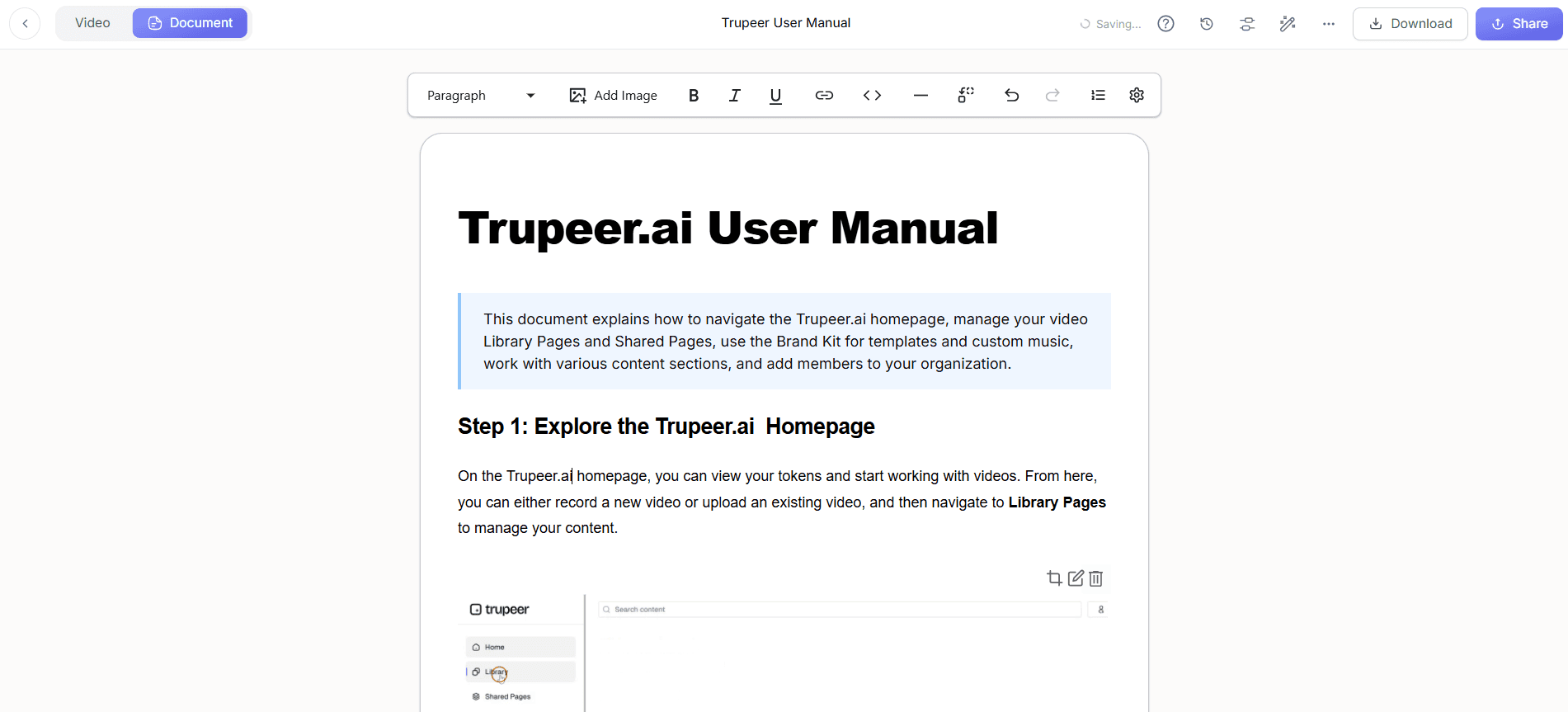
Trupeer allows you to generate Standard Operating Procedures (SOPs) automatically from your video recordings. After completing your video, navigate to the "SOP Generation" section. Click “Create SOP” and Trupeer will convert your recording into edit-ready documentation. This feature is incredibly useful for L&D teams looking to maintain consistent training materials. The generated SOP can be exported in various formats, such as PDF or HTML, making it easy to share across your organization. This step simplifies documentation creation, turning hours of work into minutes.
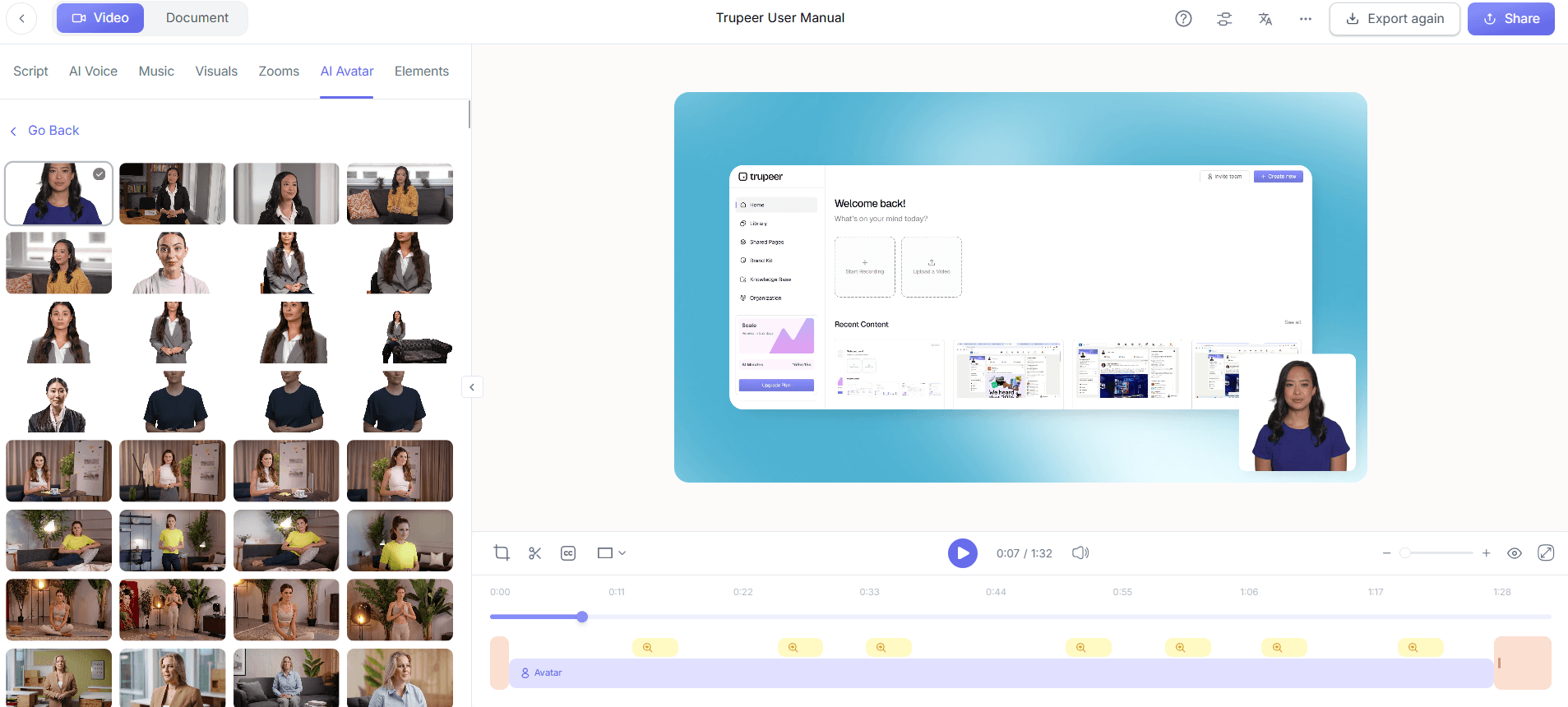
Step 4: Incorporate AI Avatars
To add a personalized touch to your video, use Trupeer’s AI avatars. Access the avatar library from the editing menu, where you can choose from stock avatars or create custom ones. Click on your chosen avatar to insert it into your video, positioning it as needed. This feature humanizes your content, making complex concepts more relatable. Whether training employees or engaging prospects, avatars can enhance viewer connection and retention, turning static content into a more interactive experience. Teams weighing tools often start with a Loom alternatives comparison before standardizing on a workflow.
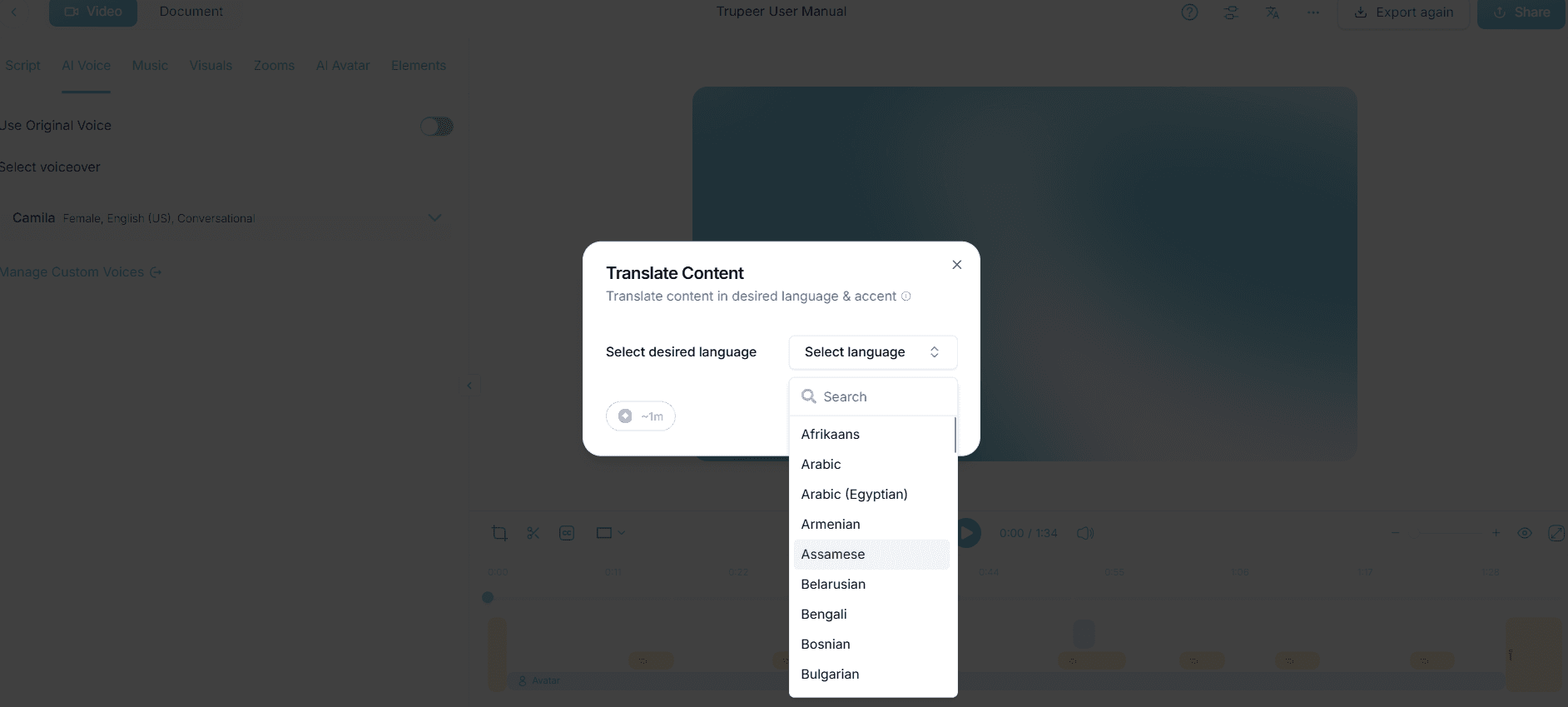
Step 5: Translate and Localize Content
For enterprises operating in multilingual environments, Trupeer's AI translation and dubbing capabilities are invaluable. After completing your video, go to the "Localization" tab and select the languages needed. Trupeer supports translation into over 40 languages, ensuring your content is accessible globally. This includes lip-sync capabilities, so the dubbed audio matches the video smoothly. Localization not only broadens your reach but also ensures compliance with local language requirements, making your content relevant in diverse markets.
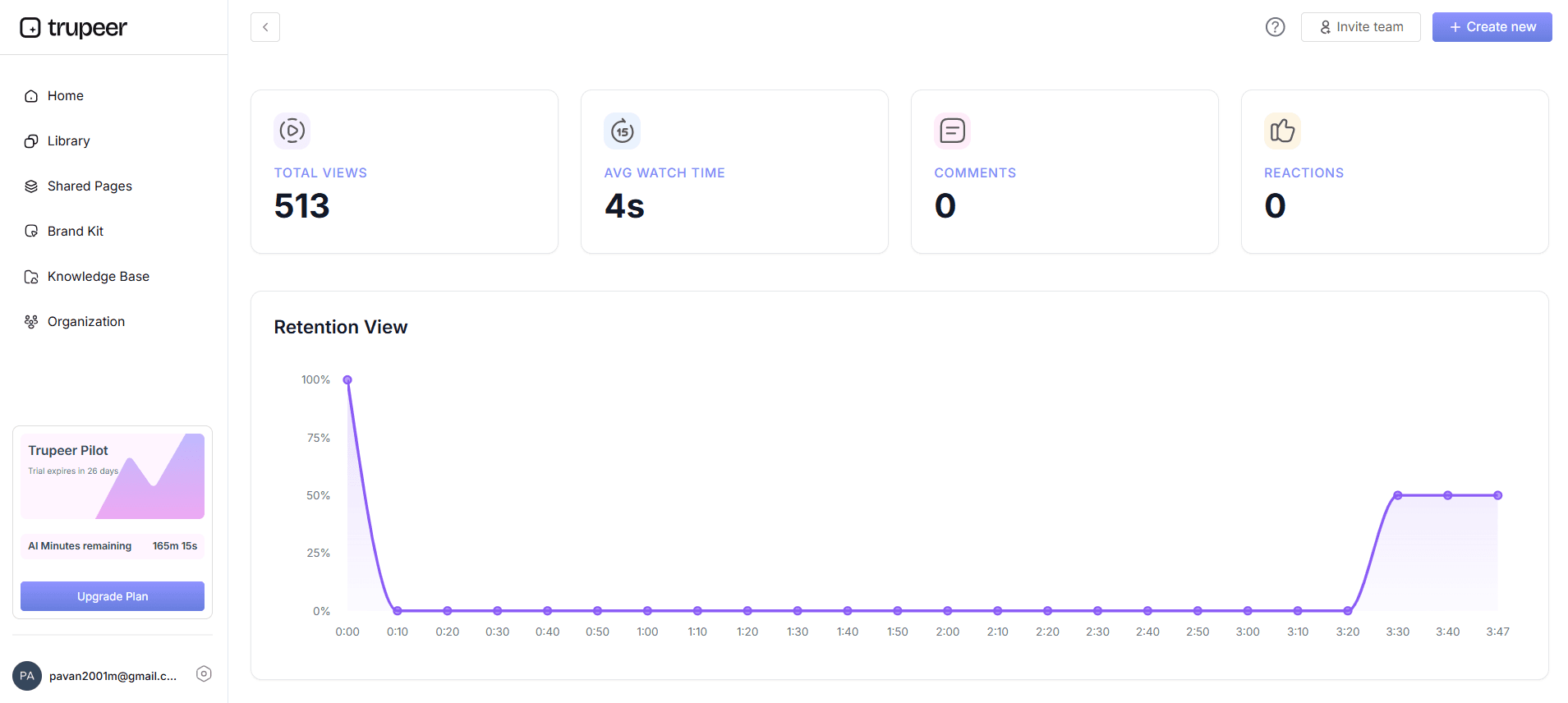
Step 6: Analyze Viewer Engagement
Once your content is ready and distributed, it's crucial to understand how it performs. Use Trupeer's analytics tools to track viewer engagement. Click on the "Analytics" dashboard to view metrics such as completion rates, drop-off points, and heatmaps. These insights allow you to refine your content strategy, ensuring it meets your audience's needs effectively. Understanding viewer behavior can guide future content development, enhancing both the impact and effectiveness of your L&D and presales initiatives.
What tips help you deliver enterprise L&D and presales content?
Creating effective L&D and presales content requires strategic planning and execution. Here are some practical tips to enhance your video creation process with Trupeer:
Plan Your Content. Outline the key points and objectives before recording. This ensures your video stays focused and informative.
Use Consistent Branding. Apply brand kits and templates available in Trupeer to maintain a consistent visual style across all content.
Engage with Avatars. Incorporate AI avatars to make content relatable and memorable, improving viewer retention and understanding.
Optimize for Mobile. Ensure your videos are accessible on mobile devices, catering to on-the-go learning and engagement.
use Analytics. Use engagement analytics to refine your content strategy, focusing on what resonates most with your audience.
Standardize Procedures. Automatically generate SOPs to maintain consistency in training materials, reducing the workload on your team.
Explore Alternatives. Consider Scribe alternatives for SOPs to ensure you're using the most effective tools for your needs.
Frequently asked questions
How do I start a screen recording with Trupeer?
To begin a screen recording with Trupeer, navigate to the browser-based recorder and click "Start Recording". This tool requires no installation and is instantly accessible upon login. Trupeer's AI screen recording captures your screen with auto-zoom and click detection, ensuring key interactions are highlighted automatically. You'll be able to produce high-quality videos without extensive post-editing, making it perfect for both presales demos and L&D content.
What languages does Trupeer support for translation?
Trupeer supports translation into over 40 languages, making it ideal for enterprises with global operations. The AI translation feature includes lip-sync capabilities, ensuring dubbed content aligns perfectly with the original video. This function is crucial for delivering localized training and presales content that meets local market needs, enhancing comprehension and engagement for non-English-speaking audiences. ai/translation">AI video translation capabilities.
Can Trupeer generate documentation from videos?
Yes, Trupeer can automatically generate documentation from your video recordings. This feature, known as SOP Generation, converts your content into edit-ready formats like PDF or HTML. It's particularly beneficial for L&D teams needing to maintain up-to-date training materials without manual transcription. This capability saves time and ensures consistency, making it a powerful tool for simplifying documentation processes across enterprise environments.
Is Trupeer suitable for presales teams?
Absolutely, Trupeer is well-suited for presales teams needing to create engaging and detailed product demos. Its AI screen recording with auto-zoom and click detection highlights critical software features, while AI voiceover adds professional narration to your presentations. These capabilities help presales teams deliver clear, compelling demos that capture potential clients' interest, ultimately boosting conversion rates and sales performance.
Does Trupeer offer analytics for video performance?
Yes, Trupeer provides comprehensive analytics tools that track viewer engagement metrics such as completion rates, drop-off points, and heatmaps. These insights allow you to understand how your content is performing and identify areas for improvement. By using this data, you can refine your content strategy to better meet the needs of your audience, enhancing both the effectiveness and impact of your L&D and presales initiatives.


