
How To Integrate ClickUp With Teams
Discover how to seamlessly integrate ClickUp with Teams to enhance collaboration and productivity. Unlock the full potential of your workflow today.
This document outlines the process of integrating Click Up with Microsoft Teams. By following these steps, users will be able to connect the two platforms efficiently, enabling seamless collaboration and productivity enhancements.
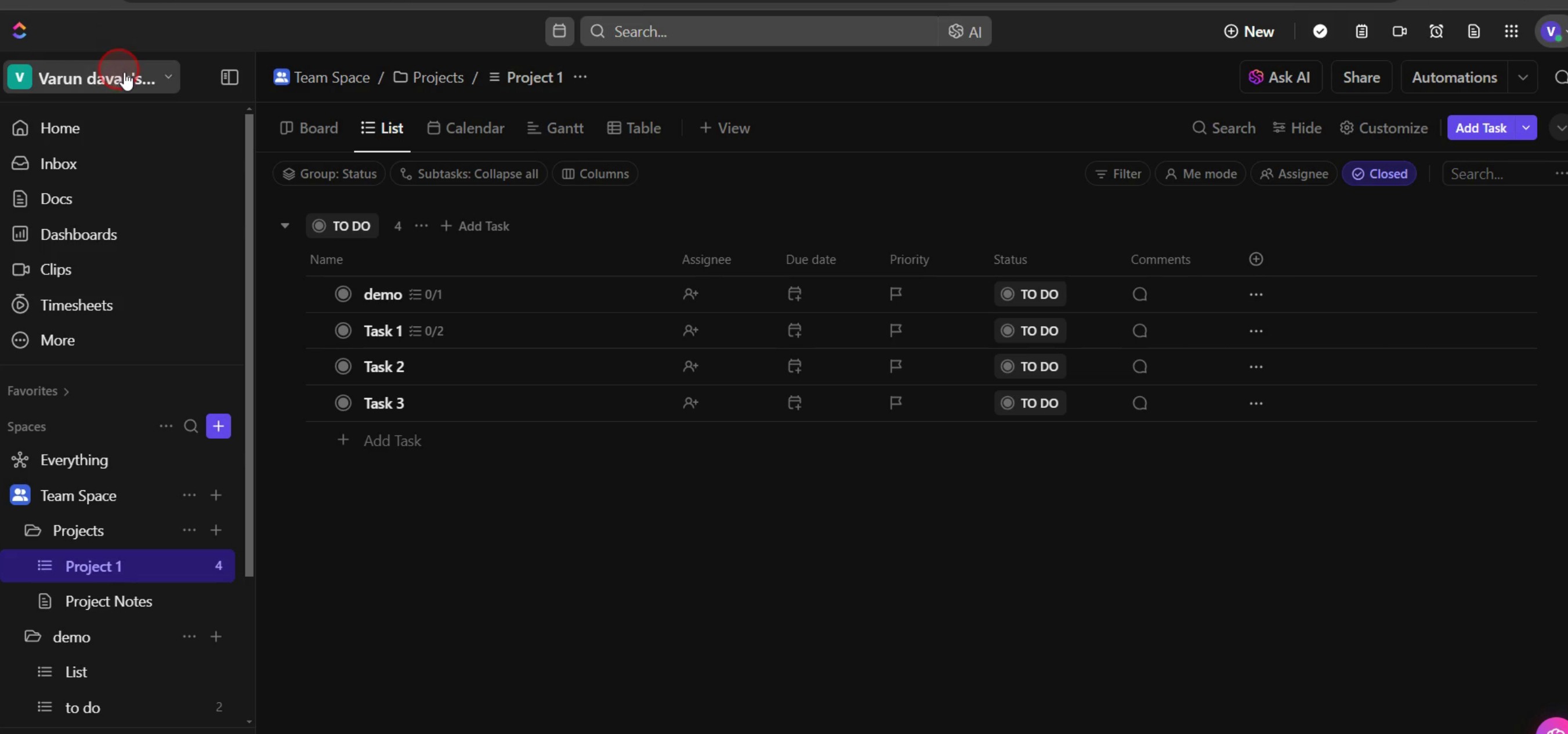
Step 1
Locate and select the workspace name within Click Up.
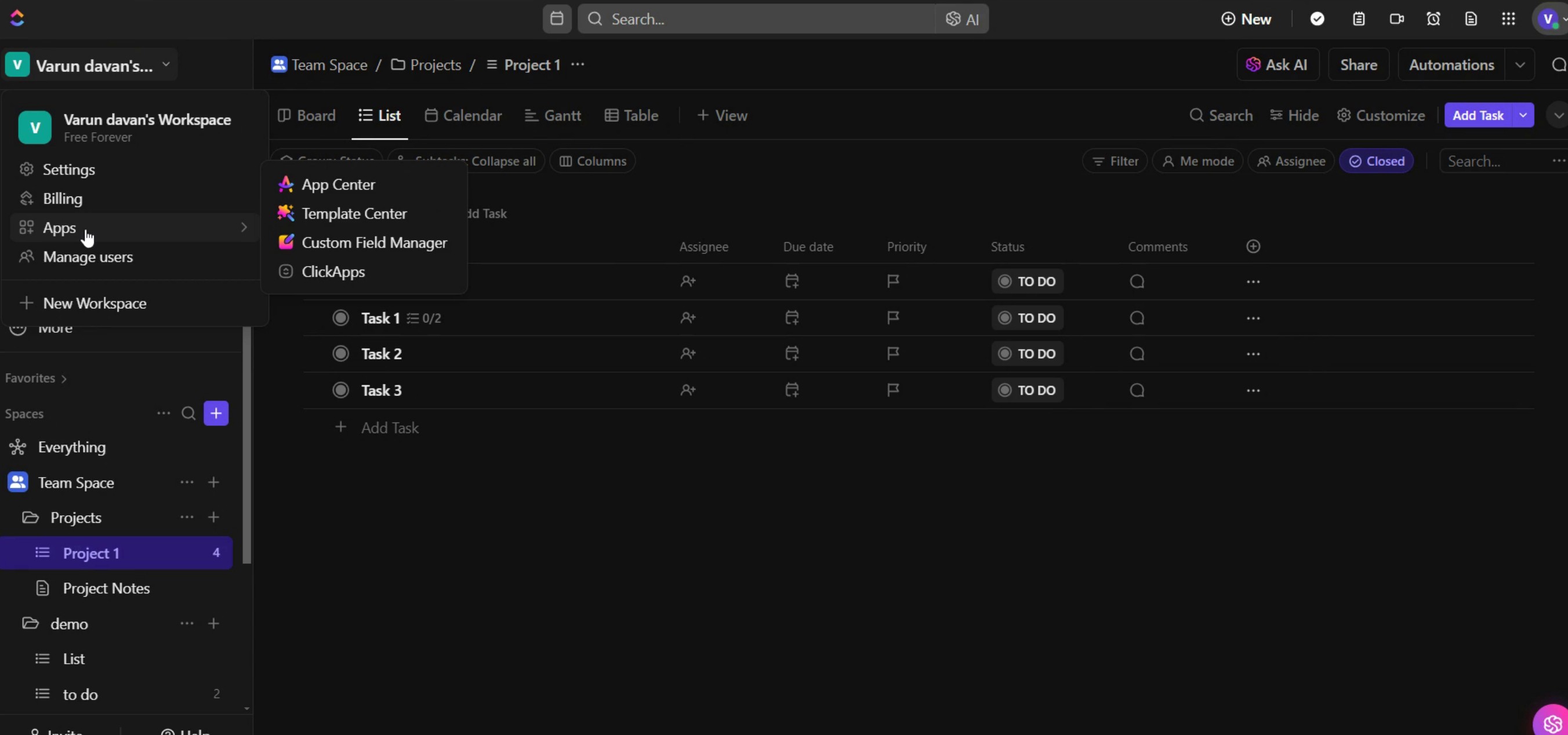
Step 2
Select the Apps,
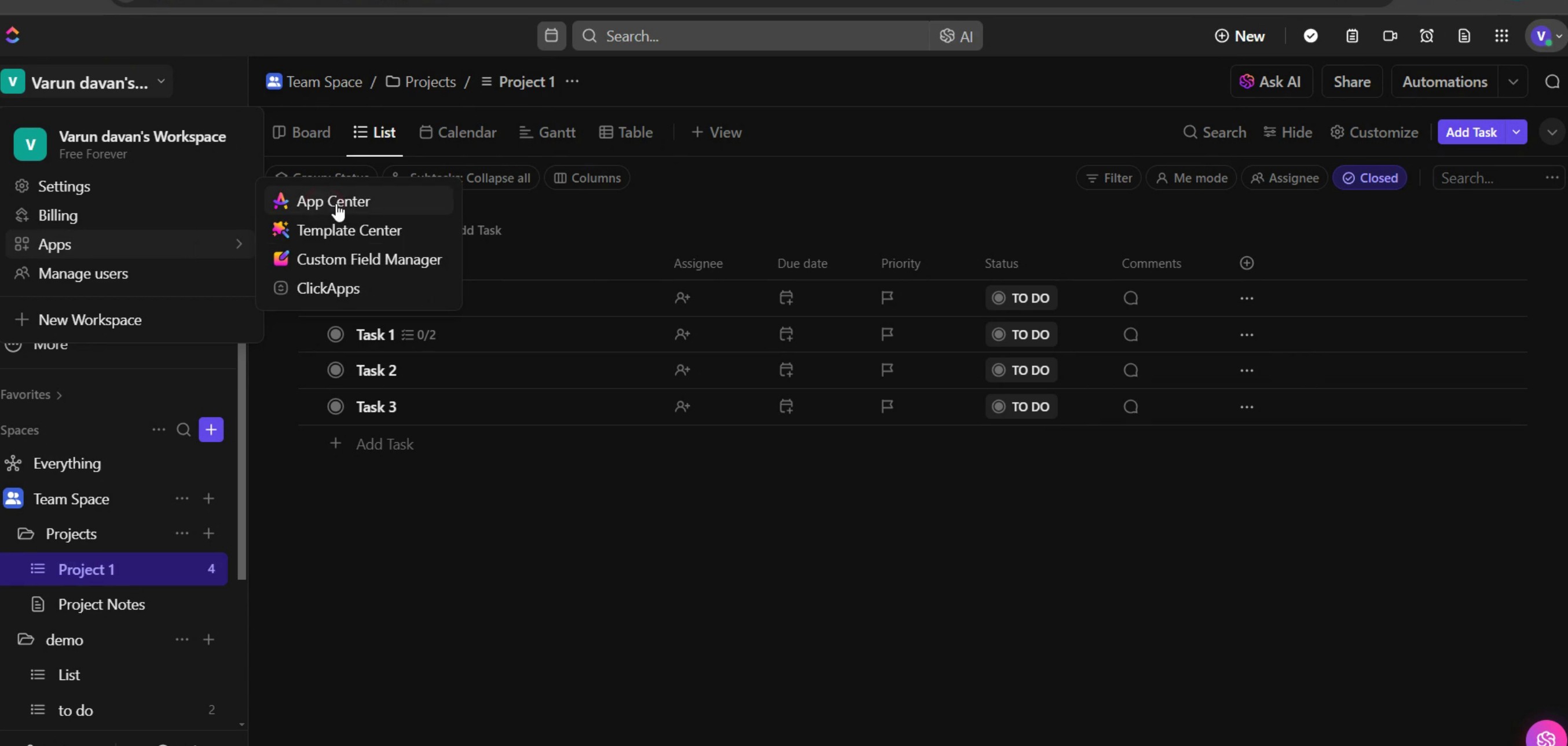
Step 3
Click on App Center.
Step 4
Select the Microsoft Teams.
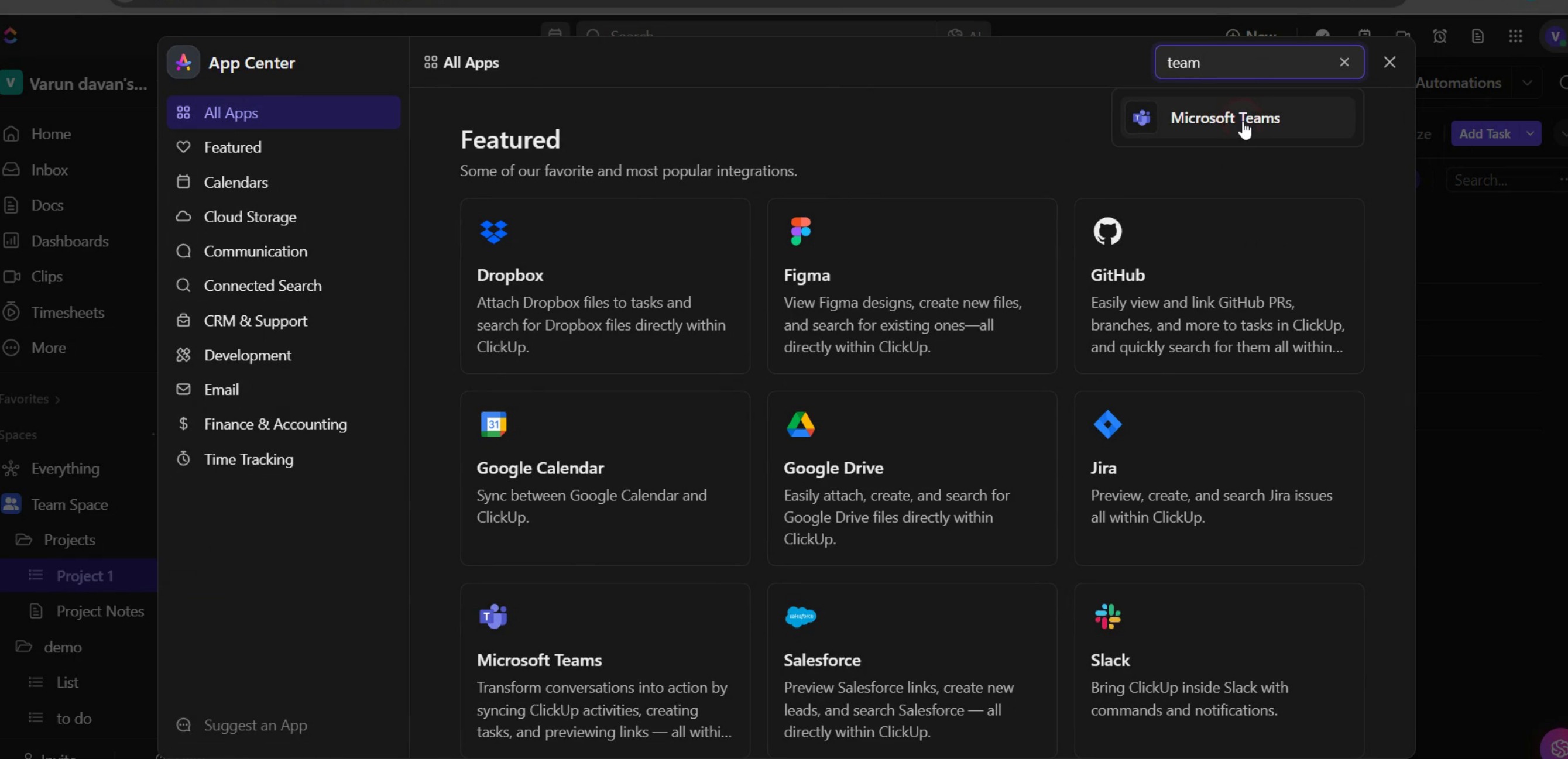
Step 5
Then, click on the Connect option to initiate the integration process.
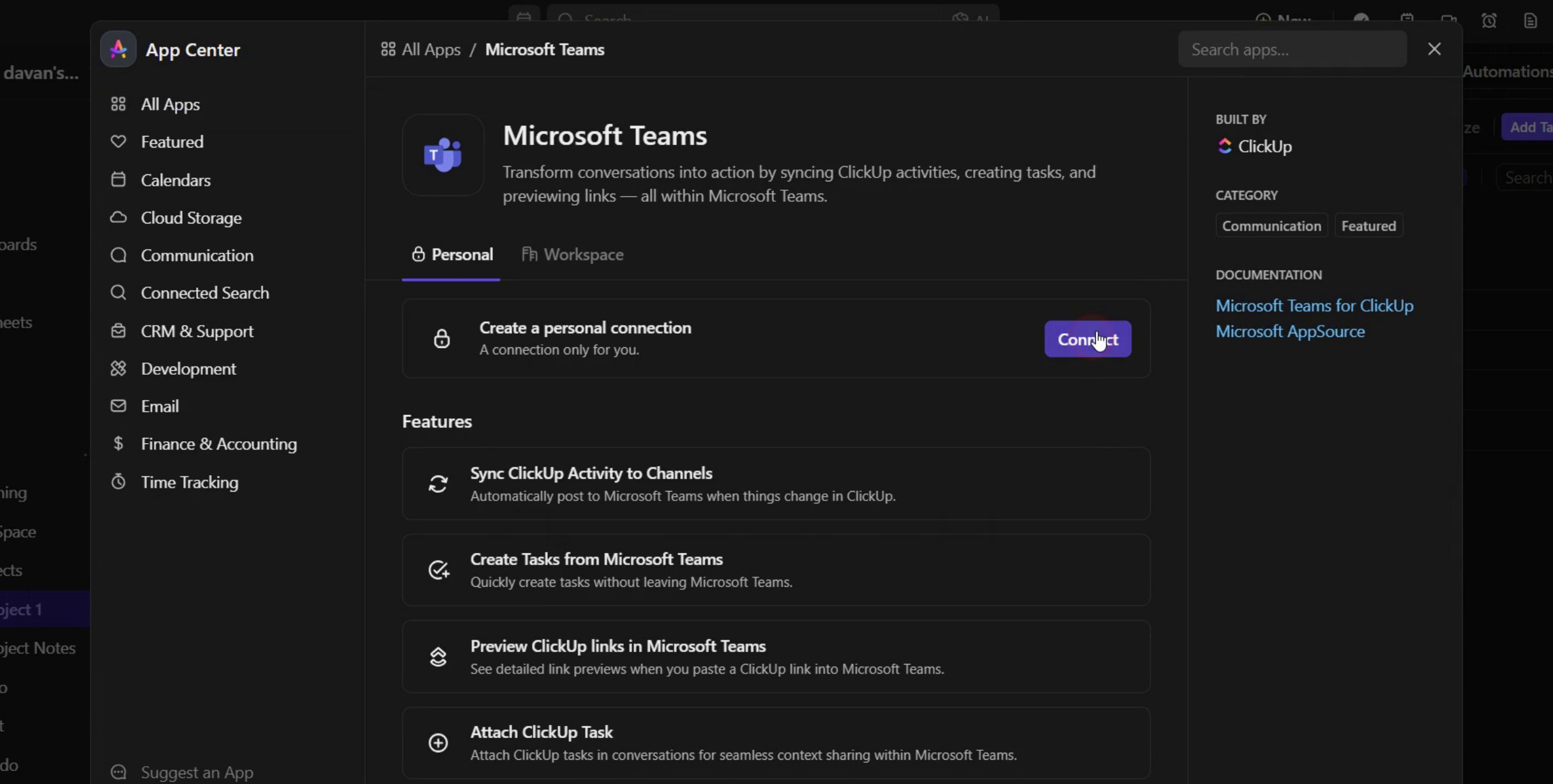
Step 6
In the Microsoft Teams sign-in window, enter your email ID and click on Next to proceed.
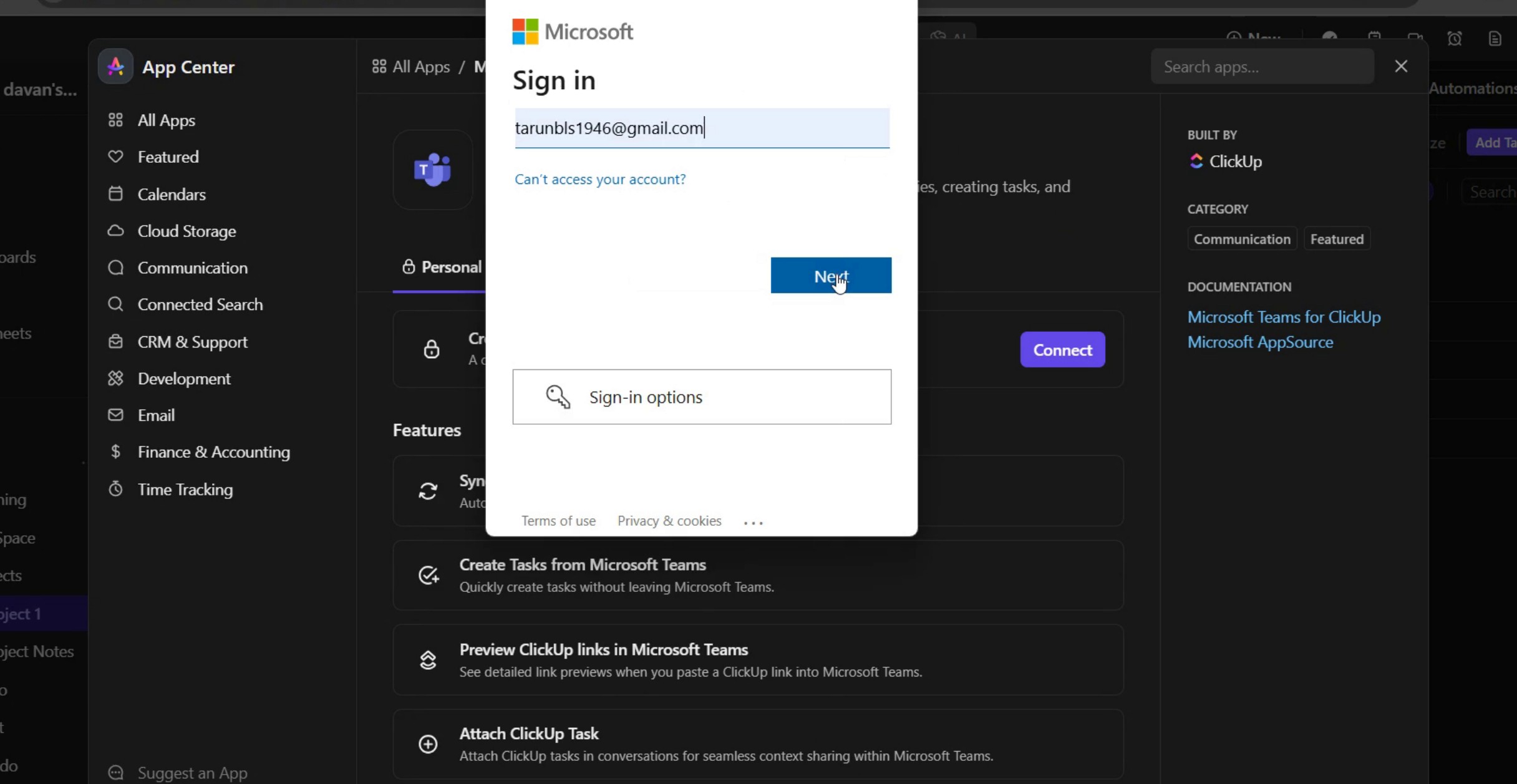
This is the step-by-step process to integrate Click Up with Teams. Let’s look at some tips for it.
Pro tips for integrating Click Up with Teams
Use the Click Up app for Teams – Install the Click Up app in Microsoft Teams to access tasks, notifications, and updates directly within your Teams workspace.
Enable real-time notifications – Set up Click Up notifications in Teams to keep your team updated on task progress, comments, and deadlines without switching apps.
Link Click Up tasks to Teams conversations – Share Click Up task links in Teams chats to provide context and improve collaboration within discussions.
Common pitfalls & how to avoid them
Not granting necessary permissions can block Click Up from syncing with Teams, so ensure the right permissions are enabled in both platforms.
Ignoring notification settings may lead to missed updates, so customize Click Up notifications in Teams to receive only relevant alerts.
Forgetting to map projects correctly can result in confusion, so always link the right Click Up spaces and projects to the appropriate Teams channels.
Common FAQs about integrating Click Up with Teams
Can i create Click Up tasks directly from Teams?
Yes, you can create tasks directly from Teams conversations using the Click Up integration by selecting Create Task in the app.Does Click Up integration work on all Microsoft Teams plans?
Yes, Click Up can be integrated with any Microsoft Teams plan, but advanced features may require a paid Click Up subscription.How do i customize Click Up notifications in Teams?
Go to Click Up settings, navigate to notifications, and adjust what updates should be sent to your Teams channels or direct messages.Can i view Click Up tasks inside Teams without leaving the app?
Yes, the Click Up integration allows you to view and update tasks directly within Teams without switching between platforms.
If you're an instructor or content creator looking to make tutorial videos, give a try. It transforms rough screen recordings into polished, studio-style videos that are ready for sharing with your audience. Plus, it automatically generates a step-by-step guide based on the video you create. Fascinating, right? Start by creating your first tutorial for free with trupeer.ai .

