
How to Embed PDF in Notion
Learn how to embed a PDF file in Notion with ease. This guide walks you through uploading, linking, and displaying PDFs directly in your Notion workspace
Here's a more detailed breakdown:
1. Open the Notion page: Navigate to the page where you want to embed the PDF.
2. Add a PDF block:
Type / to open the block menu. Type PDF or Embed and select the PDF block option. Alternatively, you can type /embed to add an embed block, which also works for PDFs.
3. Choose your PDF:
Upload: If the PDF is on your computer, click "Upload" and select the file. Embed Link: If the PDF is online, click "Embed link" and paste the PDF's URL.
Step-by-Step-Guide: How to Embed PDF in Notion
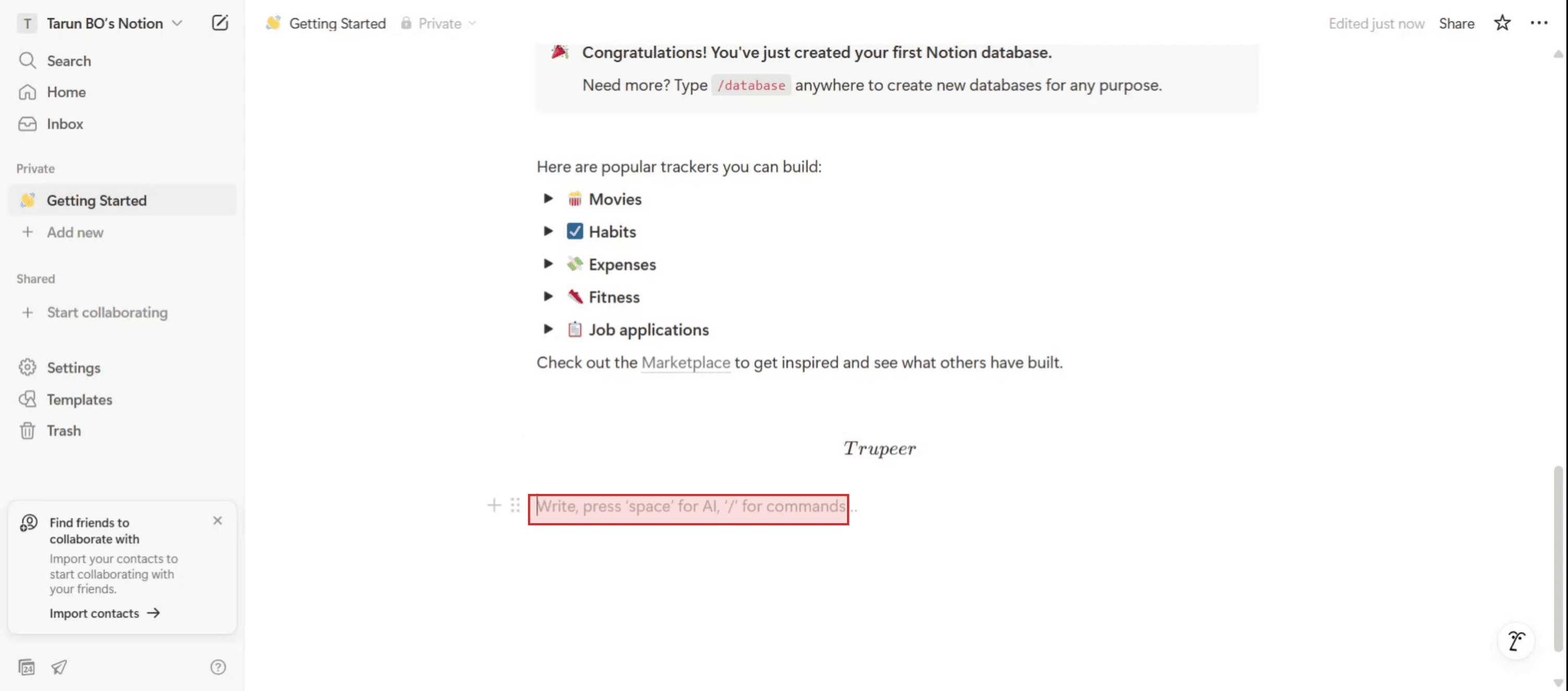
Step 1
From the keyboard, type a slash ("/") followed by the word "PDF".
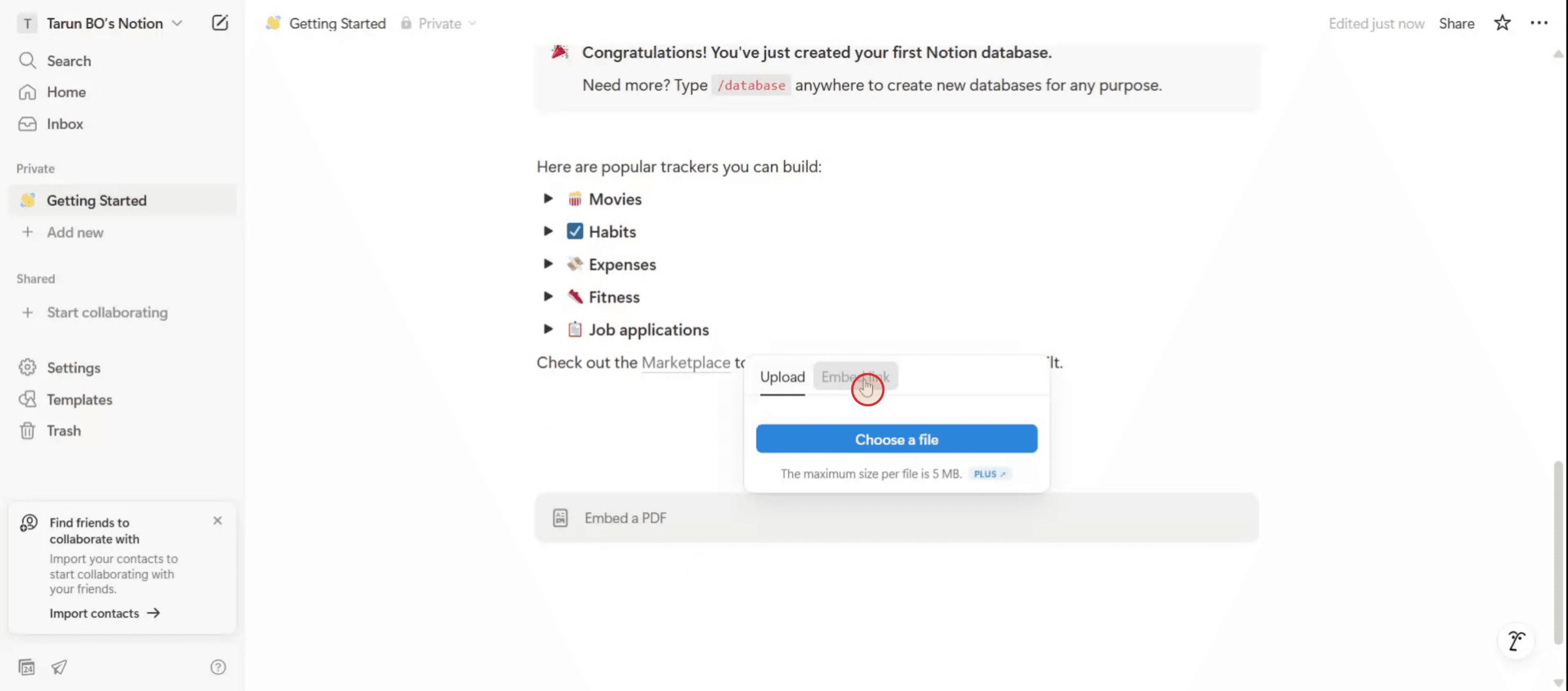
Step 2
Select the Embed Link option.
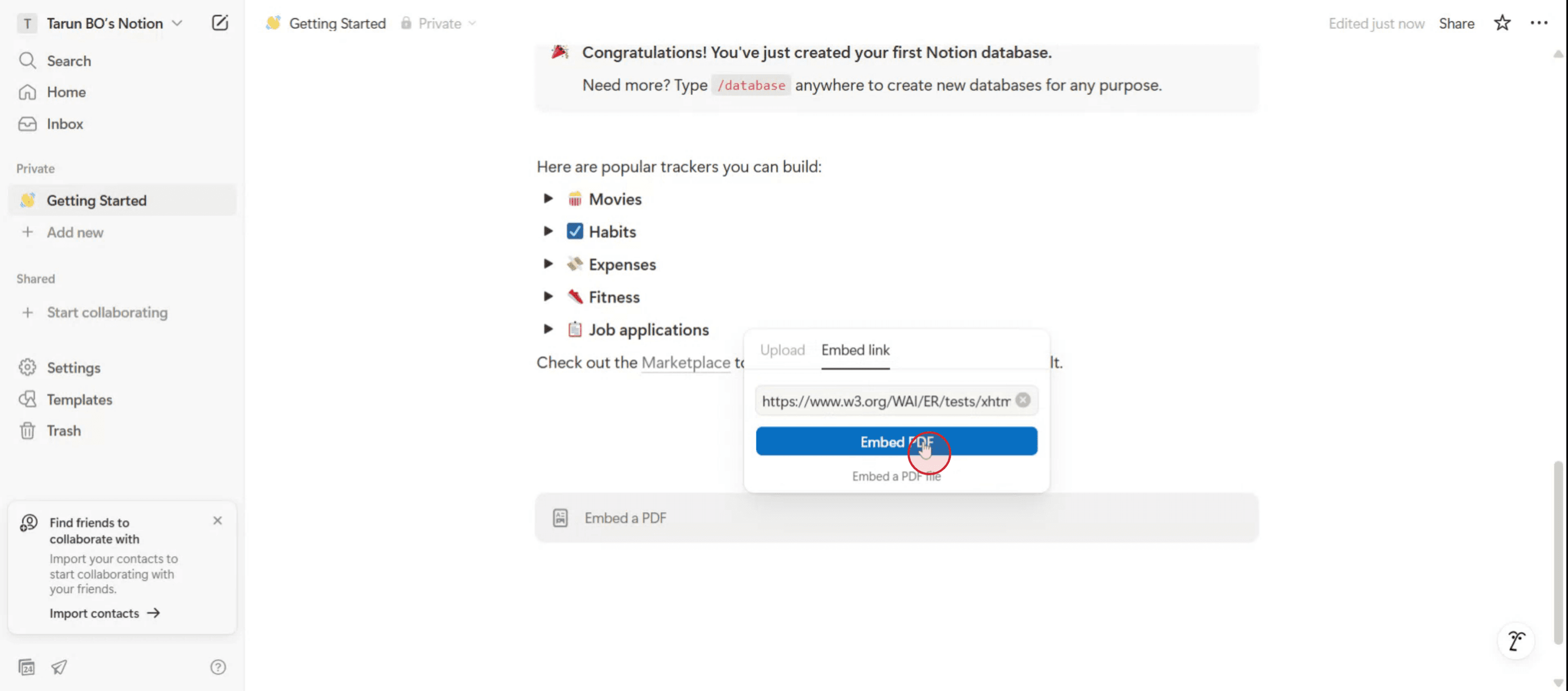
Step 3
After entering the link, click on the Embed PDF option.
Step 4
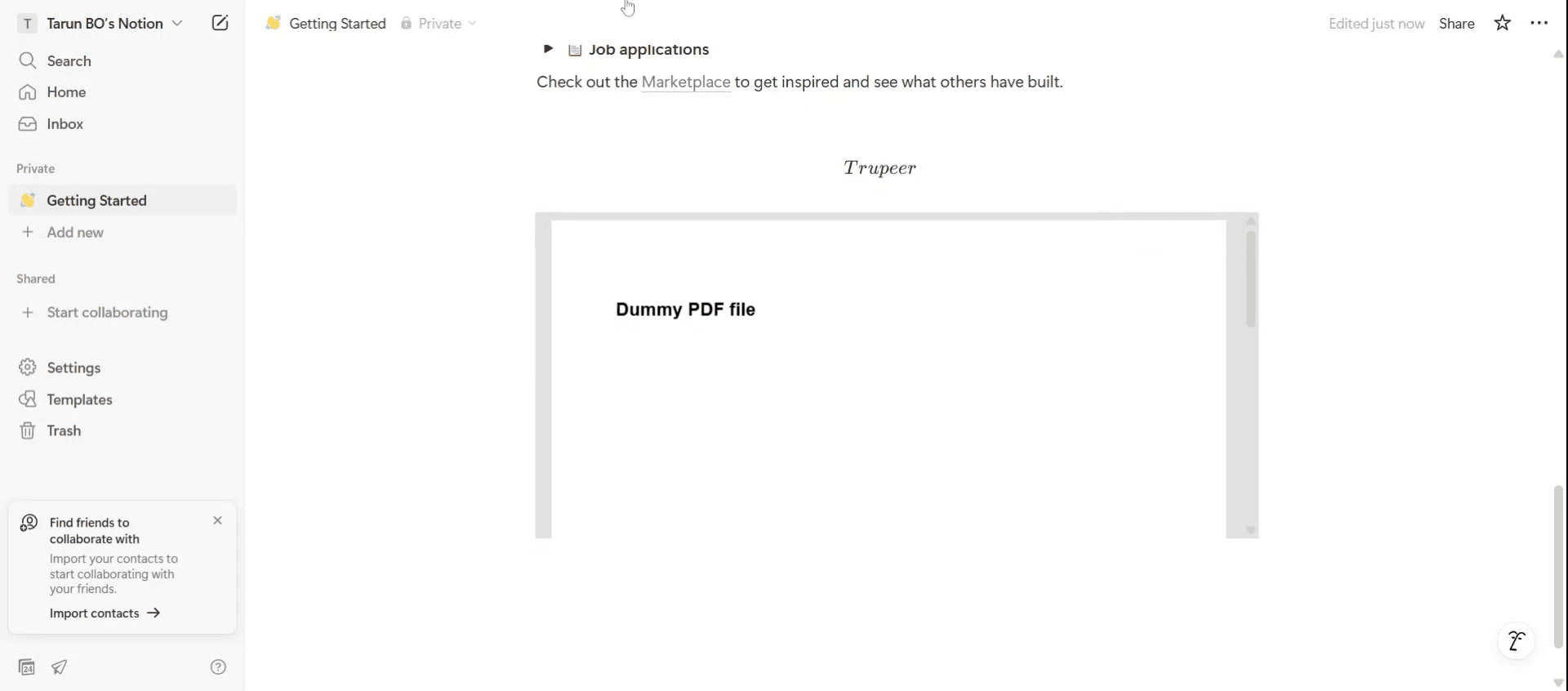
The PDF will now be embedded into your Notion page.
関連チュートリアル


